Quotation List
- In construction management, precision is not just a measure; it is the cornerstone of success.
- Every nail, every beam, and every decision must align with the blueprint of excellence to build a foundation that withstands the test of time.
- In the intricate dance of schedules and resources, effective communication emerges as the scaffolding that supports the seamless construction of a successful project.
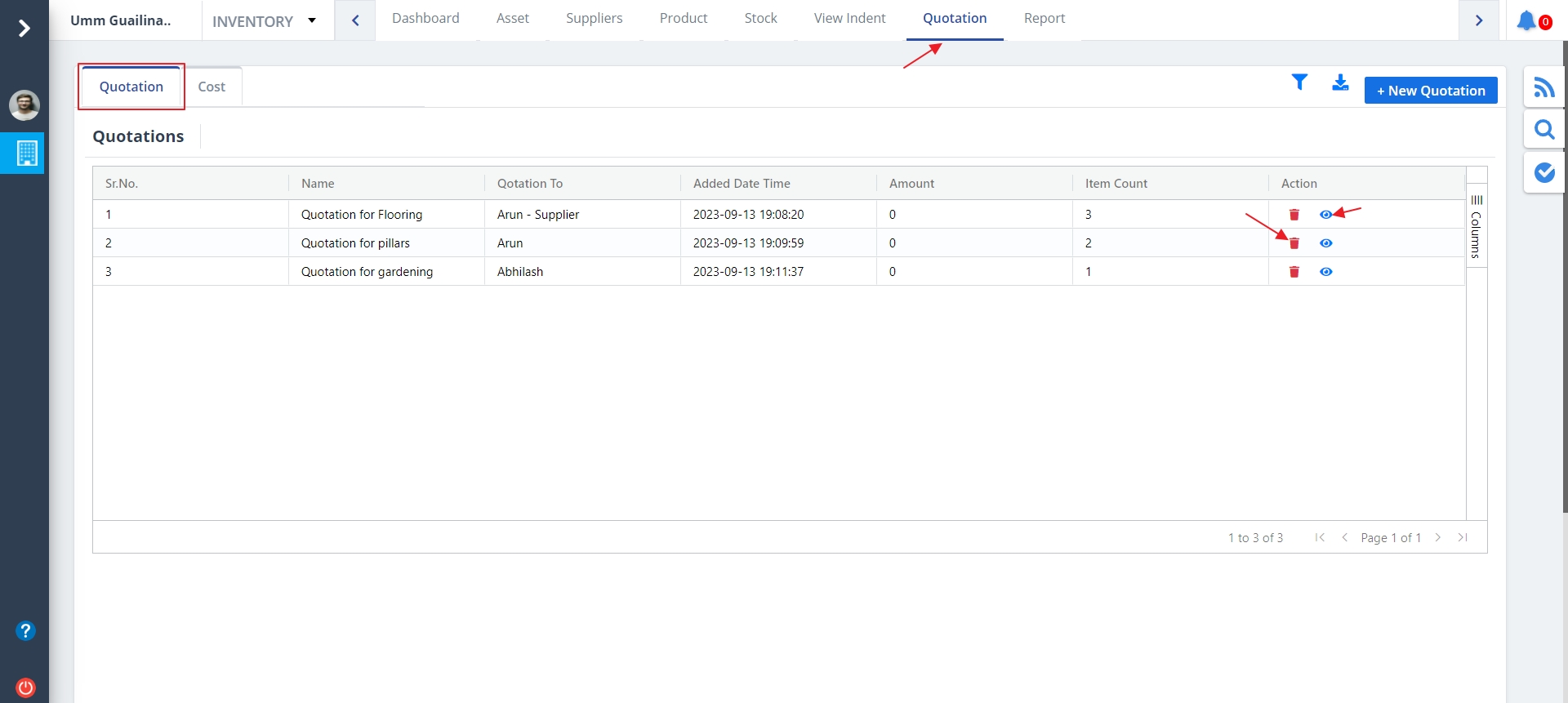
- There are 2 tabs when you come across Quotation namely; Quotation and Cost.
- By default Quotation tab is selected. Entire details regarding the Quotation will be shown.
- You can delete a particular quotation by clicking on Delete as shown.
- The Eye button next to Delete shows the Quotation item details as discussed below.
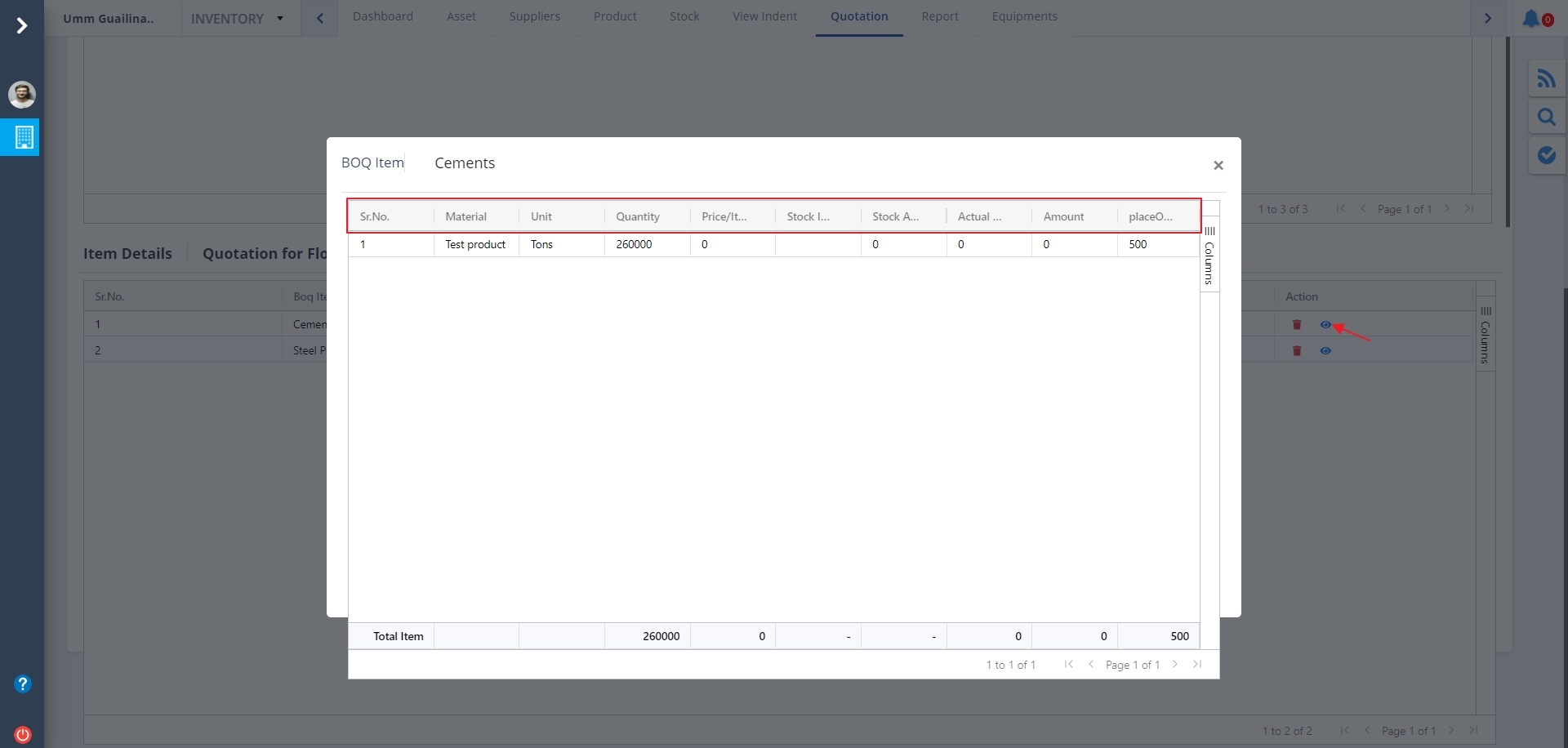
- Click on the Eye button as shown. Now you can see the item details for quotation.
- You can delete this item detail directly by clicking on the delete button provided over here.
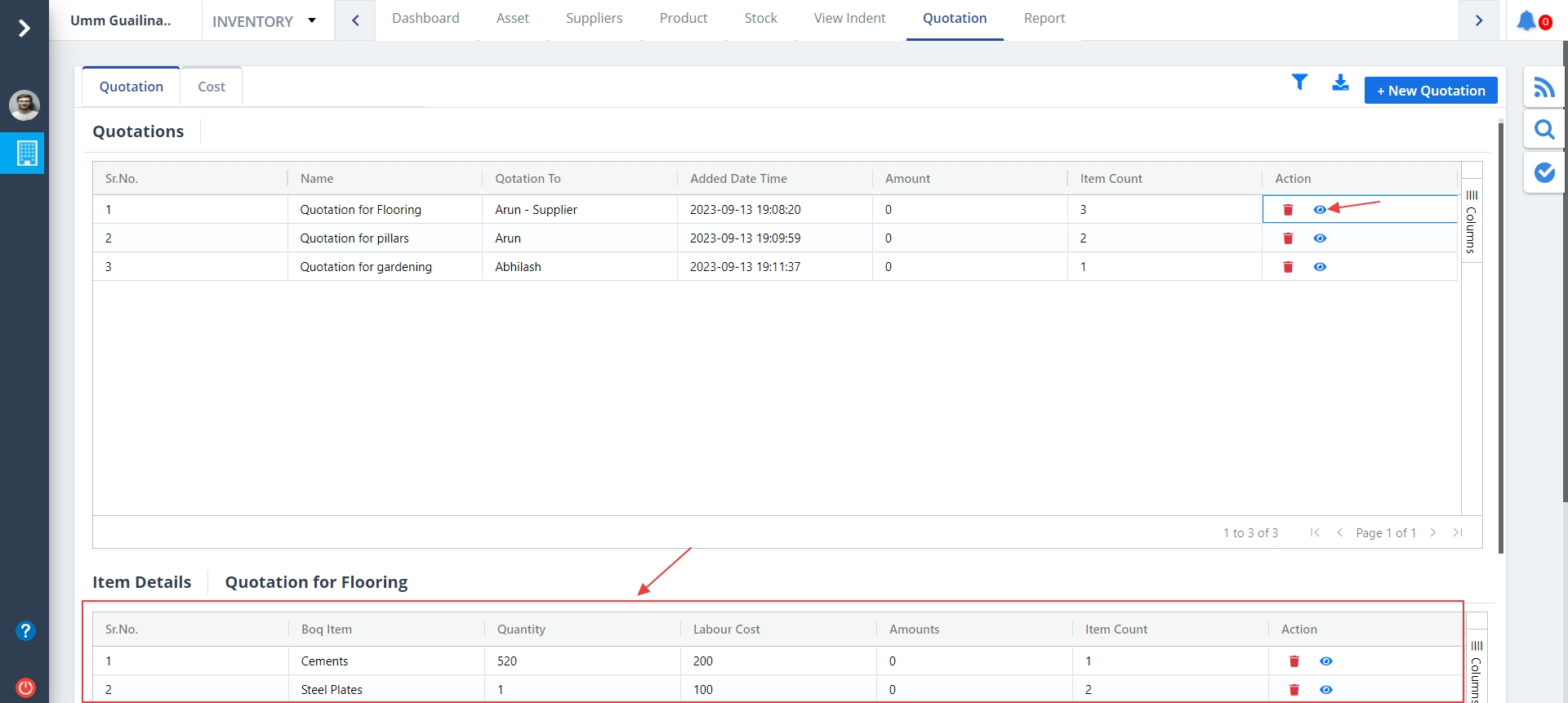
- The Eye button for item list allows you to view the BOQ item details in depth.
- You can perform different column editing operations by clicking on the option that comes into place when you hover on a particular column here.
New Quotation
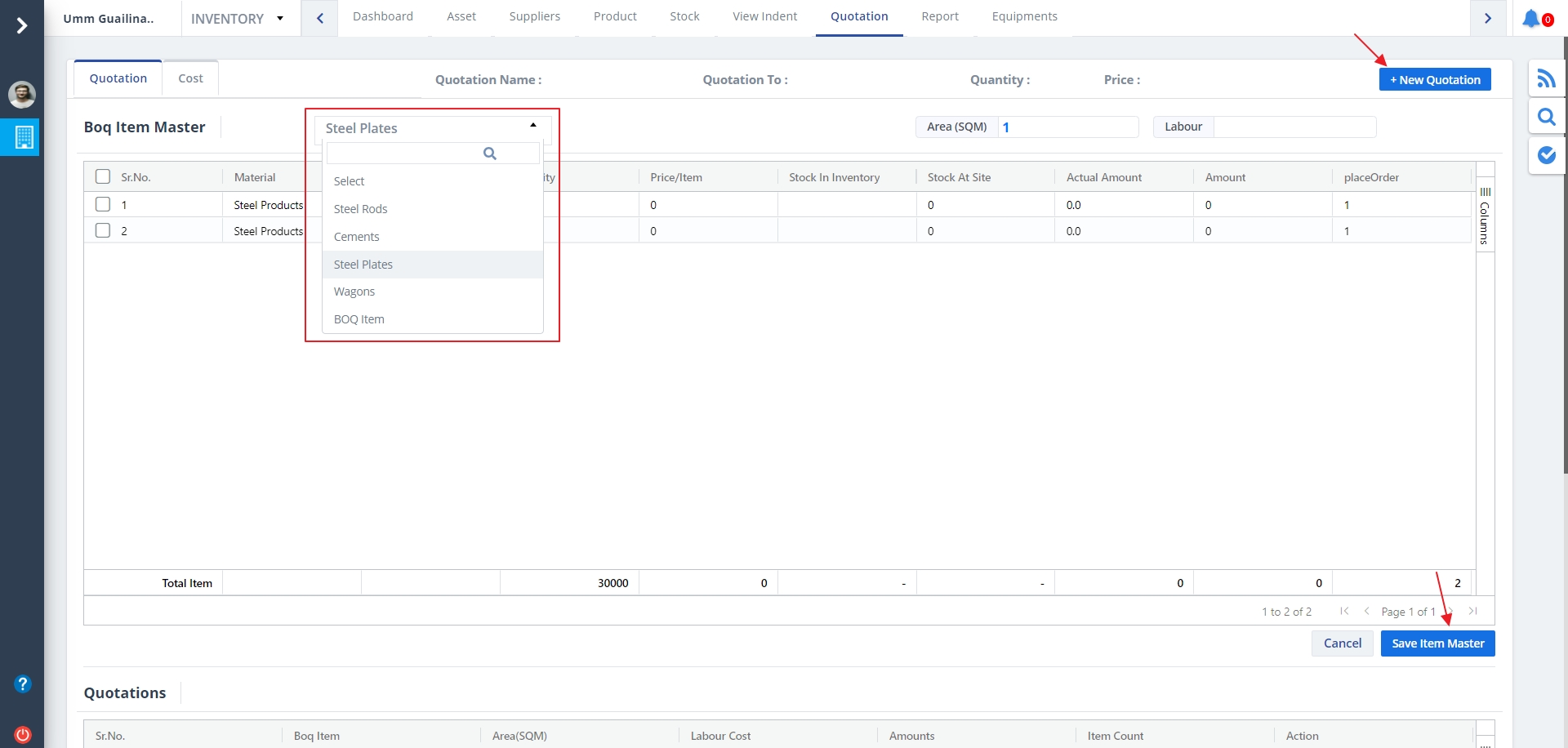
- Click on New Quotation to view the BOQ Item Master.
- Select appropriate value from dropdown as shown to view the data respective to that.
- Click on Save Item Master to save the changes if any.
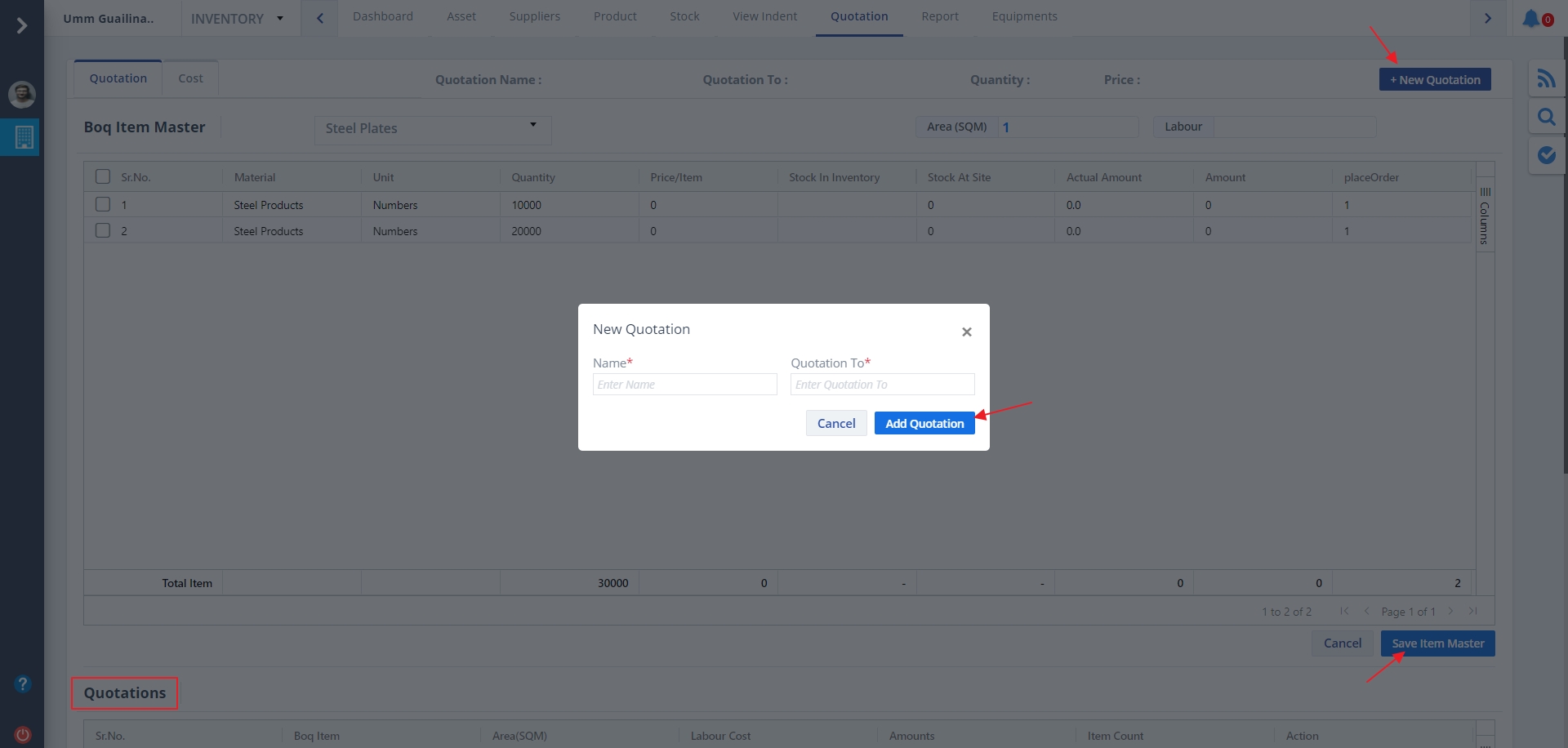
- Click on New Quotation again to add a new Quotation by giving proper inputs.
- Ultimately click on Add Quotation button. Now the newly added quotation will get added under the Quotations header as depicted.
Quotation Filter
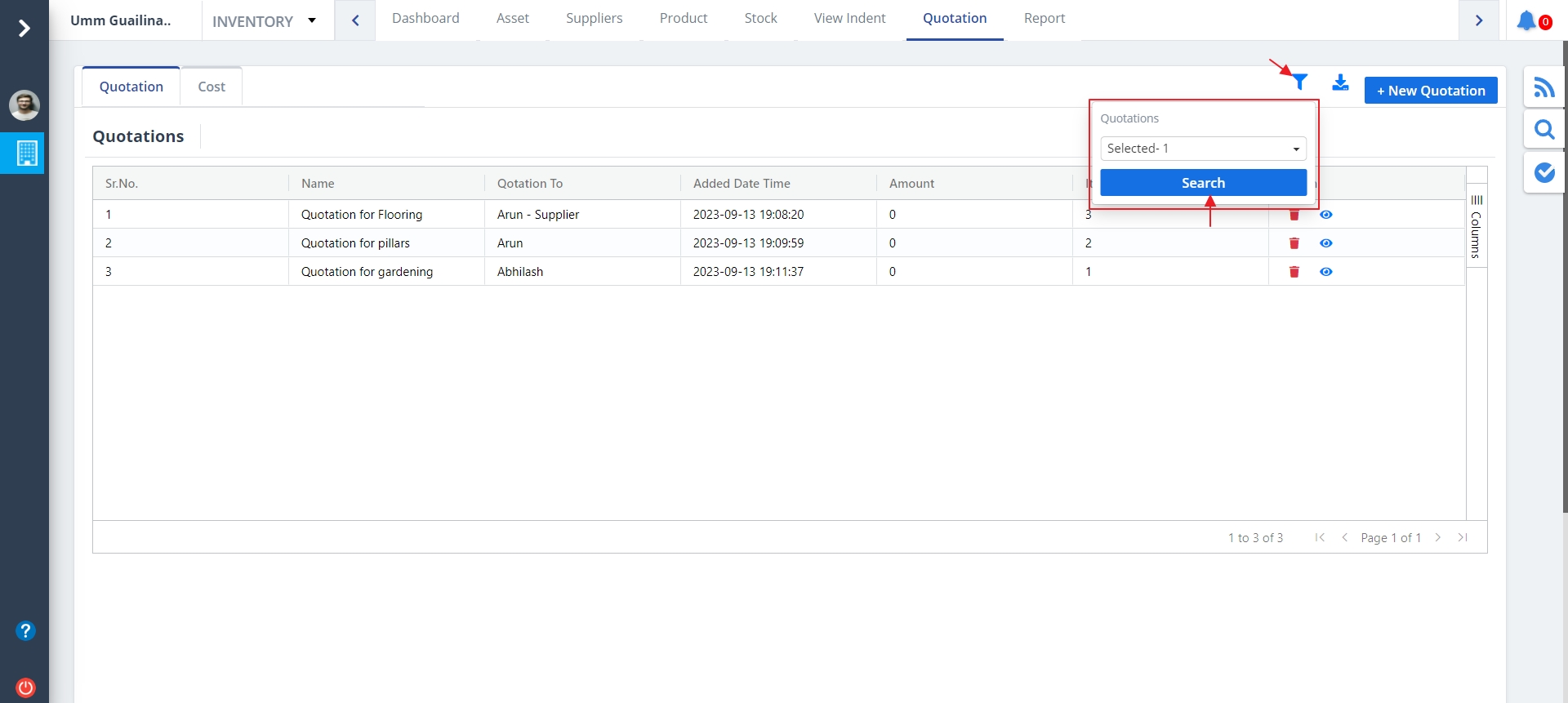
- Click on Filter as shown to view data as per inputs.
- Select the quotation/quotations as required and click on Search.
Cost List
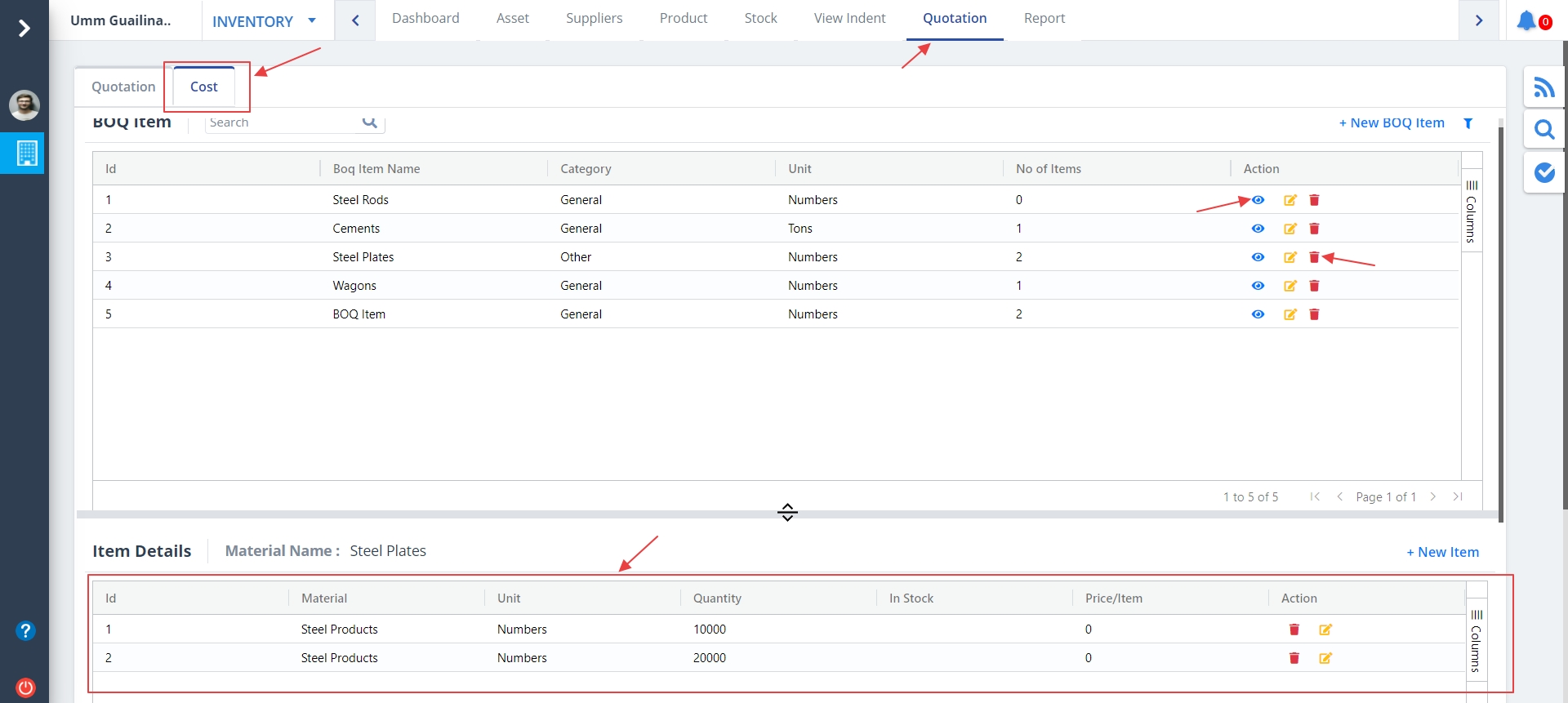
- Click on the tab next to Quotation tab, i.e Cost tab.
- Now you will see the cost details.
- Click on the Eye button as shown. Now you will see the item details at the bottom of the page.
- This specific part has been highlighted in the below figure.
- You can edit and delete the item details there itself. This part will be discussed below.
- You can add details of an item by clicking New Item. This part is discussed below.
Add Cost
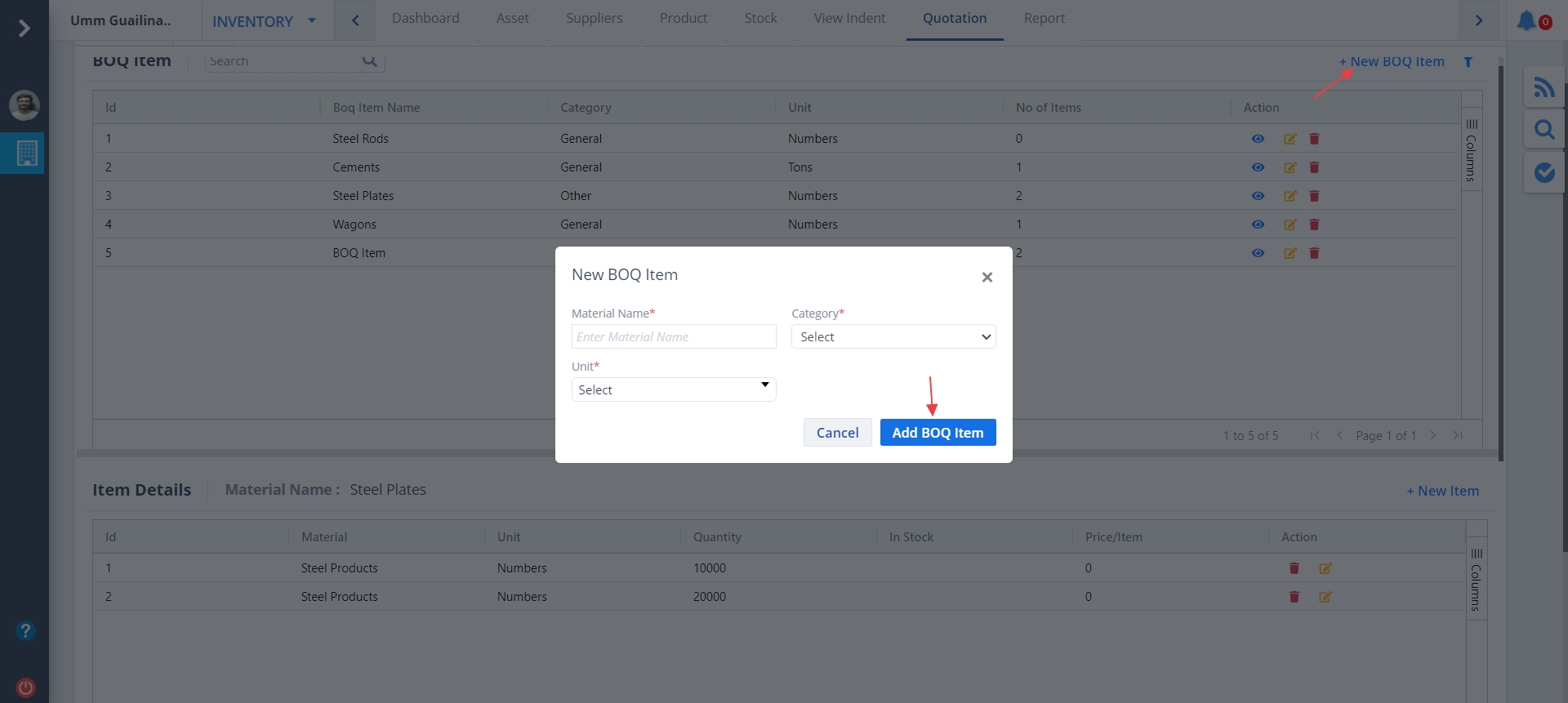
- Click on +New BOQ Item as shown to add new items to the list.
- Enter details and click on Add BOQ Item.
Cost Filter
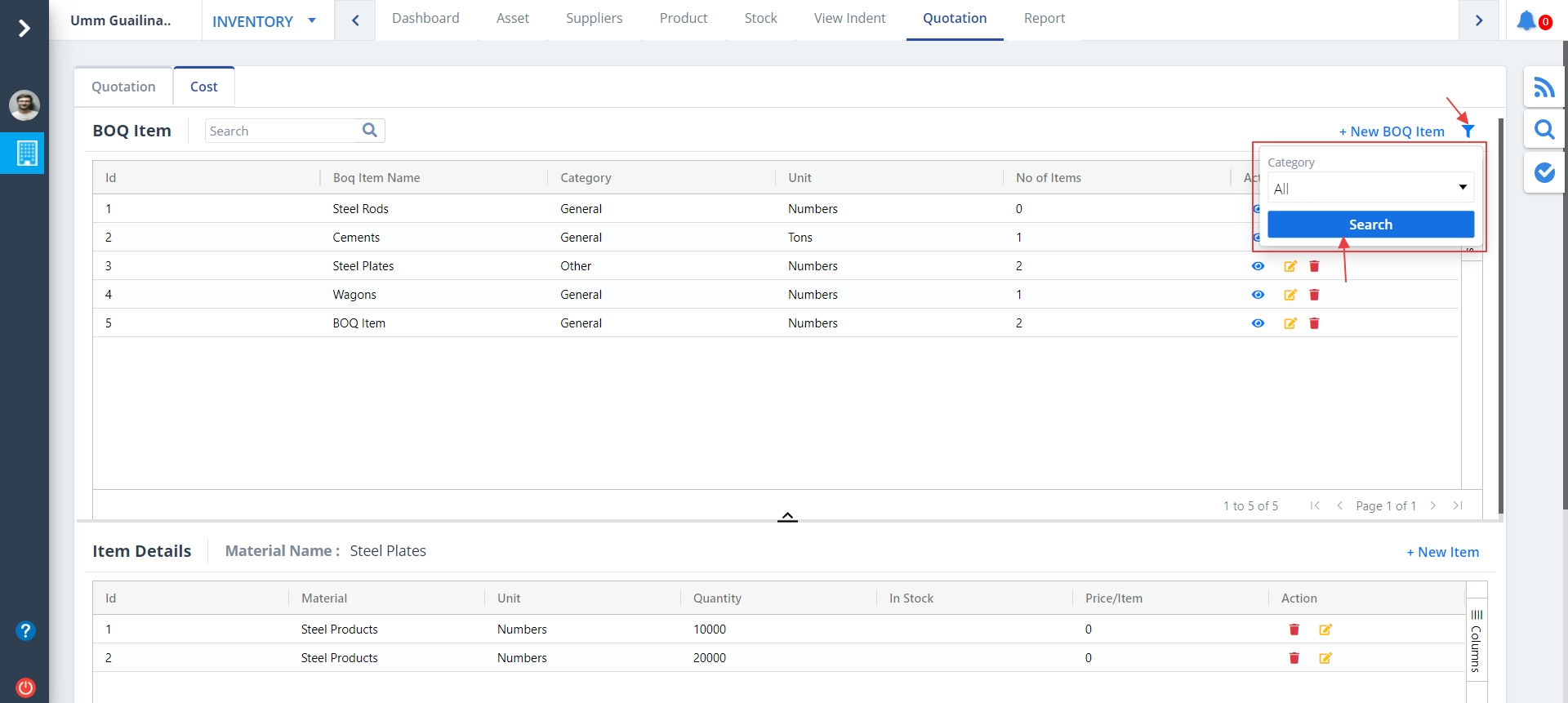
- Use the Filter button as shown. This will help to view data based on inputs.
- Select category and click on Search.
Cost Drag
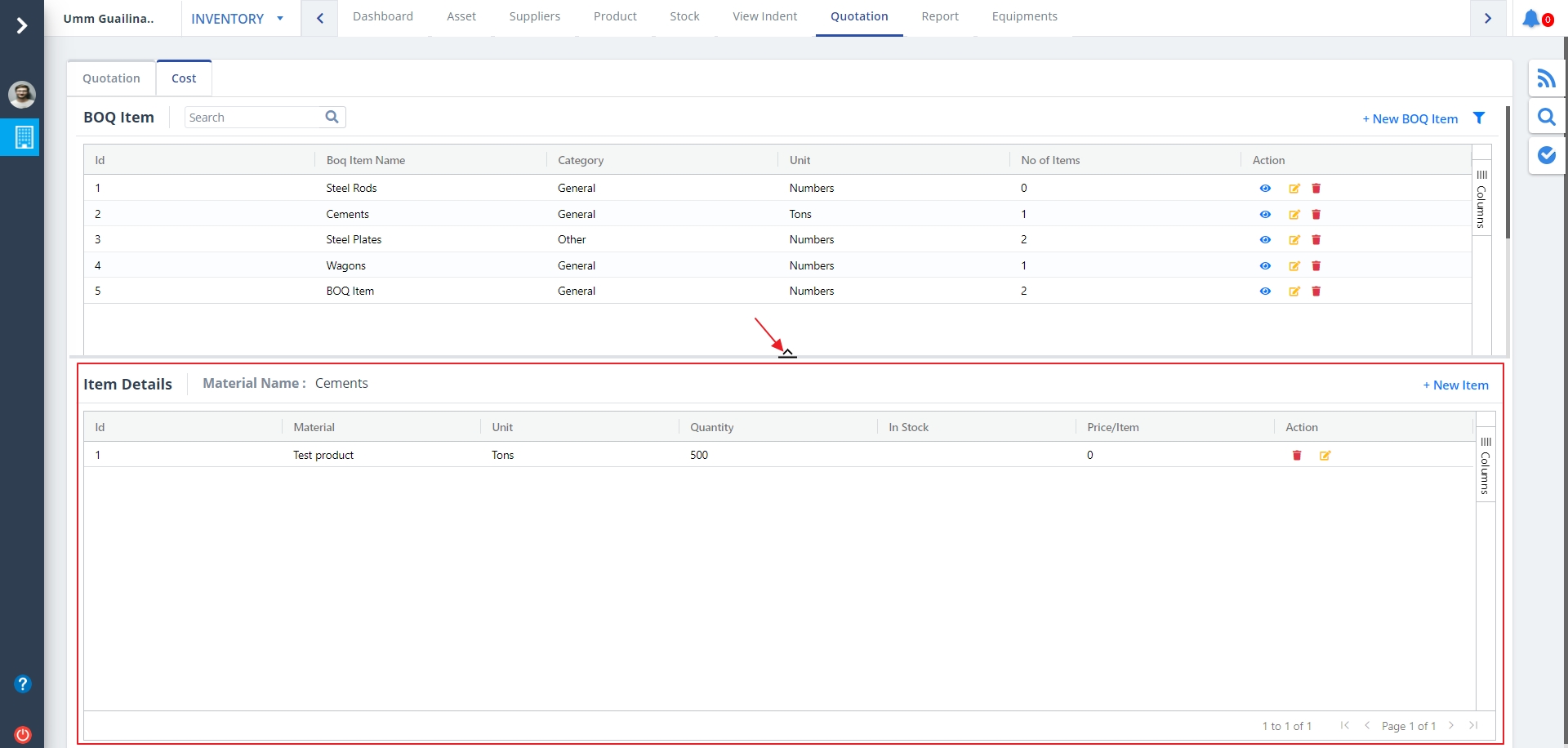
- Use the Drag button as highlighted if you want an exhaustive of Item details as highlighted.
- It can be used to move the below section fore and aft.
Edit Cost
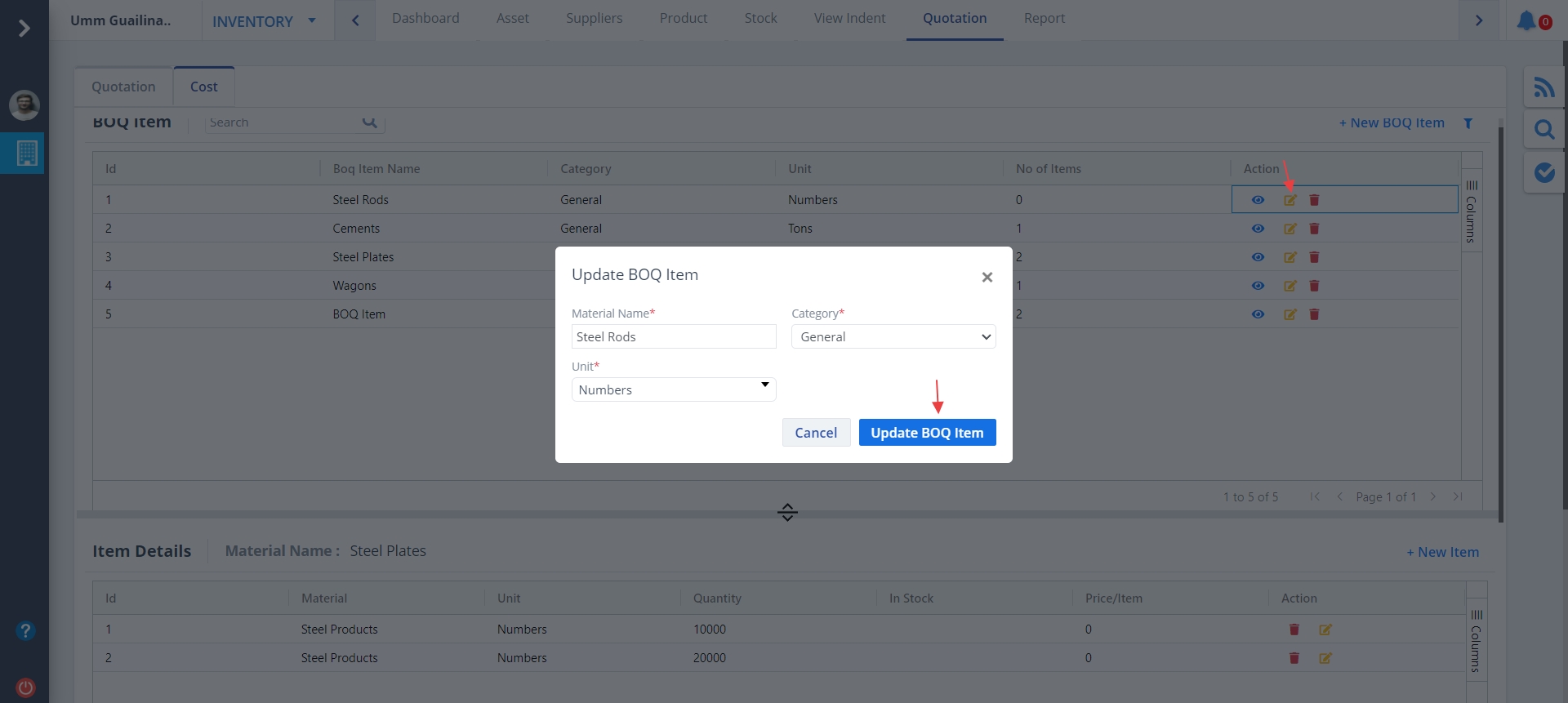
- Click on Edit button as shown.
- Modify details wherever required and click on Update BOQ Item.