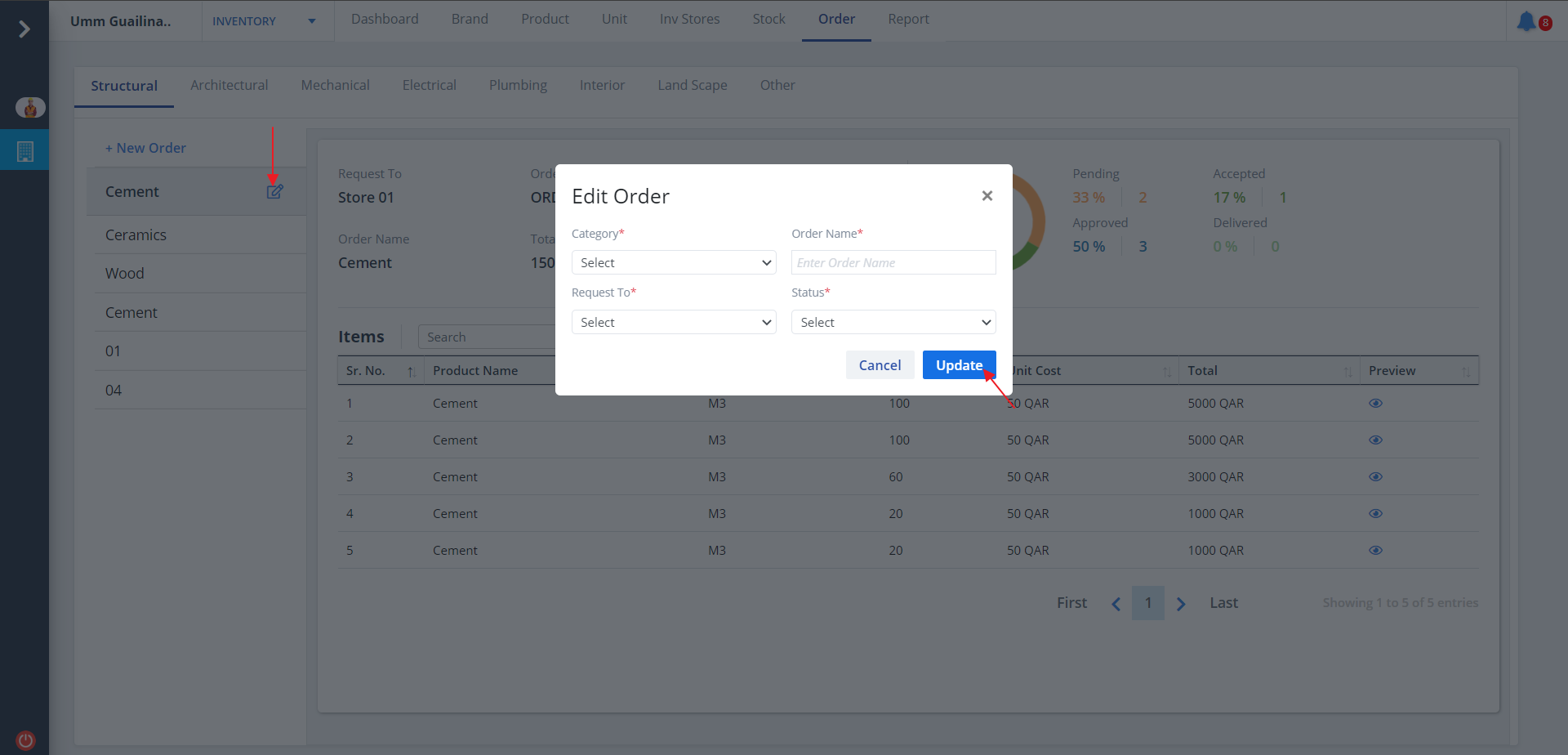
Order List
- Skystruct ensures that the customers have day by day, phase by phase awareness of stock and the order book.
- The Order tab shall assist the relevant team to place orders with the relevant store so that timely fulfilment can be tracked.
- Select Order from menu.
- Listing of products will be done based on order name and category (if already defined).
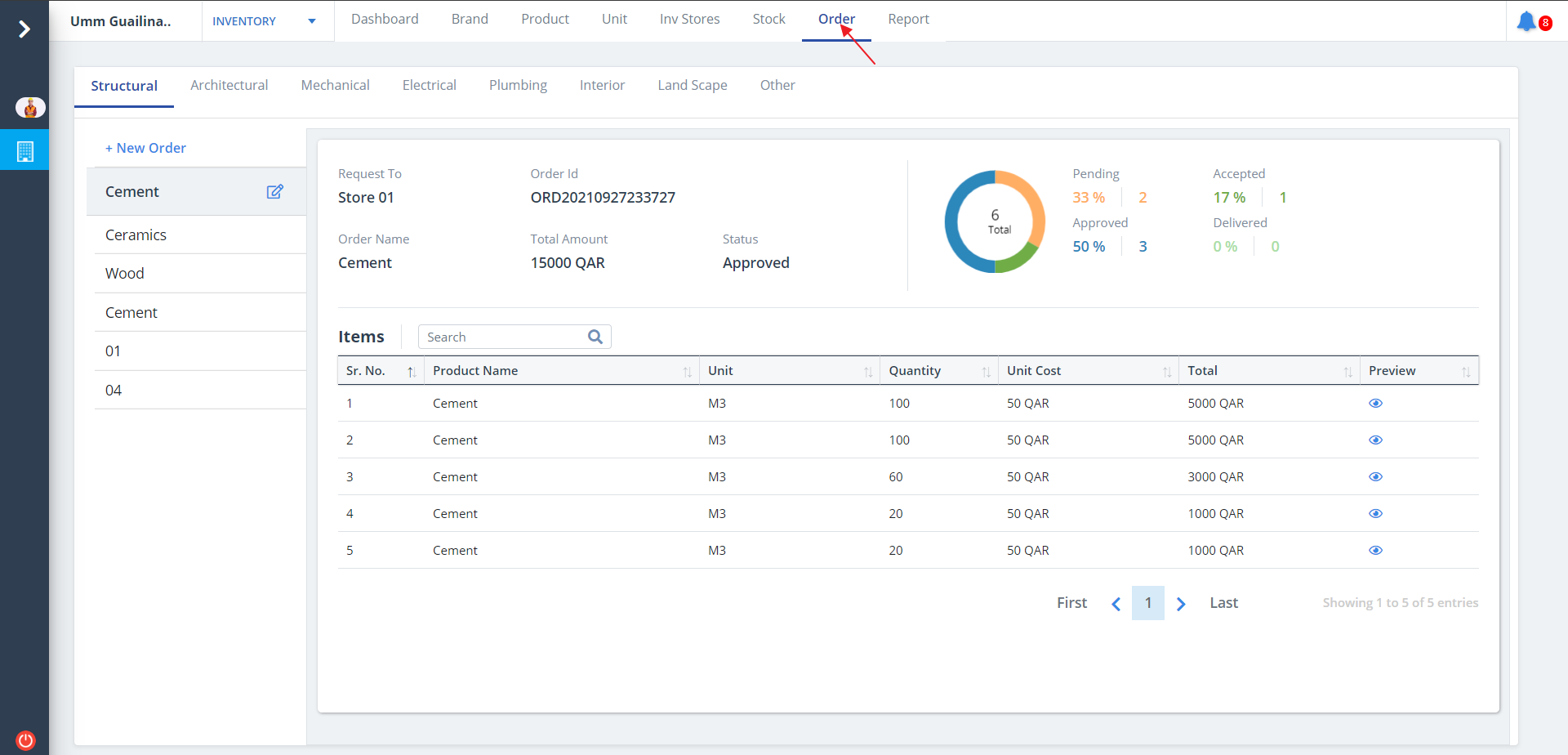
Preview Order
- Click the Eye under Preview column to view the product.
- Actual image of the product can be viewed thereafter.
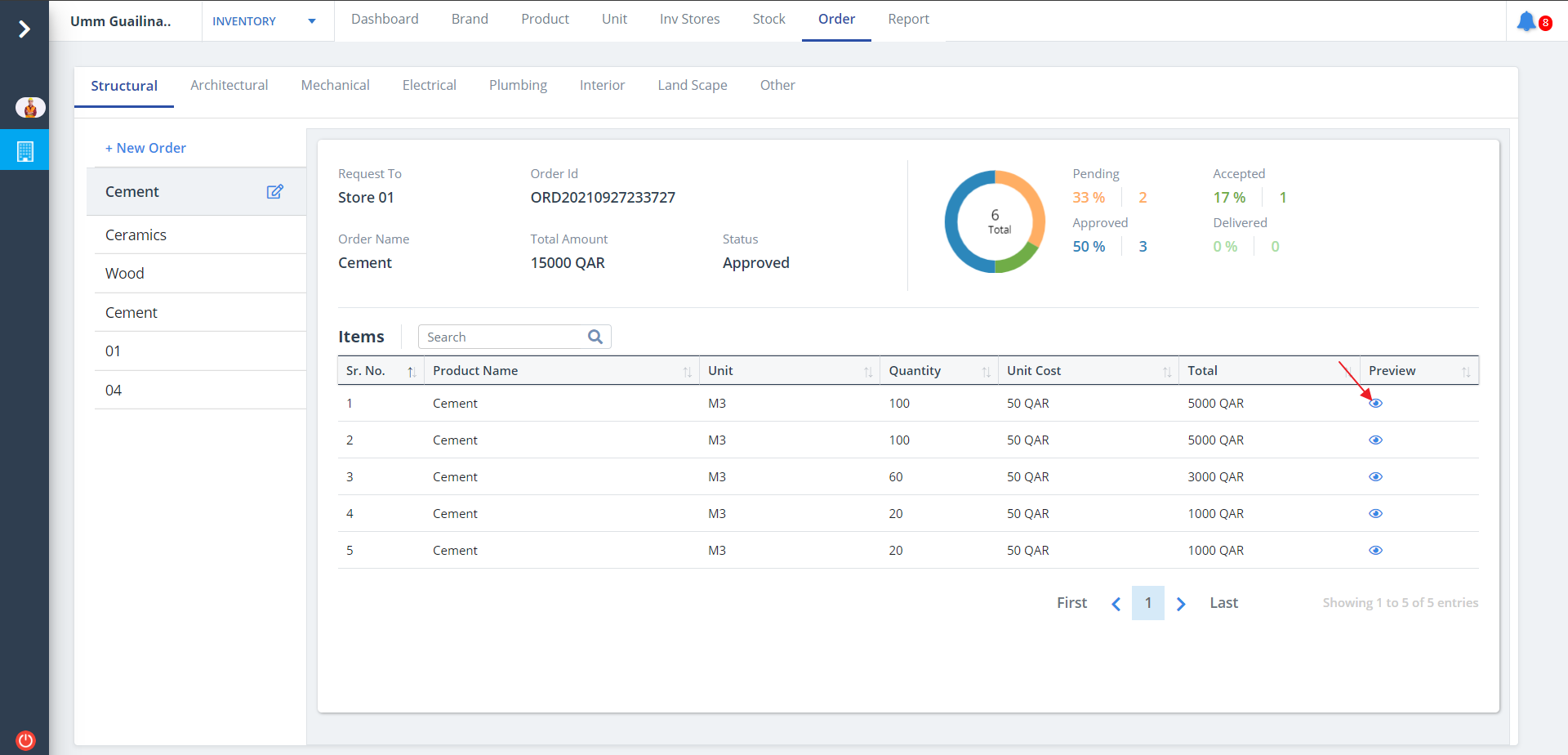
New Order
- To add a new order, click on New Order.
- Add details and click on Add.
- While adding order, the status can be:-
- Set status as Pending if the order has been confirmed but not shipped yet.
- Set status as Approved if the order has been confirmed.
- Set status as Accepted if the order has been confirmed as well as shipped.
- Set status as Delivered if the order has been shipped and delivered.
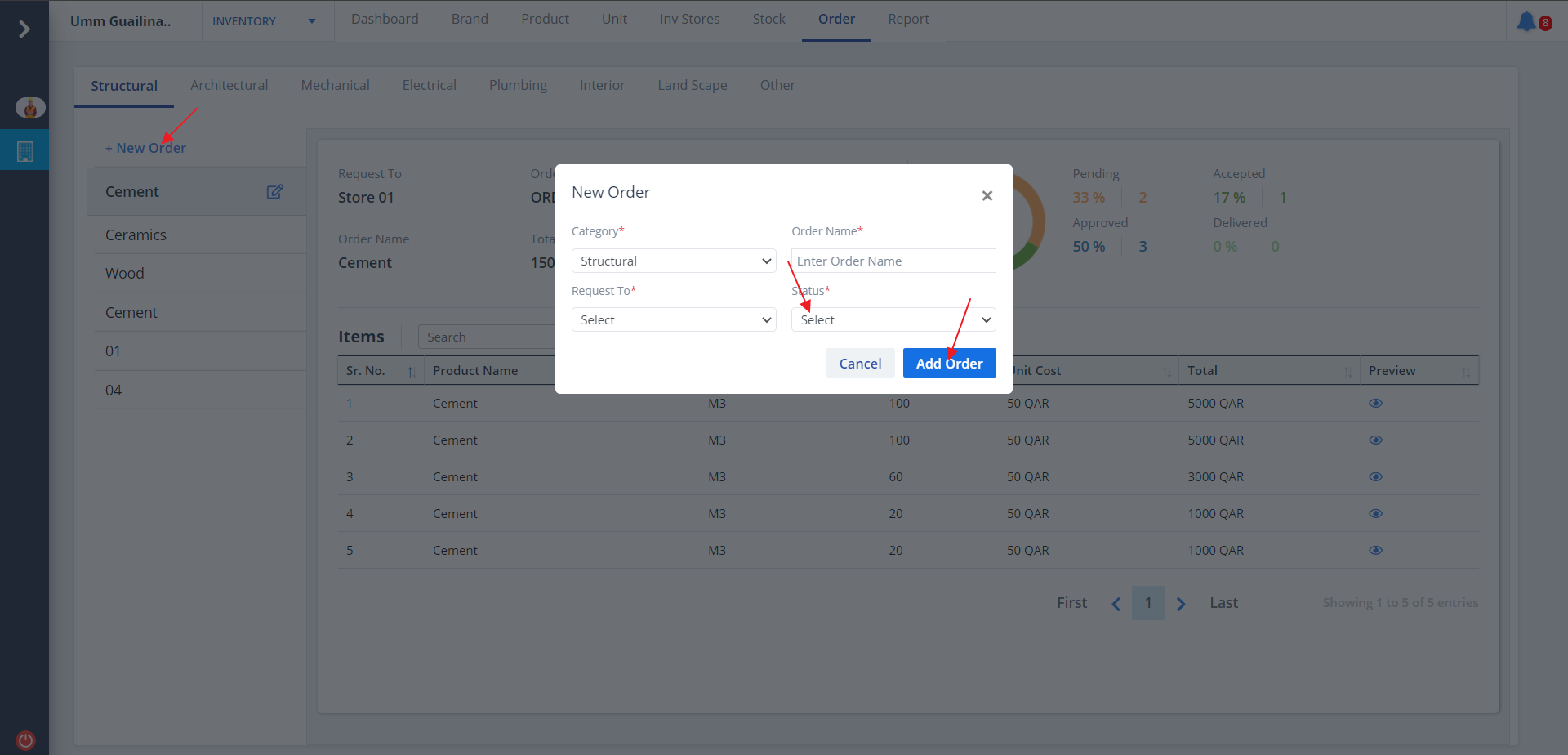
Edit Order
- To edit an order, select an order name from the left panel and click on Edit as shown below.
- All these orders will be requested to a particular inventory store.
- Once you click Edit, enter details and click on Update.
- While editing order, the status can be:-
- Set status as Pending if the order has been confirmed but not shipped yet.
- Set status as Approved if the order has been confirmed.
- Set status as Accepted if the order has been confirmed as well as shipped.
- Set status as Delivered if the order has been shipped and delivered.