View Change Order List
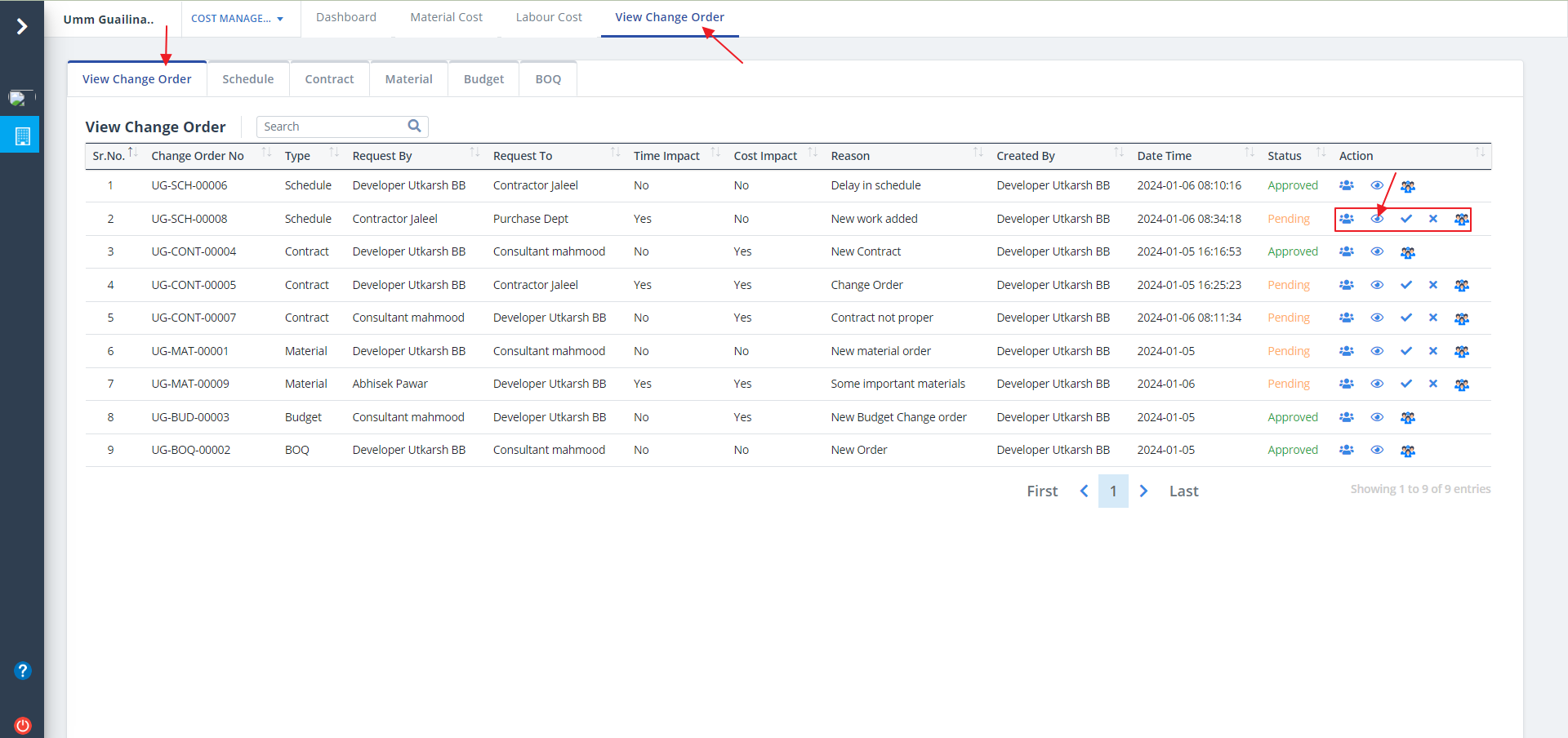
- A View Change Order refers to a formal document that outlines modifications or alterations requested by project stakeholders, typically regarding design, scope, or specifications
- It serves as a crucial communication tool, documenting the agreed-upon changes and ensuring clarity between the parties involved in the construction project.
- This includes time and cost impact along with cost estimation, timeline adjustments and approval progress.
- The operations under Action column allows you to audit, view approval workflow, approve and reject using Tick and Cross buttons.
- You will come across multiple tabs as shown in the diagram.
- Click on the Eye button as depicted to traverse to Schedule tab.
Schedule Tab
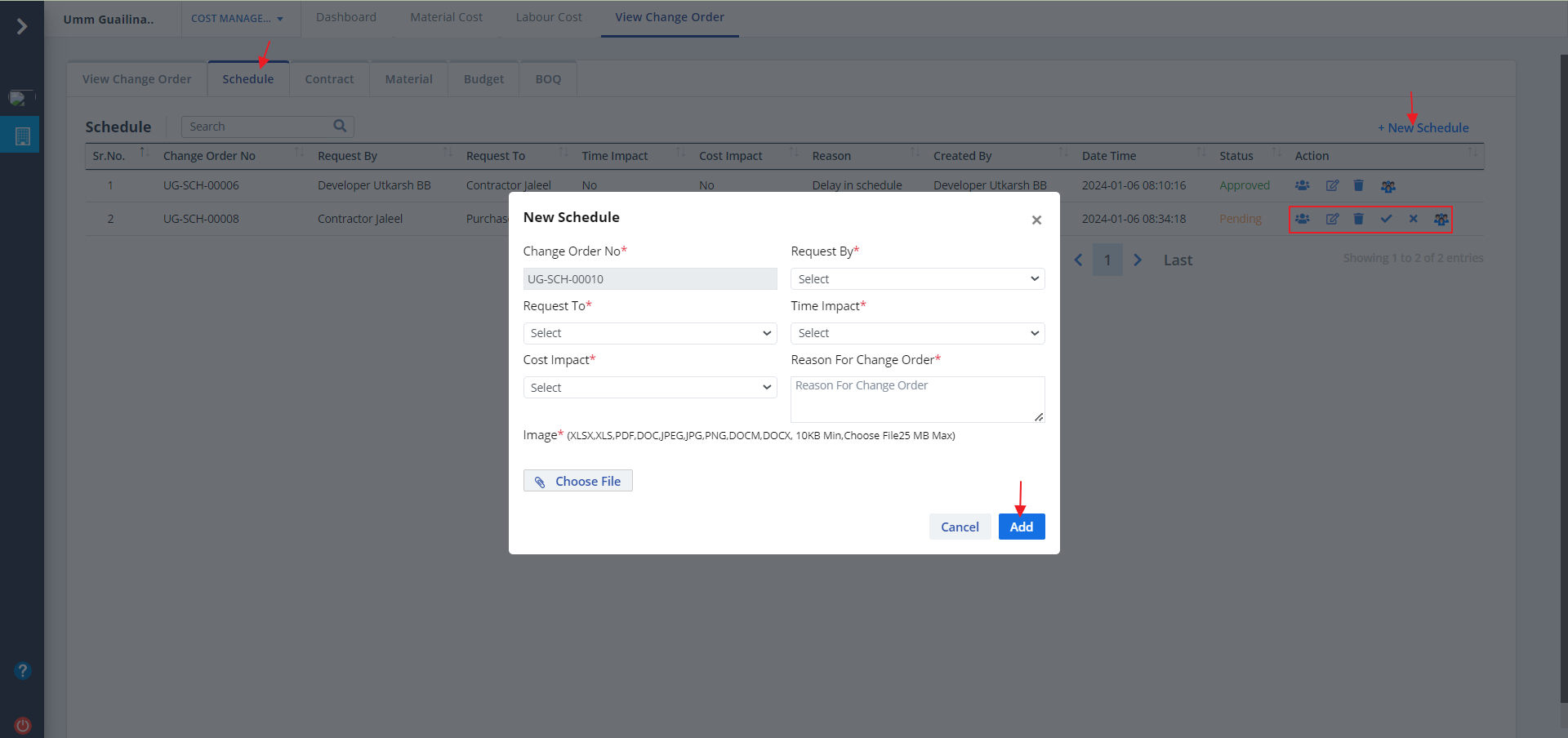
- This covers all the schedule related details.
- This includes the time impact, cost impact and their statuses.
- The operations under Action column allows you to audit, view approval workflow, approve and reject using Tick and Cross buttons.
- Click on New Schedule button to add a new schedule. Provide data and click on Add.
Contract Tab
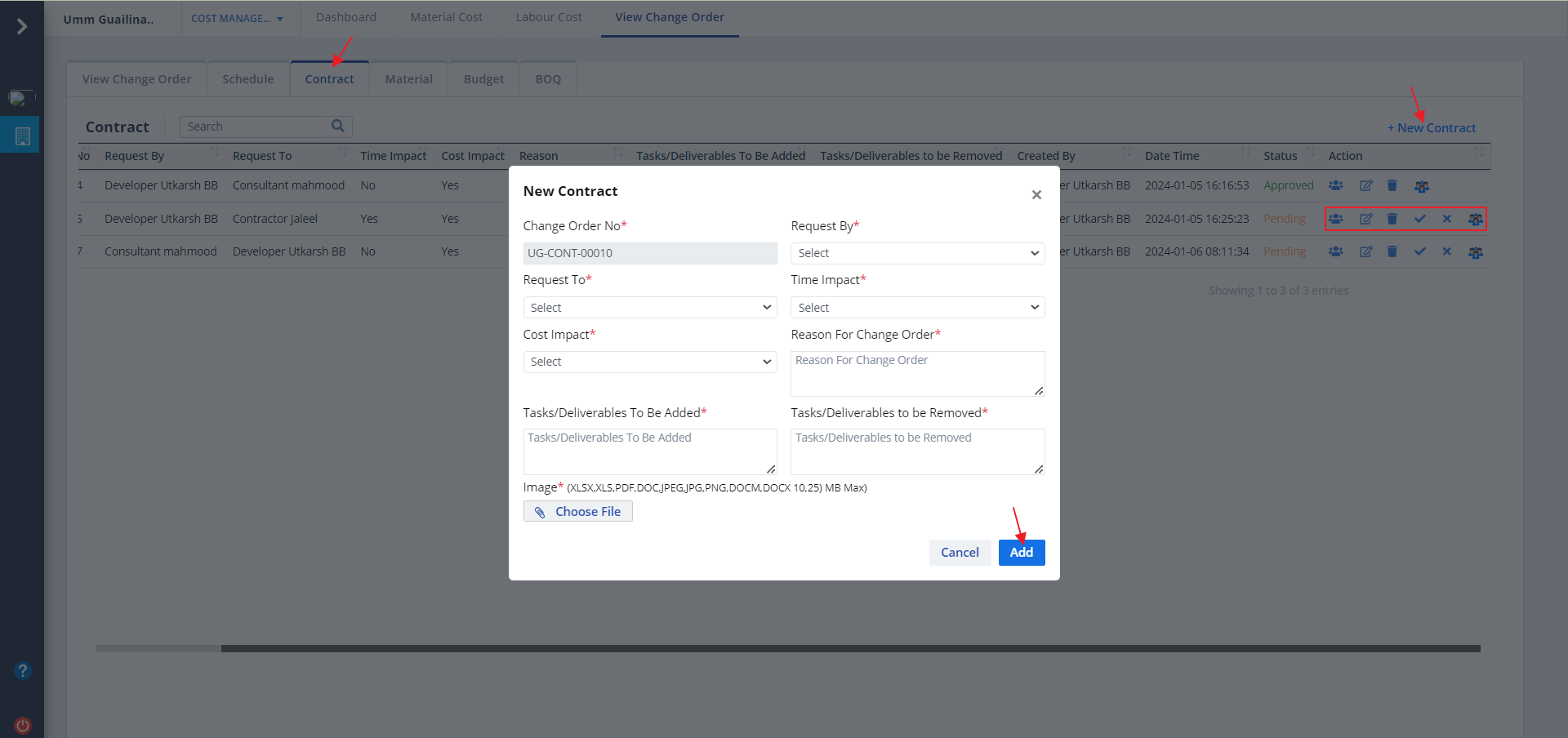
- Lets switch to Contract tab now. This covers the time and cost impact, deliverables to be added and removed and their statuses.
- The operations under Action column allows you to audit, view approval workflow, approve and reject using Tick and Cross buttons.
- Click on New Contract to add a new one. Add details and click on Add.
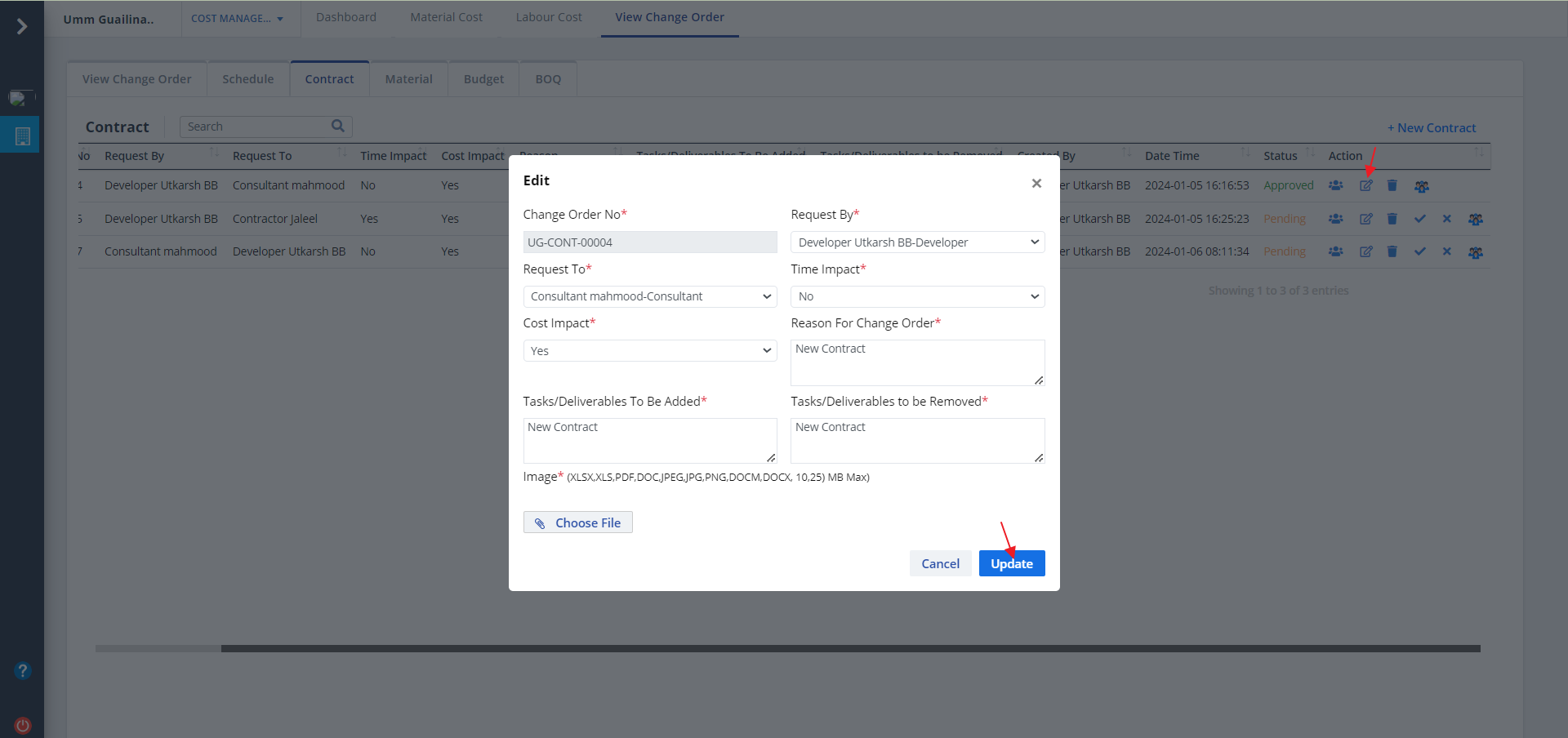
- Click on Edit button under Action column to edit an entry.
- Modify details and click on Update.
Material Tab
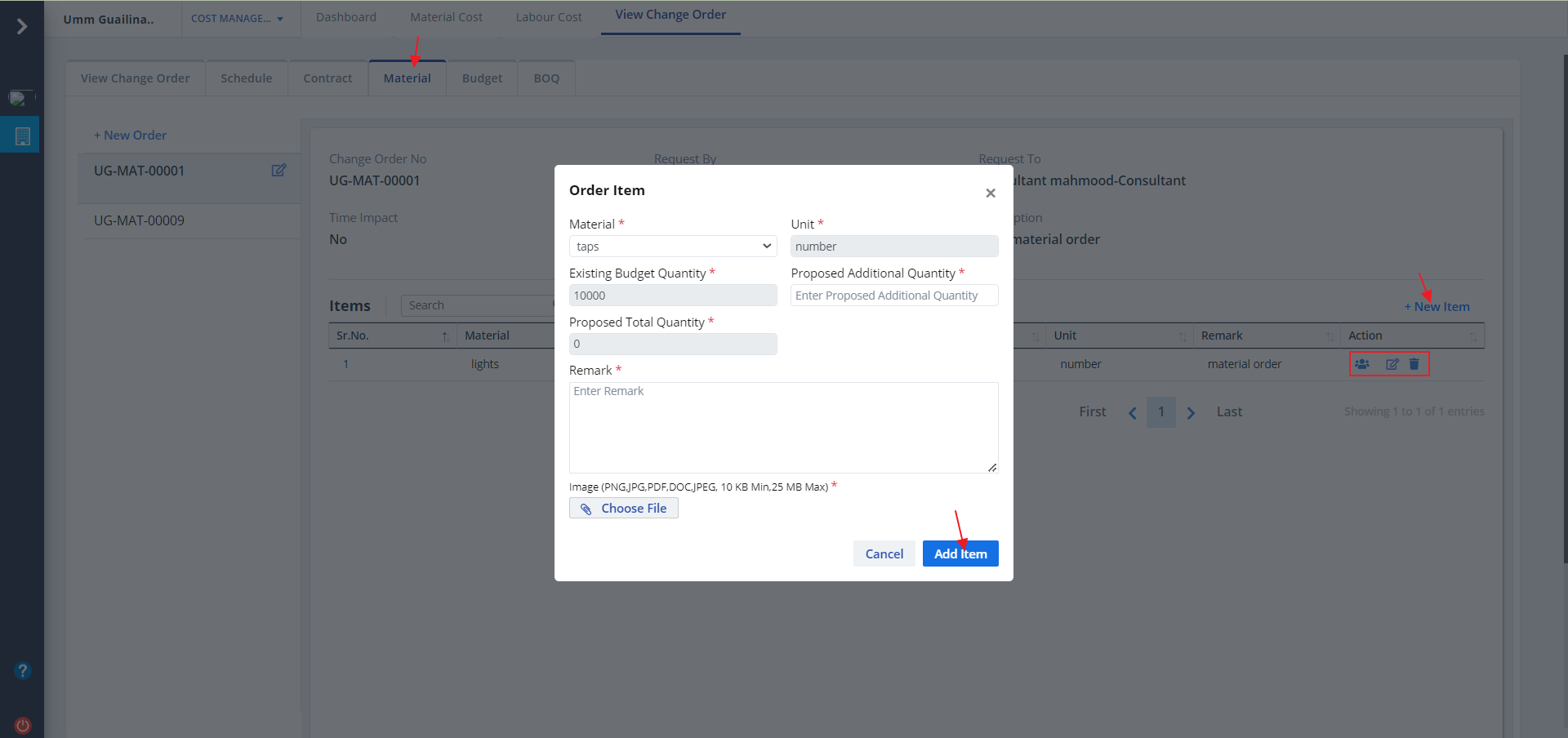
- Lets switch to Material tab now. This covers all the orders and materials, existing and proposed budget.
- You can Audit and delete a material tab as well using respective buttons.
- New Item can be added by adding New Item as shown.
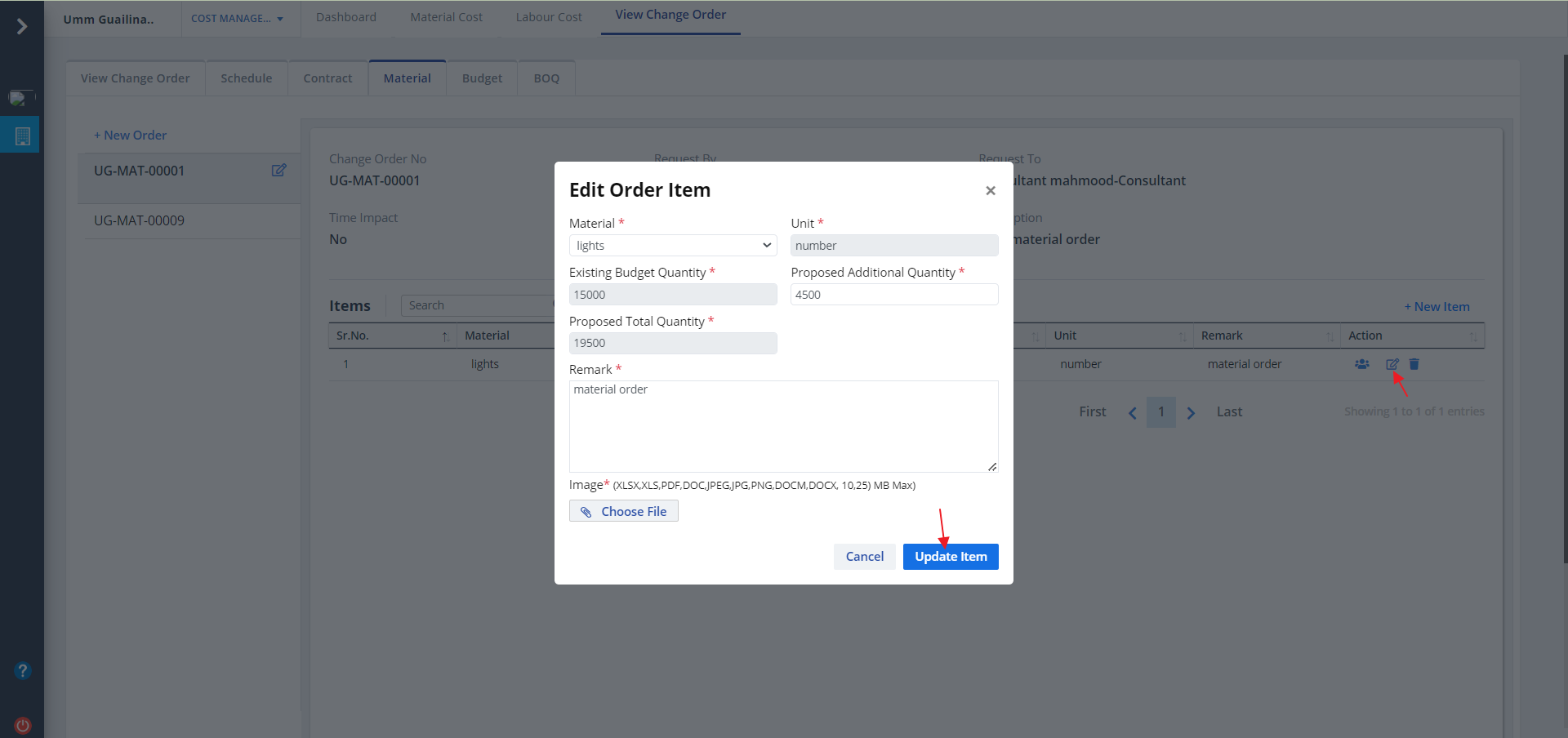
Material Edit
- Click on Edit button as shown. Modify required details and click on Update Item.
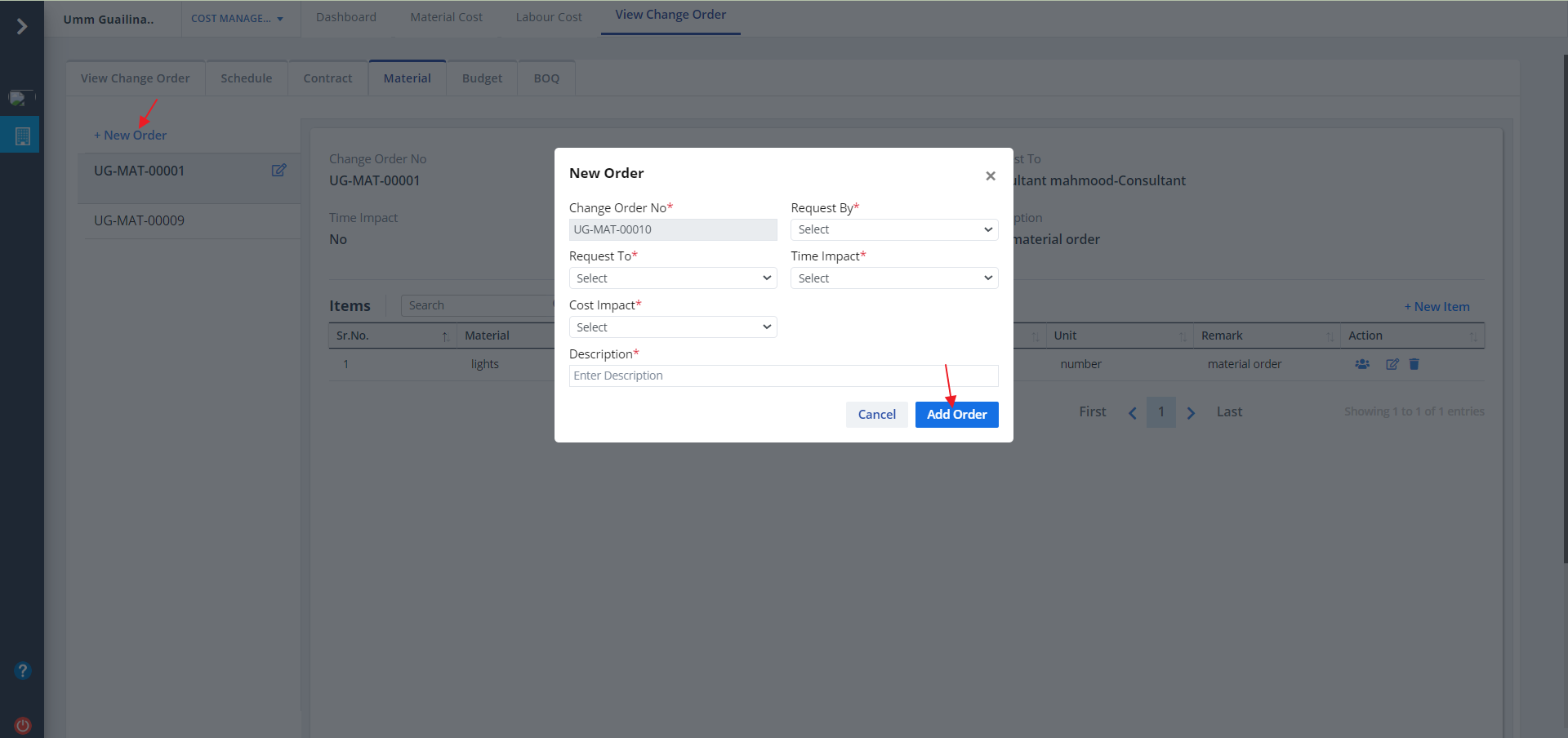
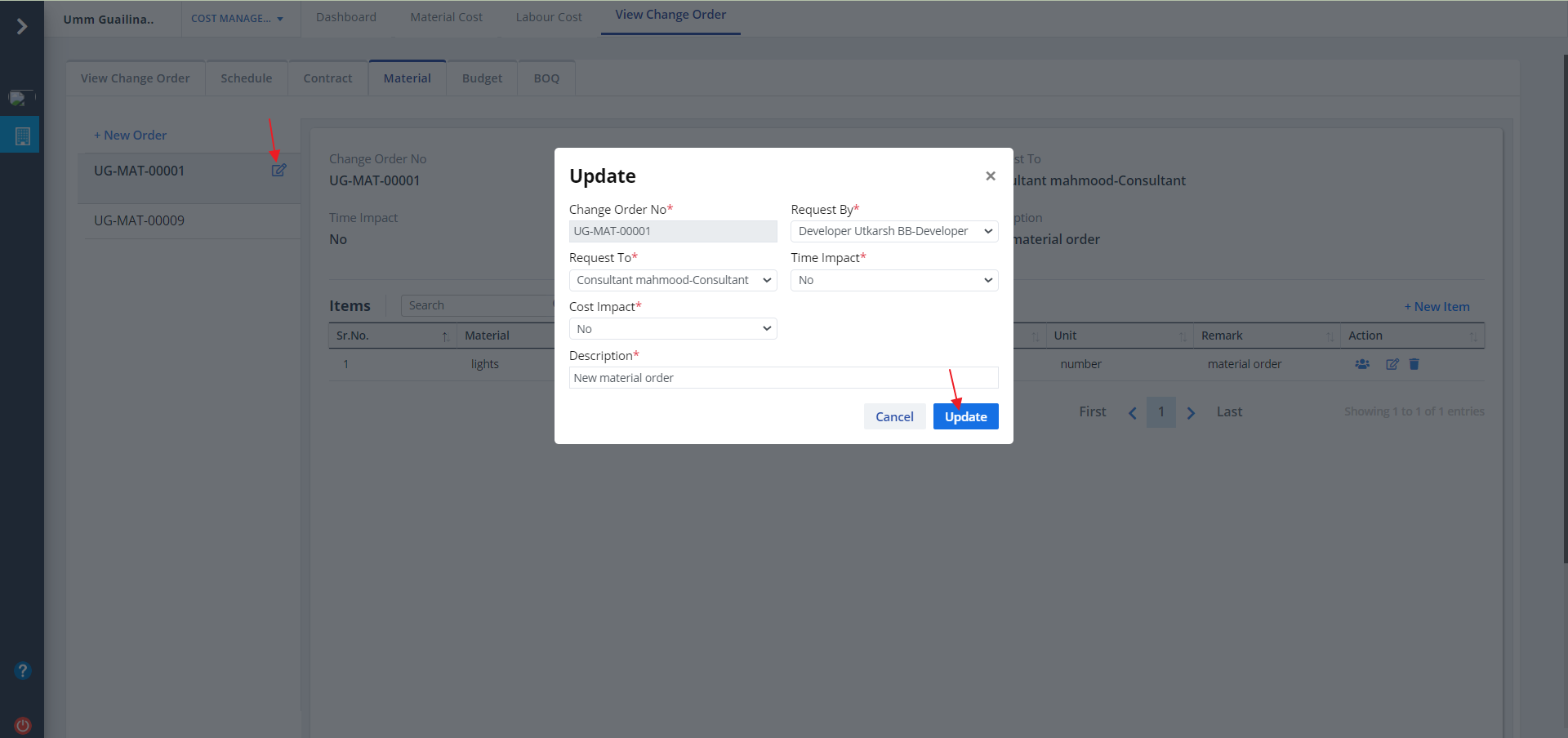
New and Edit Order
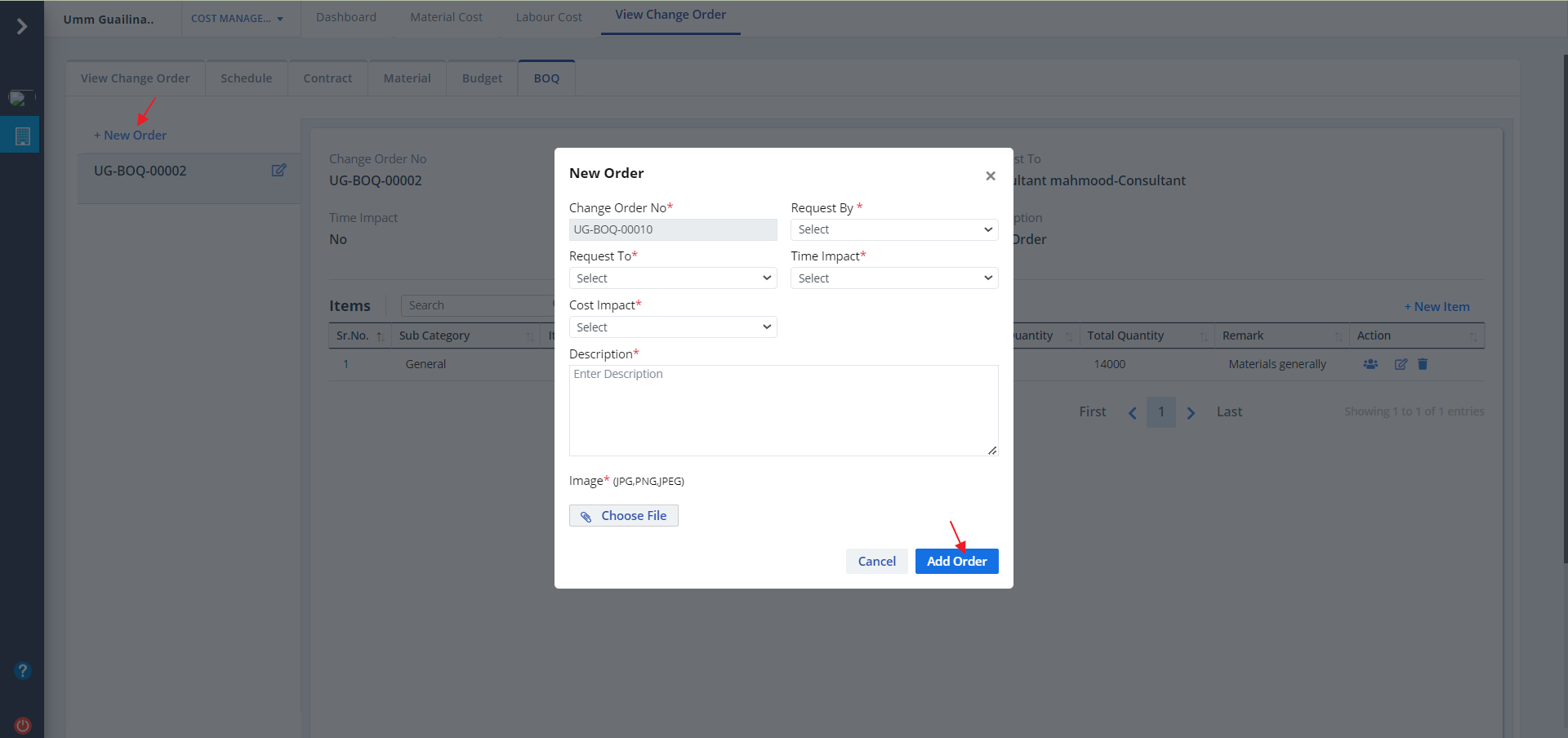
- Click on New Order as shown. Add details as required and click on Add Order.
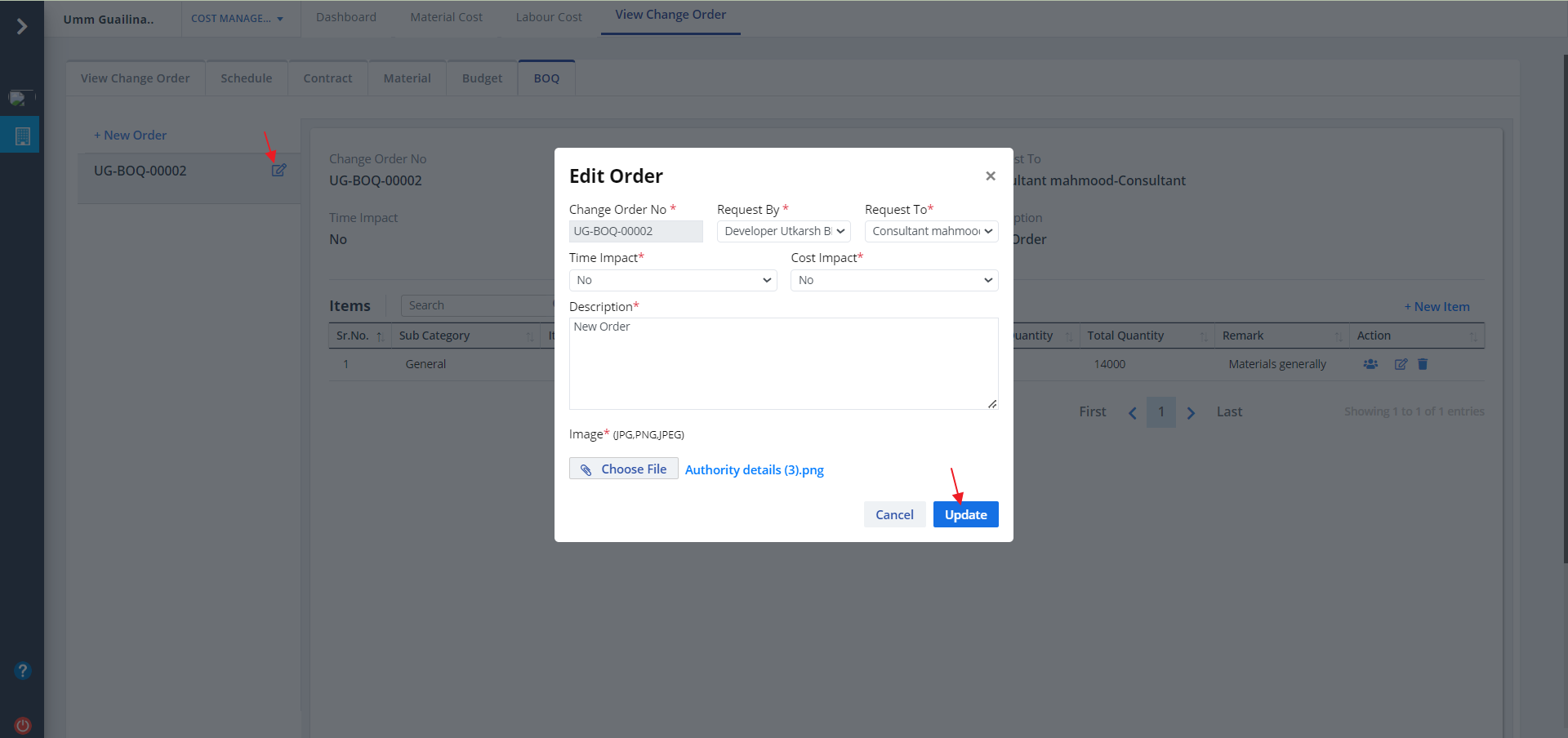
- Click on Edit button as shown to modify all or some details and click on Update. Refer 2nd figure.
Budget Tab
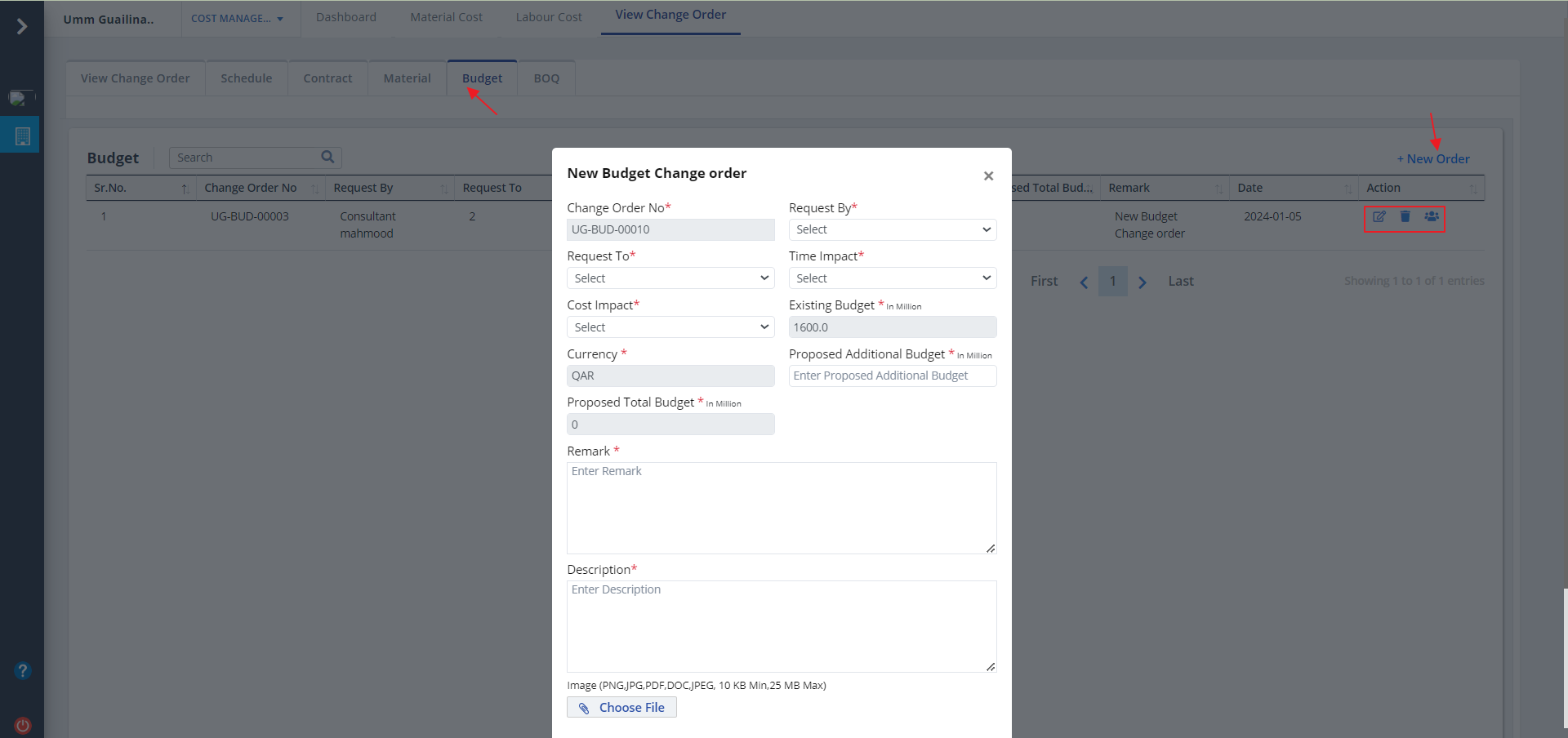
- Lets switch to Budget Tab. This shows all the budget related information such as budget, currency, users and remarks.
- The operations under Action column allows you to Audit and delete a particular budget entry as well.
- Click on New Order as shown. Add all the details and click on Add Order.
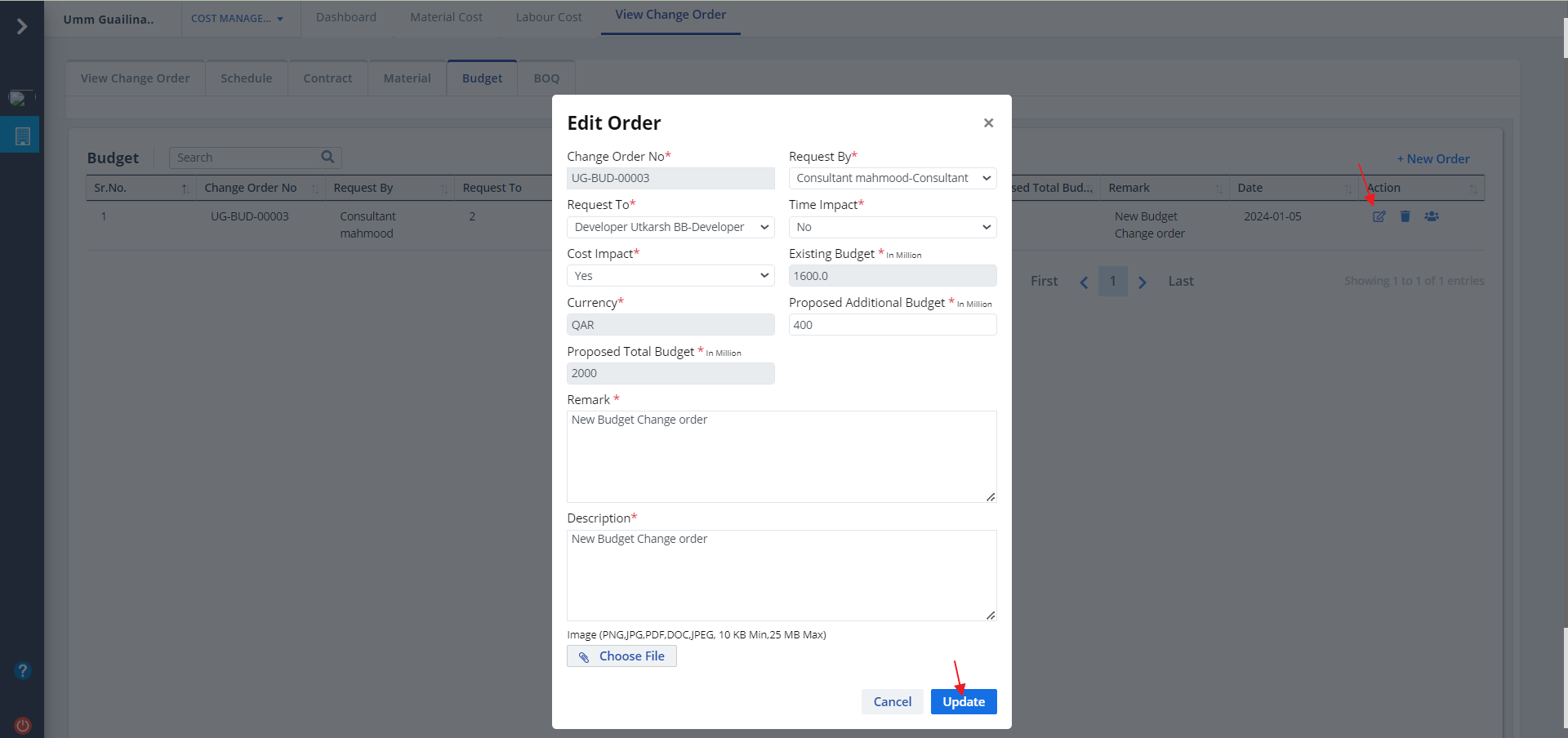
Edit Budget
- Click on Edit button as shown. Modify required changes and click on Update.
BOQ Tab
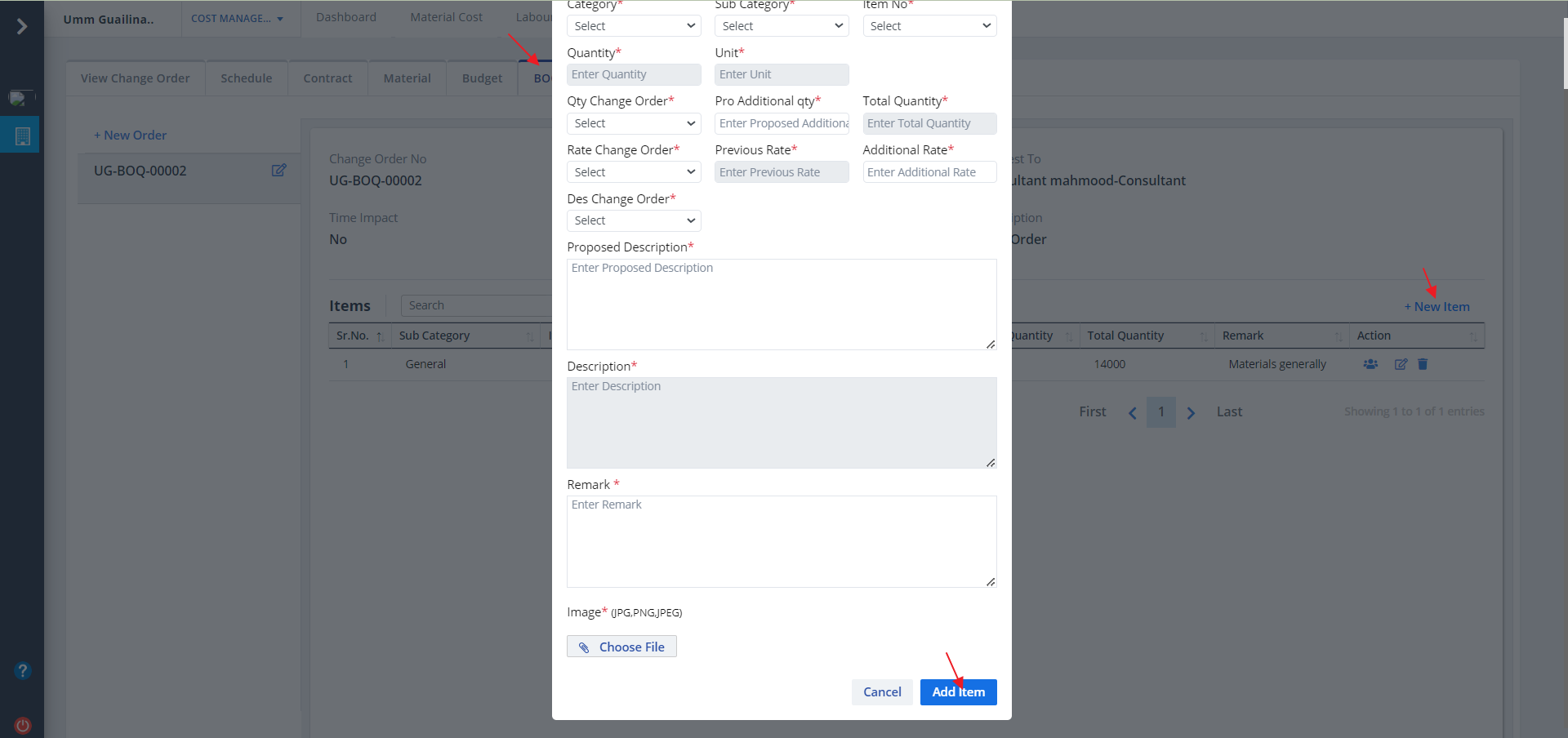
- Lets switch to BOQ tab now. All the details regarding the BOQ, items and quantities are shown.
- Click onNew Item as shown. Add required data and click on Add Item.
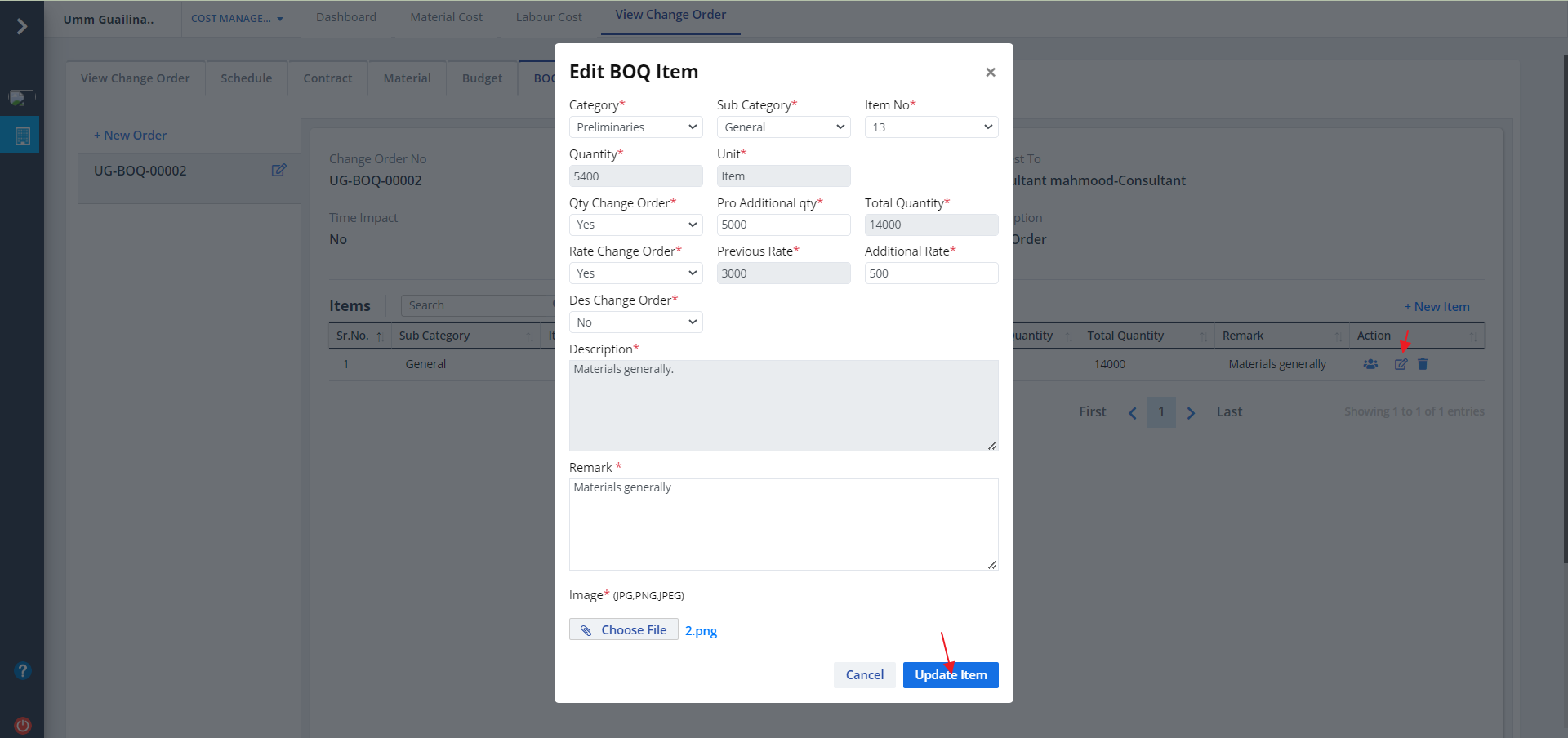
- Click on Edit button as shown. Modify required details and click on Update Item. Refer below diagram.
New Order
- Click on New Order as shown to add a new one.
- Add required data and click on Add.
- Click on Edit button as shown to modify details as per choice. Click on Update once all detailed have been filled. Refer 2nd figure for this.