Assets List
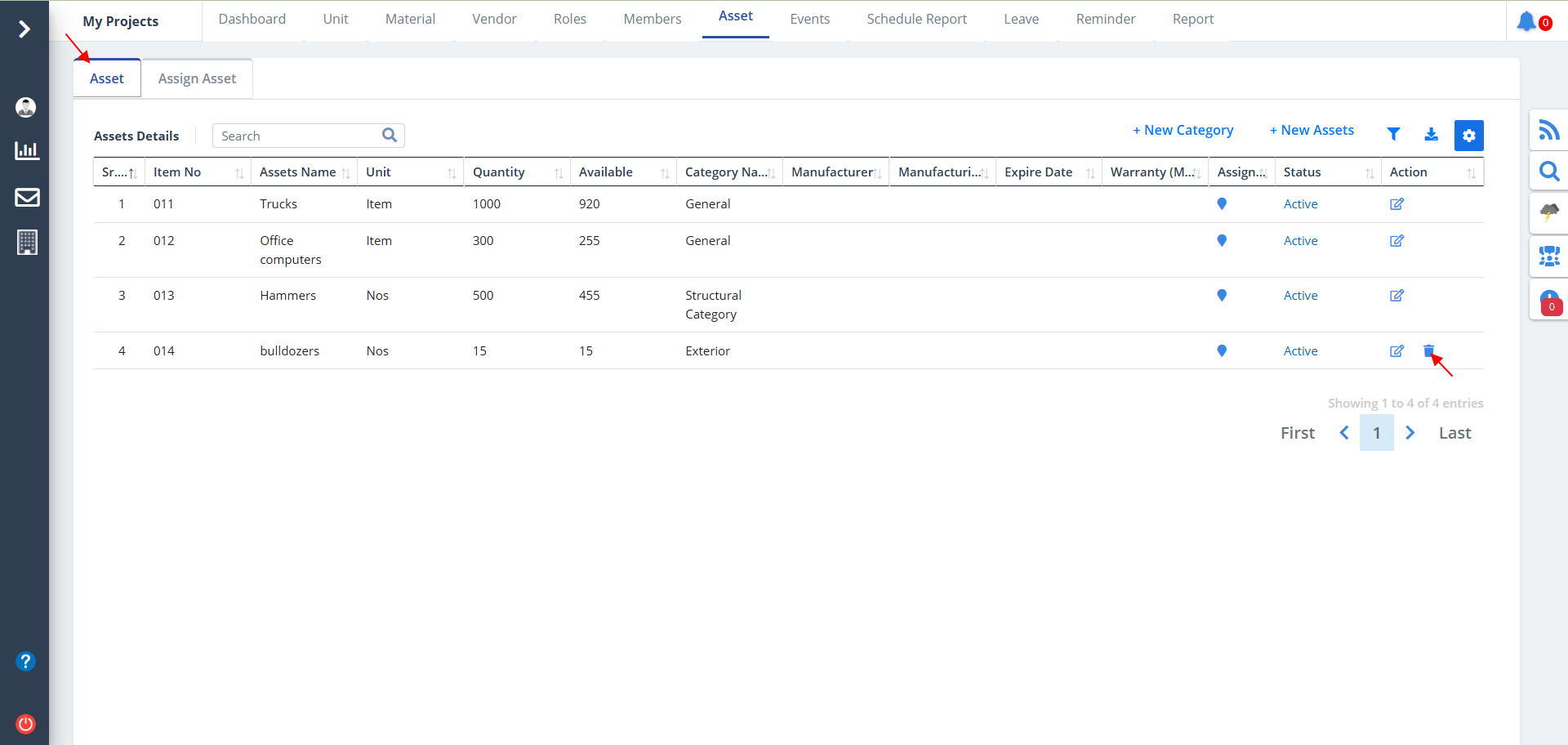
- Select Assets from menu.
- There are 2 tabs for assets; Asset and Assign Asset. By default "Asset" tab is shown.
- This tab shows the Asset information in detail.
- As depicted you can use the Delete button to delete a particular asset's entry.
Filter and Download
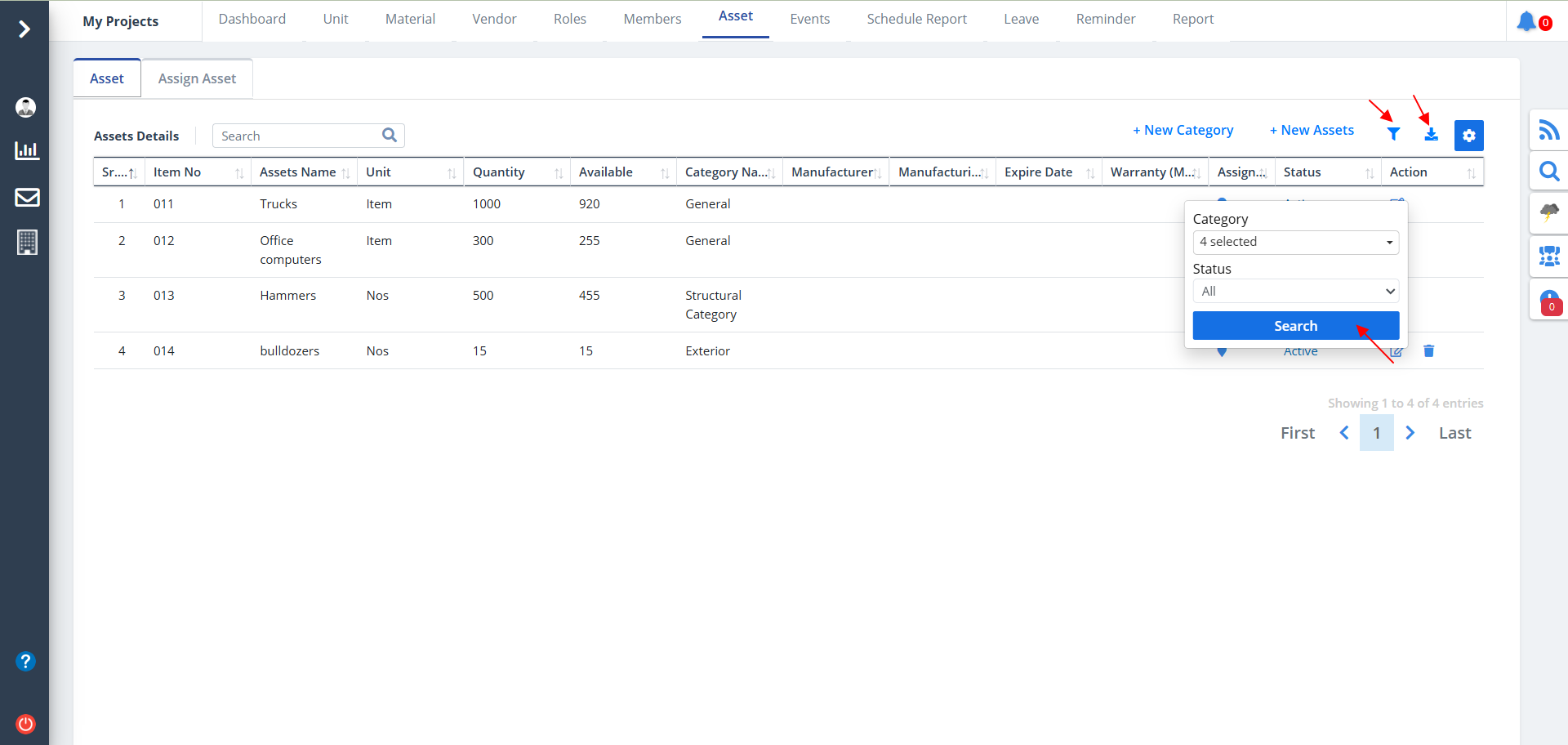
- Use the download button as shown to download the asset details pdf.
- Use the filter button as shown if you wish to narrow your viewing range.
- Select category, Status and ultimately click on Search.
New Asset
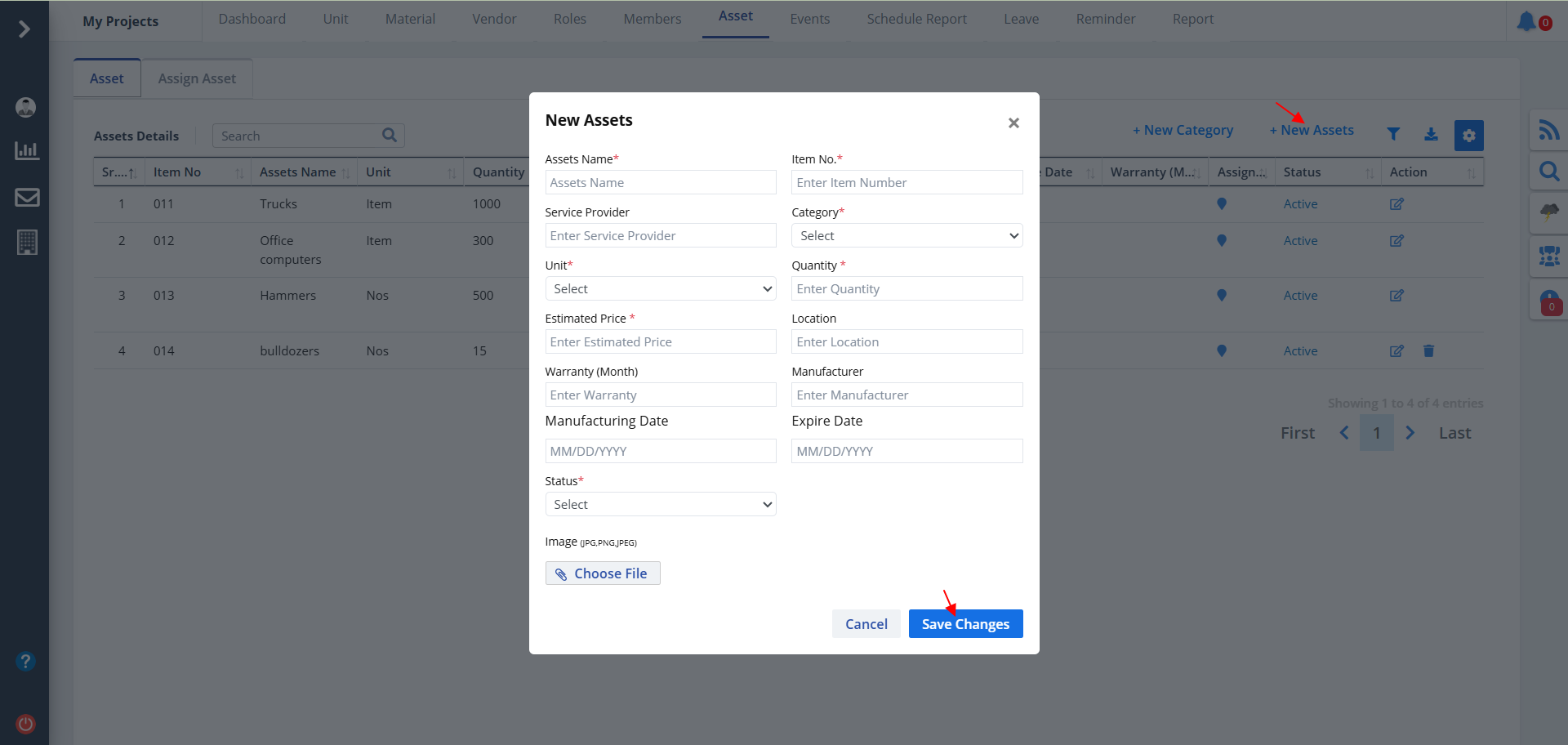
- Click on New Assets to add a new Asset.
- Fill the asked details and click on Save Changes.
Edit Asset
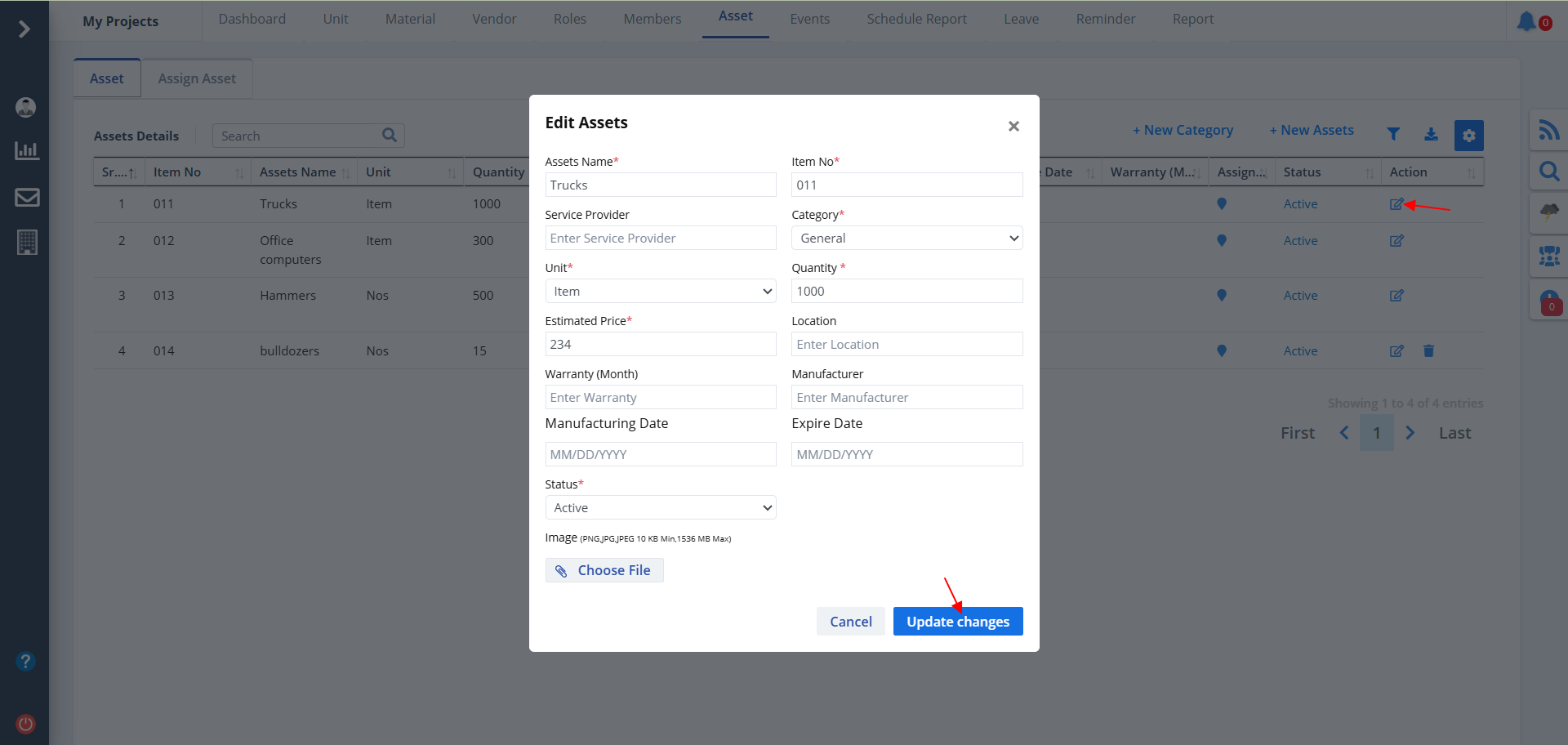
- Click on Edit under Action column to edit asset details.
- Modify required inputs and click on Save Changes.
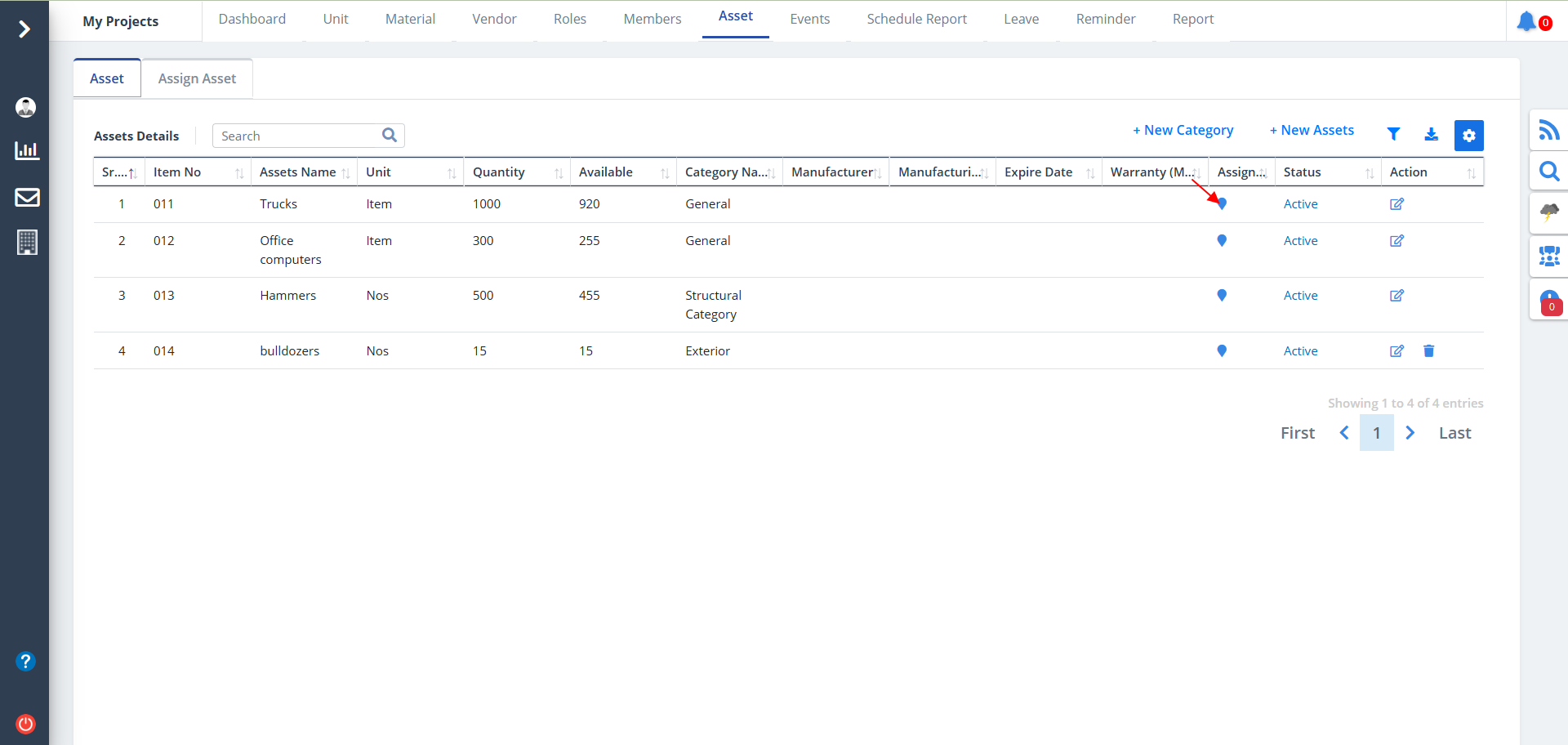
Assets Location
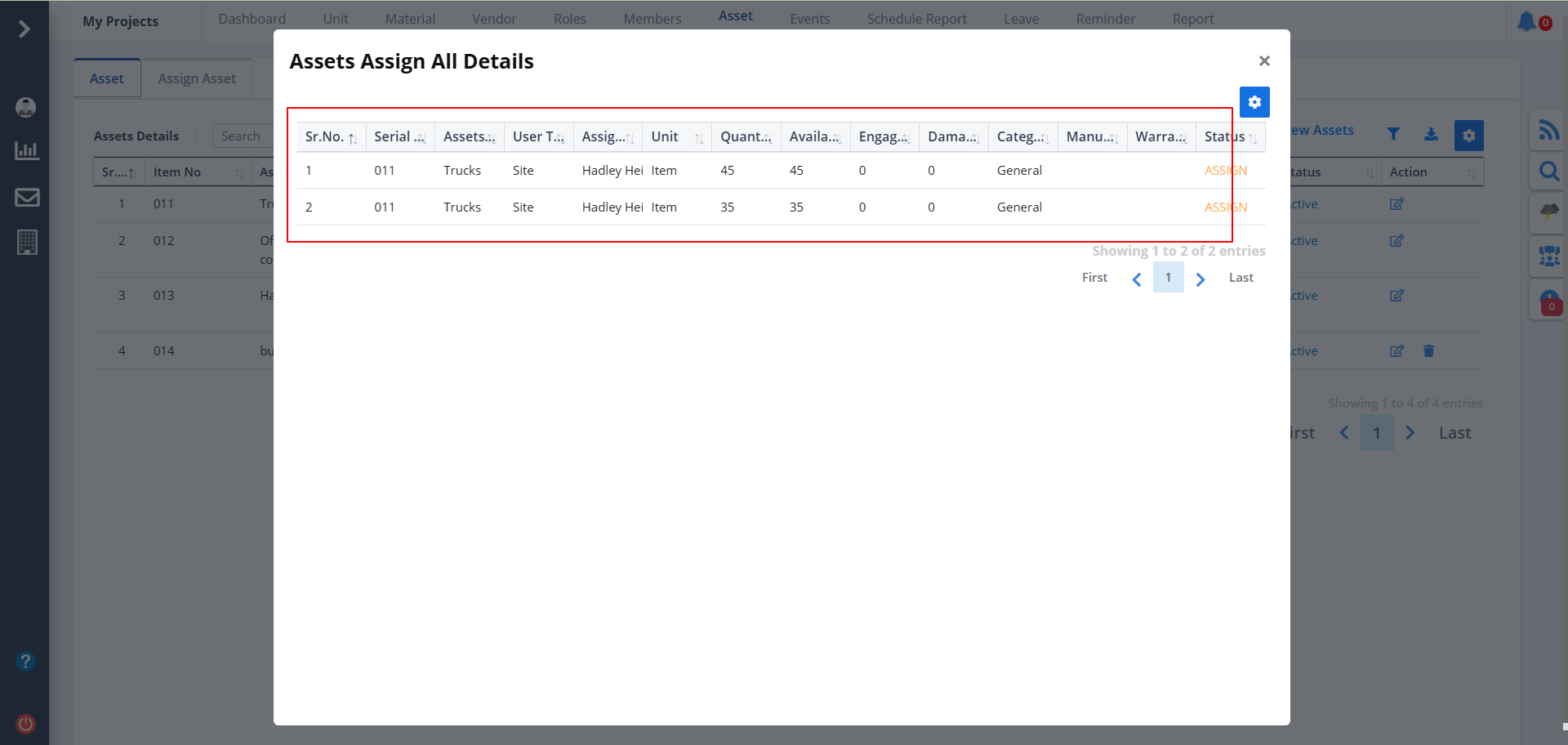
- Click on Location icon as depicted to view Assign Assets all details.
- It shows the status of the assets details as well.
Column Visibility
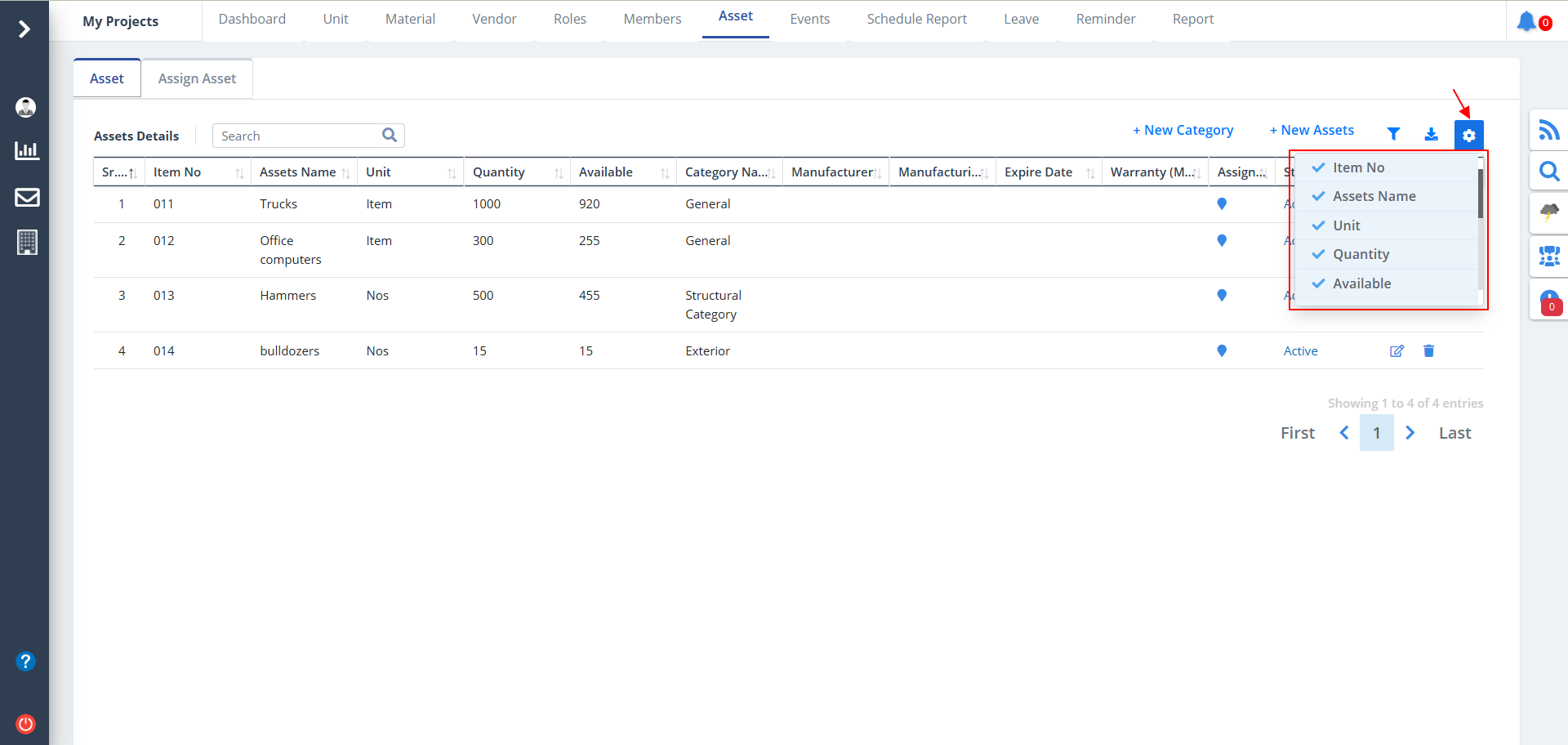
- You can control what column you prefer to be seen.
- Just click on the Settings icon as shown in the below image.
- Tick the columns that you want to view and untick the ones you don't desire to view.
- In case you change your mind, you can tick the untick ones and vice-versa.
Assign Assets List
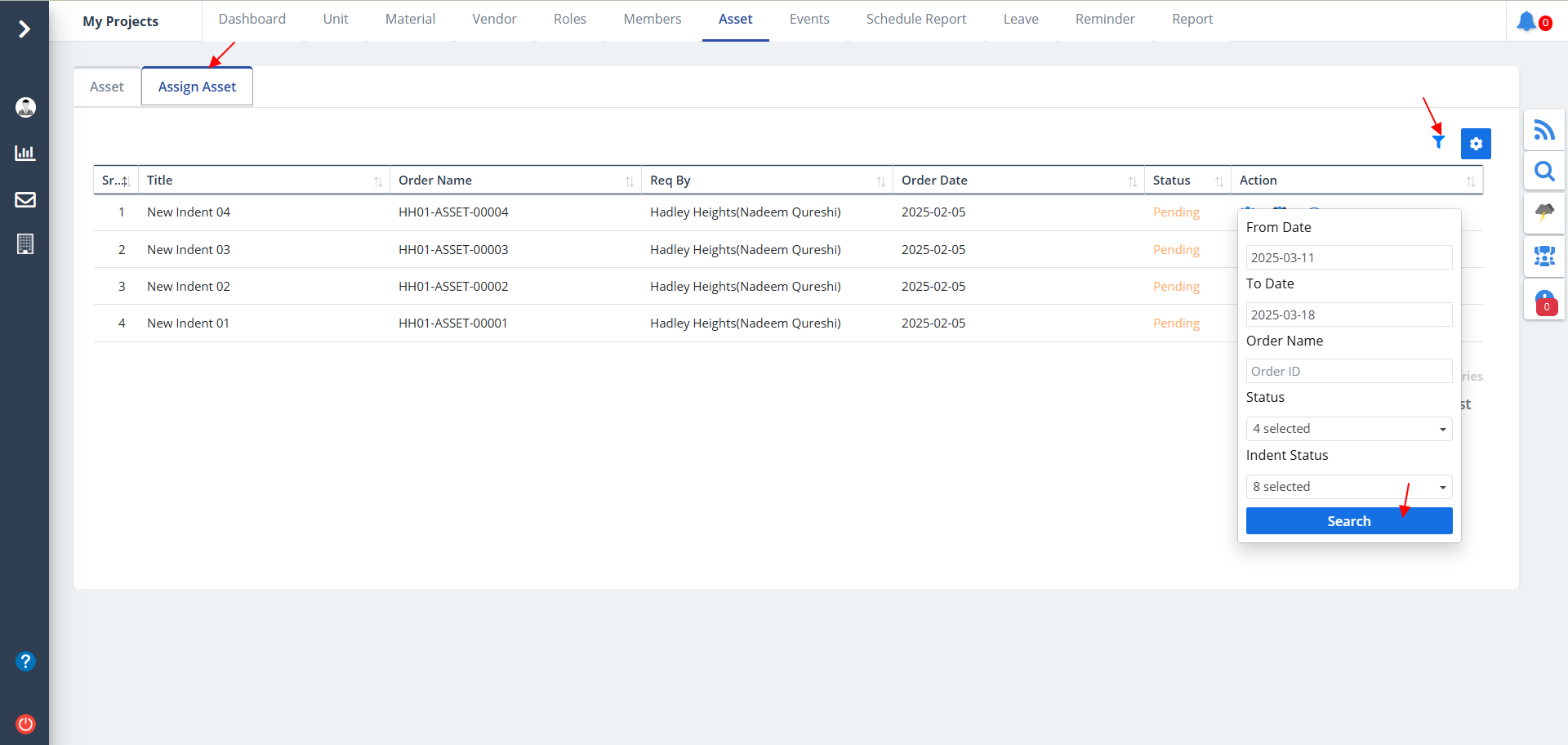
- Select Assign Assets from tab list.
- Now the details regarding the same will be shown in short.
- You can use the Filter button as shown to narrow your search.
- Select proper inputs and click on Search.
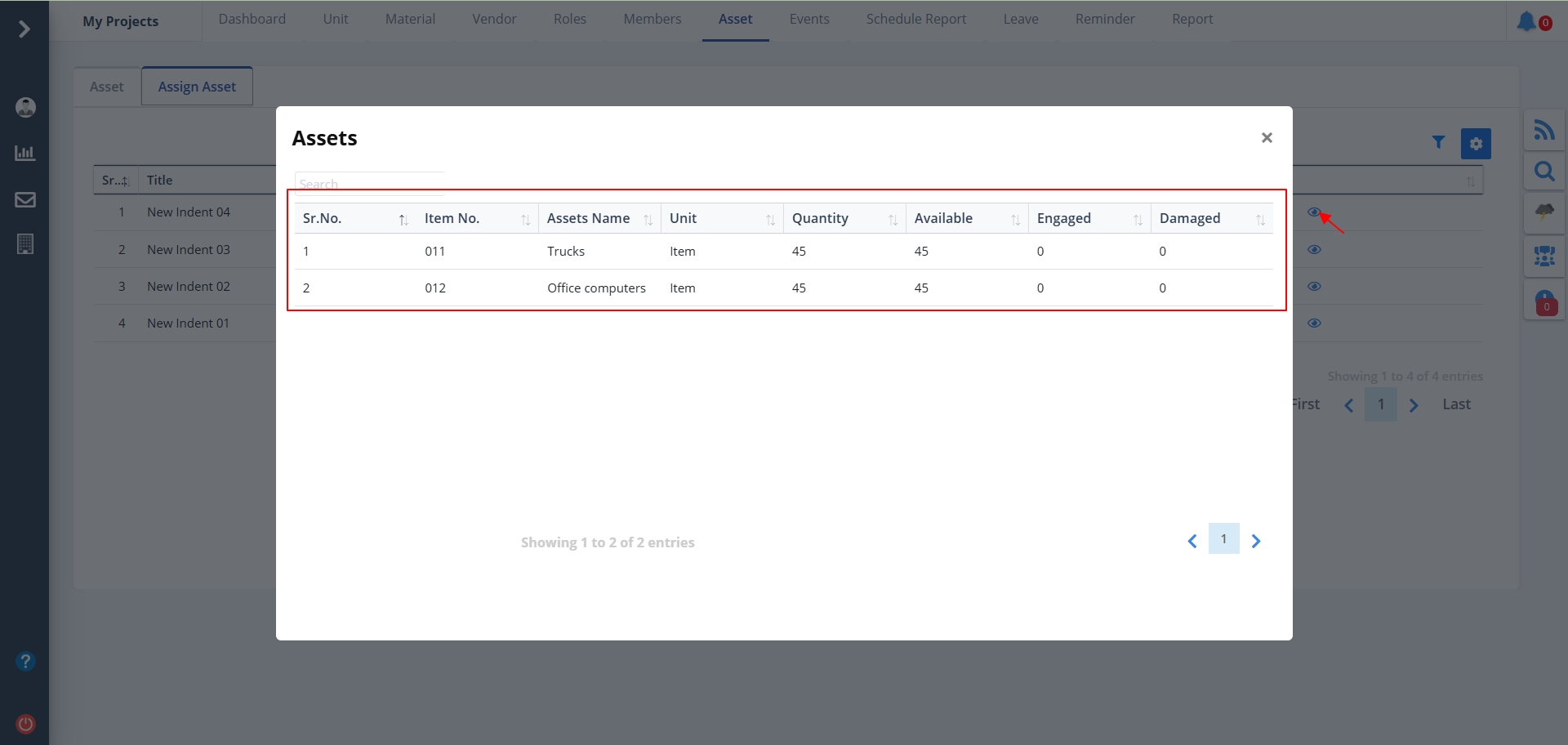
- Click the Eye button as shown to view the assets assigned in detail.
- This shows the available, engaged and damaged items.
Assign Assets Audit
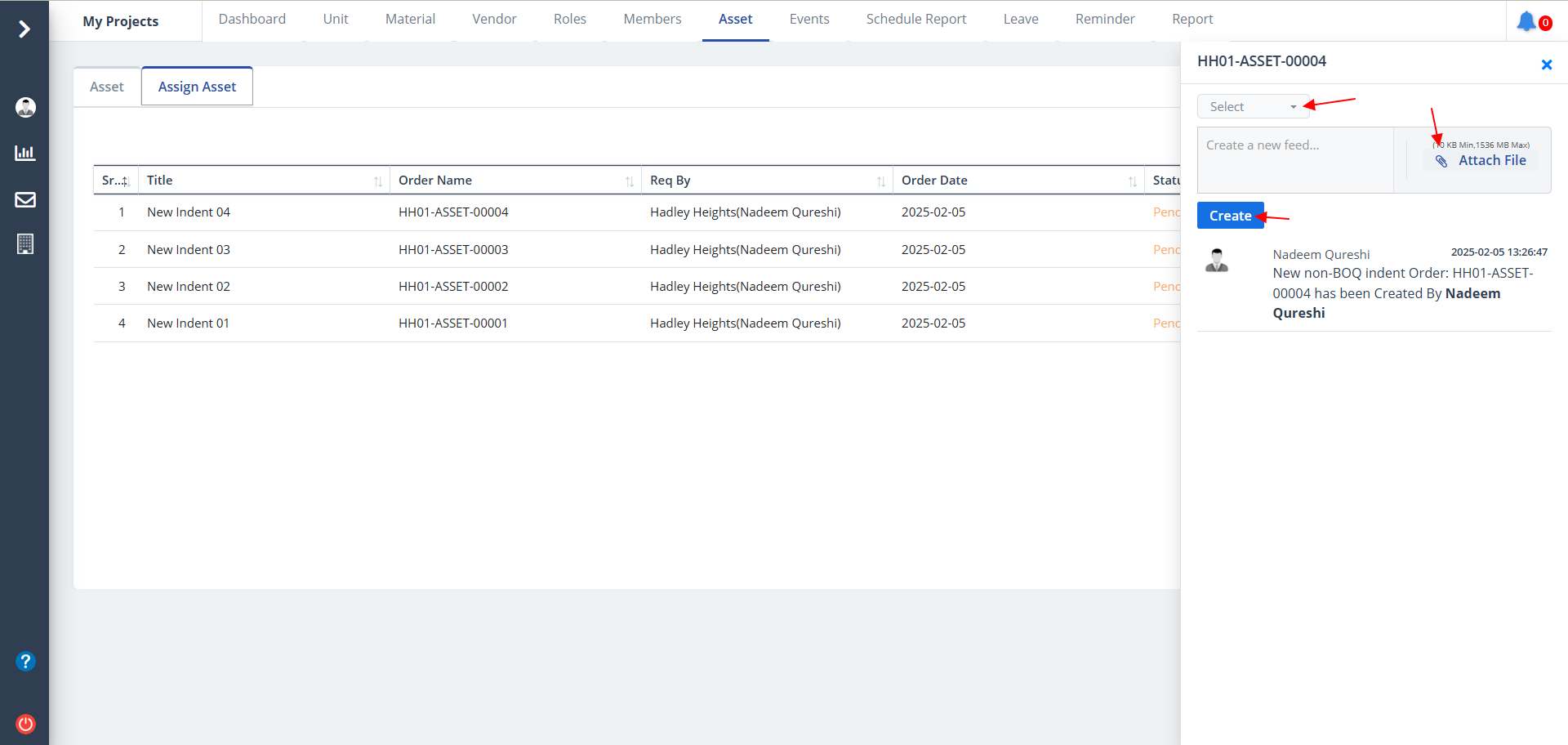
- Click on the first button under Action to open Audit Report. Just hover on the icon and you would know which is the audit button. It shows the actions (add, update, delete) performed by a user if any.
- Click on Create to add new feed
- You can also select a user/users while creating a feed
- You can also upload a relevant file. Just click on Attach File
Assign Assets Approval
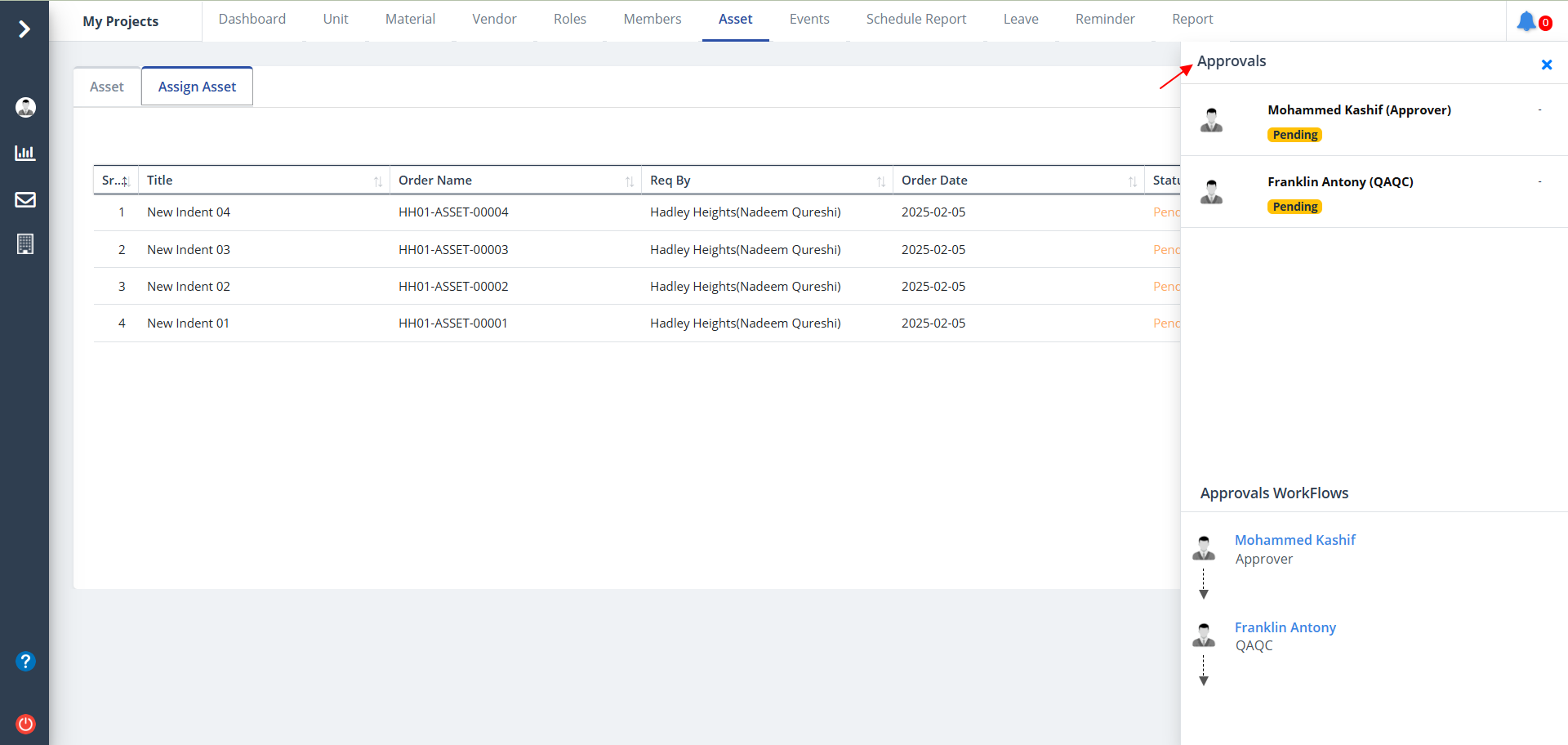
- Click the second button under Action column to see the Approval list.
- Just hover on the icon to know which button is for approval.
- On opening you would be able to see the users with their approval status and approval workflow.