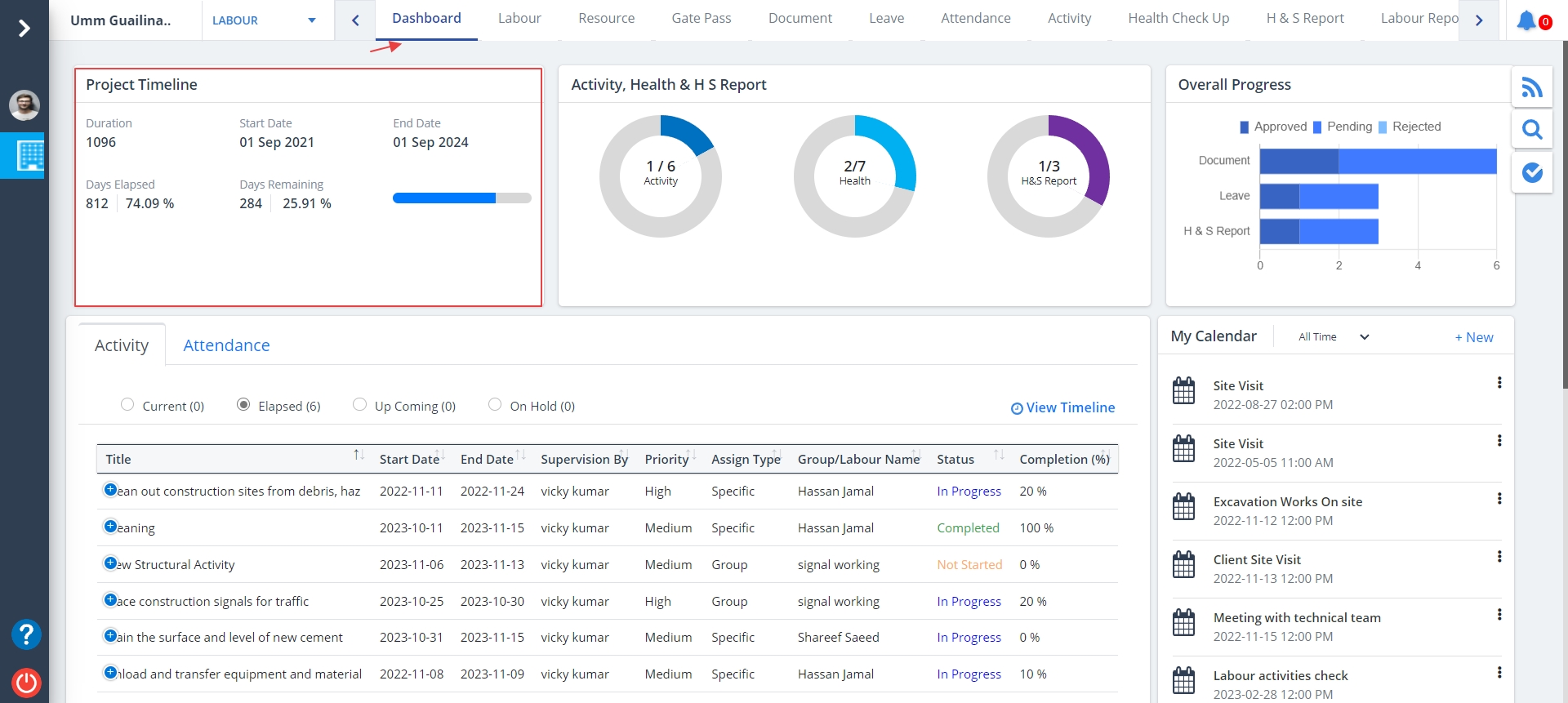
Project Timeline
- The dashboard provides a glimpse of how human resources working on the project are being utilized.
- Skystruct provides focus on construction activities statuses with timelines due on present day as well as elapsed and upcoming form the central area of focus of the dashboard.
What is a Project Timeline?
A project timeline is a visual list of tasks or activities placed in chronological order,
which lets project managers view the entirety of the project plan in one place.
A project timeline typically takes the form of a horizontal bar chart, where each task is given a name
and a corresponding start and end date.
- Select Dashboard from menu.
Project Timeline details are as follows:-
- Project Timeline can be noted in a nutshell.
- Paramount details are shown.
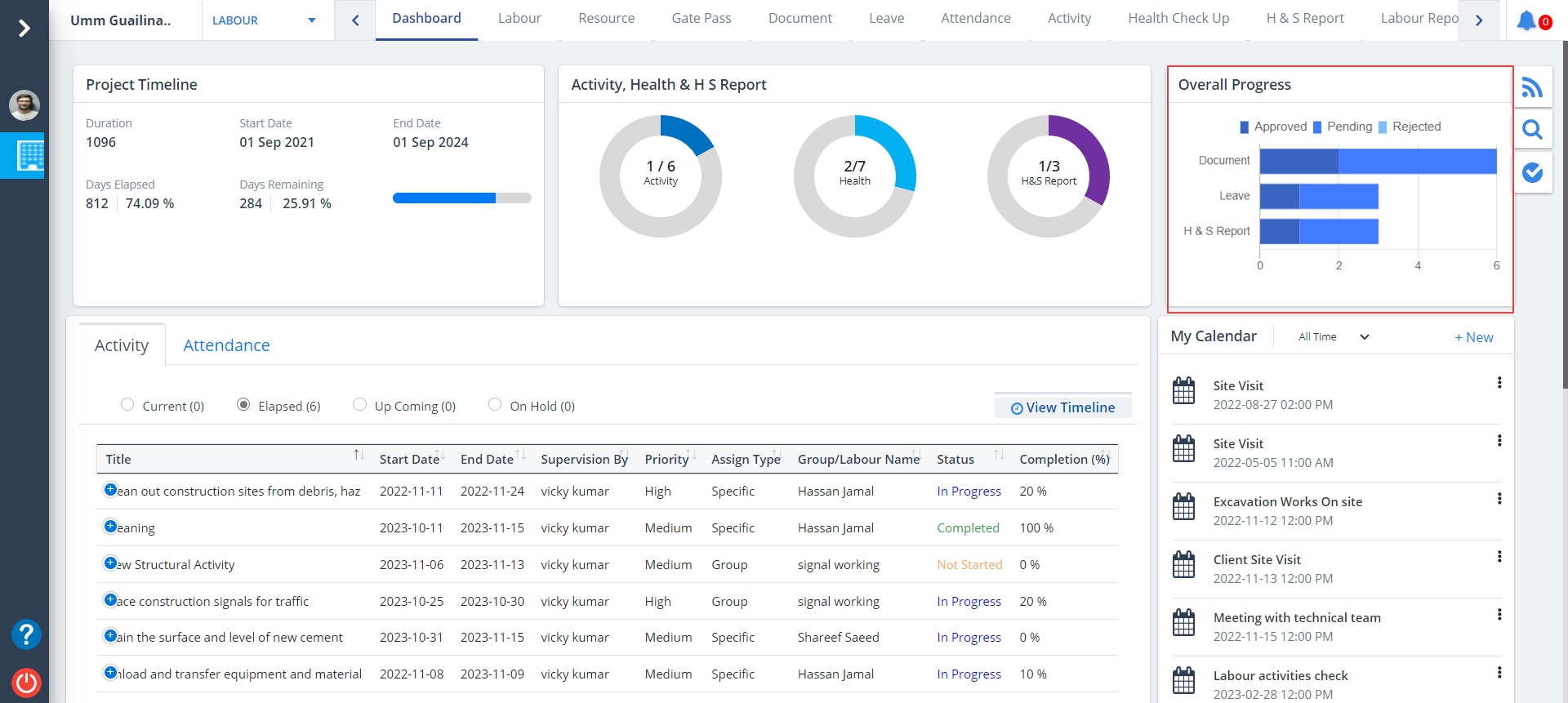
Project Progress
What is Project Progress?
Project Progress means a degree to which a project is developed and completed up to a moment -
a progress achieved up to certain moment means a condition and amount of work recently completed.
It will show the progress of each and every required details.
Activity Details
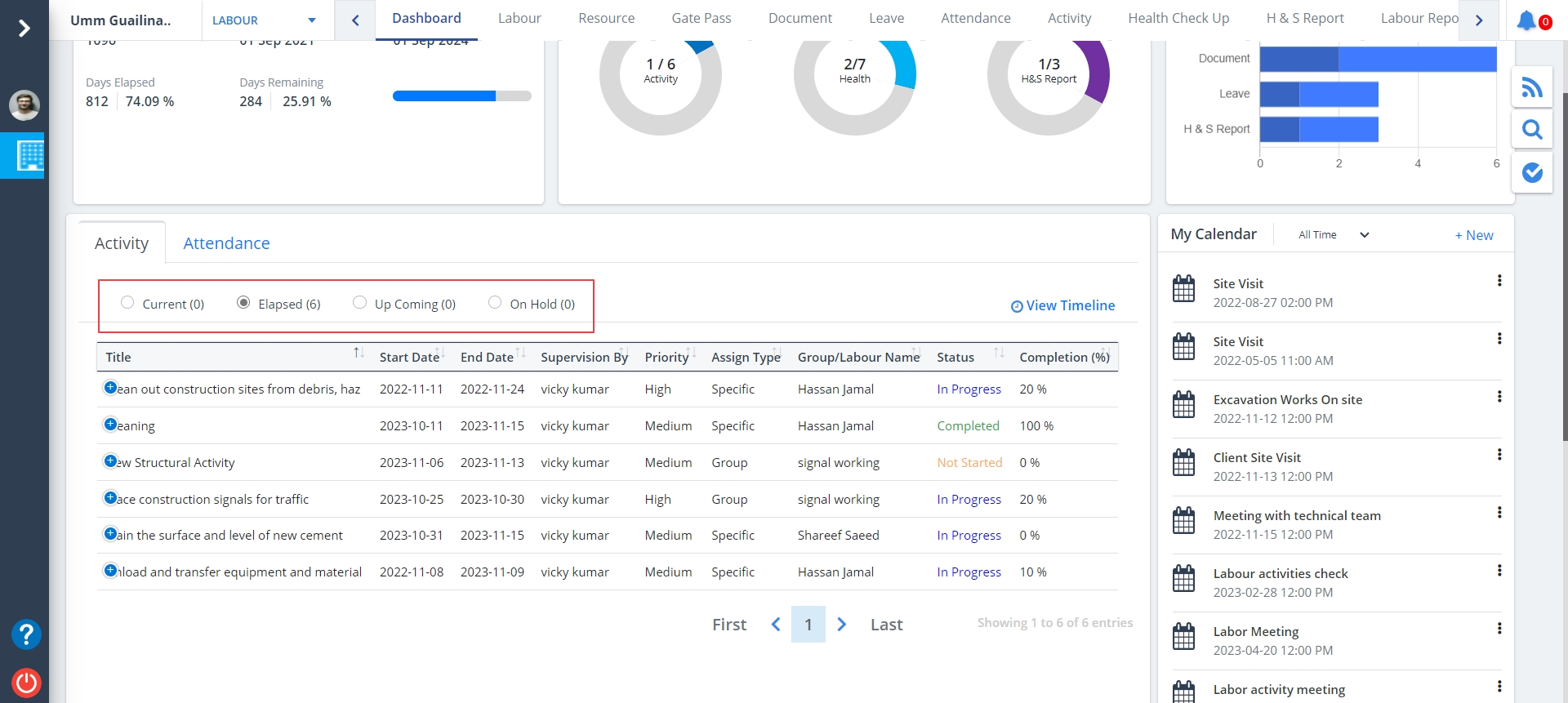
- This section depicts the activity tasks assigned to the logged in user or to the team.
- Just select the appropriate option as shown below.
- You can filter your viewing by selecting an option from the radio buttons.
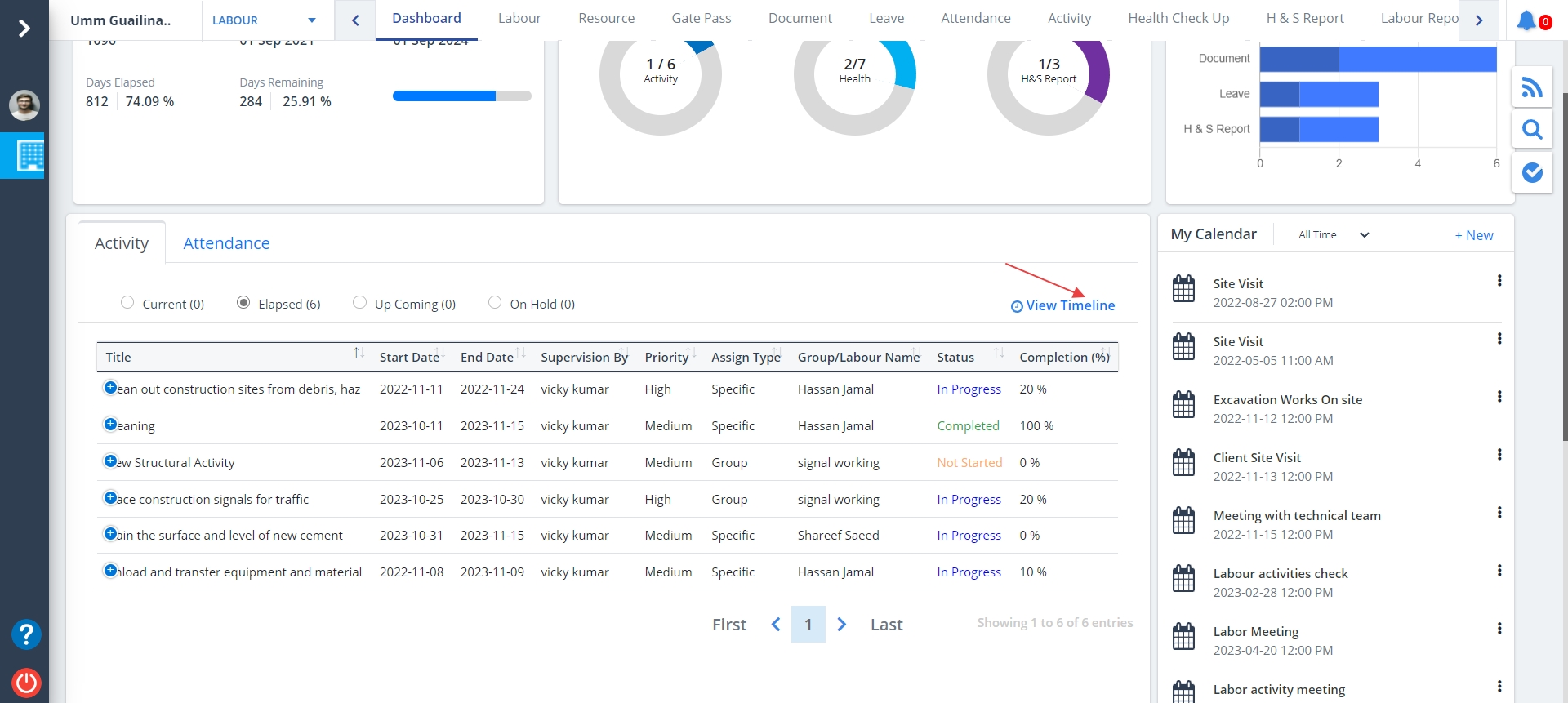
- To view timeline, click on View Timeline as depicted.
View Timeline
To view timeline, click on View Timeline as depicted.
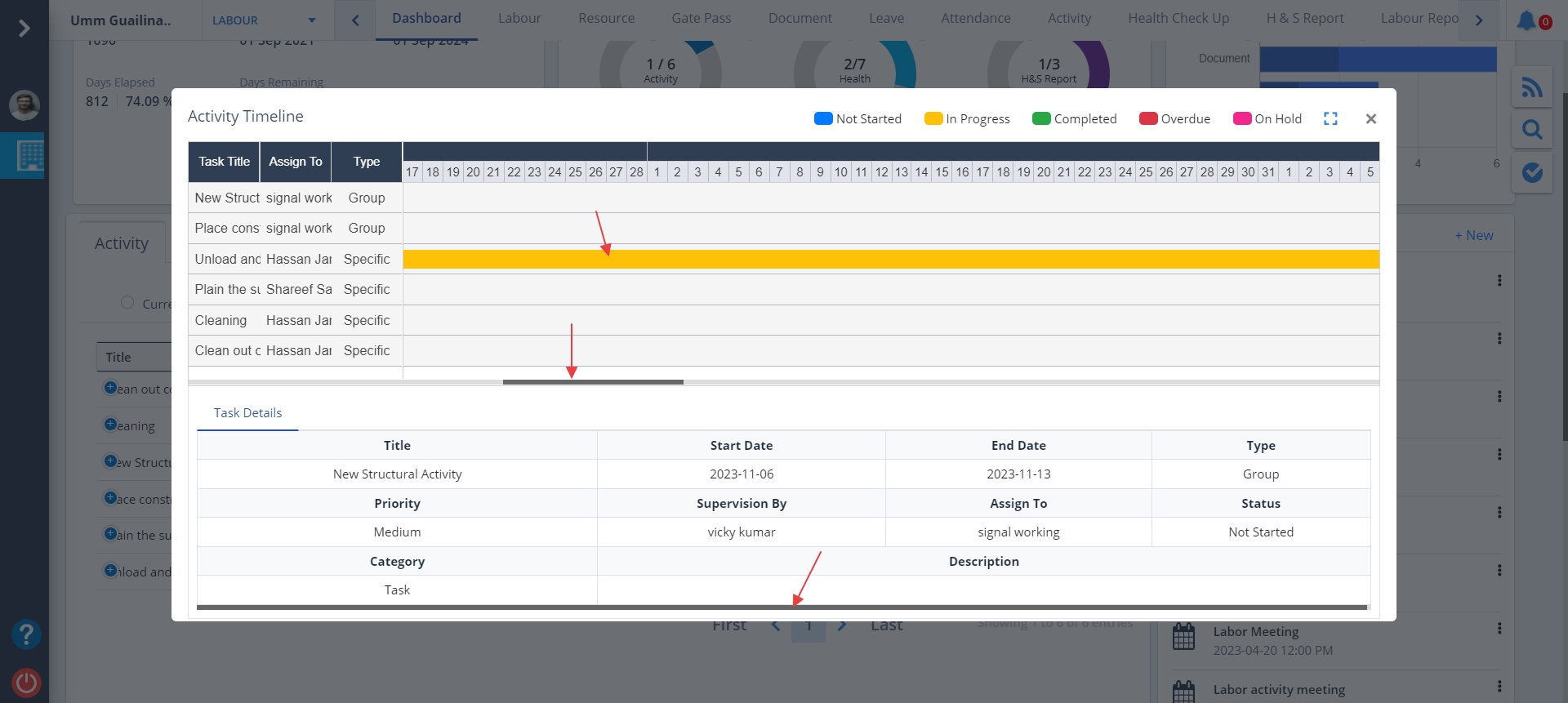
- Hover over any of the rows to view the Task/Activity details exhaustively.
- Scrollbars are provided for top to bottom, left to right and vice-versa viewing.
- The progress percentage of each activity is shown.
Attendance
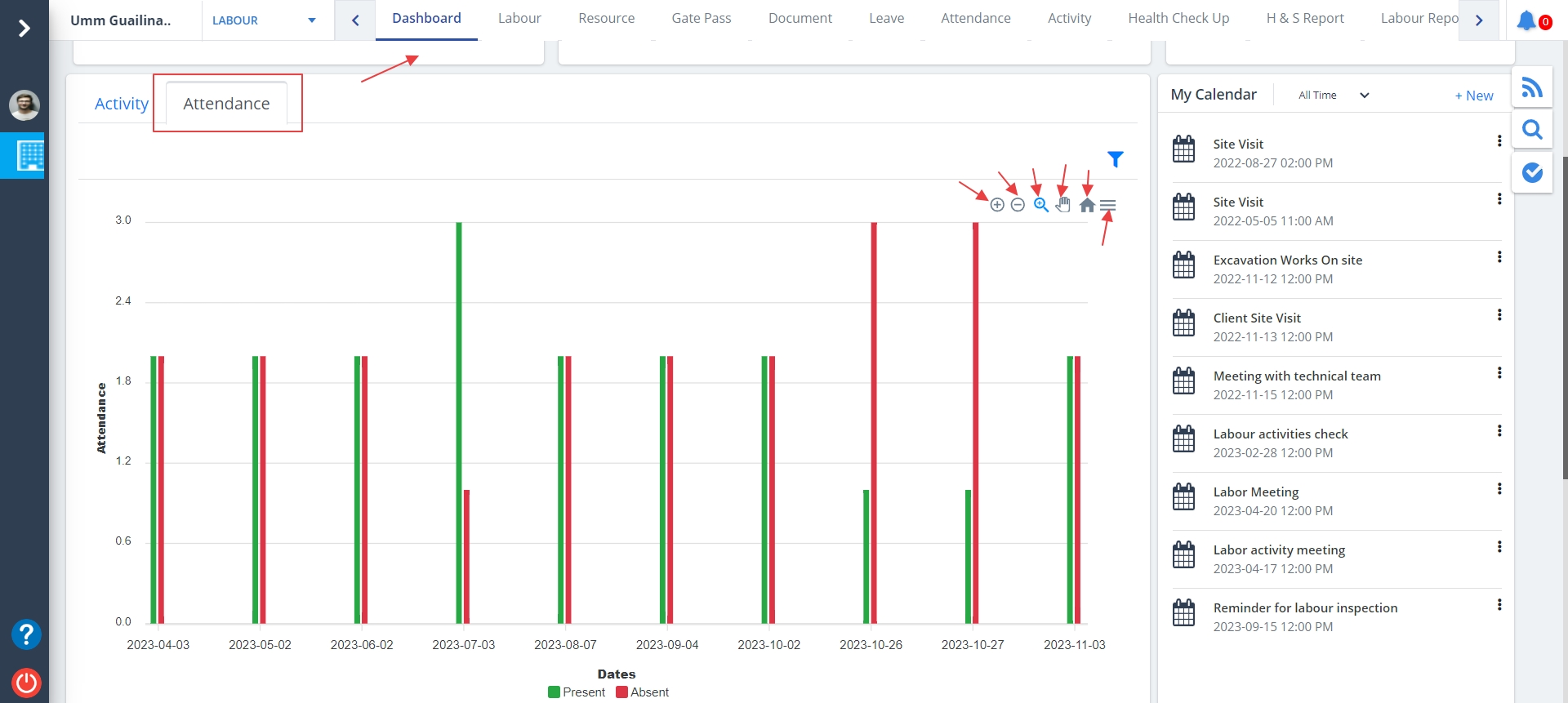
- Click on Attendance tab as displayed.
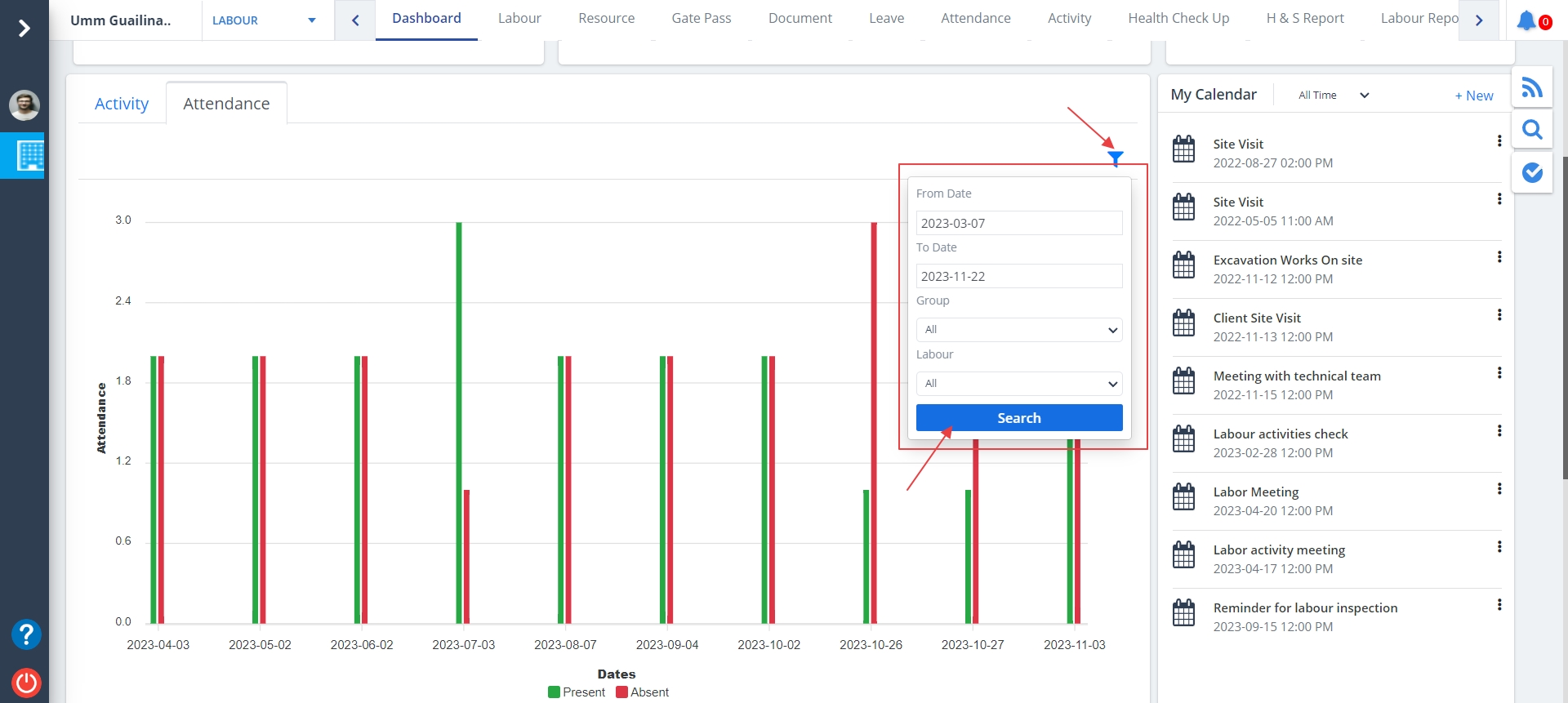
- You will see a graph of attendance based on present and absent.
- You can perform several operations such as zoom in, zoom out, fit to screen, panning, reset zoom and download options as shown.
Attendance Filter
- Click on Filter as shown.
- Select dates, group and filter. Now click on Search.
My Calendar
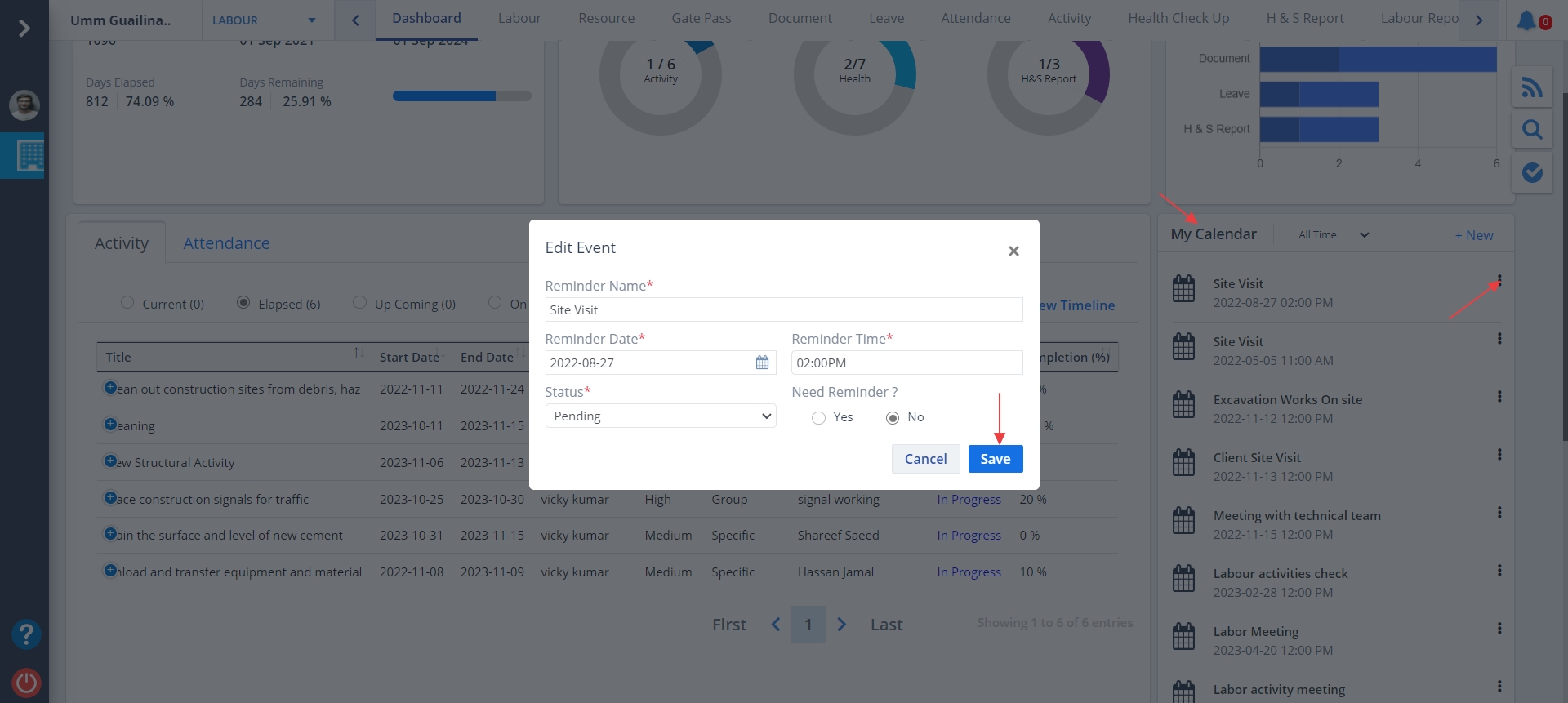
- My Calendar is used to define reminders.
- If reminder/reminders are already defined it will be visible.
- You can edit it by clicking on the Edit button.
- Update the data you wish to change and click Save.
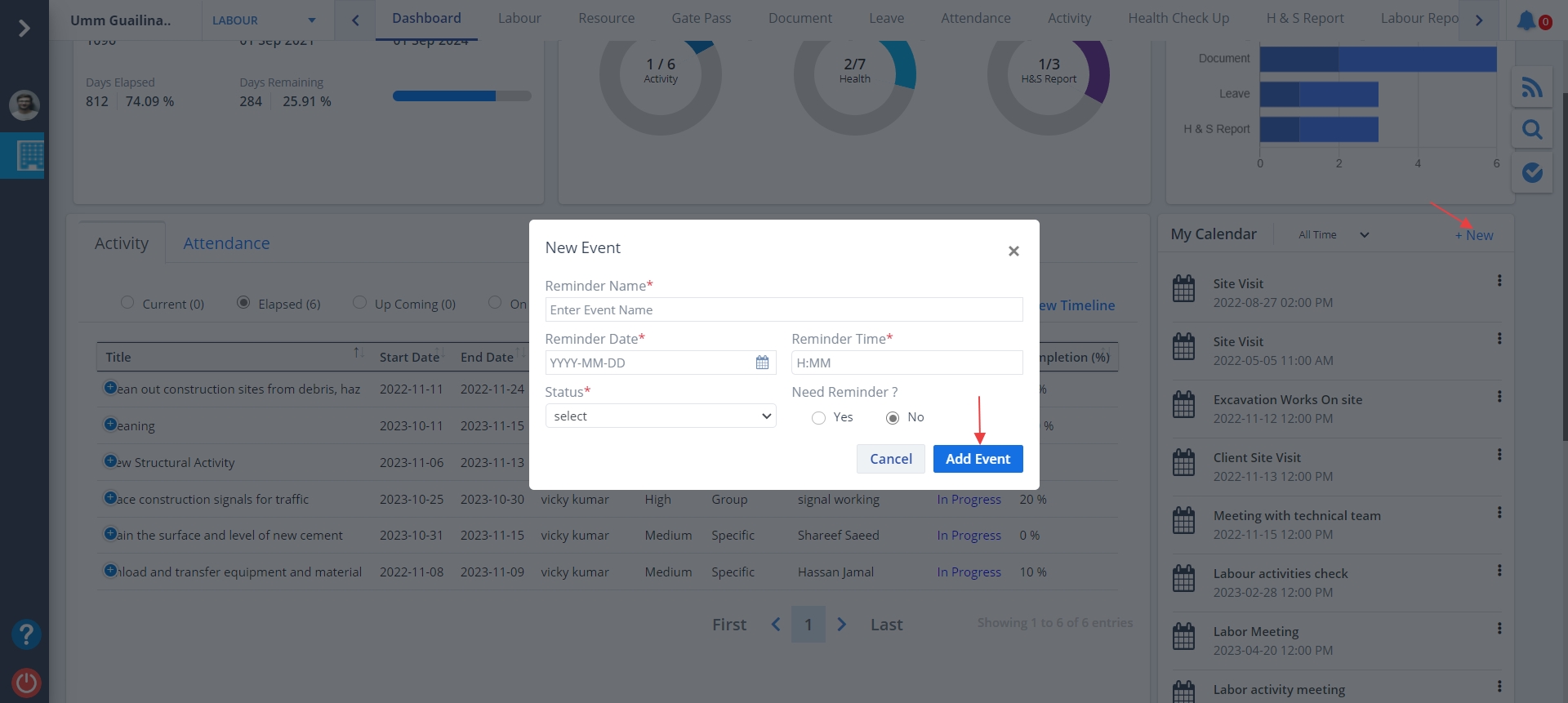
- To add a new reminder, click on New.
- Enter proper name for the reminder, reminder date and reminder time.
- Fill data and click on Add Event.
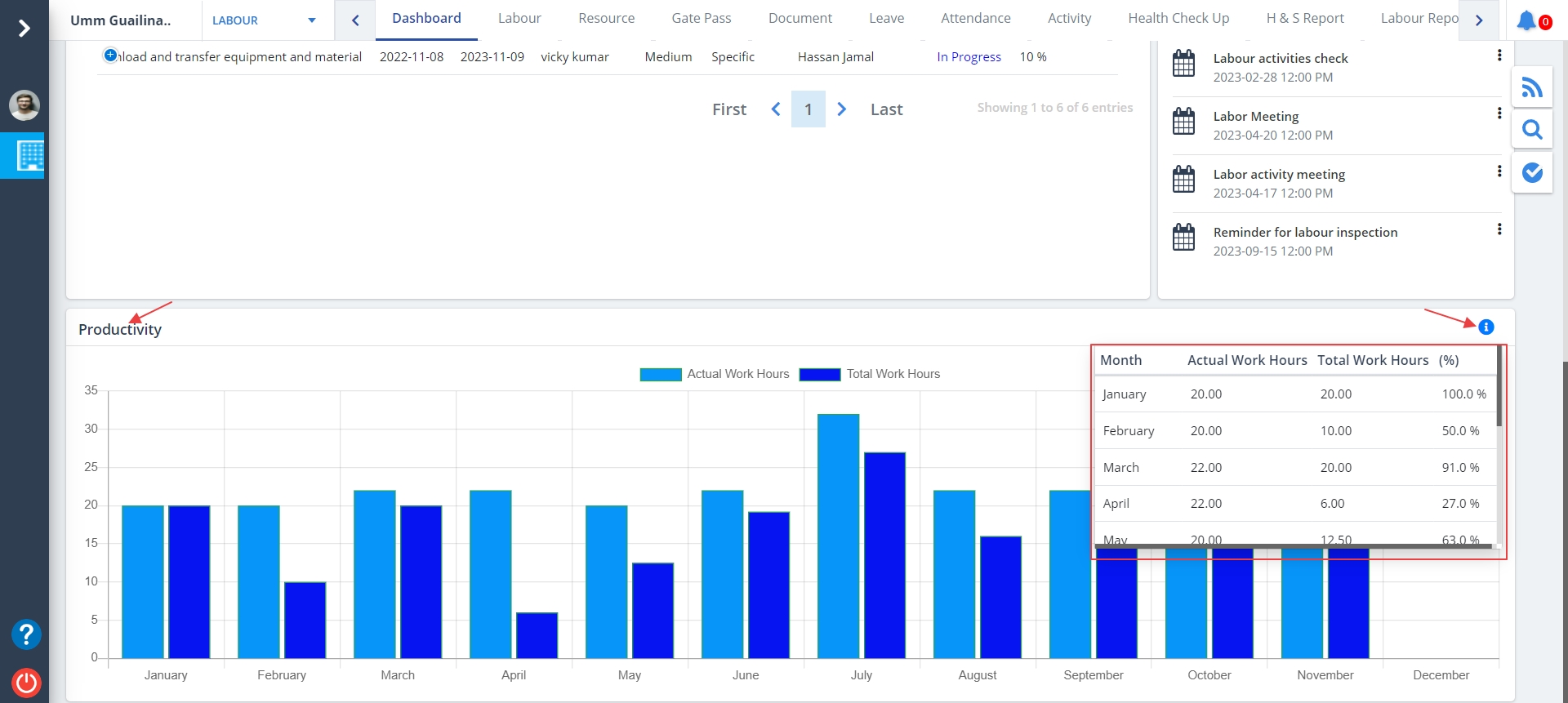
Productivity
- This graph shows actual work hours and total work hours.
- Click on ! to view the tabular format of the same graph.