Authority List
Who are the authorities?
People or contracting governments by which any works under this Act are constructed, or to be
constructed, and any authority constituted or appointed for the purpose of such construction.
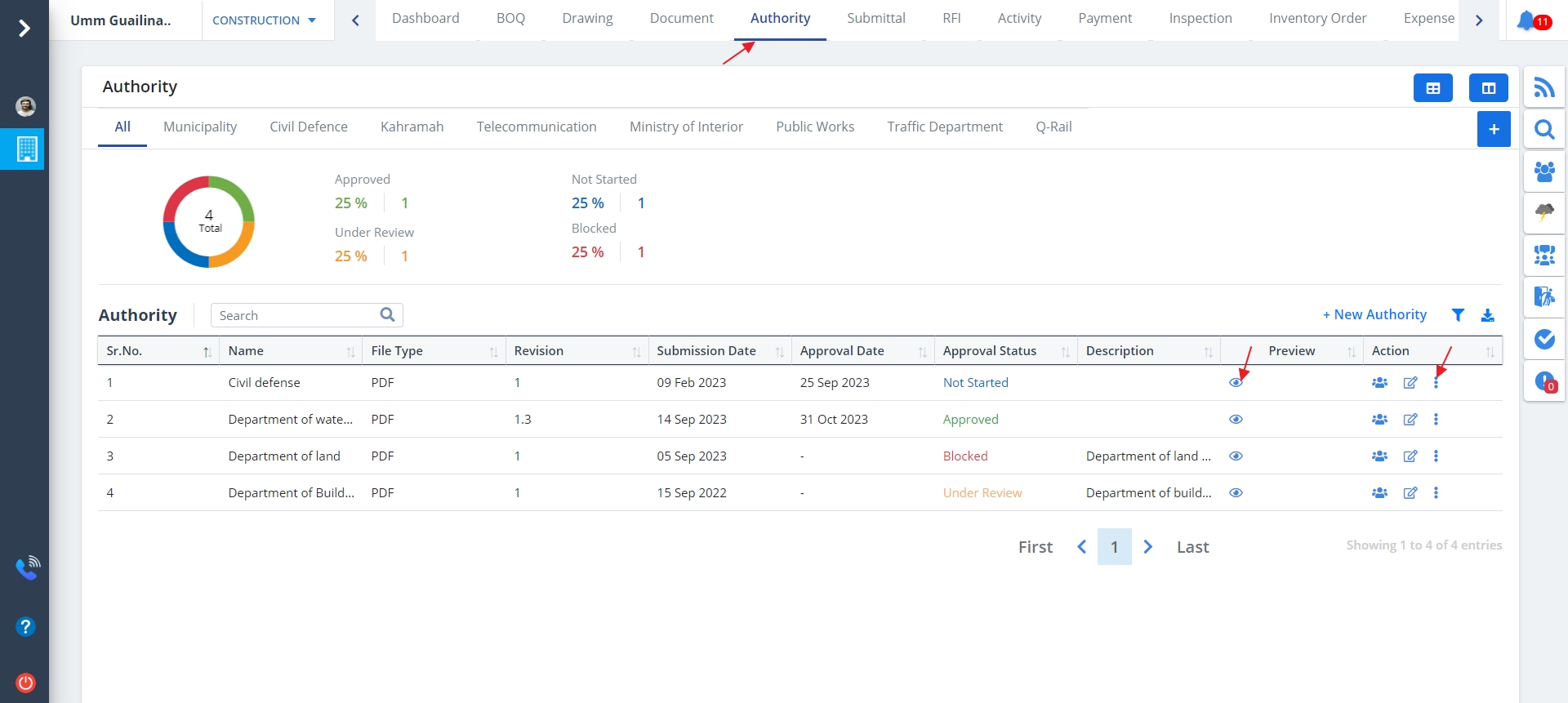
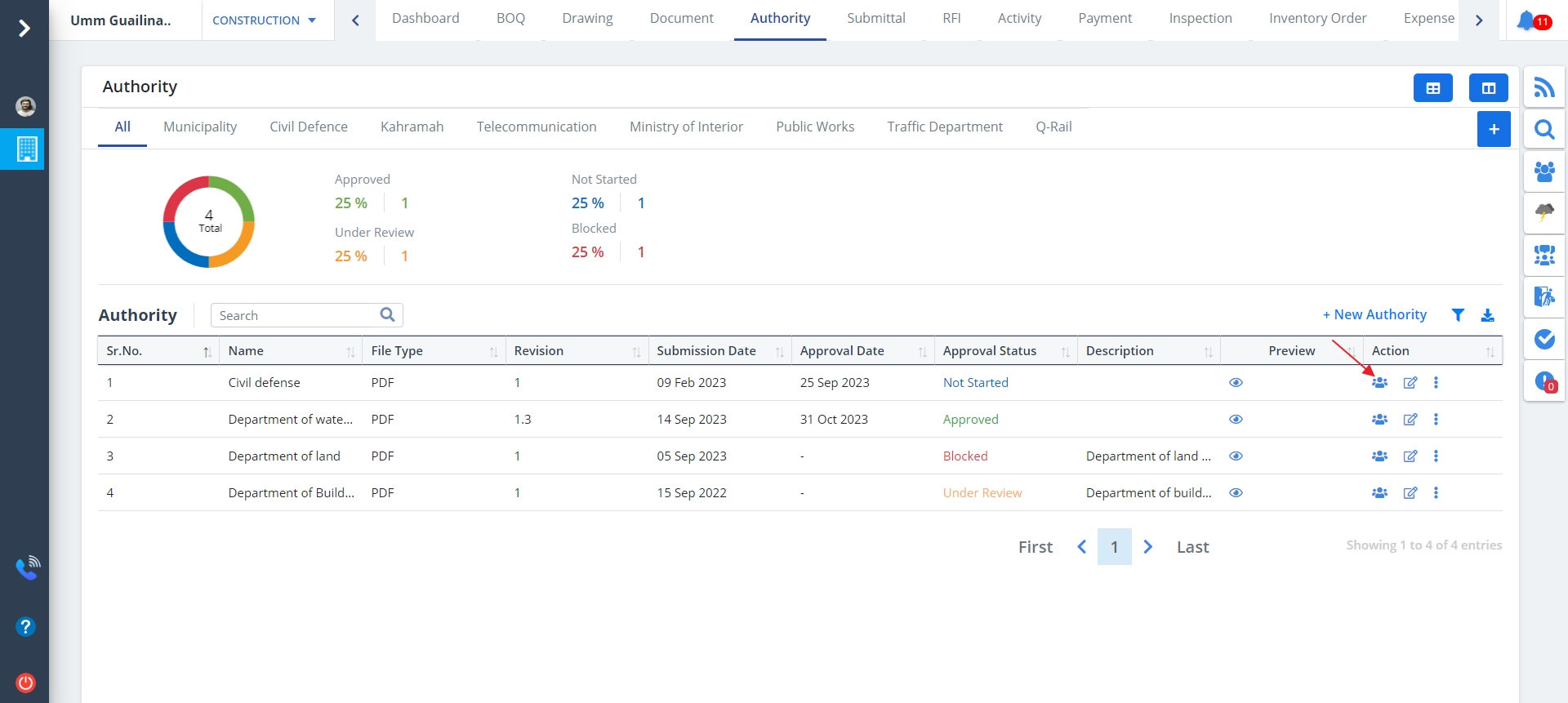
- Select Authority from menu. Authorities list will be shown if the authority/authorities are already added.
- Using the “eye” icon under the Preview column you can view the uploaded document.
- To perform different operations/actions click the options under Action column.
Authority Category
- There are different categories under Authority heading.
- So, add a new Authority under relevant category.
- Below figure shows the authorities under All Category.
- Likwise you can view the authorities under a particulary category. Just select the desired category and view the list.

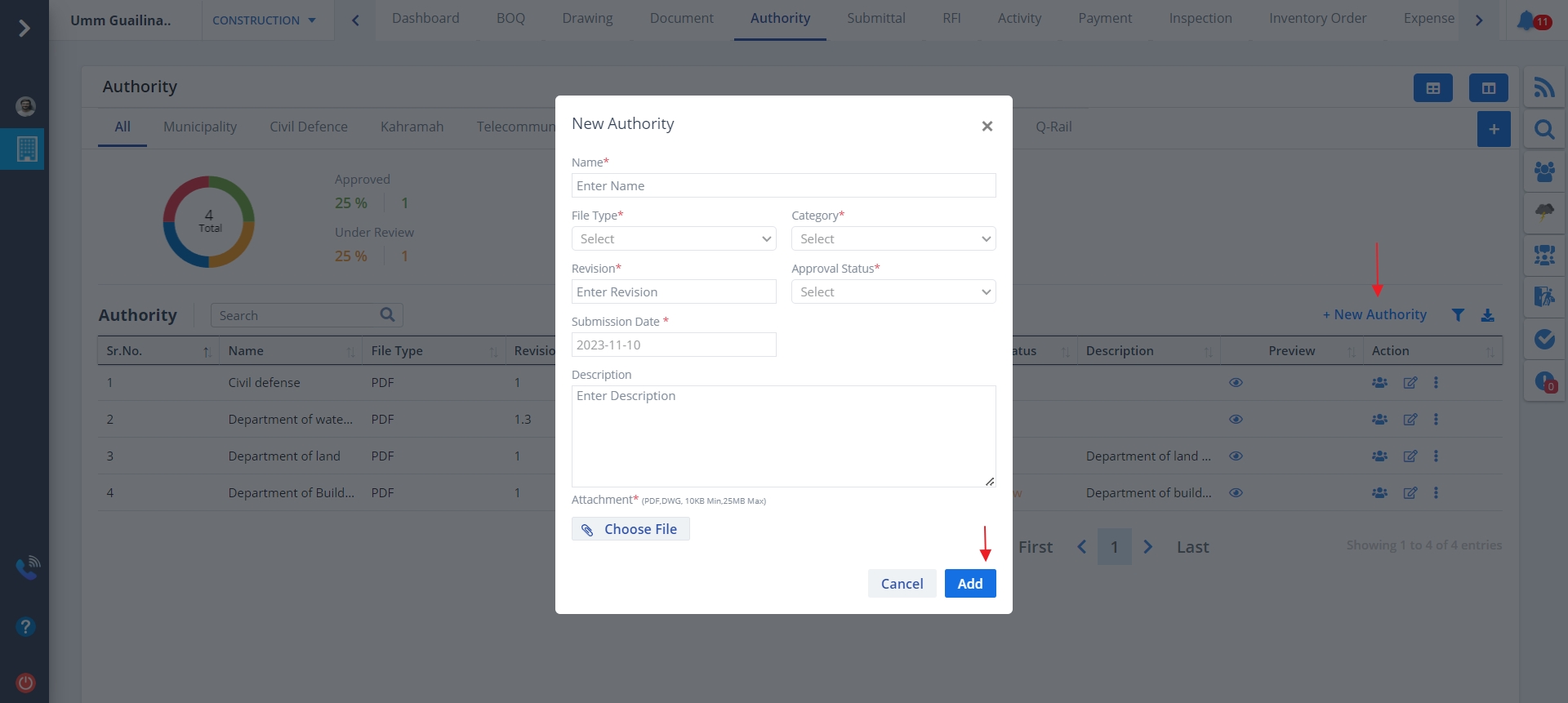
New Authority
To add a new authority, click on New Authority. Add the details including document type, approval status and category. Now click on Add button.
Approval status can have any one of the 3 values; Pending, Approved, Under Review.
- Pending says that the authority has not been considered yet.
- Approved means that the government has agreed upon the authorities.
- Under Review implies that the authority has been considered but not approved yet.
Audit Report
Click on Audit under Action column to view the approved authority documents (if already approved).
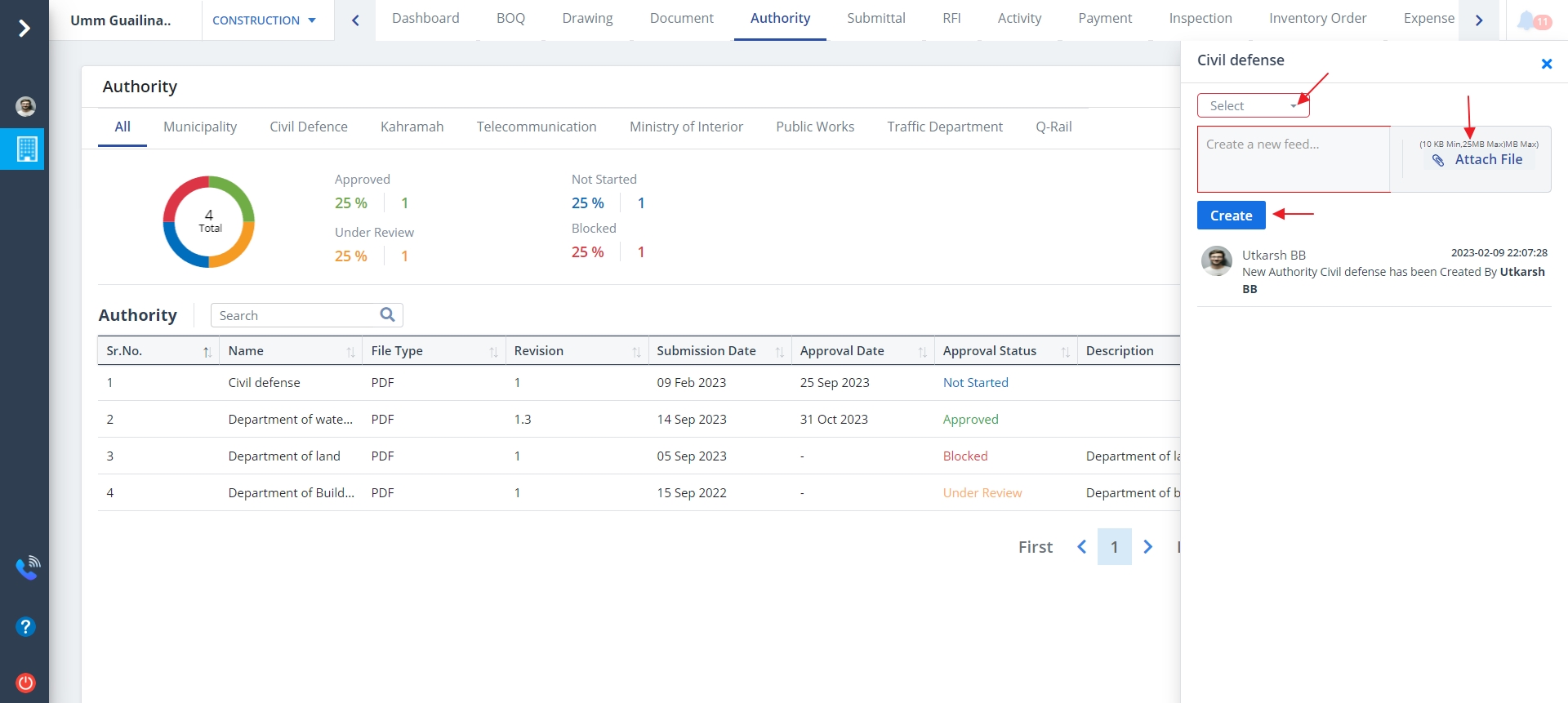
- A Popup box appears as shown below. All the active users will be shown.
- Select the member who approved the document from the drop-down and select appropriate file
- Now click the Create button.
Edit Authority
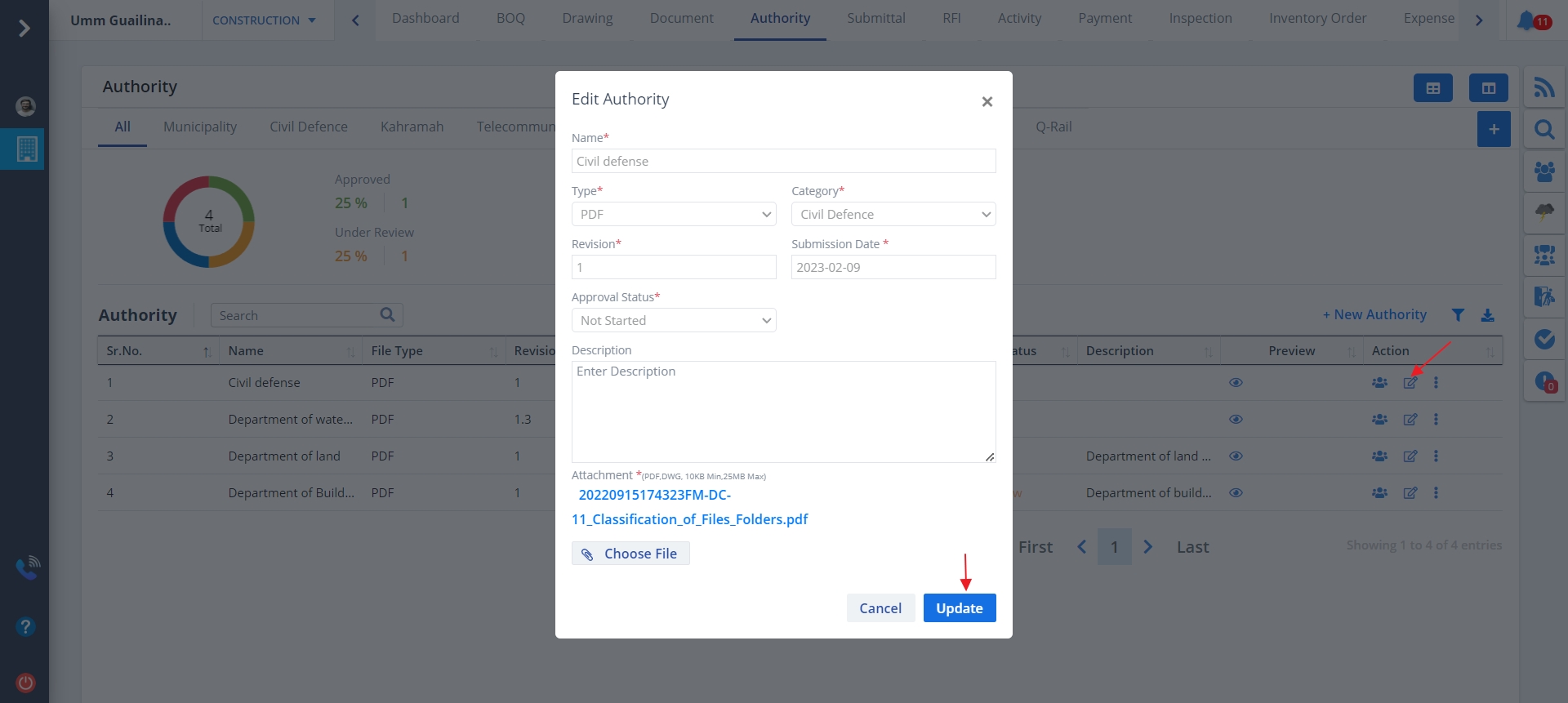
- Click on Edit icon under Action to update entries.
- Select the file type and category. Authority will be added under the specified category.
- Approval Status can be; Not Started, Approved, Under Review, Blocked.
- Now, click on Update.
Filter Authority
- Click on Filter icon as shown.
- Select from date, to date and status.
- Based on the input the data would be filtered. Just click on Search button.

Export Authority
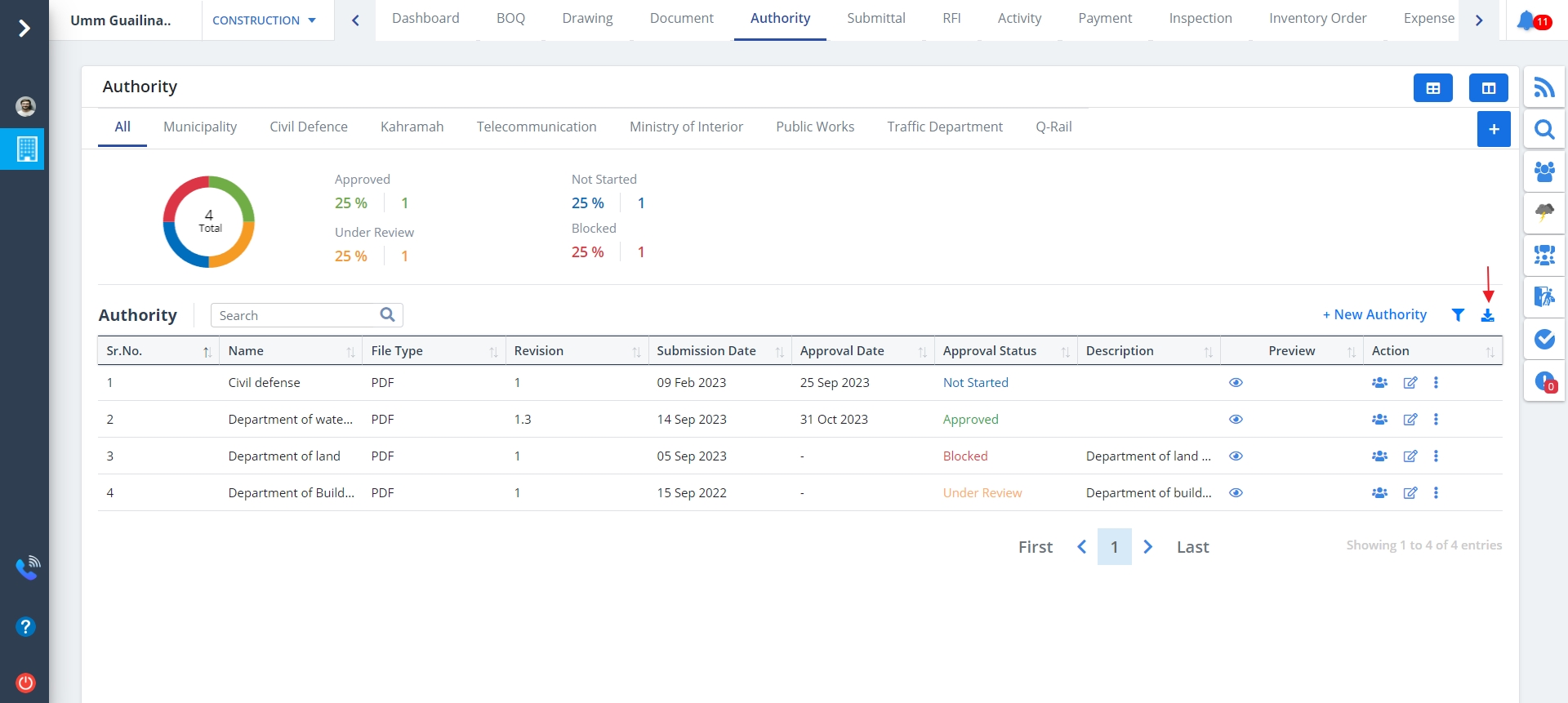
- Click on Export icon as shown.
- Select from date, to date, category and status.
- Click on Export when done.
- The desired output will get downloaded locally as per your filter inputs.
Add Category
- Click on Plus button to add a new category
- You can directly give a desired name and click on Add button.
- Click on Edit option to edit an existing category. Just click on Update thereafter.
- To delete a category, just click Delete button.
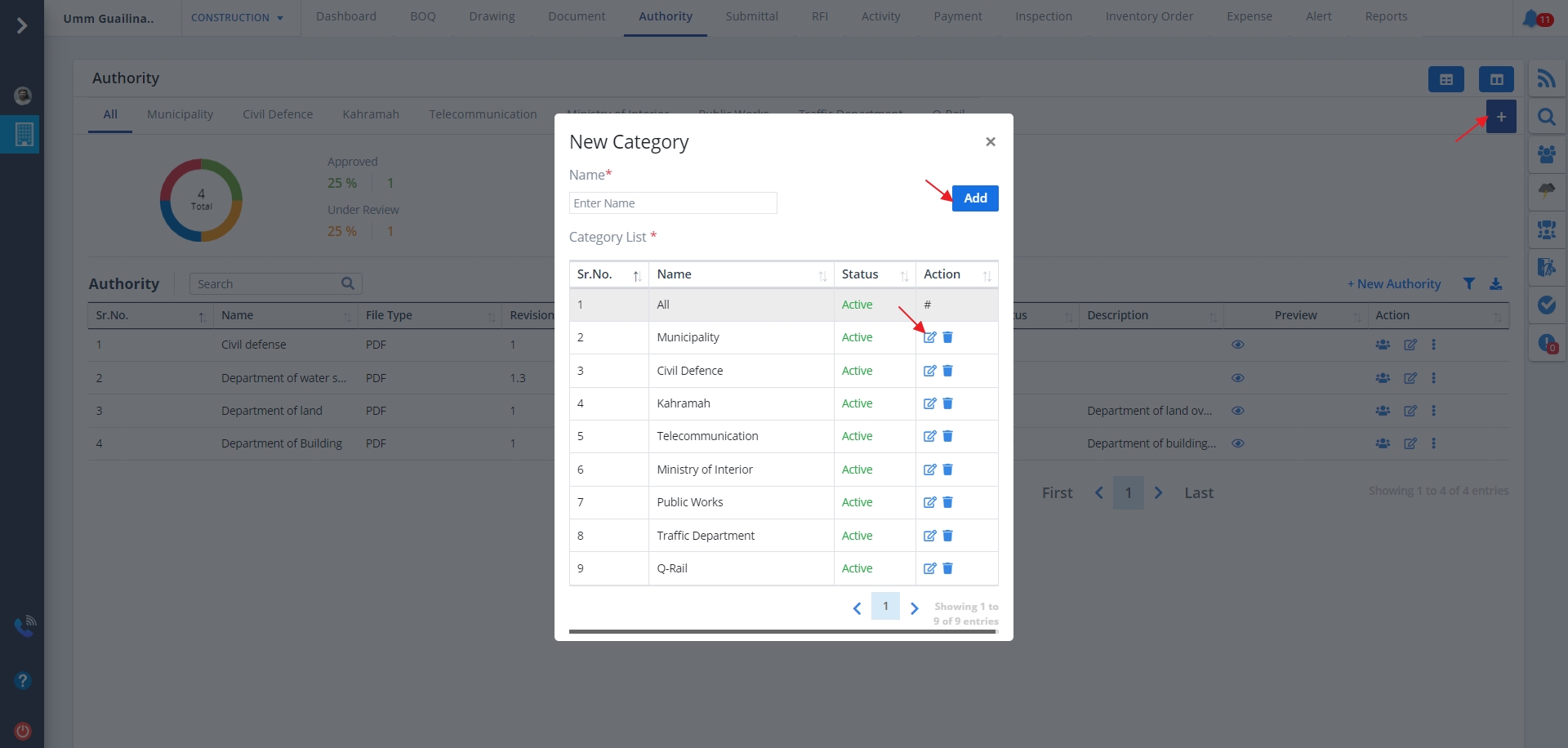
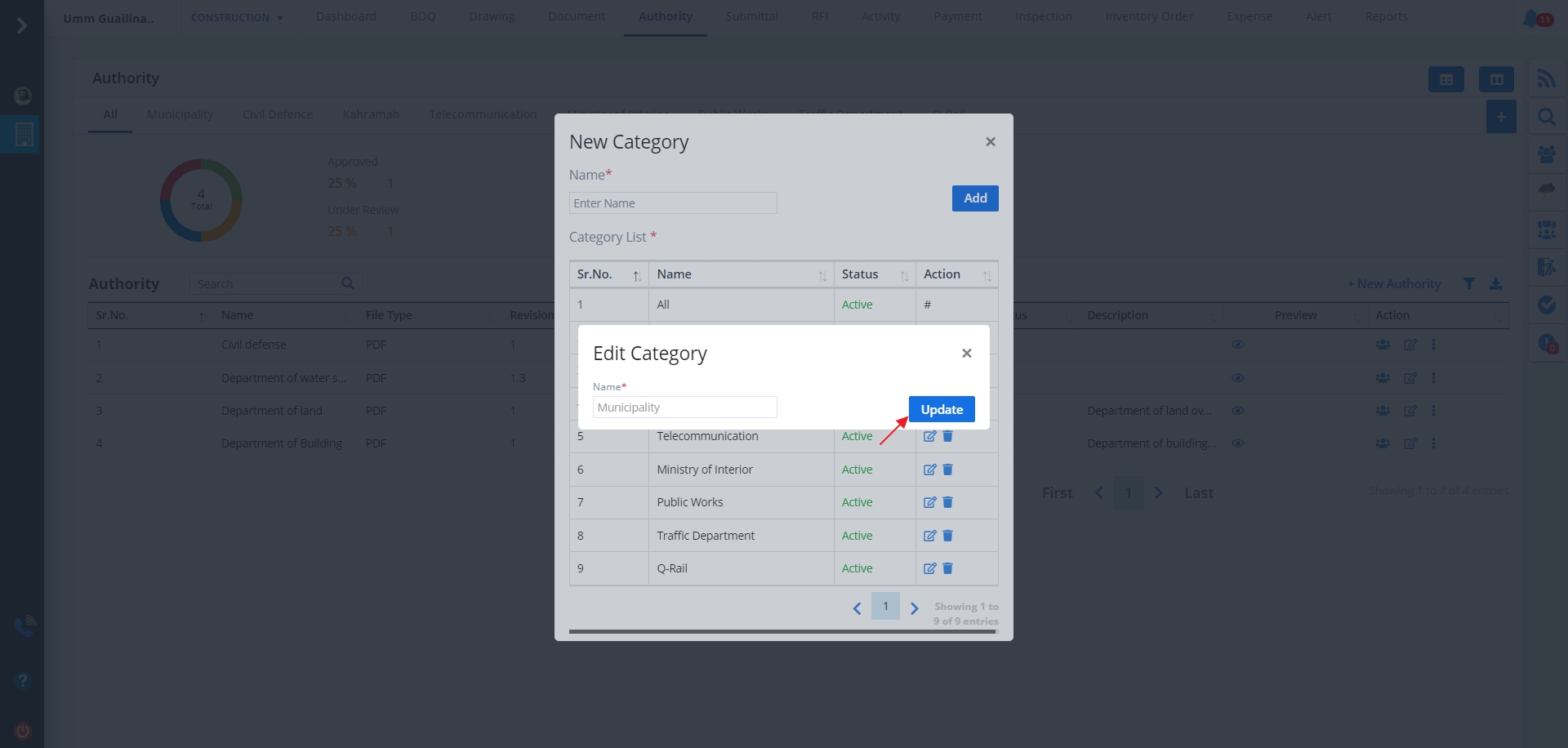
Table and Kanban View
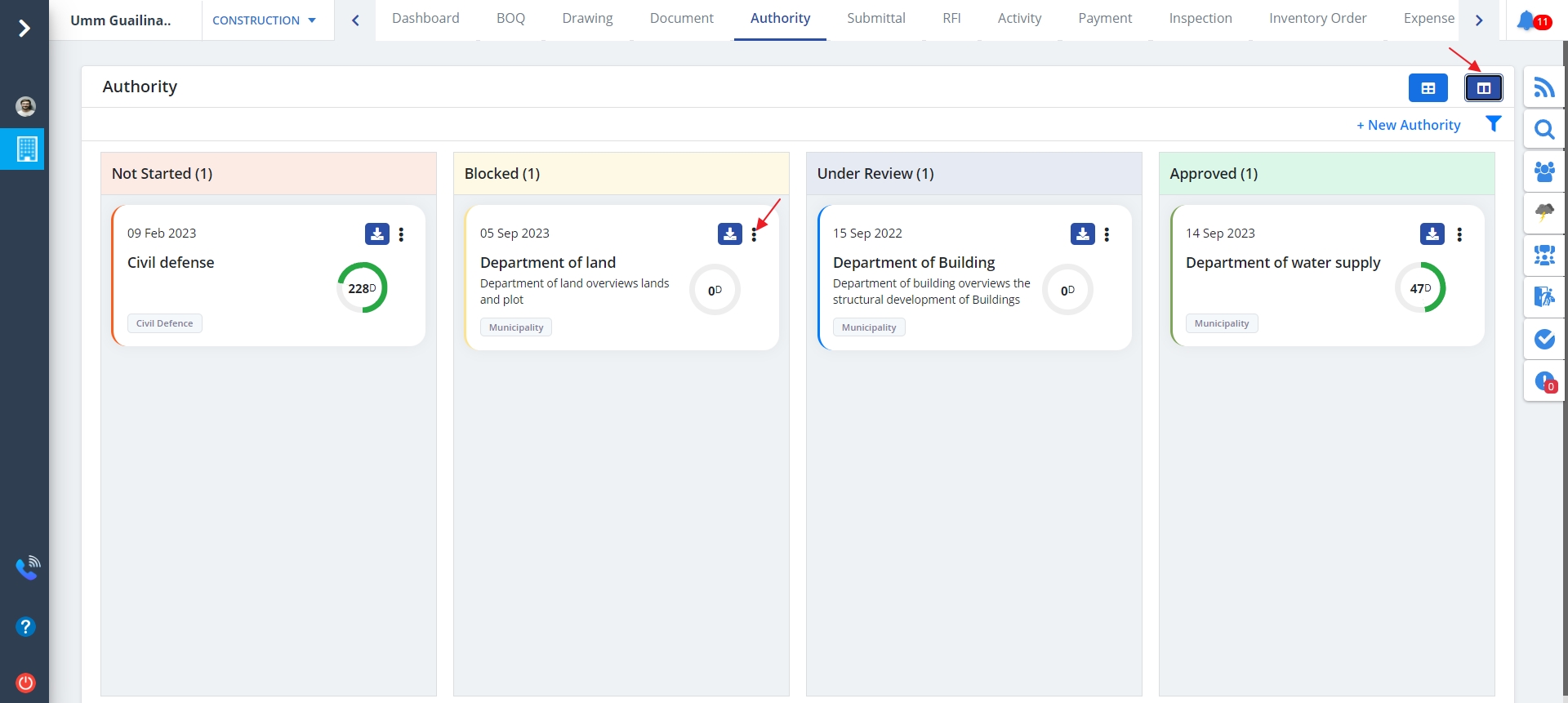
- There are 2 types of views; Table View and Kanban View. By default the view is Table View.
- Details about table view are described in Authority List
- Kanban View is as shown below. Below figure shows the authorities based on approval status; Pending, Under Review or Approved.
- By clicking on the Kebab menu different operations can be performed.
- Just click on Download button as shown to download Authority detail's pdf.
- You can drag and drop the cards to any of the columns to change the status directly.
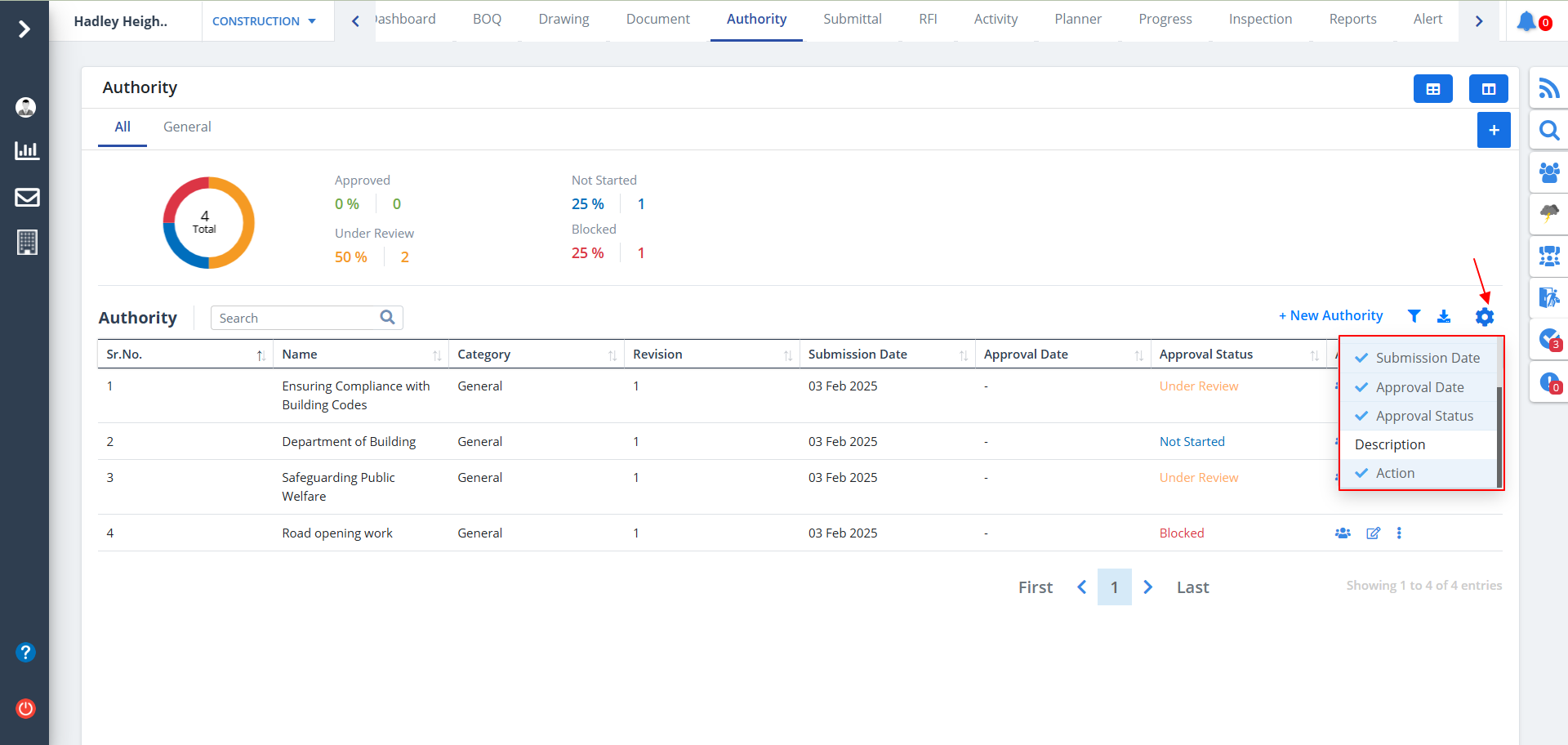
Column Visibility
- You can control what column you prefer to be seen.
- Just click on the Settings icon as shown in the below image.
- Tick the columns that you want to view and untick the ones you don't desire to view.
- In case you change your mind, you can tick the untick ones and vice-versa.