RFI List
What is Request For Information(RFI)?
These are formal documents used during construction projects to ask upstream questions for
clarity on design, specifications, approvals, and more.
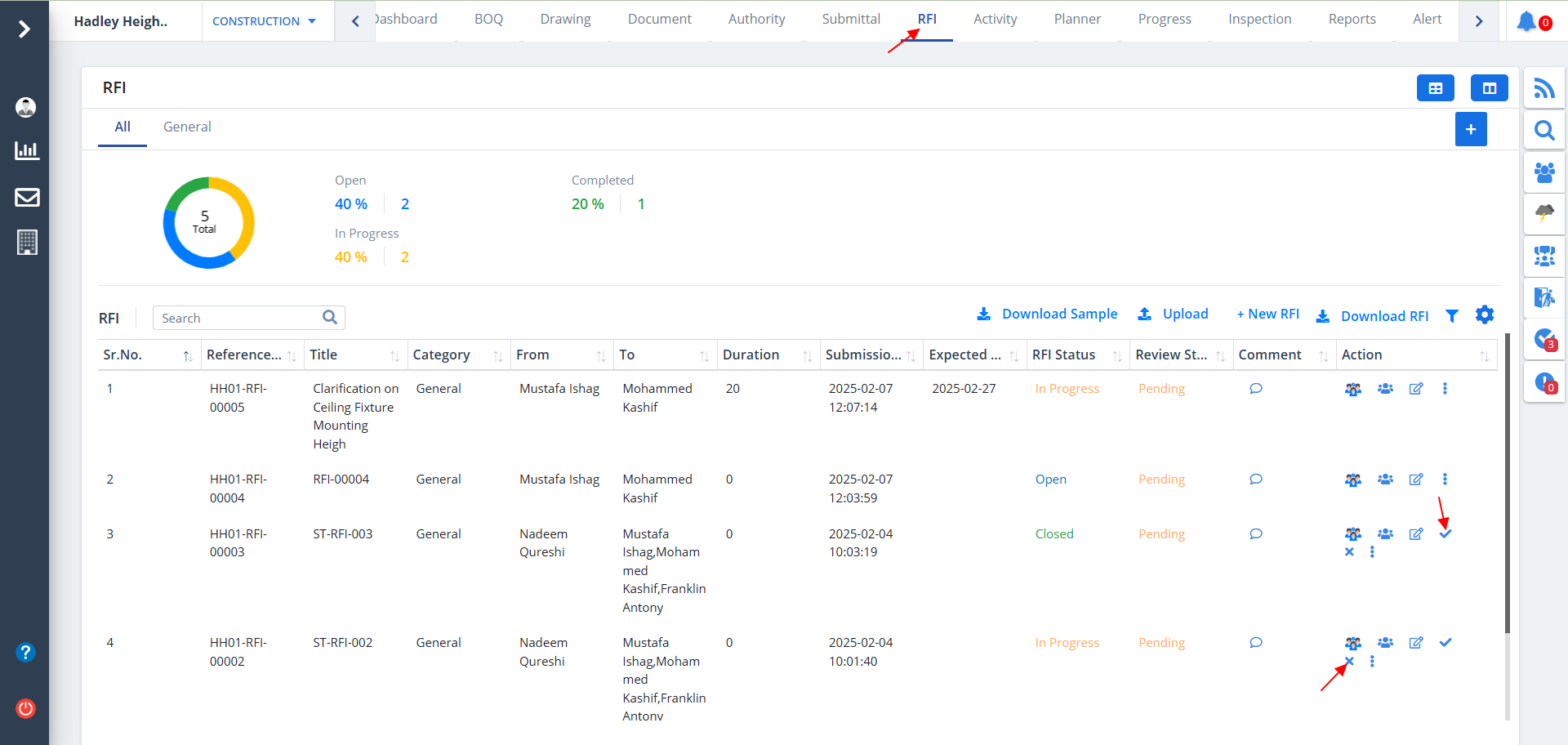
- Click on RFI from the menu. RFI list will be visible based on category if already added.
- Below figure shows RFI list of All section.
- Over here we have the approve and reject options under Action column which can be used to approve or reject any RFIs right away if required.
New RFI
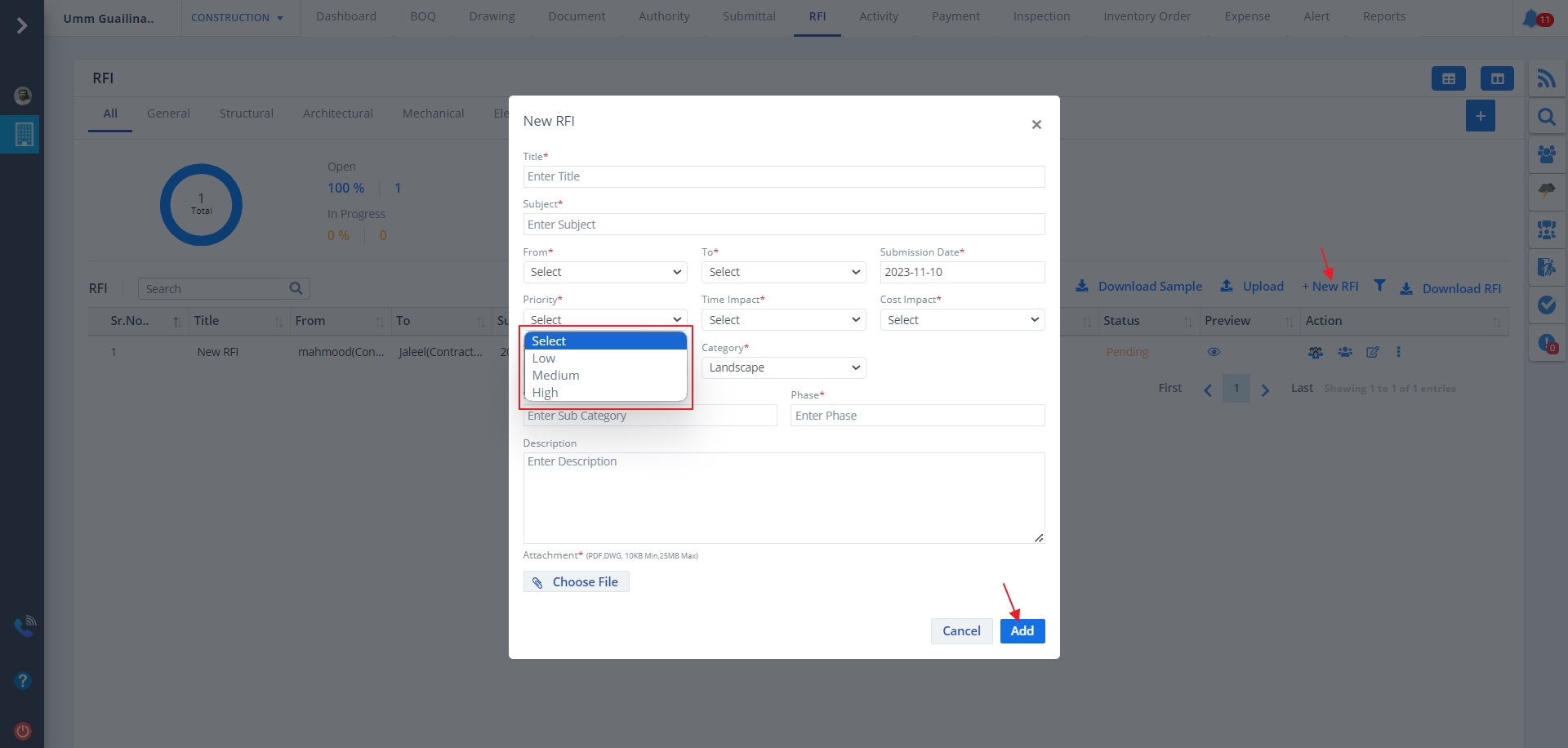
To add new RFI, click on New RFI. Add details and select the status as Open,
In Progress, Completed. Now click on Add.
- Managers set the status to Open to assign the RFI to reviewers.
- In progress implies that the formal documents doesn’t gather all the information from good/service suppliers.
- If creation, administration and evaluation stages are completed successfully, then the RFI status is said to be completed.
Priority can be selected as:-
- If the formal documents for a particular category is very important, then the priority is set to high.
- If the formal documents for a particular category doesn’t impact much on construction, then the priority is set to medium.
- If the formal documents for a particular category is hardly impacting the cost, then the priority is set to low.
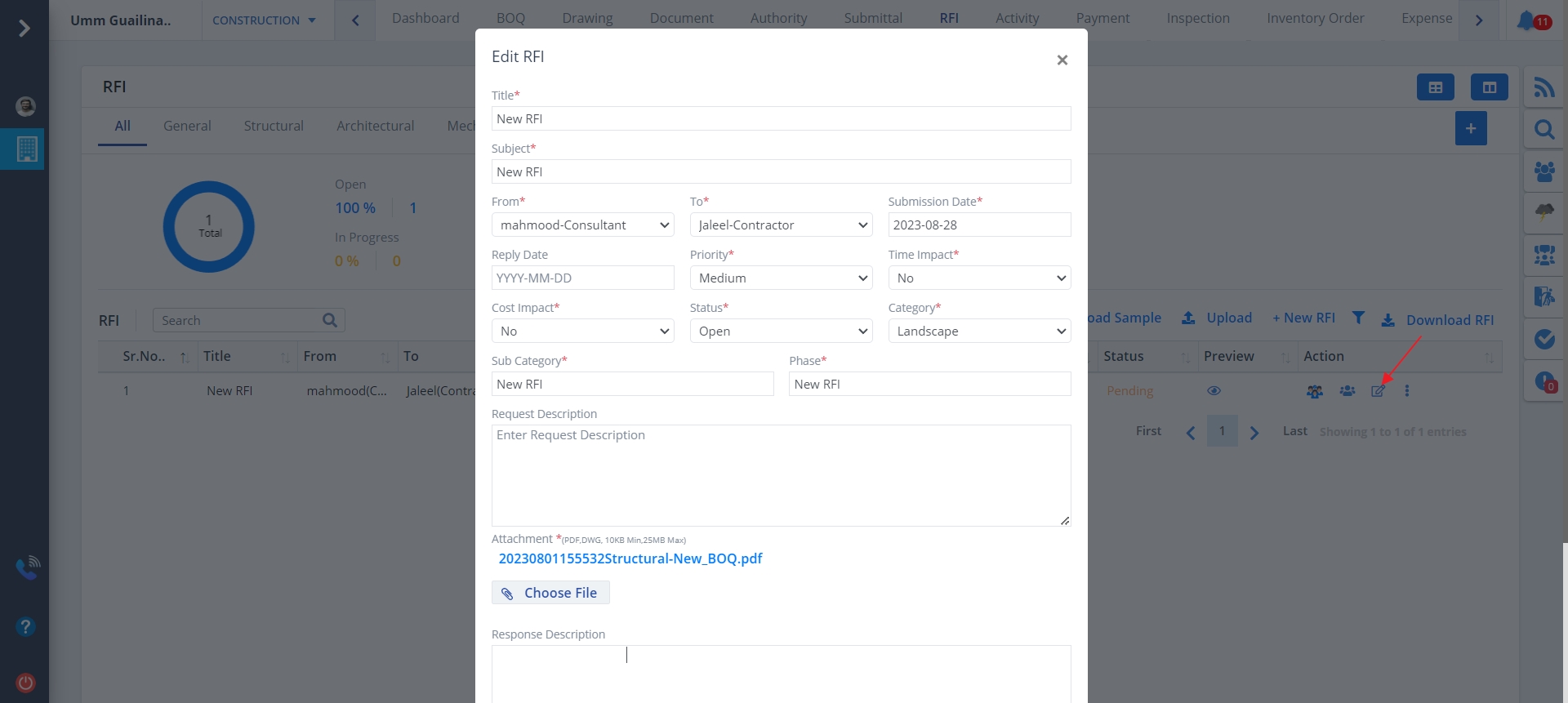
Edit RFI
- Now click on Edit button as shown. Change required details and click on Update.
- You can update the parameters based on what we discussed above.
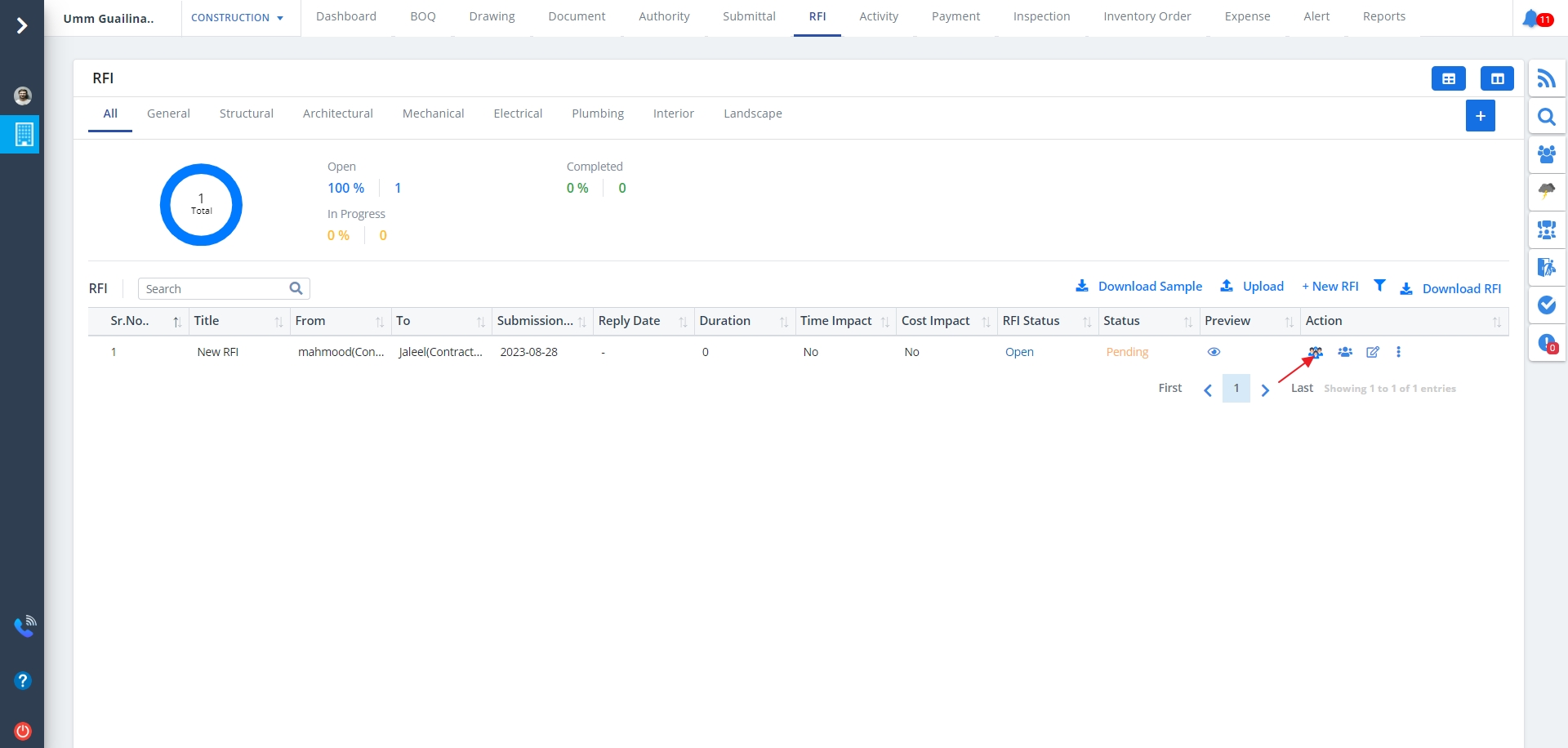
Approvals
- Click on Approvals as depicted.
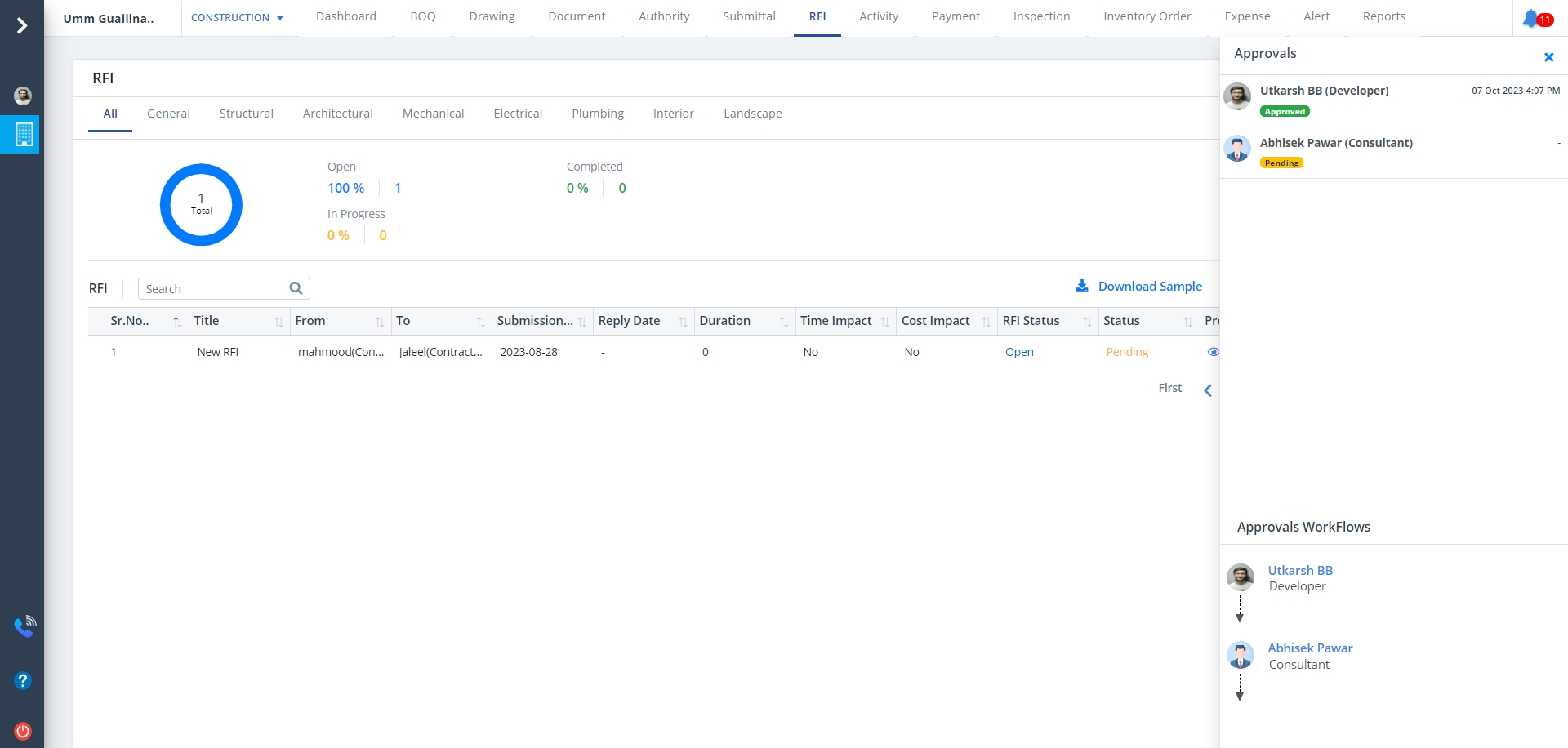
- Approval list will be shown and a workflow regarding the same will be there.
Audit Report
What is an Audit Report?
Audit Report is a statement of collected and considered facts, so drawn up as to give
clear and concise information to persons who are not already in possession of the full facts
of subject matter of the report.
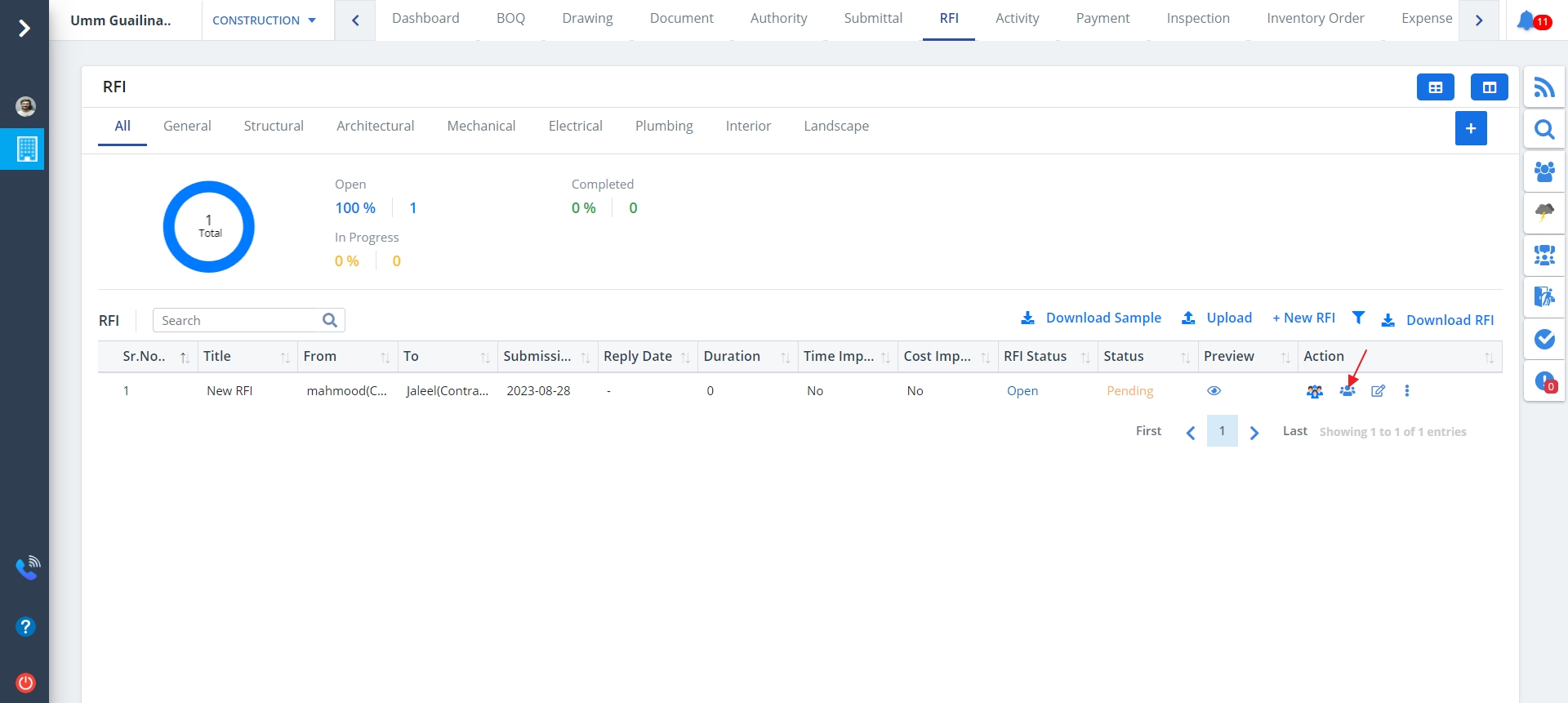
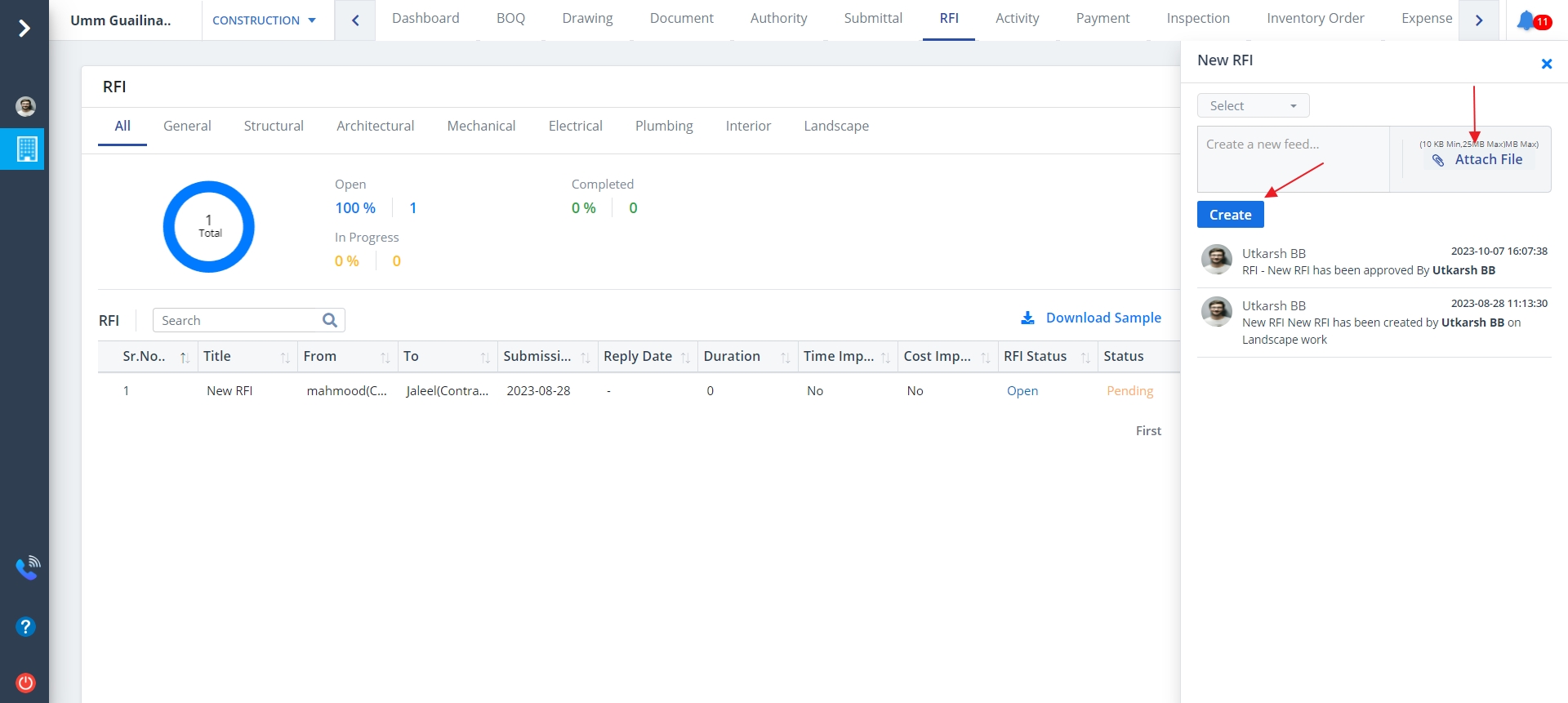
- Click on the option under Action to open Audit Report. It shows the actions (add, update, delete) performed by a user if any.
- Click on Create to add new feed
- You can also select a user/users while creating a feed
- You can also upload a relevant file. Just click on Attach File
Upload and Download RFI
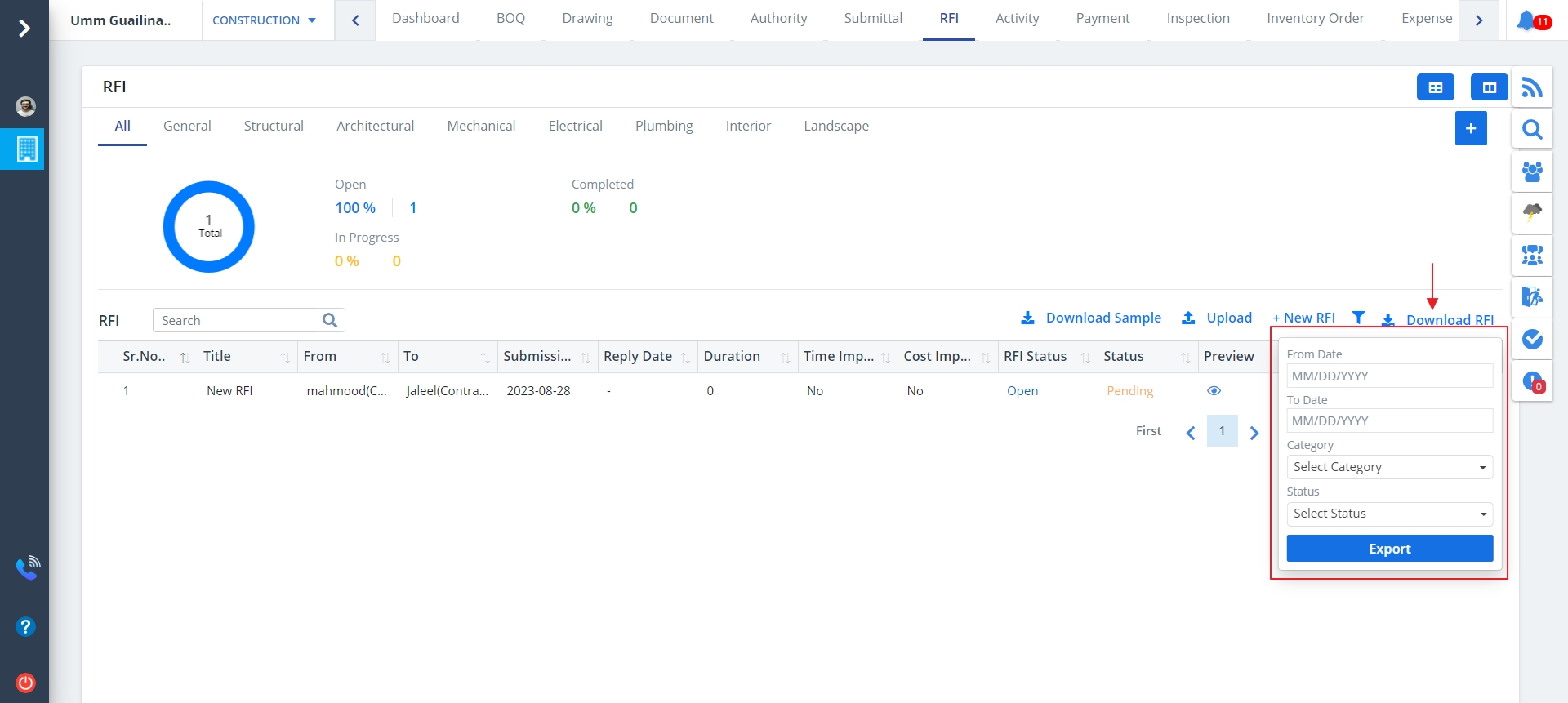
- You can download any RFI; just click Download RFI.
- A .xlsx file with all the details will be downloaded.
- To download a sample just click on Download Sample.
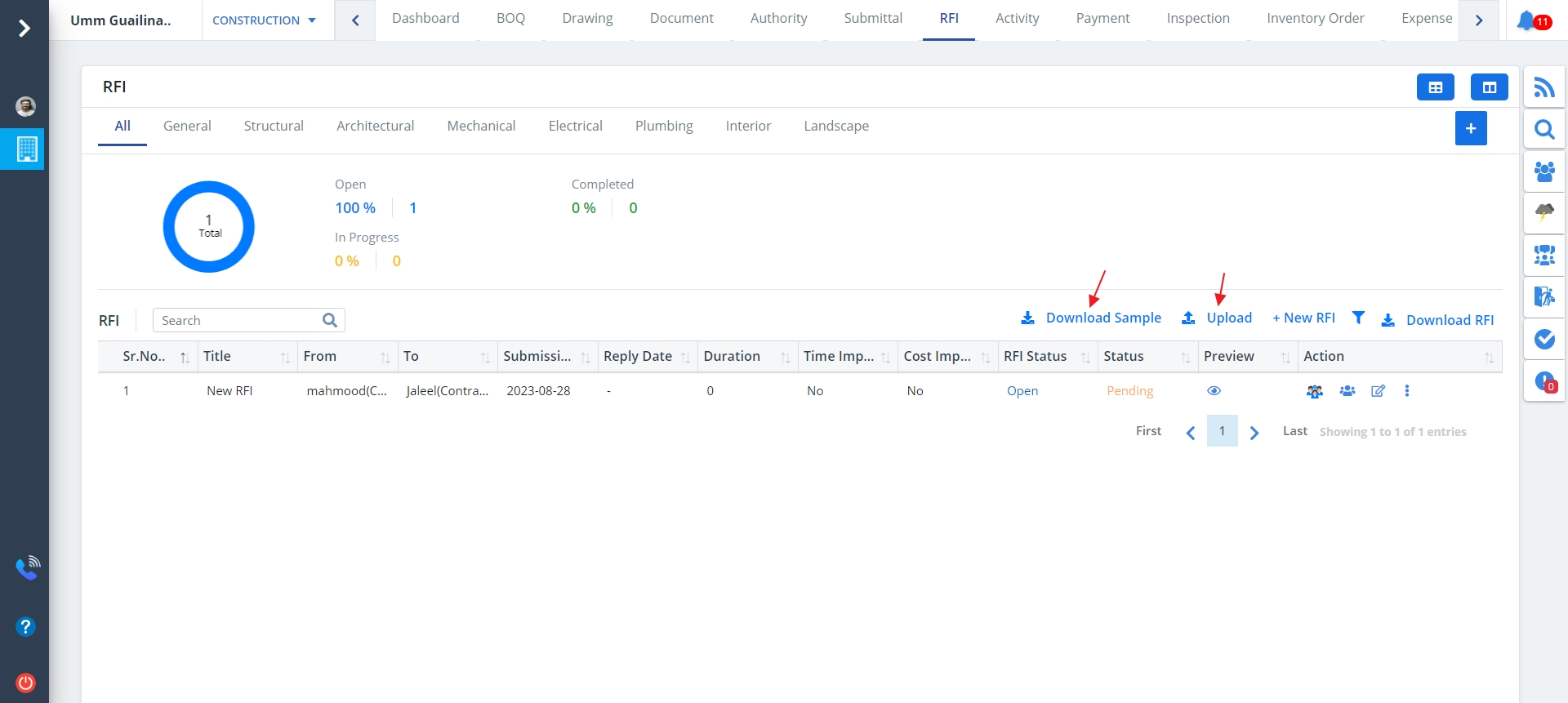
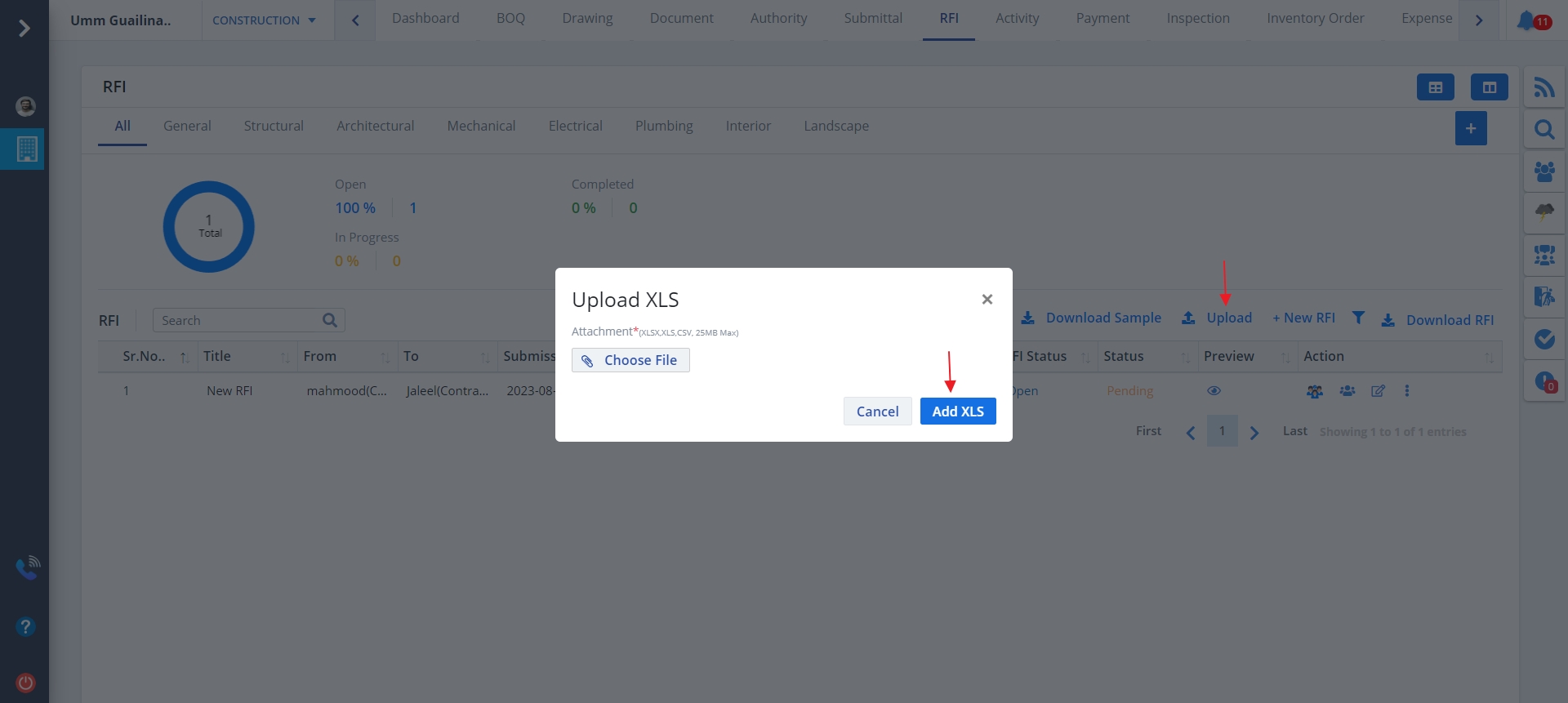
- To upload a pertinent document for RFI click on Upload.
- Choose appropriate file for RFI.
- Provide details as shown below and click on Add XLS.
Kanban View
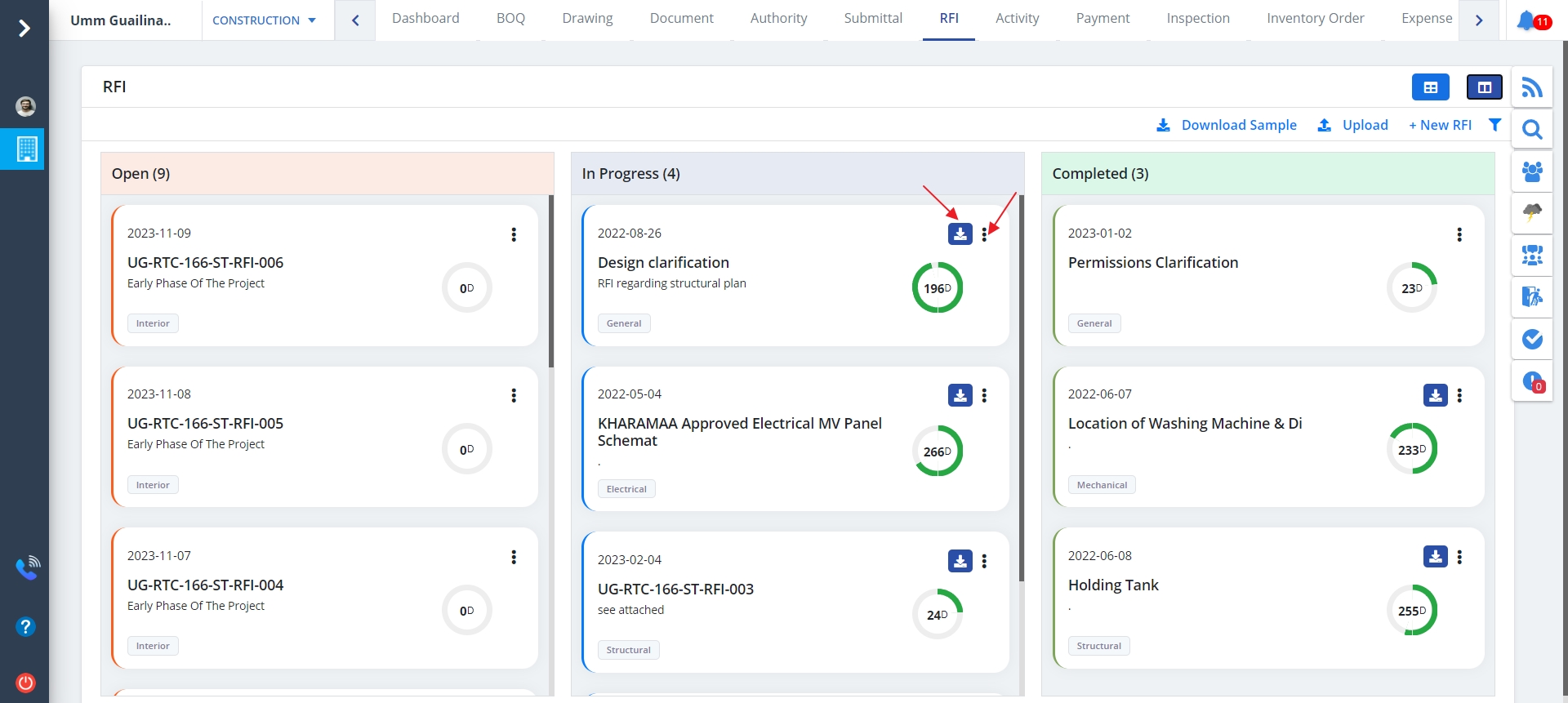
The different views by which RFI can be viewed are Table View and Kanban View.
It is the Table View by default. Click on Kanban View as highlighted and now you would
espy such a view. Kanban View:-
- It shows the RFIs ordered by status.
- It covers the consultant and the contractor as well as incorporating the respective category.
Click on the download icon to download any RFI document. The Kebab menu can be used to perform various operations such as edit, delete, audit, email, view and print. Click on Filter icon as shown to filter the statuses on the basis of start and end dates. Now click on Search
Comment
- Click on Comment button as shown. Fill in the required details. Mention proper inputs and click on Save button.
- You can view the report by clicking on the Eye icon as shown. A pdf will be opened. You can download or print the pdf as per your choice.
- To download a report directly, just click the Download button.
- Use the Kebab Menu to edit the report.
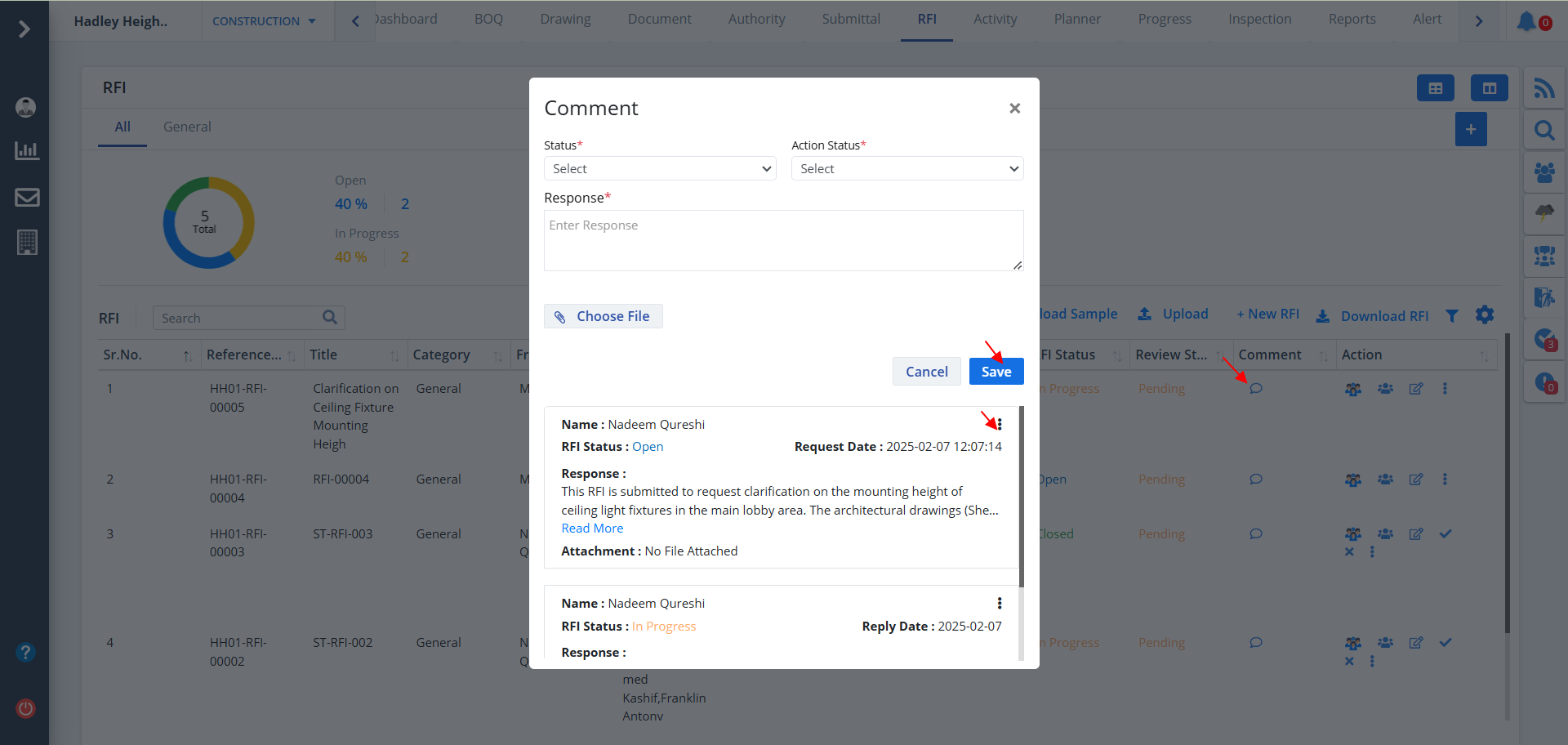
- Click on Edit from Kebab Menu to edit the report.
- Change desired data.
- Here you would be able to view previously added attachments. You can simply remove them using the x button.
- Ultimately click on Update.

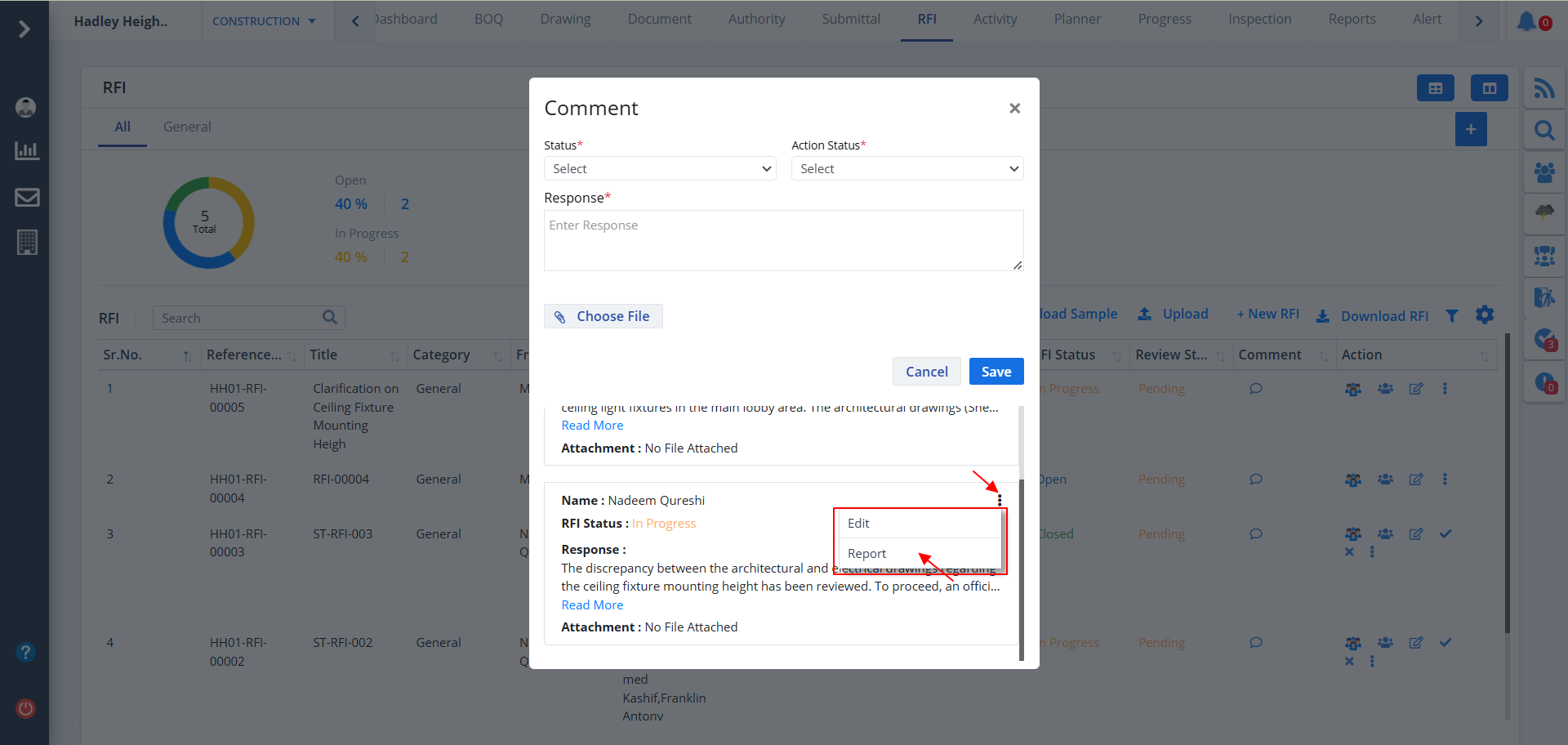
- There is another option below Edit button, i.e Report button
- Use this button to download the report locally in your system.
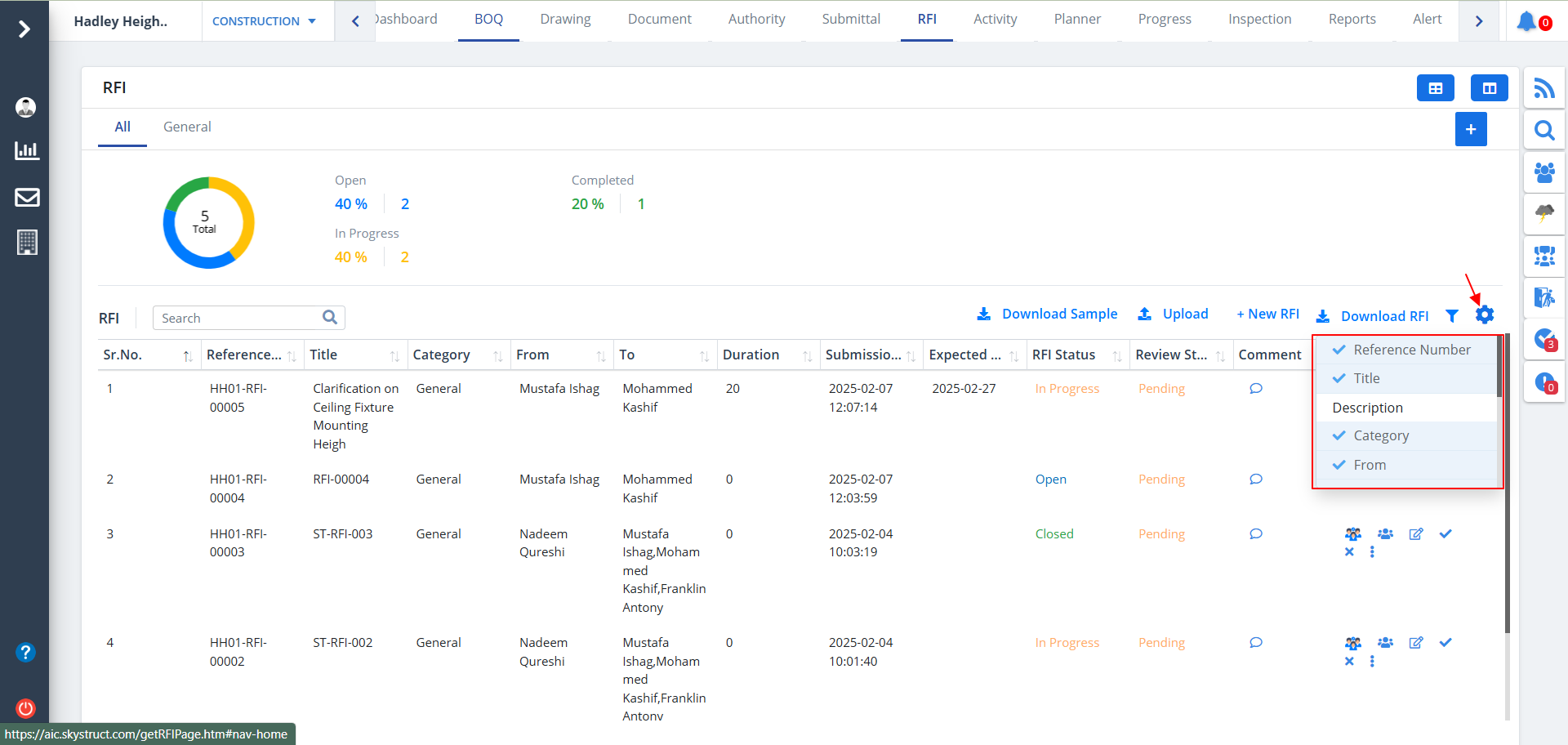
Column Visibility
- You can control what column you prefer to be seen.
- Just click on the Settings icon as shown in the below image.
- Tick the columns that you want to view and untick the ones you don't desire to view.
- In case you change your mind, you can tick the untick ones and vice-versa.