Document List
- With the involvement of labour resources, there exists a constant need of validation and authorization to be provided to them.
- Based on rich practical exposure of managing critical projects, Skystruct facilitates managing and assigning documentations to the labour resources through this module.
- n enterprise projects, it is mandated that the assigned labour force complete the needed documentation and for them to know of the required, this module precisely provides this information. Broadly the types of documents envisioned include:
- Application
- Auhentication
- Agreement
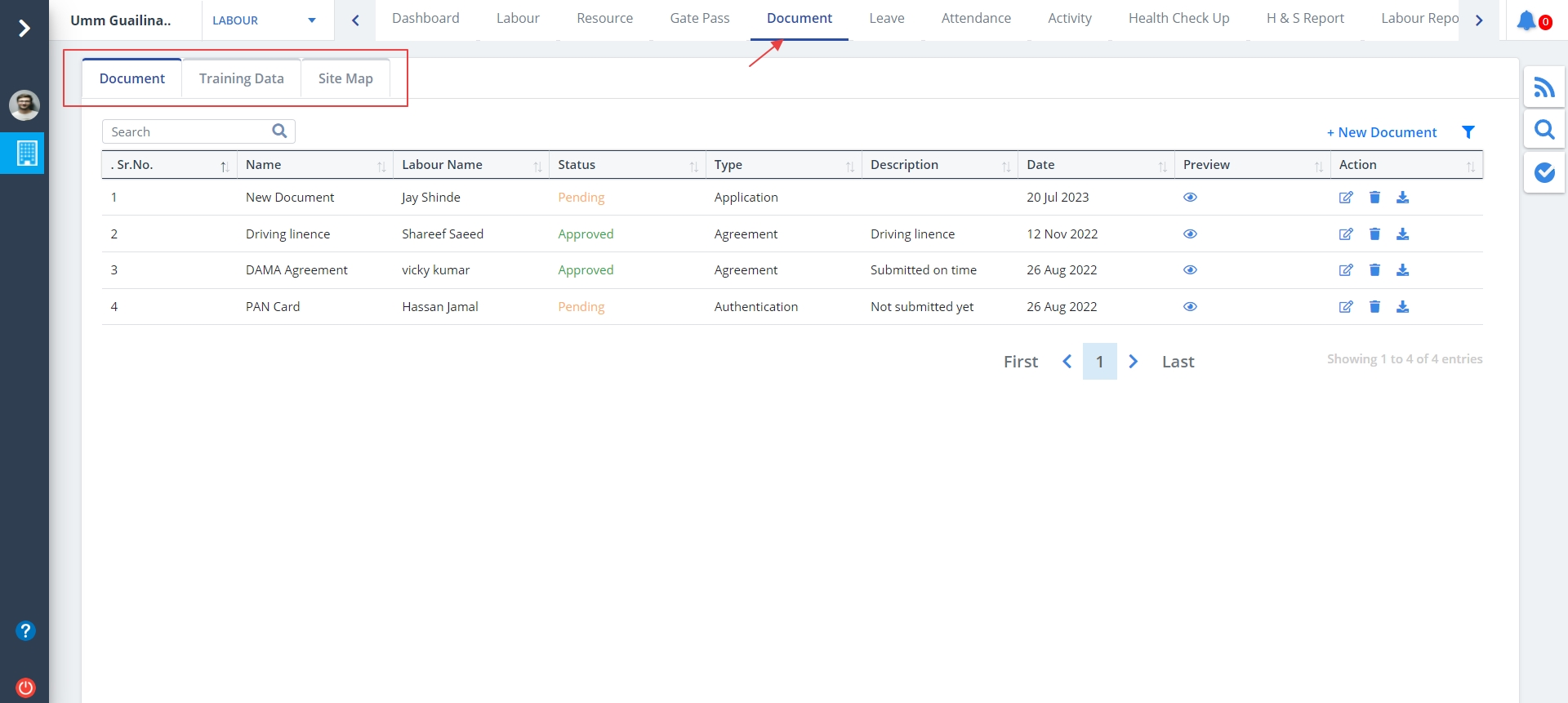
- Select Document from menu.
- There are 3 tabs namely; Document, Training Data and Site Map.
- By Default Document is selected. Documents pertinent to the labourers are included here.
- Listing will be visible if the documents are already mentioned.
New Document
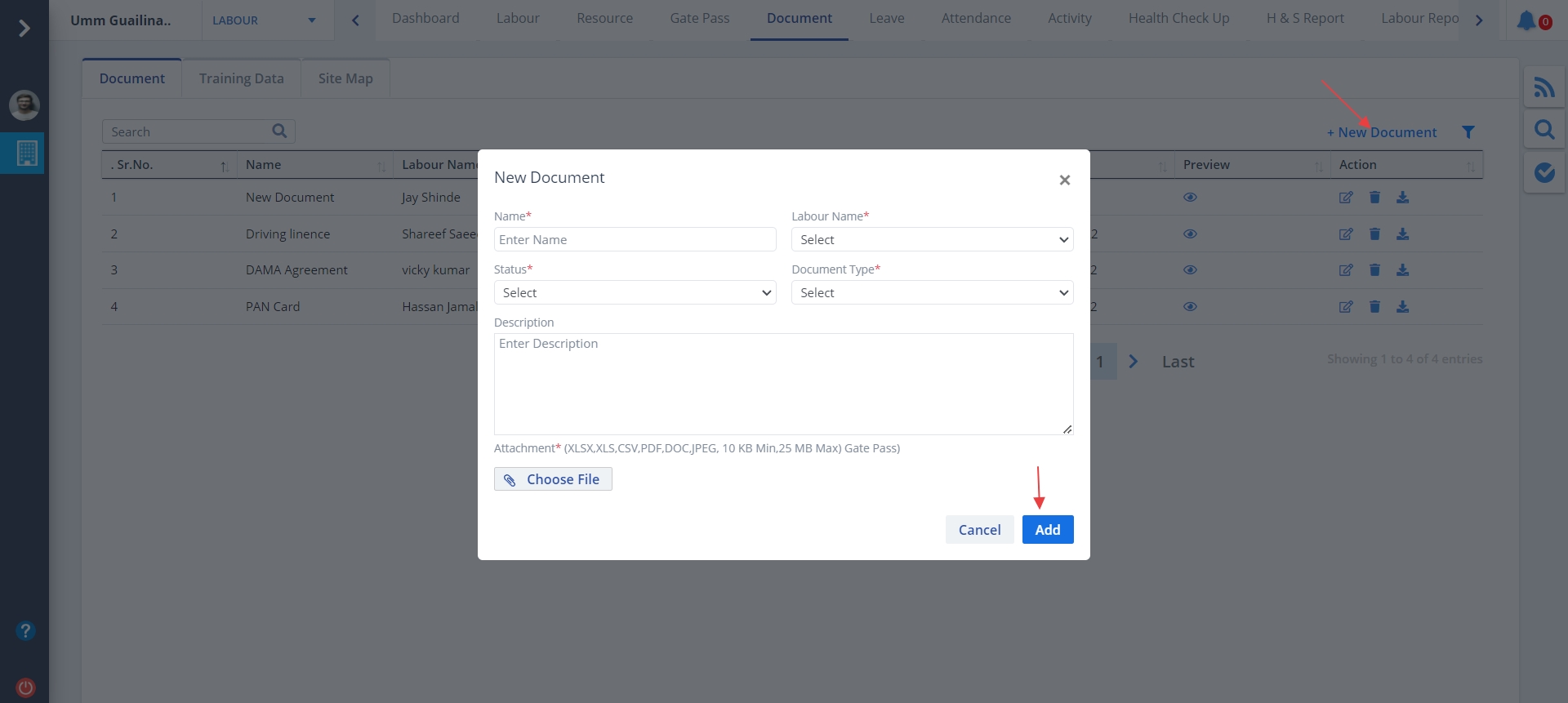
- To add a new document, click on New Document.
- Add required details and click on Add.
- Select proper document type from the dropdown.
Status can have 3 values:-
- If the document is approved, select Approved.
- If the document is considered, but not approved yet, then select Pending
- If the document was not approved, select Rejected.
Edit Document
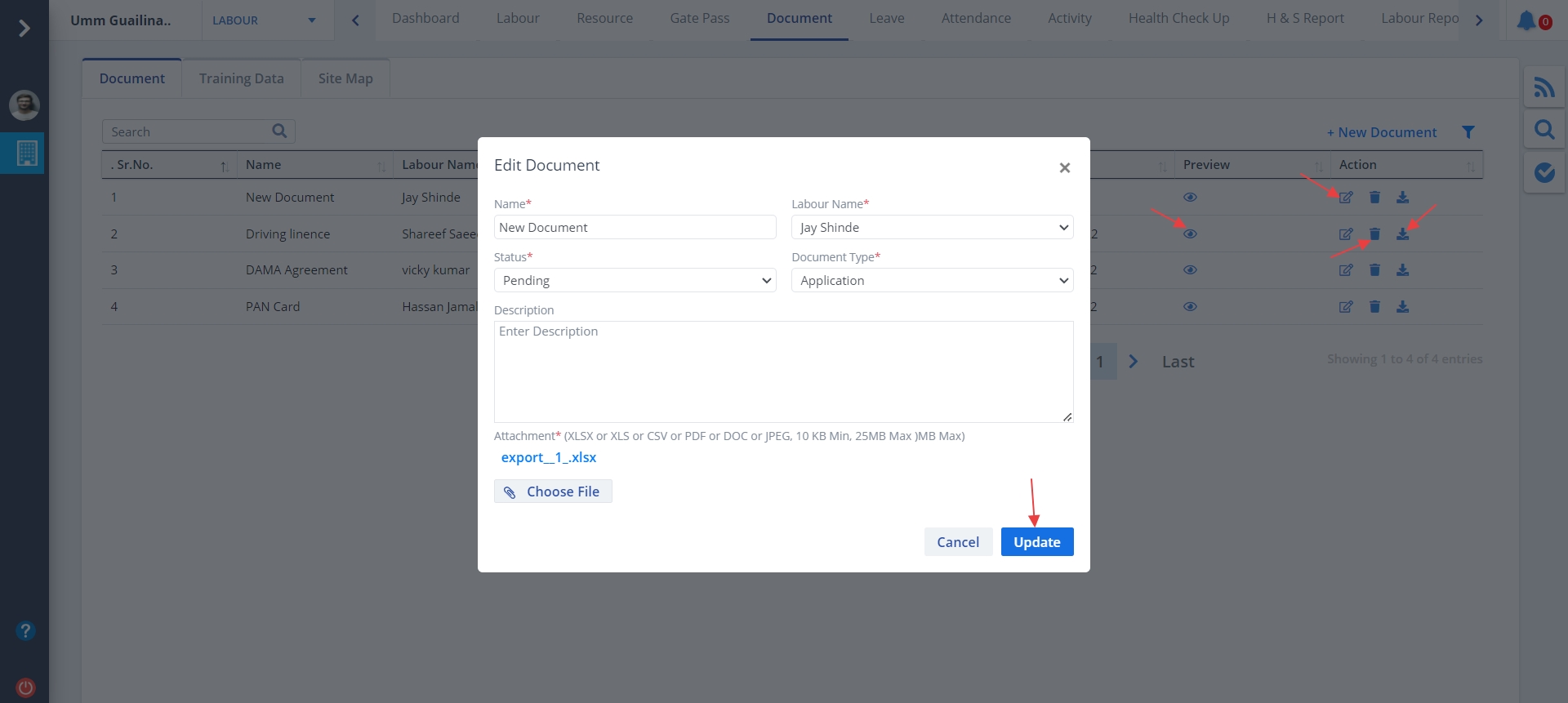
- Click on Edit under Action column to edit data.
- Select proper document type and status.
- Upload document pertaining to the fields.
- Click on Update therafter.
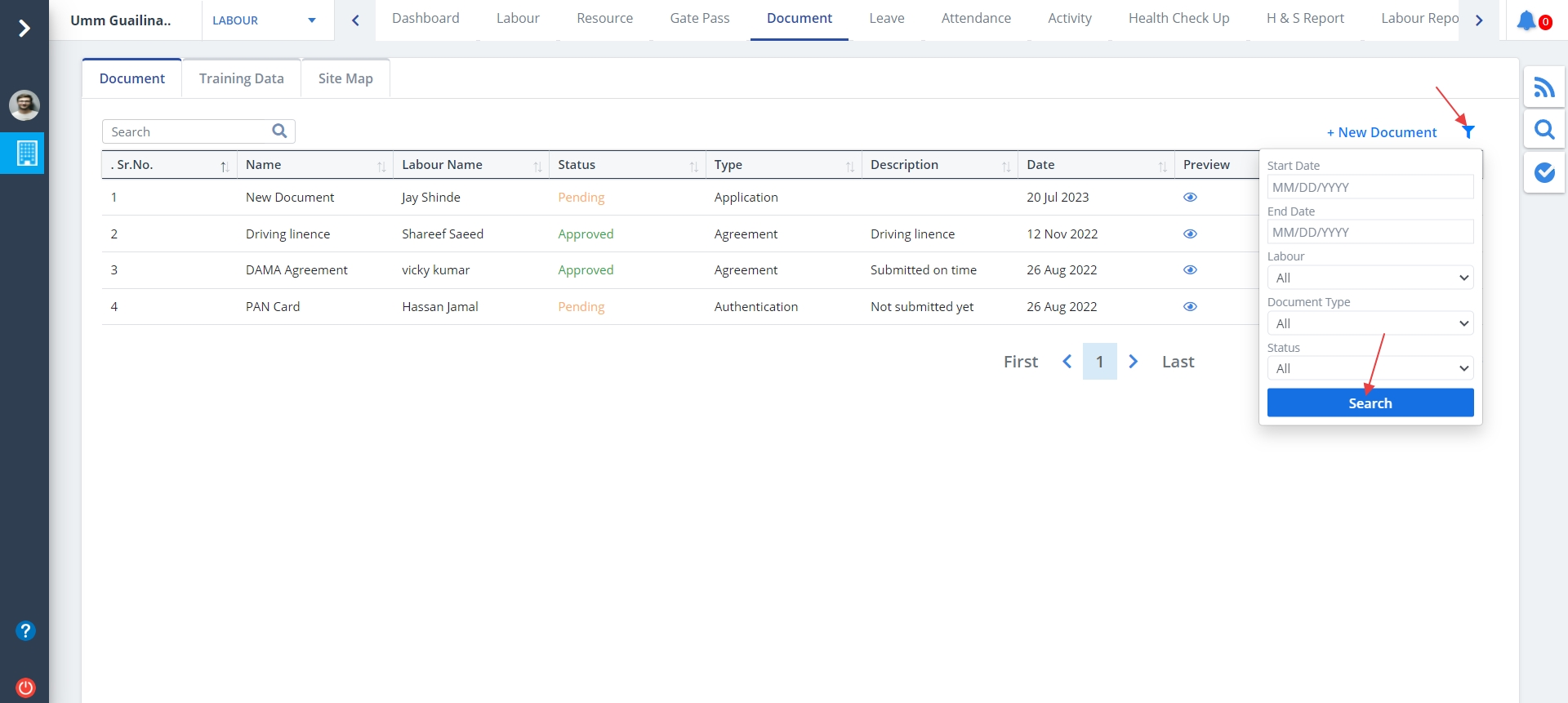
Document Filter
- Click on Filter button as shown to view the document list as per your inputs.
- Mention dates, labour, document type and Status. Now click on Search button.
Training Data List
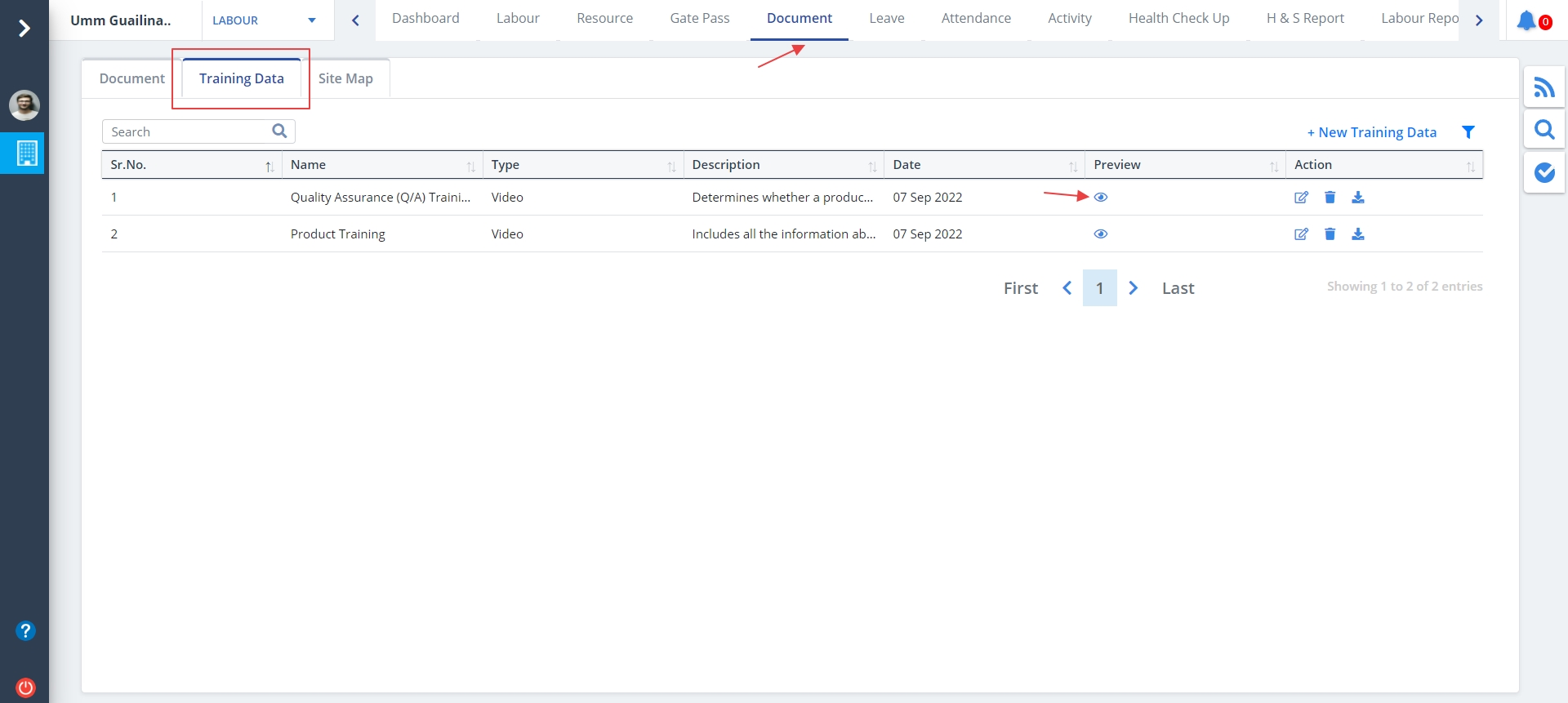
- Select the 2nd tab, i.e Training Data tab.
- You can see all the training data.
- Use the Eye button under Preview column to view the training data document.
New Training Data
- Click on New Training Data as shown.
- Specify details as required and click on Add.

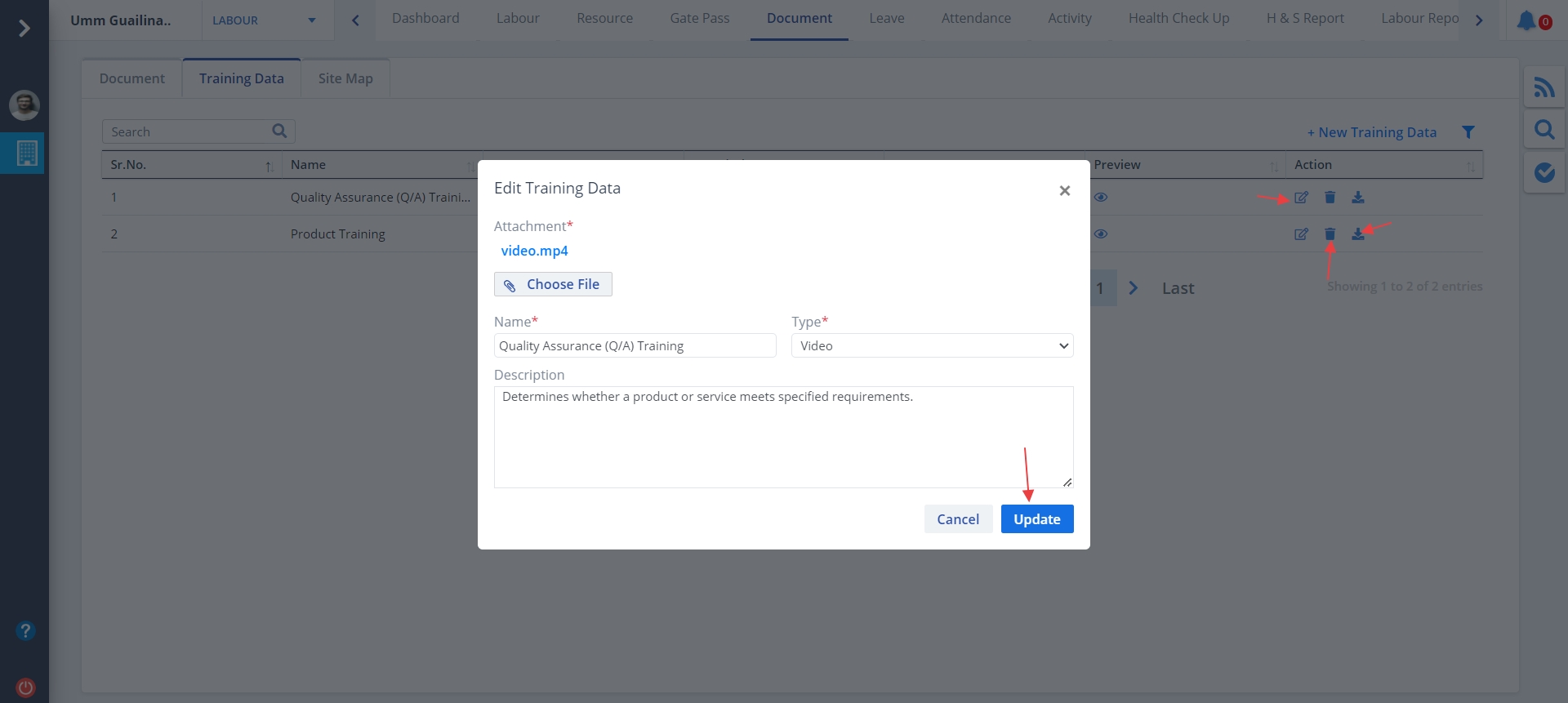
Edit Training Data
- Click on Edit button under Action column as shown.
- Now you can modify the fields if you wish to. Click on Update once done.
- You can use the middle button under Action column to delete a particular training data.
- The button next to the Delete allows you to download the training data.
Training Data Filter
- Click on Filter button as shown to view the training data list as per your inputs.
- Mention dates and select Type. Now click on Search button.

Site Map List
- Select the 3rd tab, i.e Site Map tab.
- You can see all the data relevant to Site Map.
- Use the Eye button under Preview column to view the training data document.
- To delete a particular site map, use the last button under Action column as shown.

New Site Map
- Click on New Site Map as shown.
- Provide details and click on Add.

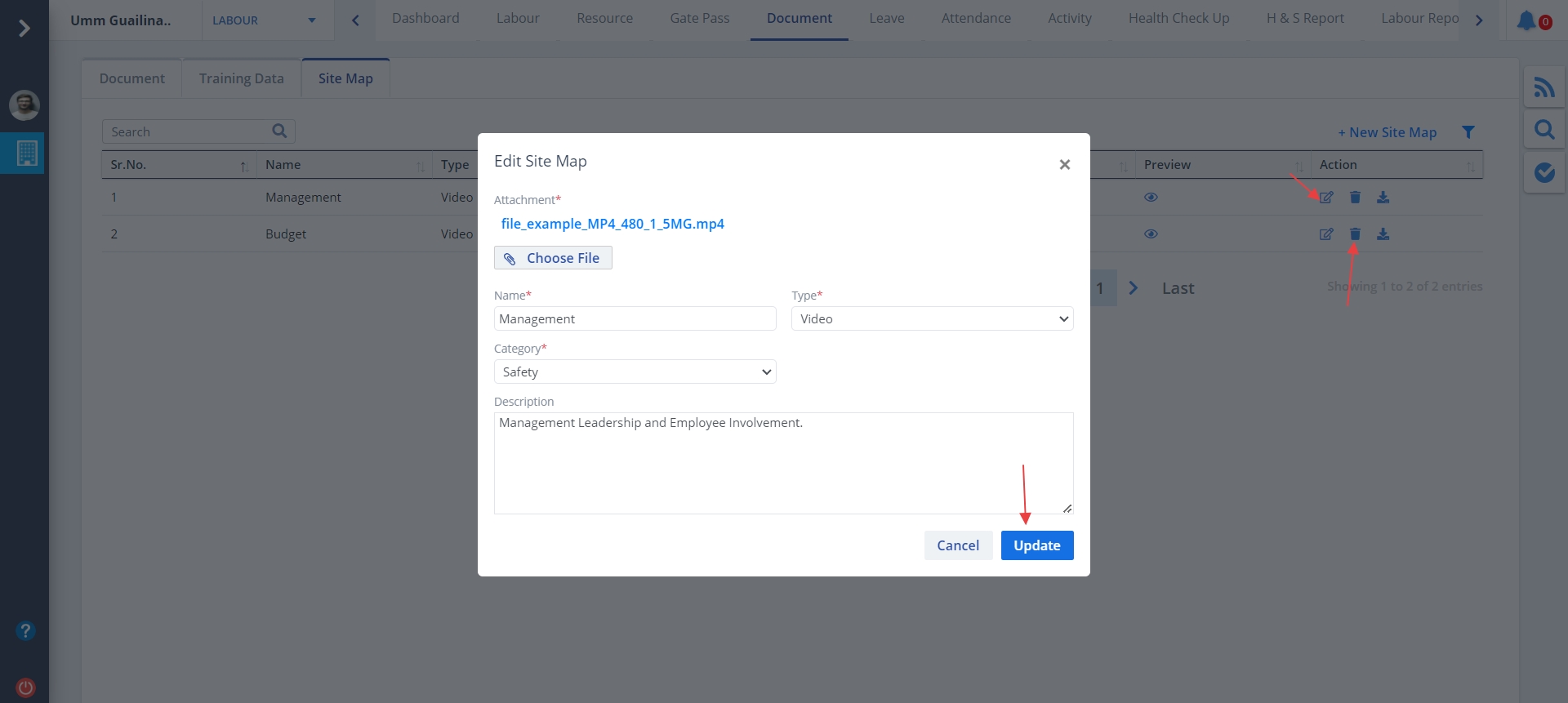
Edit Site Map
- Click on Edit under Action to modify a certain site map data.
- Enter proper details as asked. Click on Update thereafter.
Site Map Filter
- Click on Filter button as shown to view the site map list as per your inputs.
- Mention dates and select Type and Category. Now click on Search button.


