Planner List
What is Planner?
Planner is a professional responsible for scheduling, coordinating, and managing project activities
to ensure timely completion. Planners create timelines, allocate resources, and track progress, helping
teams stay on schedule and within budget. Their role is crucial in construction, manufacturing, and
other industries where project management is essential.
- You will see the schedules and the sub-schedules listed. Just click on Arrow present for all schedules to view the sub-schedules and other child schedules.
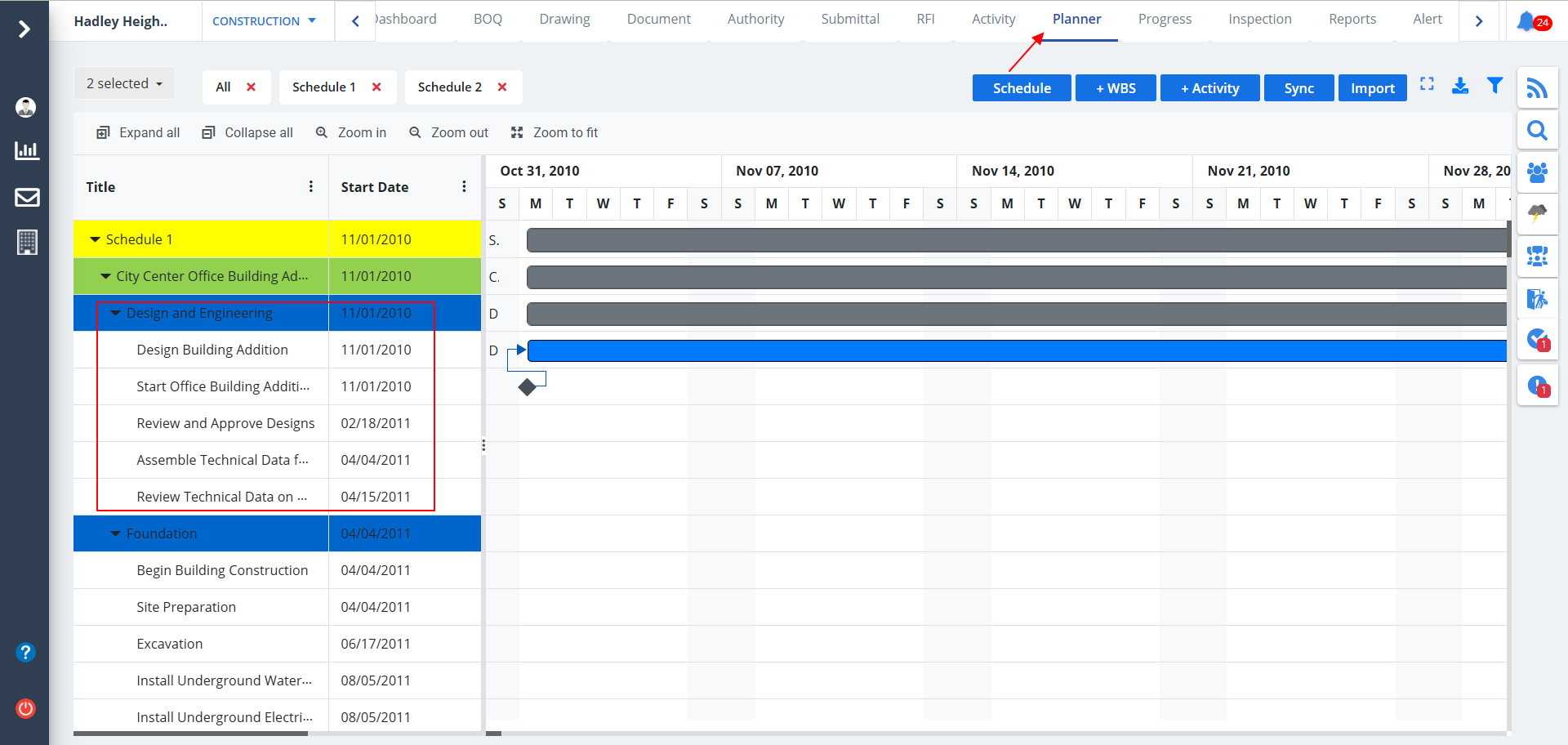
Activities
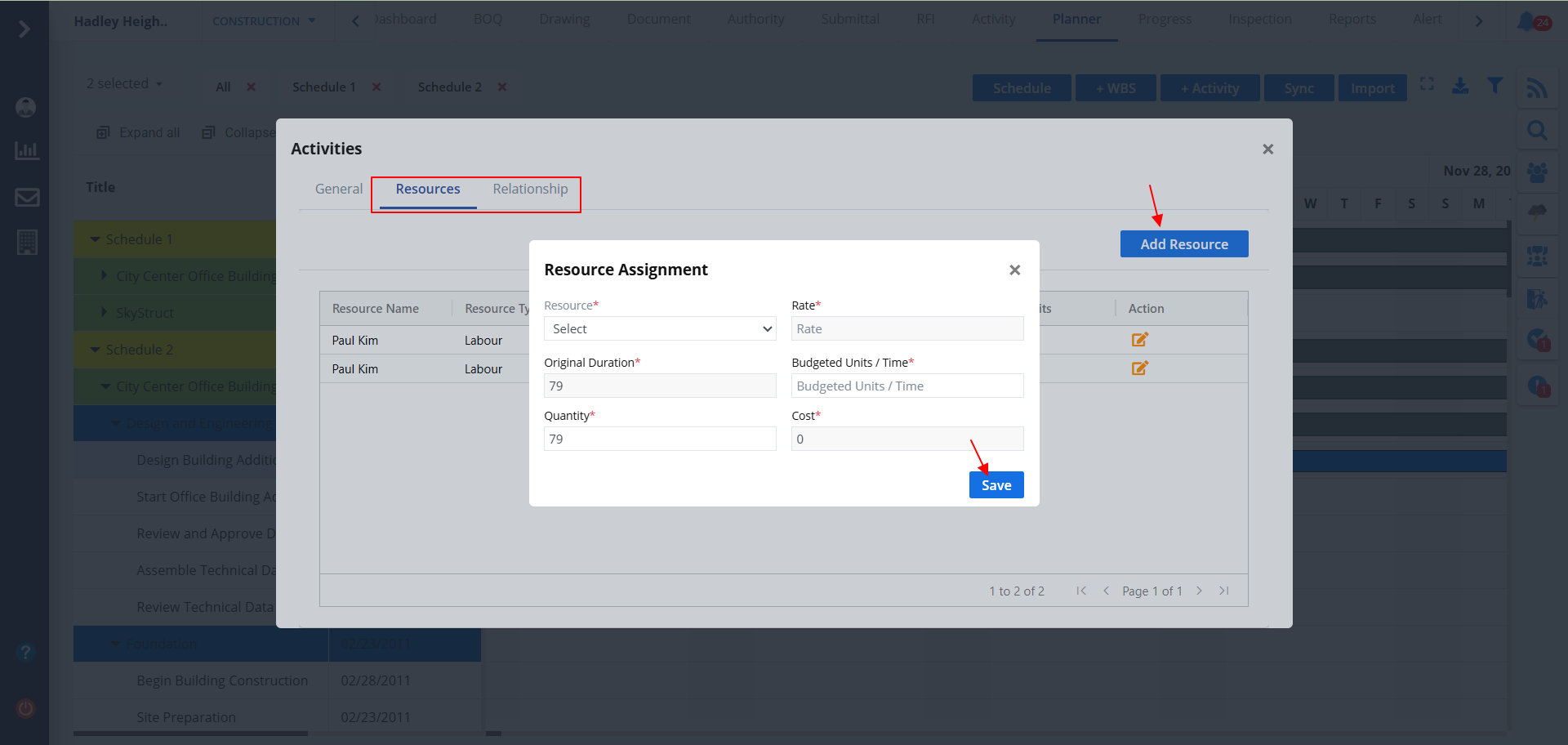
- Click on any of the activity under sub-schedule as shown to update the activities.
- Update the data if required and click on Update
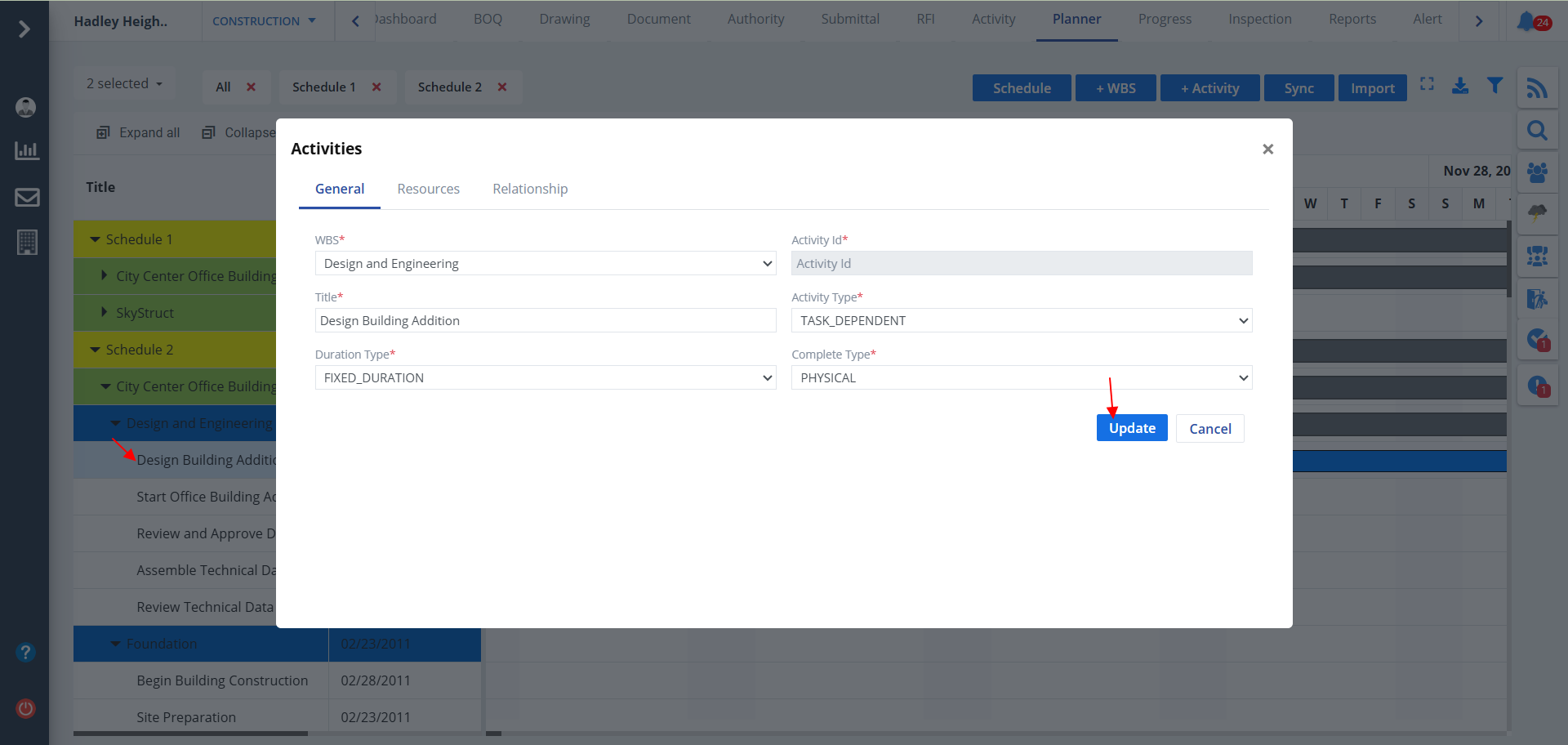
- Clicking on resources or relationship, you can a dd a new resource or relationship respectively.
- Fill in the details & click on Save/Add.
Options
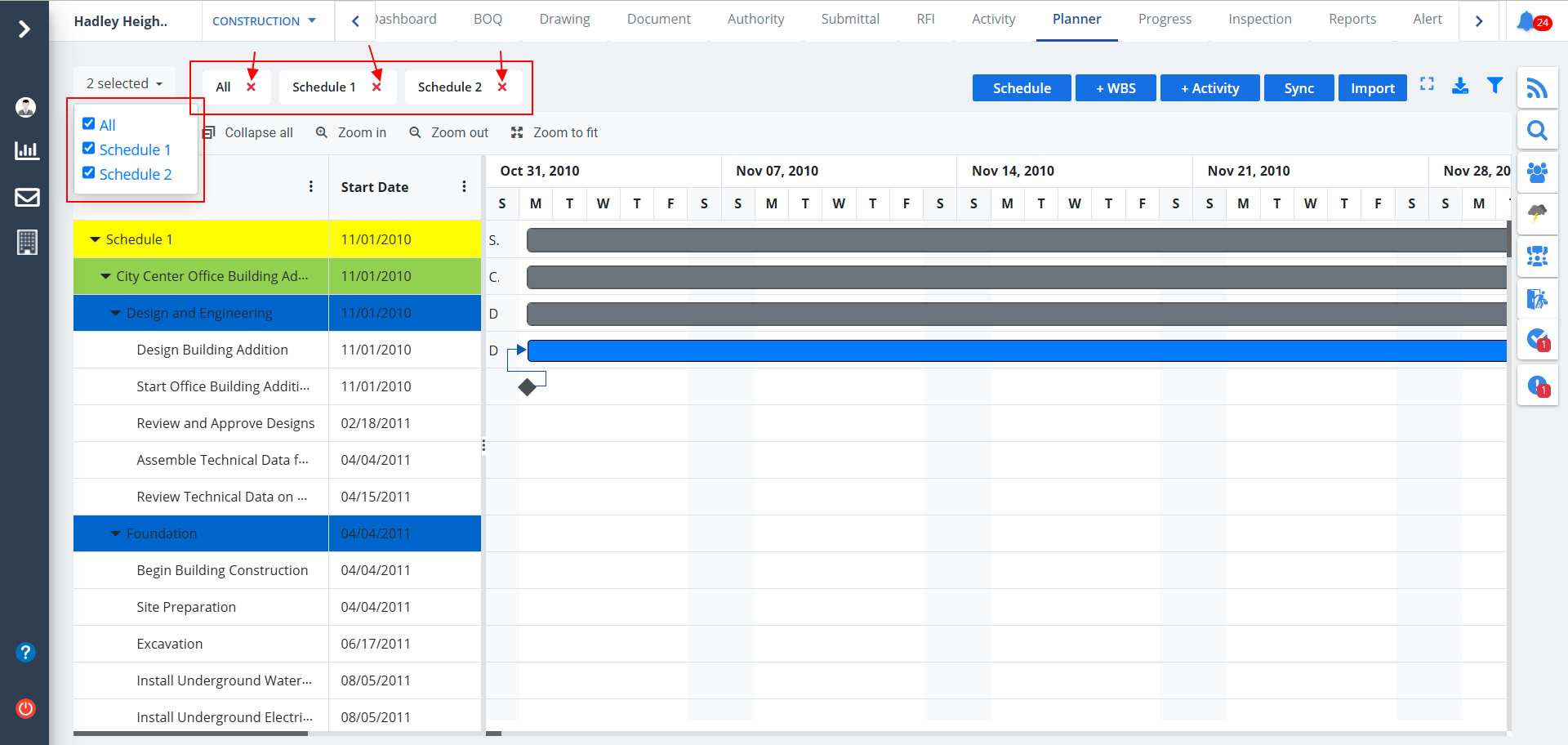
- You can use the dropdown as shown to select the schedule/schedules. You can also select all as shown.
- Selected schedules will be added at the right hand side as shown. When more schedules are added there, an arrow to traverse between schedules would be visible.
- You can remove a schedule from the list by clicking just the x button as highlighted.
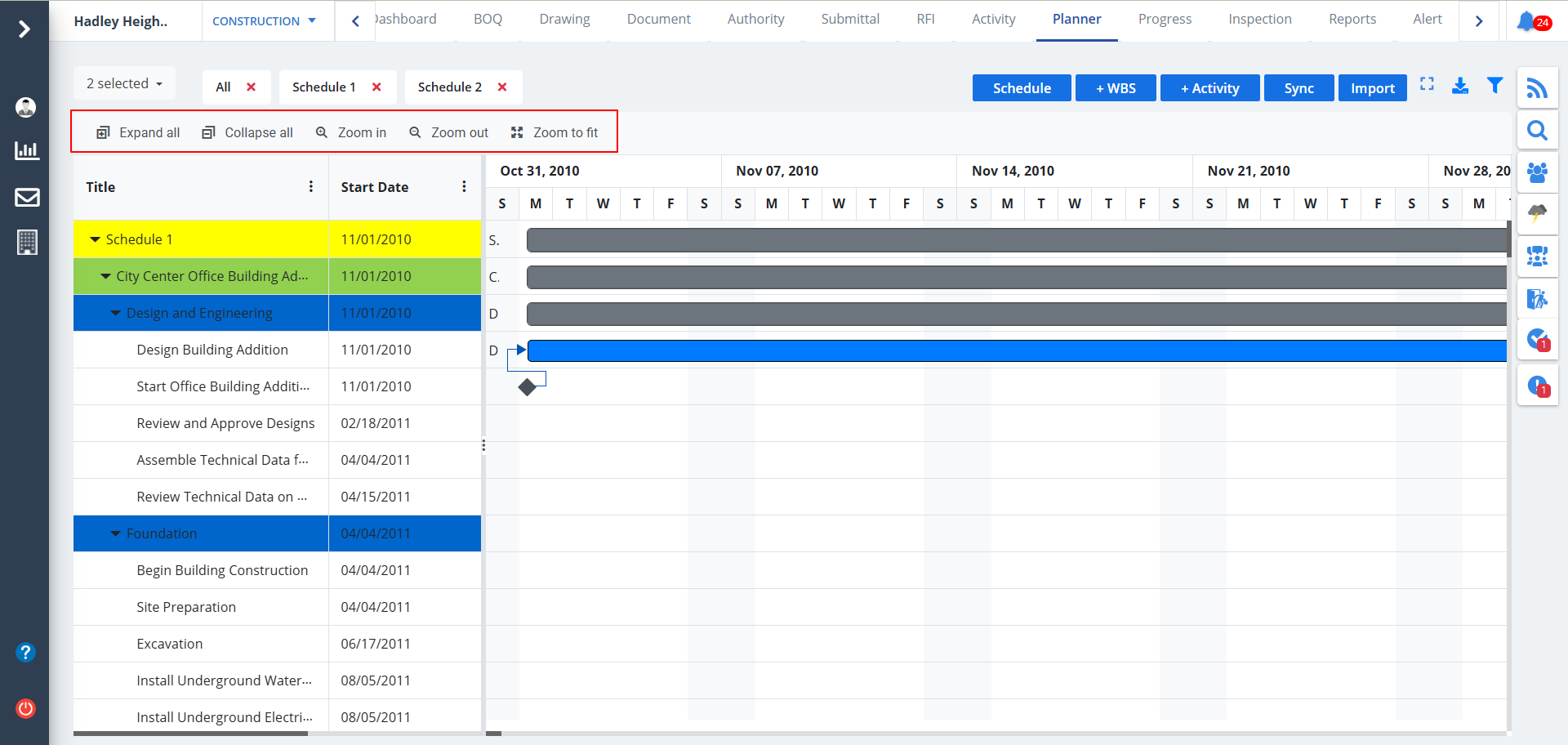
- You can choose to expand all parent schedules and sub-schedules just by clicking Expand All.
- Similary Collapse All to reverse all opened schedules and sub-schedules.
- Use the zoom-in, zoom-out and zoom to fit options as per you needs.
Schedule
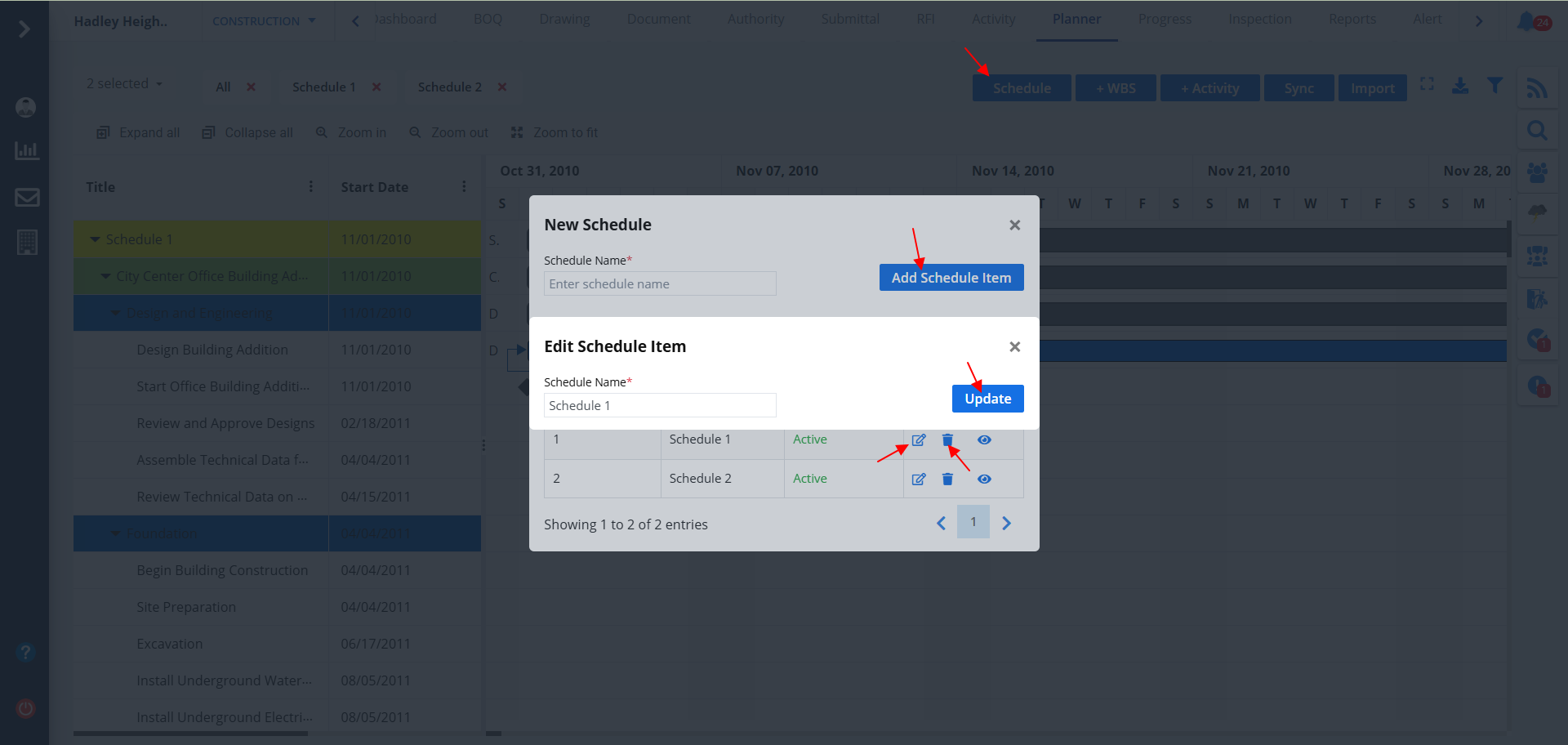
- Click on Schedule button as shown to create a new schedule.
- Enter schedule name as per your desire and click on Add Schedule Item.
- You can edit a schedule directly by clicking on Edit button as shown. Make changes as required and click on Update.
- The button next to edit can be used to delete a particular schedule.
- Use the Eye button at the end to view the schedule. Once opened you would be able to see different segments such as Resource & Role. Additionally, you would be able to perform different actions on the same.
WBS
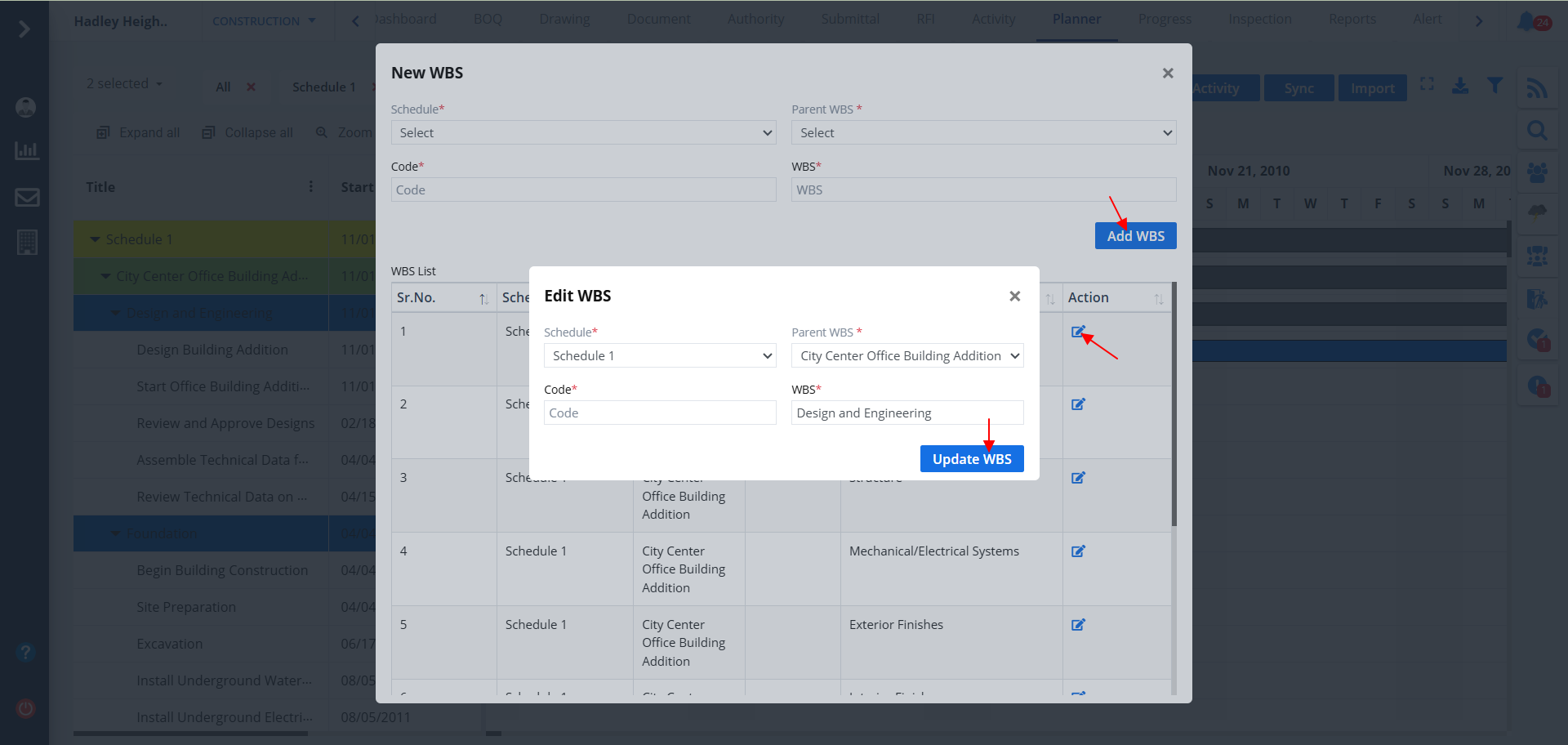
- Click on +WBS next to Schedule to add a new Work Breakdown Structure.
- Mention your details properly and click on Add WBS.
- Previously added WBS List will be shown here.
- You can edit an added WBS just by clicking Edit button as shown.
- Make changes if needed and click on Update WBS.
Activity
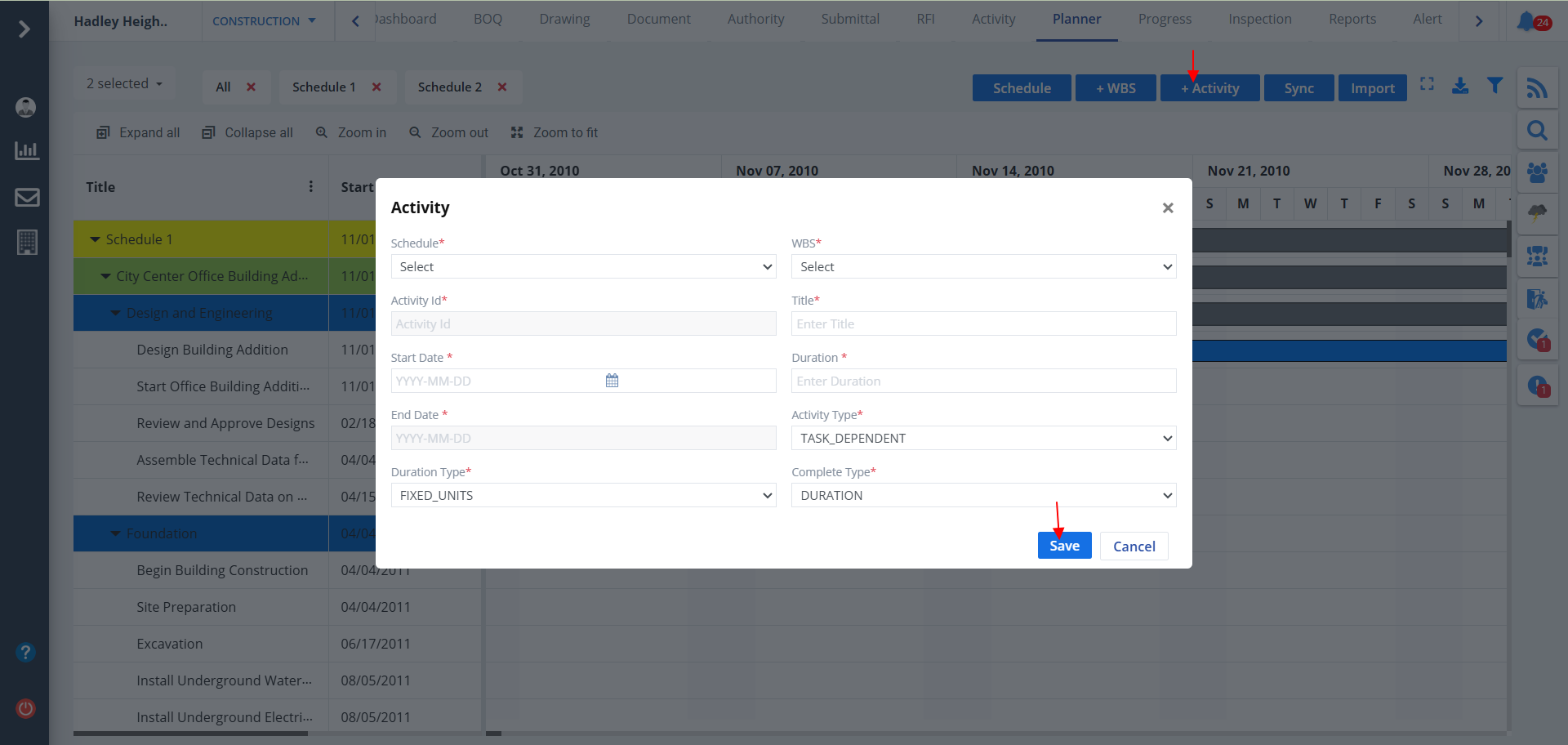
- Click on +Activity button to add a new activity.
- Mention details and click on Save.
Sync
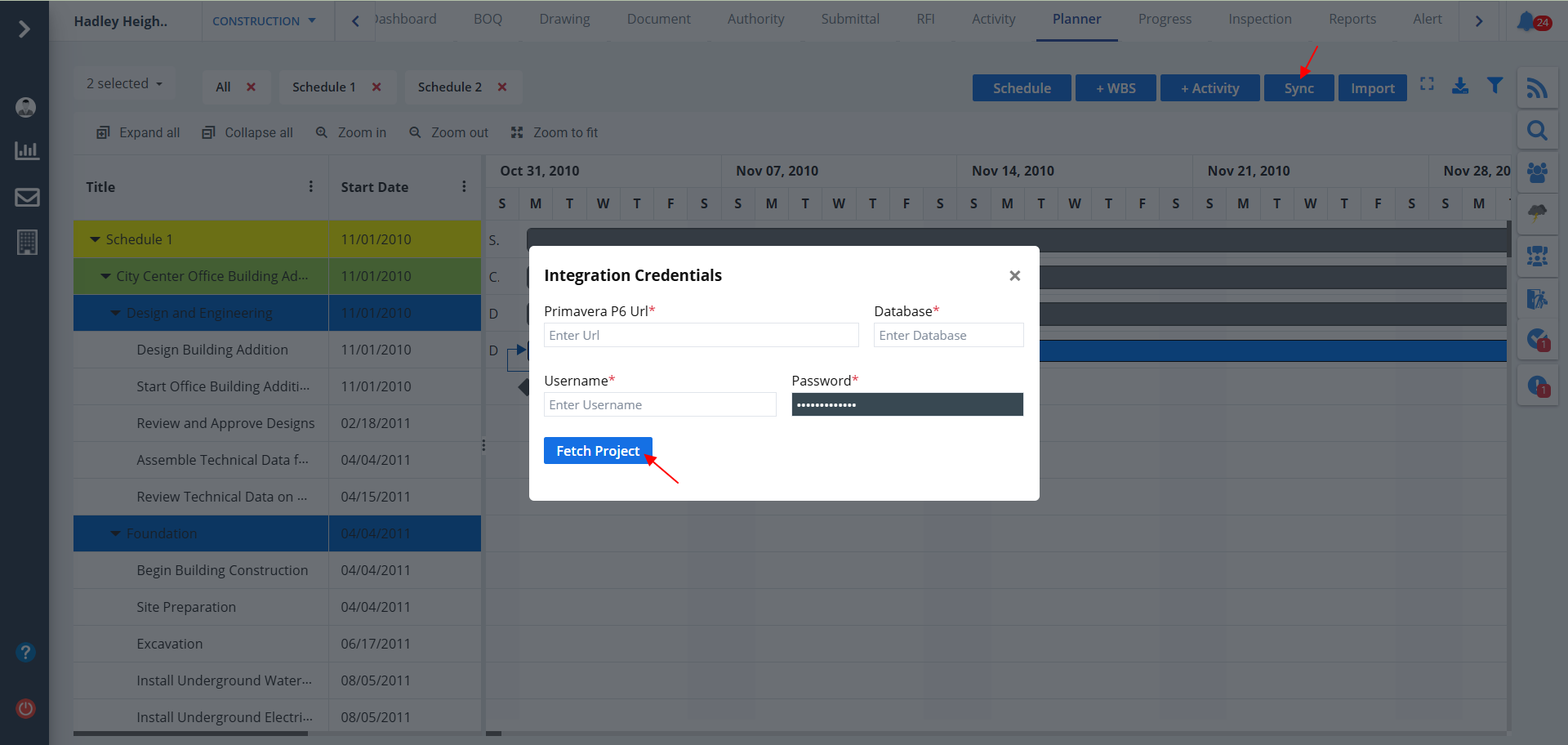
- Click on Sync button as shown. Just mention proper URL, Database name and Username.
- Ultimately click on Fetch Project.
- This will fetch the activity data from Primavera using the URL provided and add in Planner.
Import
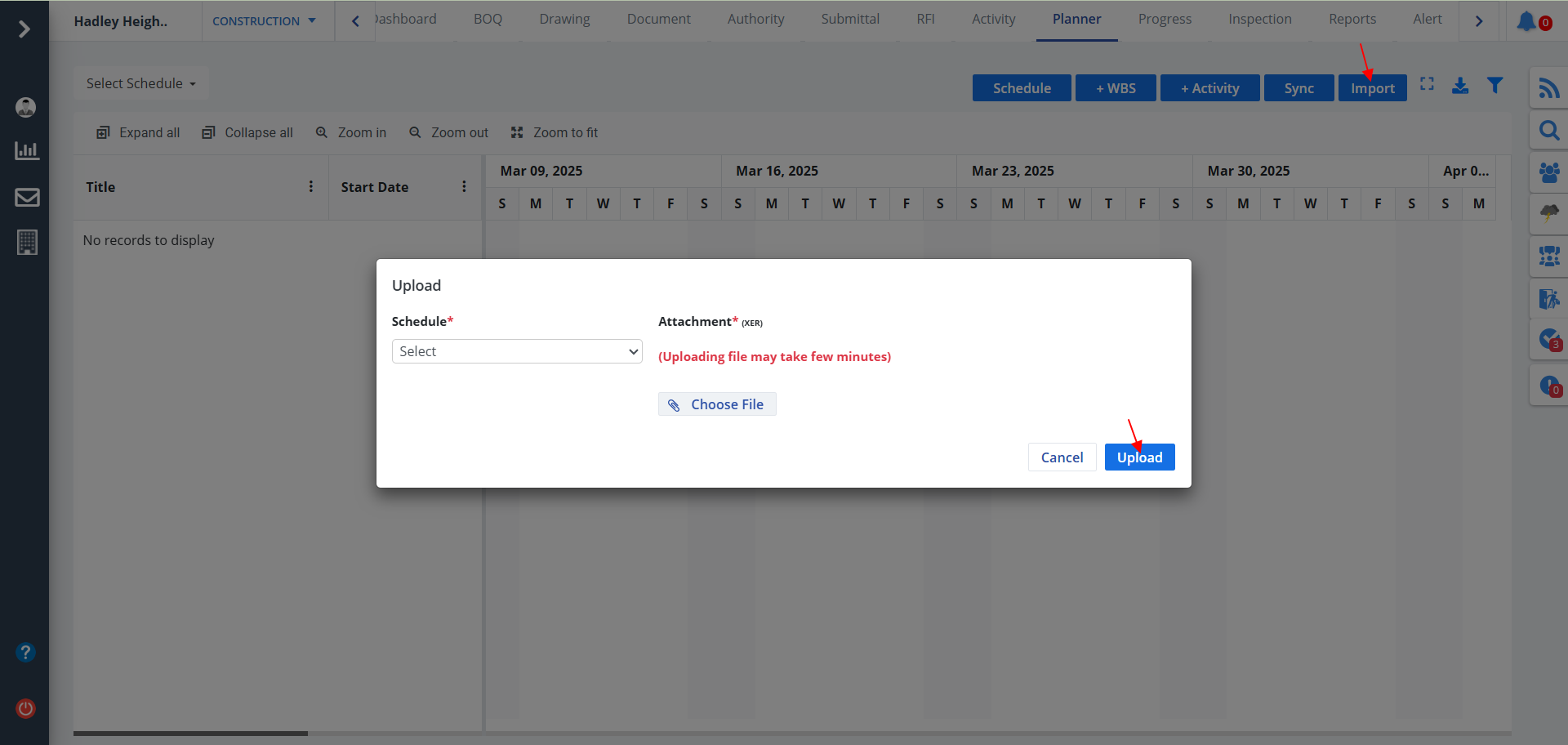
- Click on Import button as shown. Now you can import an existing schedule.
- Just click on Upload.
Full Screen
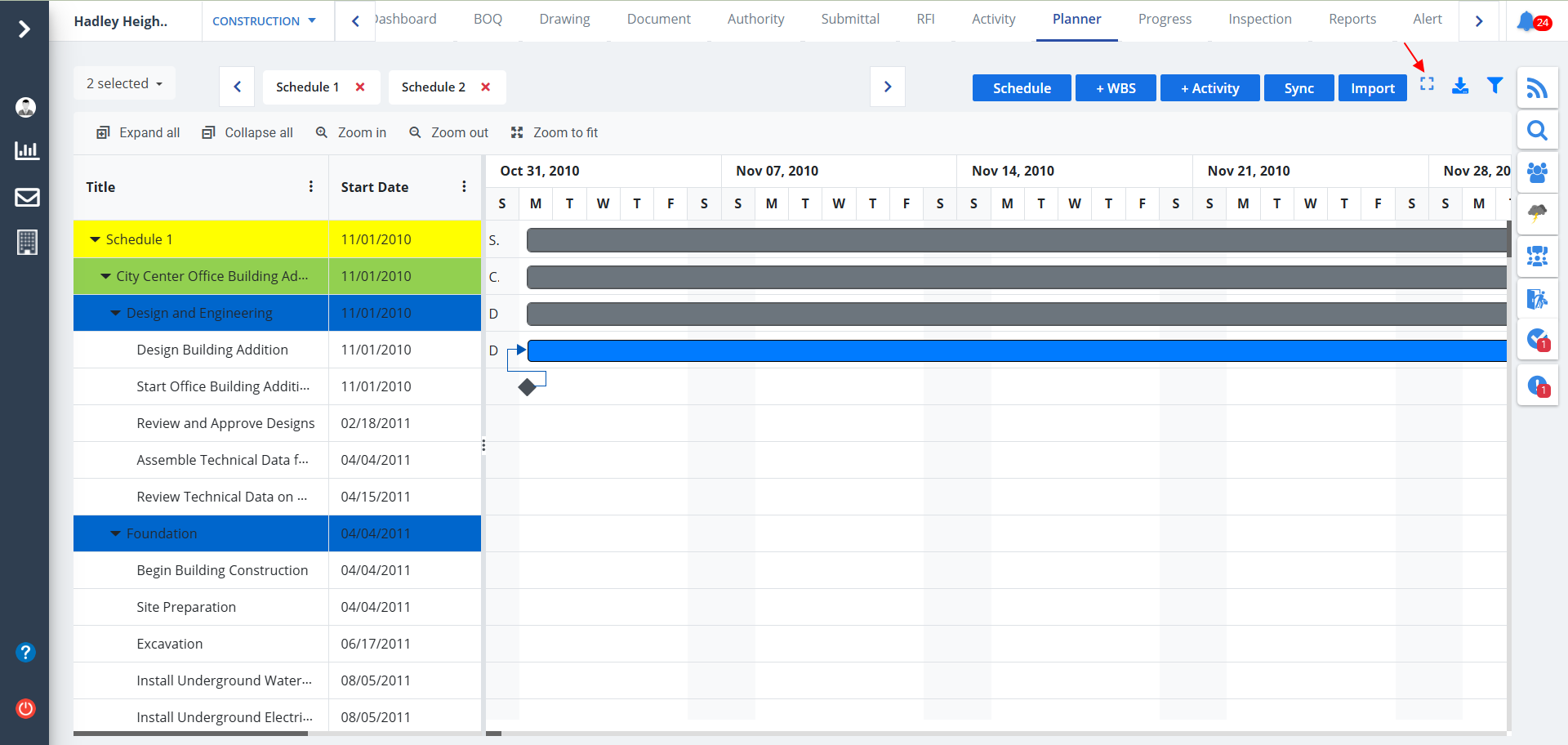
- Use the Full Screen button as shown to view the entire planner in full screen.
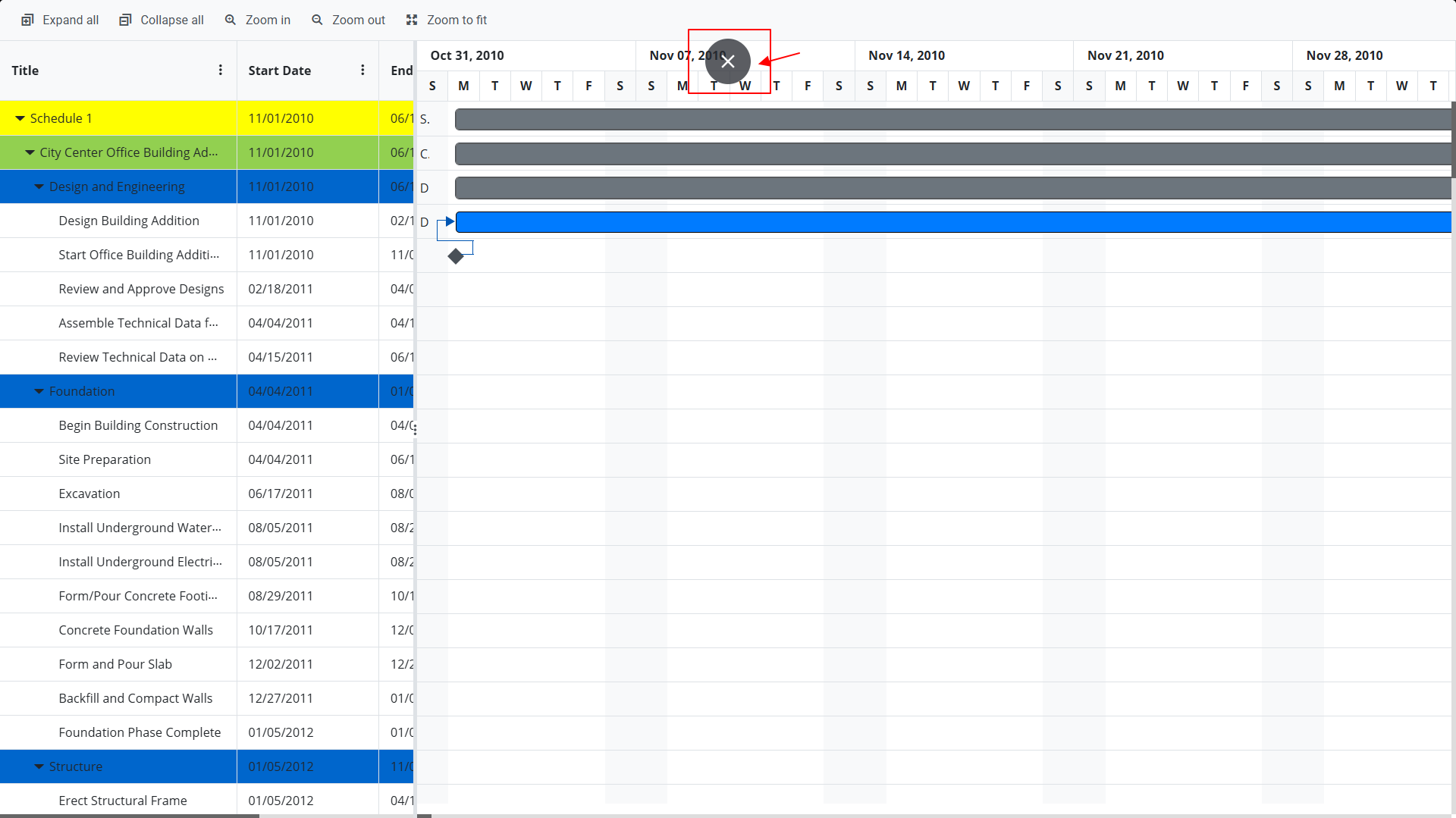
- Once in full screen mode, you can switch back to normal mode by just using Esc key or you can move your cursor to the top of the screen. Now you will see a X button as shown.
- Use this button to exit full screen.
Download & Filter
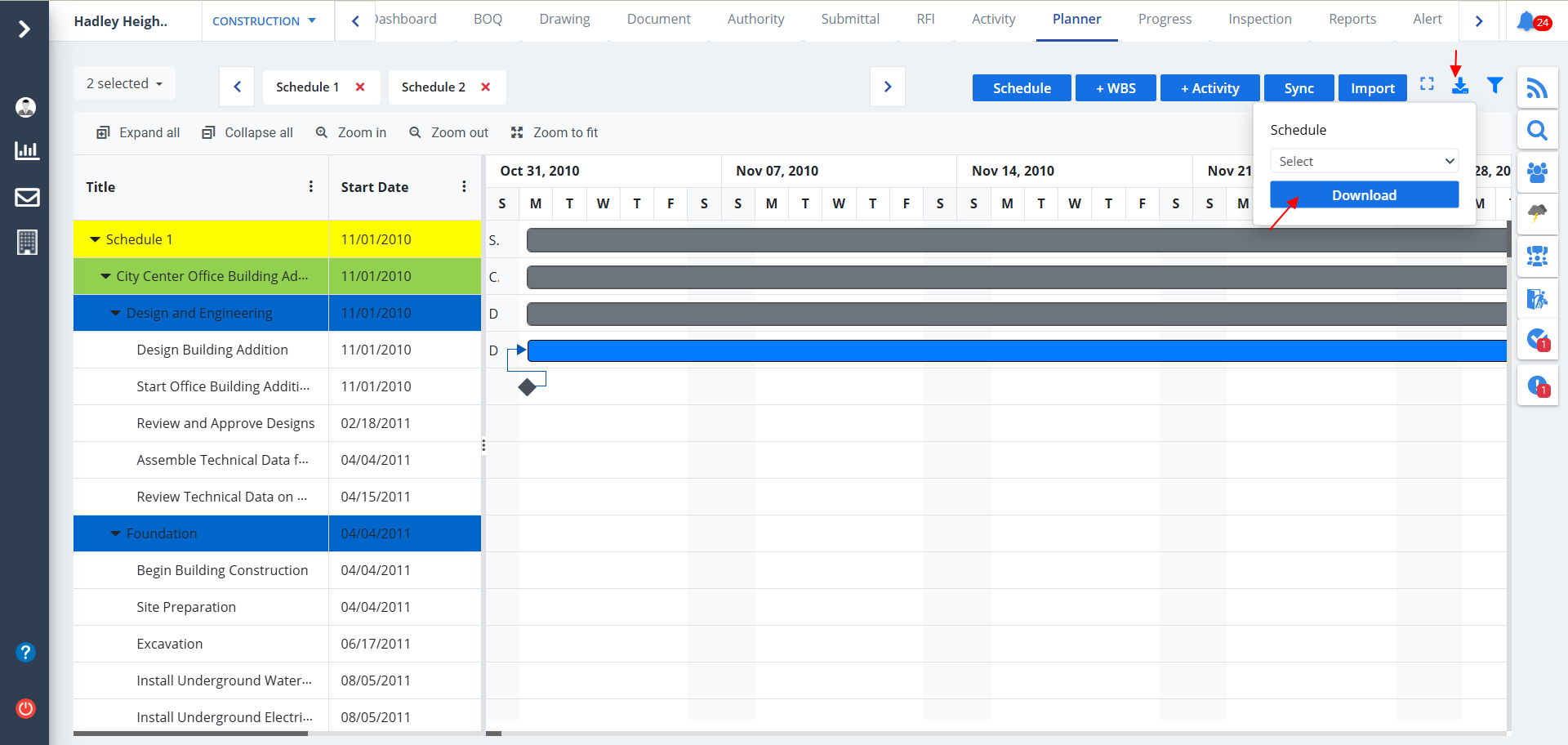
- Use the button as shown to download a particular schedule.
- Just select the schedule and click on Download thereafter.
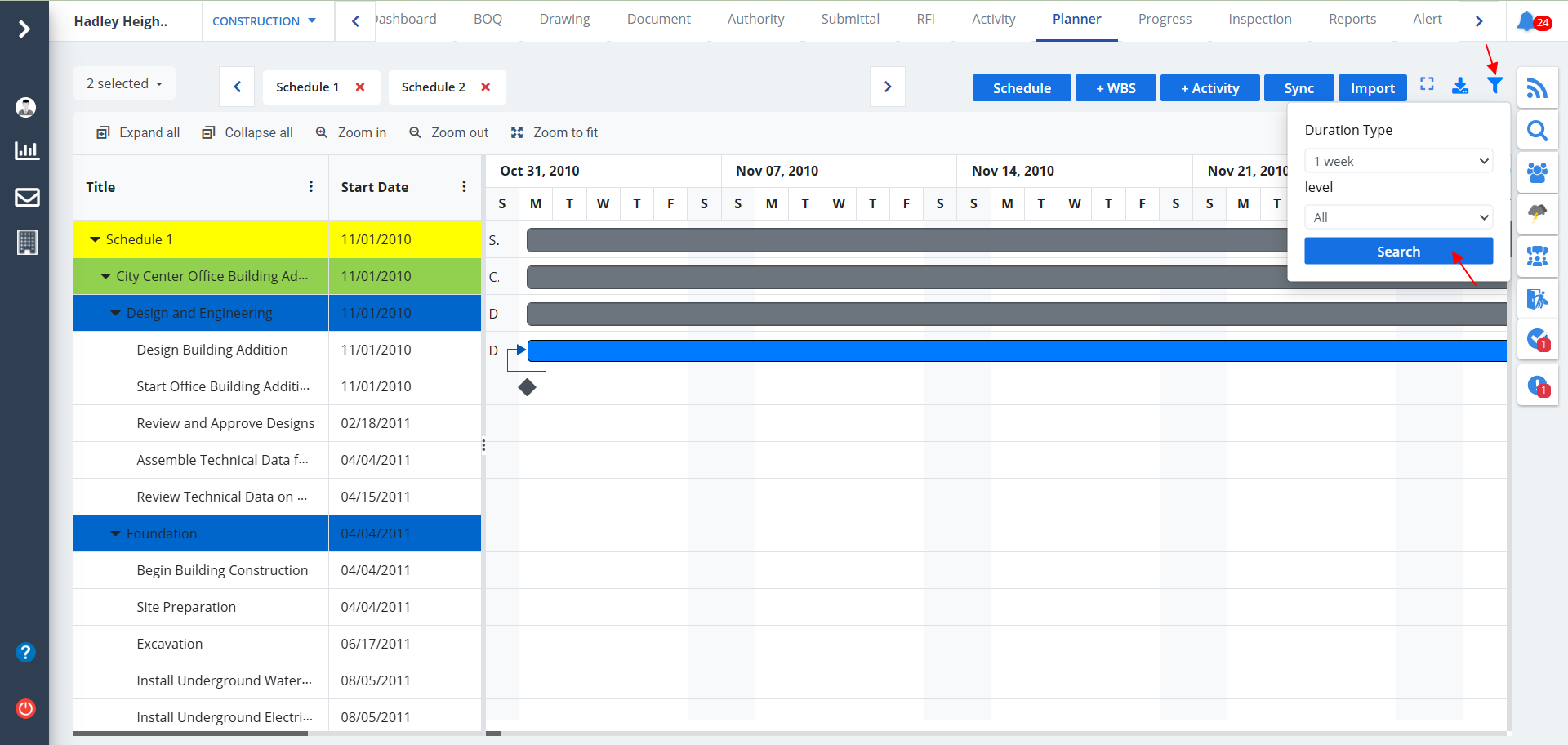
- Use the button as shown to view the data as per requirement.
- Just select proper inputs and click on Search thereafter.