GRN List
- a Goods Received Note (GRN) is a two-way document that records goods received from a supplier. It serves as proof that the ordered goods have been received.
- A GRN is used by the buyer to compare the amount of goods ordered with what was received. It also confirms that both parties have kept to their part of the contract.
- Select GRN from menu.
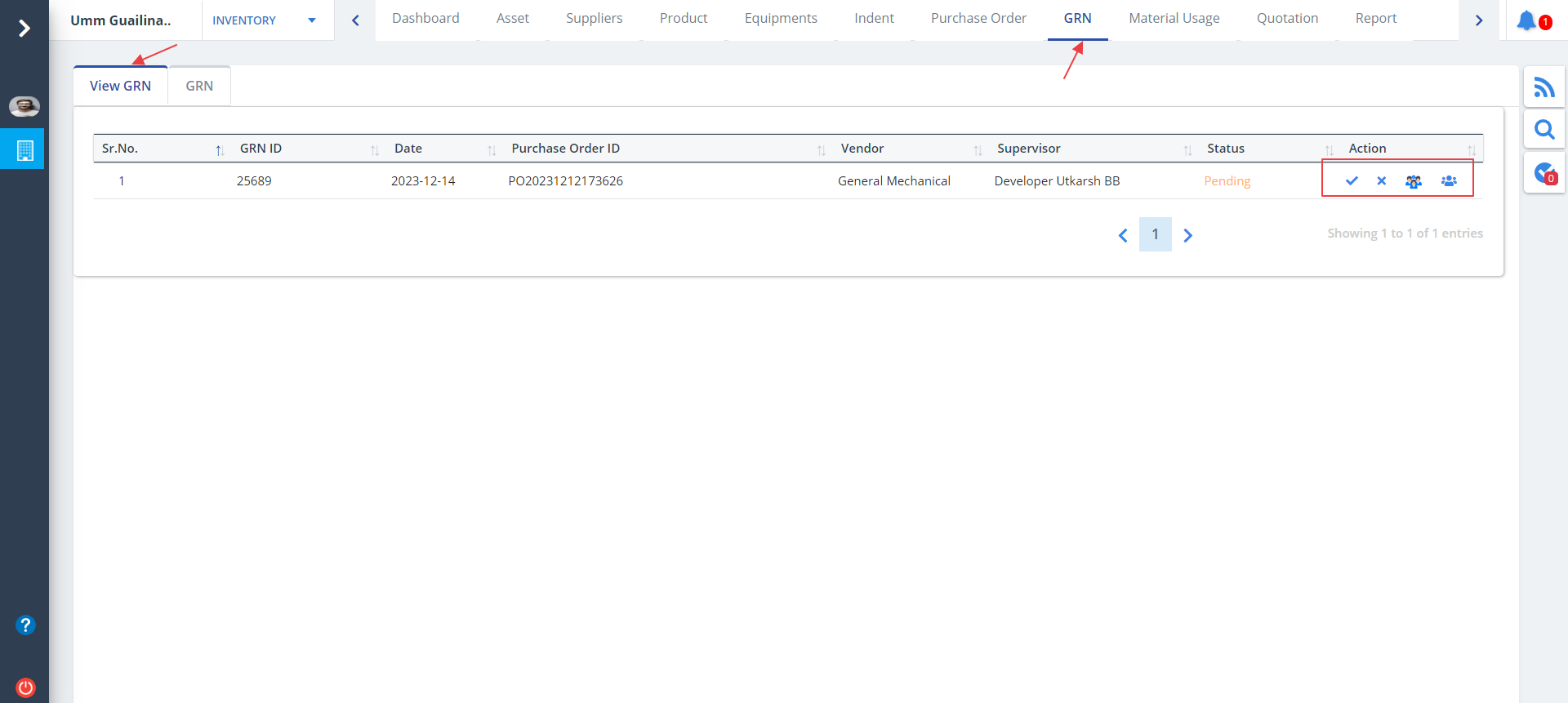
- You will come across 2tabs namely; View GRN and GRN. By default View GRN is selected.
- All the details regarding Goods Received Note will be displayed along with the purchase order, vendor and supervisor details.
- Use the Action column to reject, approve, view/edit Audit and view Approval Workflow.
GRN Tab
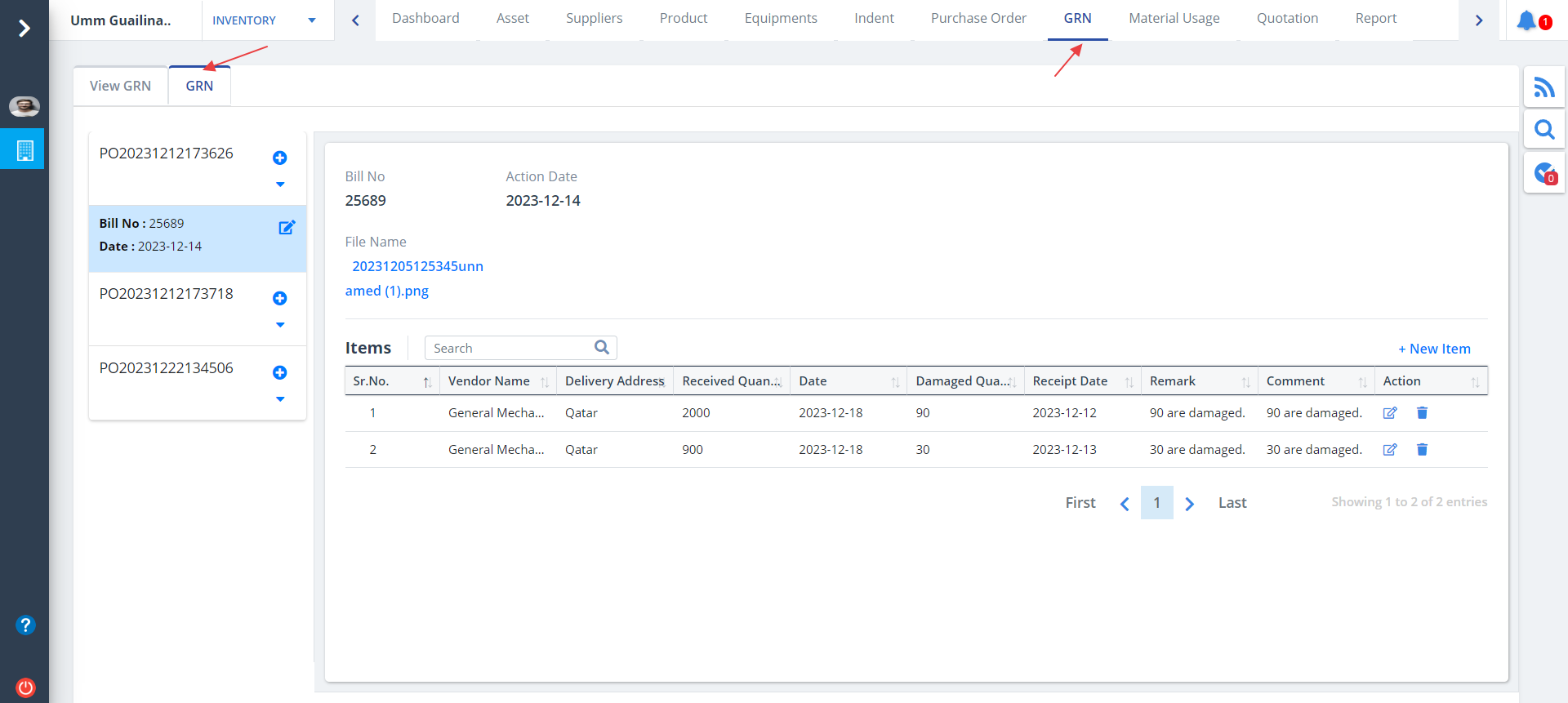
- Select GRN tab as shown. You would be able to see the GRN item details.
- The section on the left side shows the bill number and dates.
Add GRN
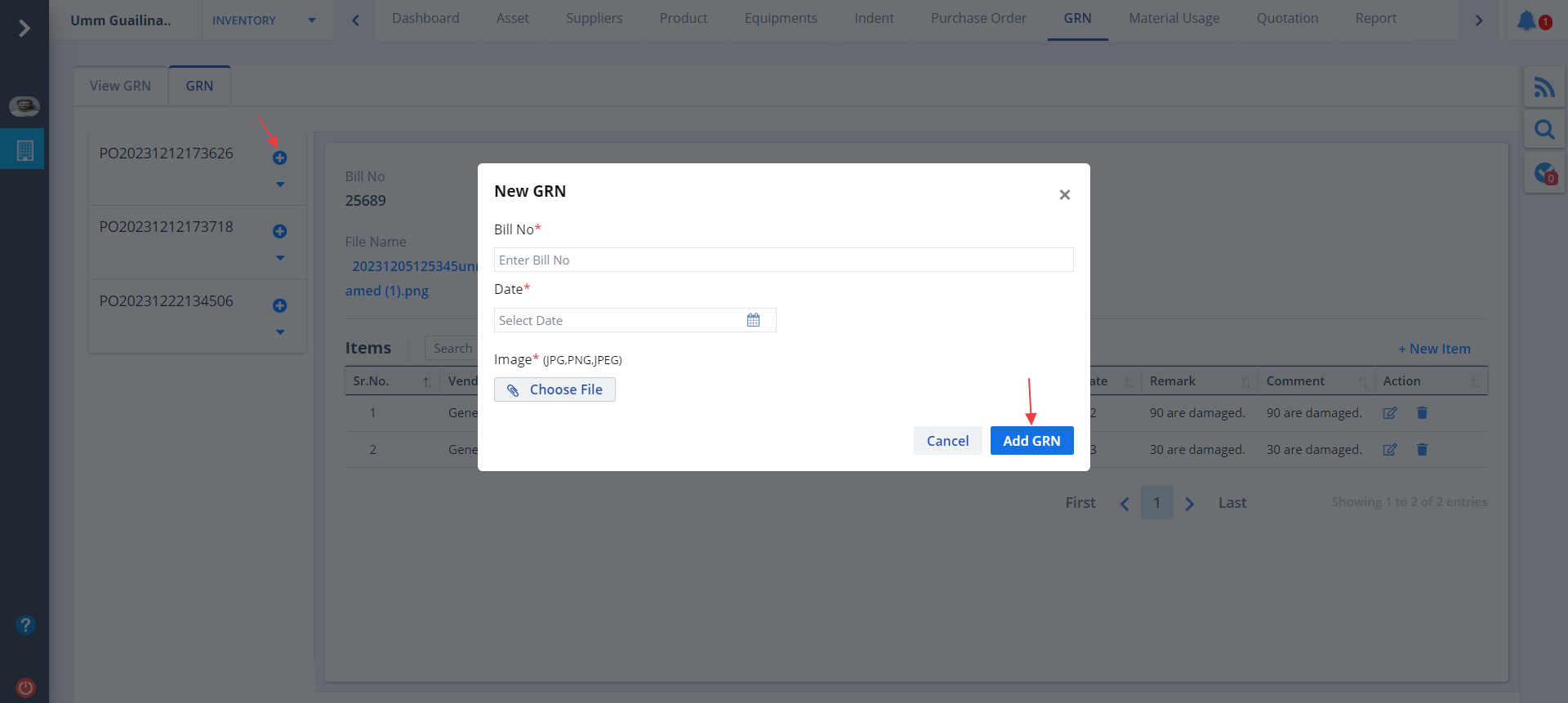
- Click on + button as shown, if you wish to add a new GRN.
- Specify details and click on Add GRN button.
Edit GRN
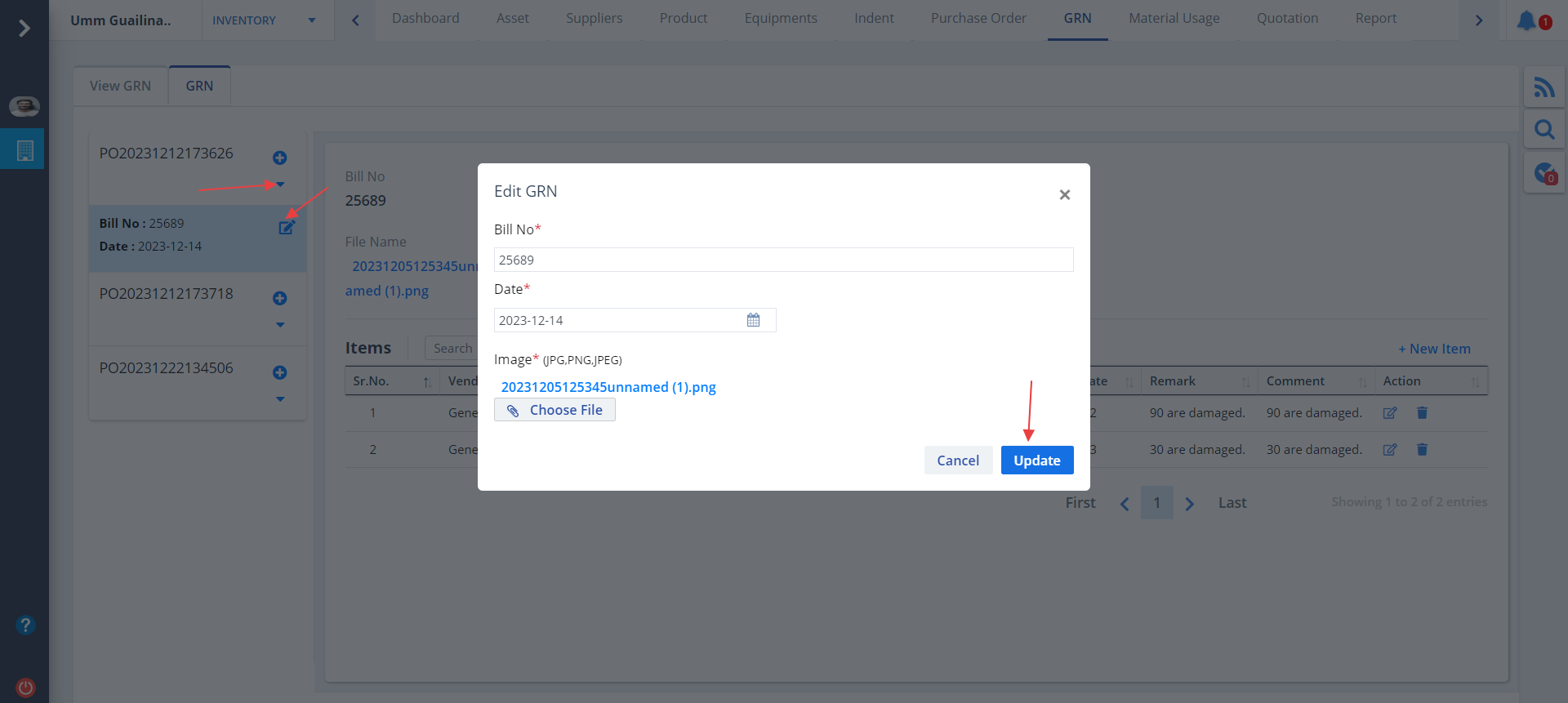
- Click on the arrow just below the + button to get the Edit option.
- Modify required details and click on Update.
New GRN Item
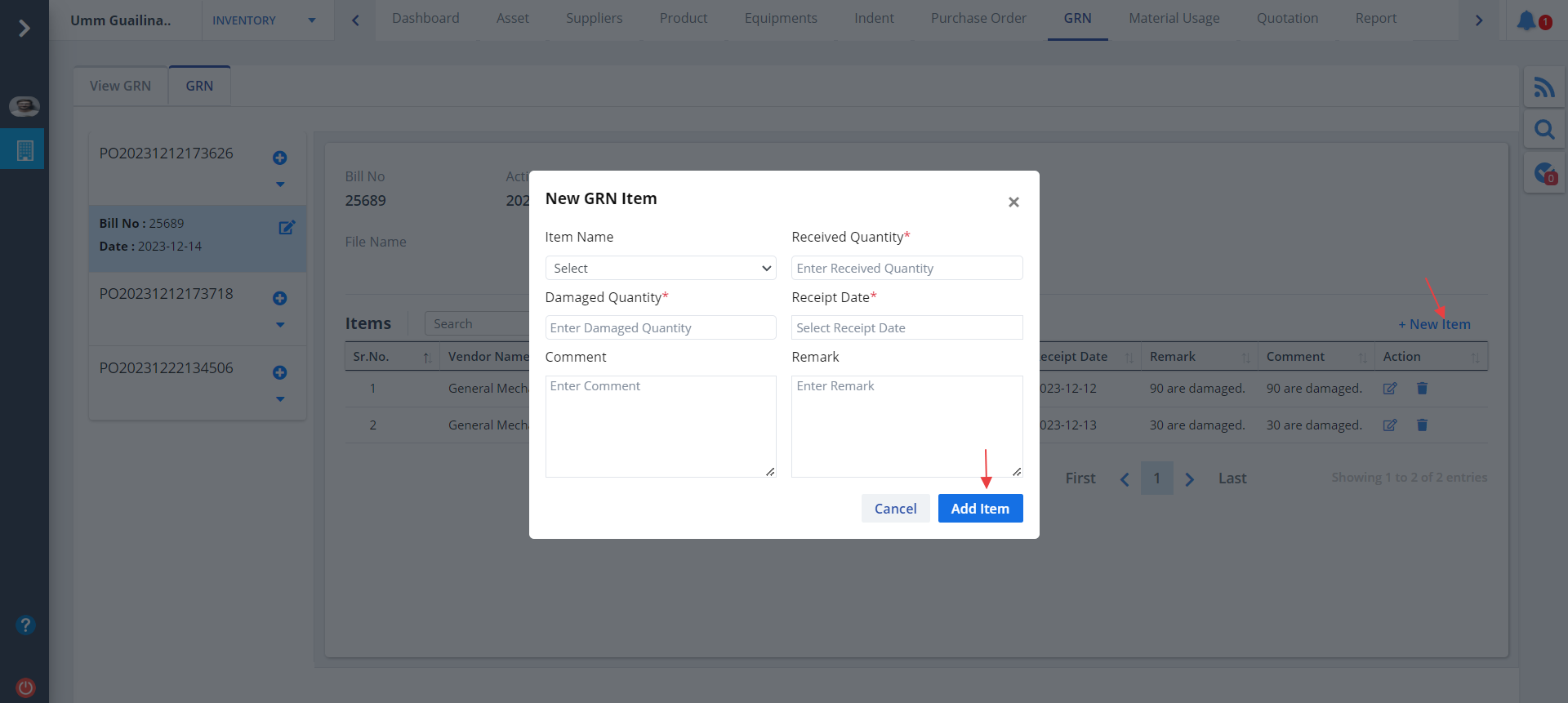
- Click on New Item as shown to add a new item.
- Provide details and click on Add Item.
Edit GRN Item
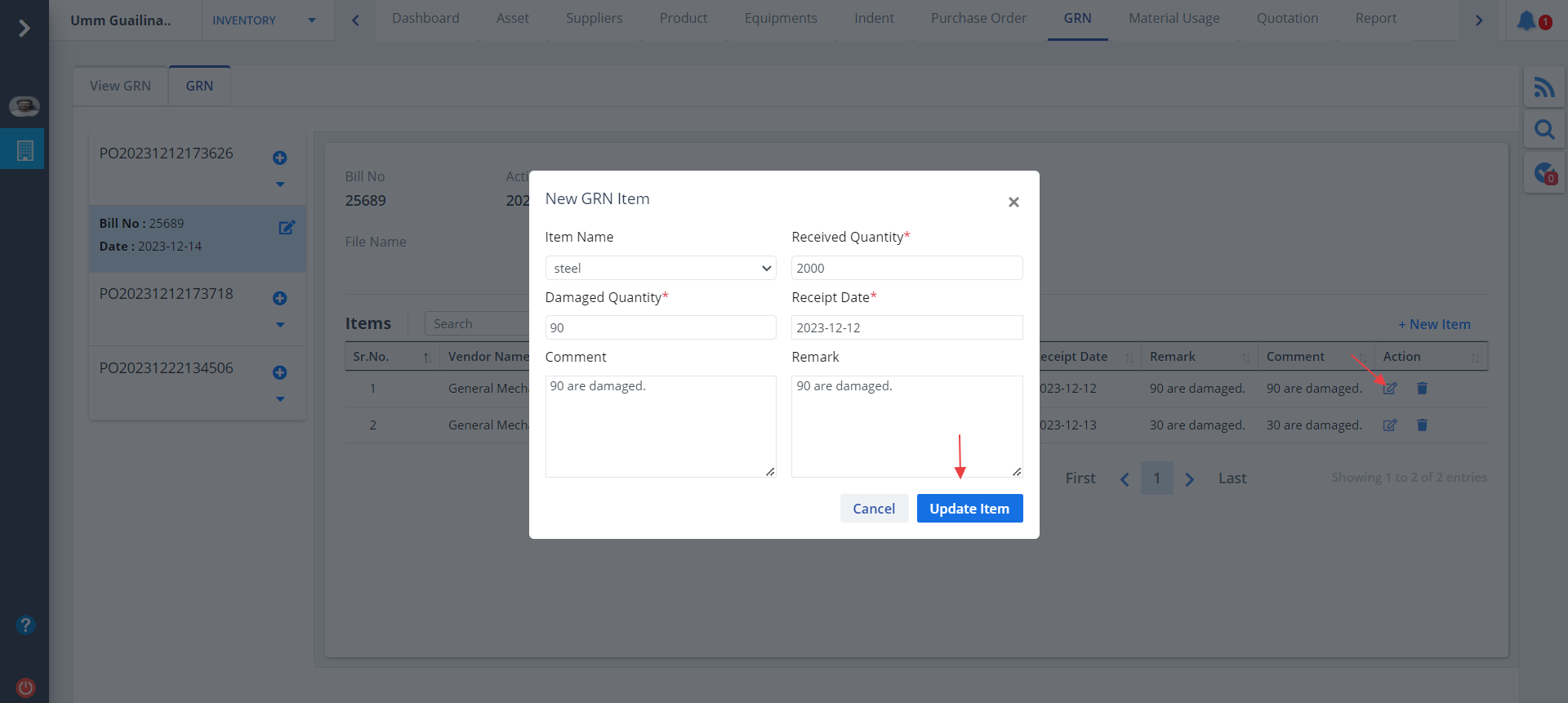
- Use the Edit button under Action column as shown to modify data.
- Make changes wherevr required and click on Update Item.
- The button next to Edit can be used to delete a particular entry.