Holiday Tab
Steps are:-
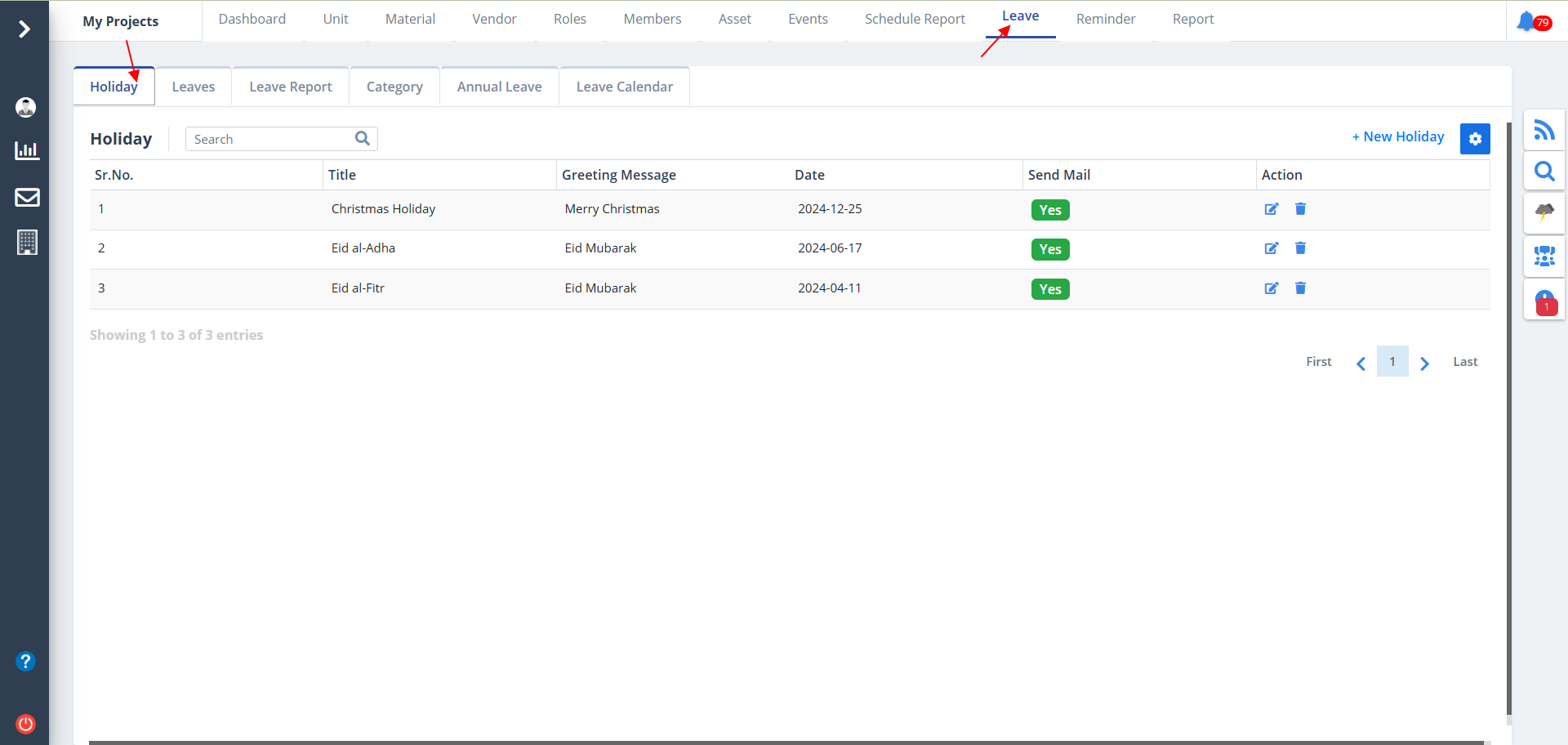
- Select Leave from menu.
- This module is divided into 6 categories; Holiday, Leaves, Leave Report, Category, Annual Leave and Leave Calendar
- As an admin, when you have already defined a holiday, a listing will be shown.
- You can also delete a holiday from here. Just click on Delete next to Edit button.
- To define a new holiday, click on New Holiday.
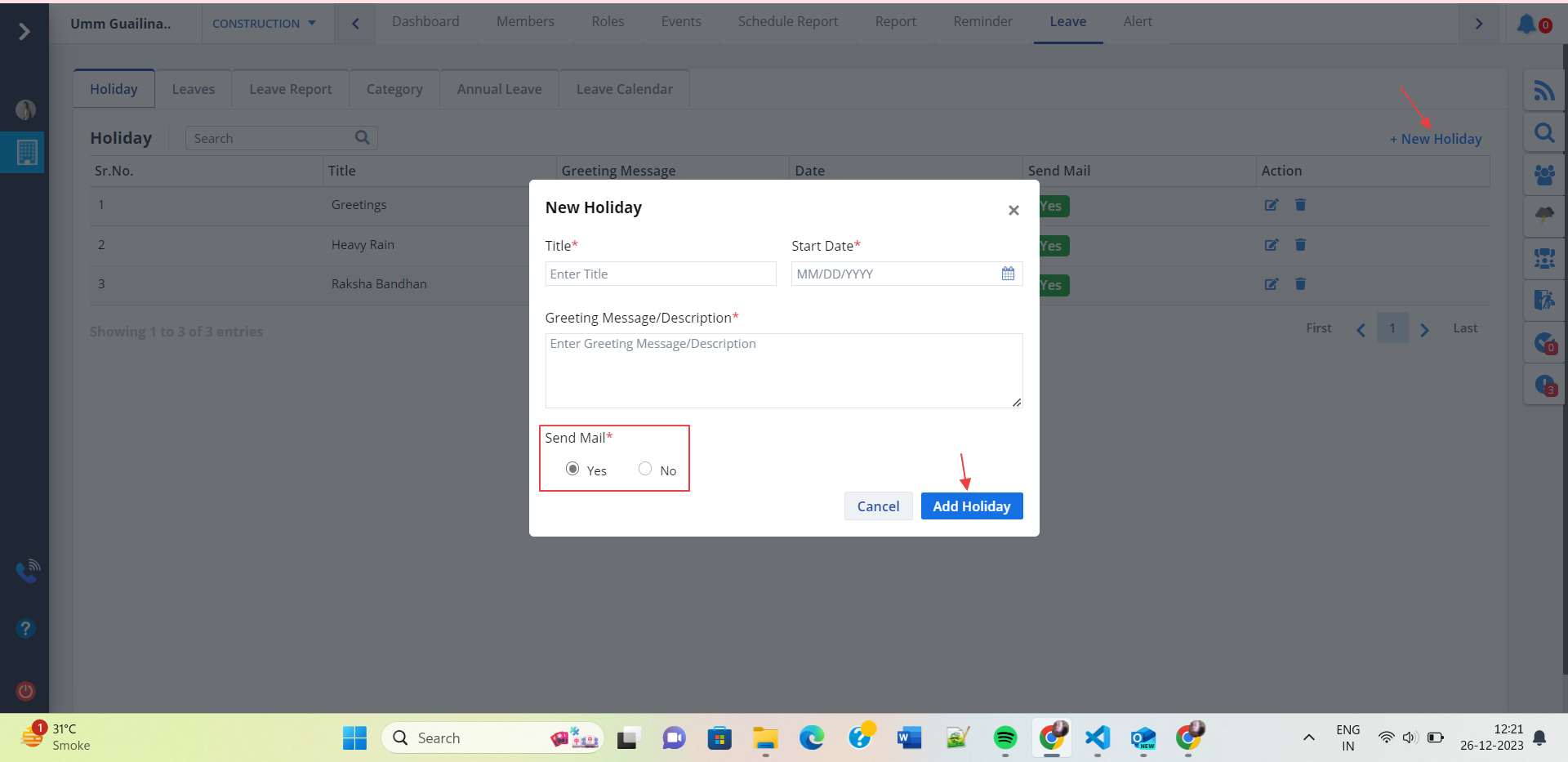
Enter details. You can choose to send a mail as a greeting of the holiday. Just select Yes
if such, else select No. Now, click Add Holiday.
Refer above figure.
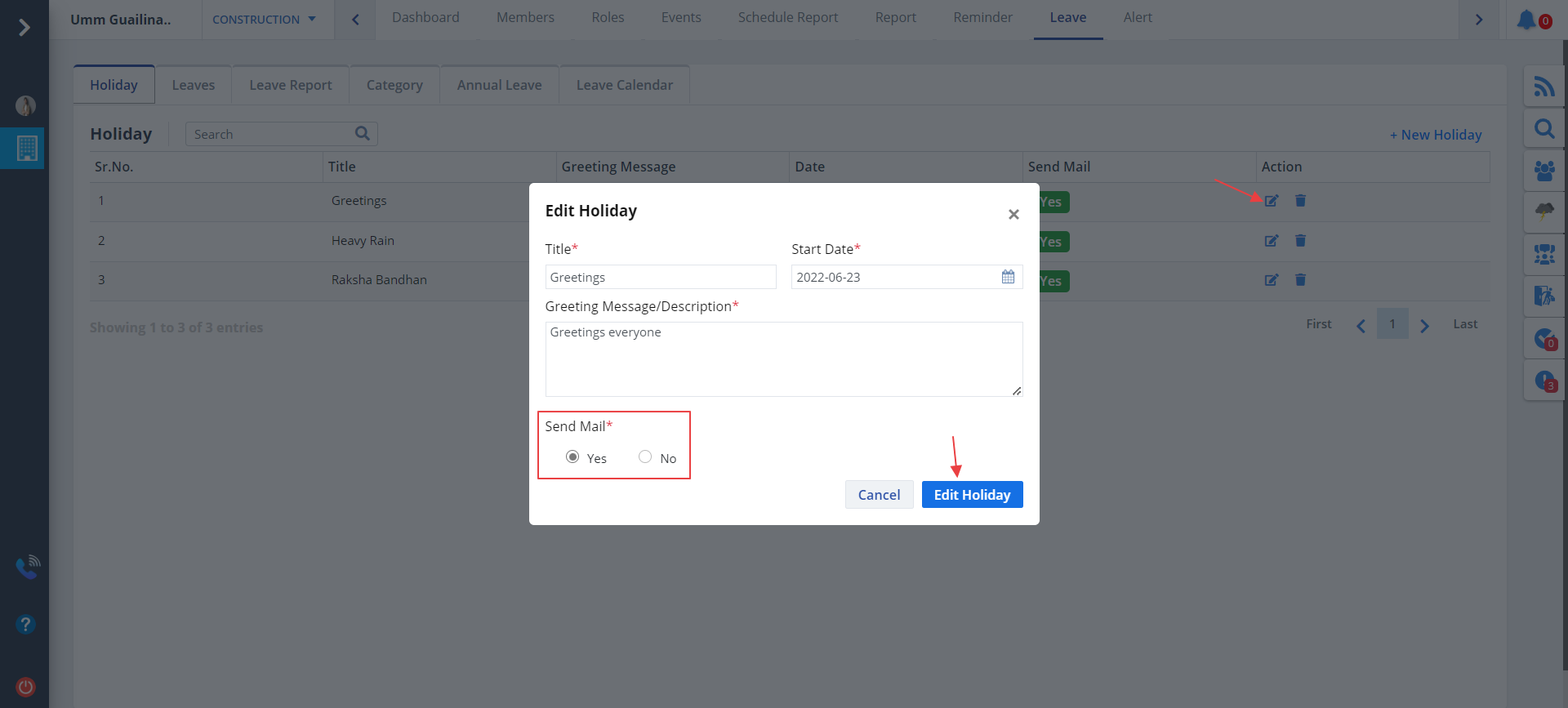
- Click on Edit as shown to edit a particular holiday data.
- Modify details and click on Add Holiday.
Column Visibility
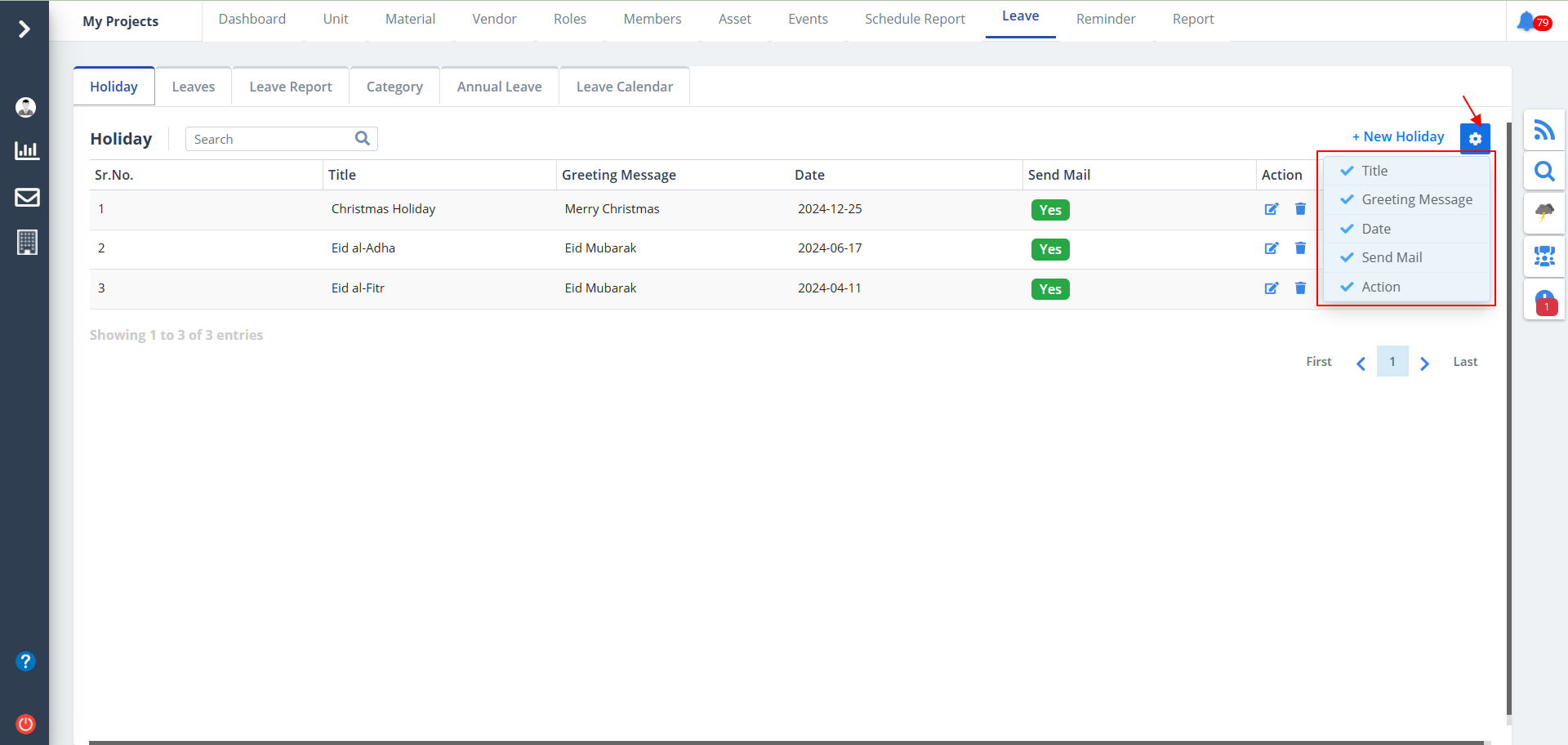
- You can control what column you prefer to be seen.
- Just click on the Settings icon as shown in the below image.
- Tick the columns that you want to view and untick the ones you don't desire to view.
- In case you change your mind, you can tick the untick ones and vice-versa.
Leaves Tab
Steps are:-
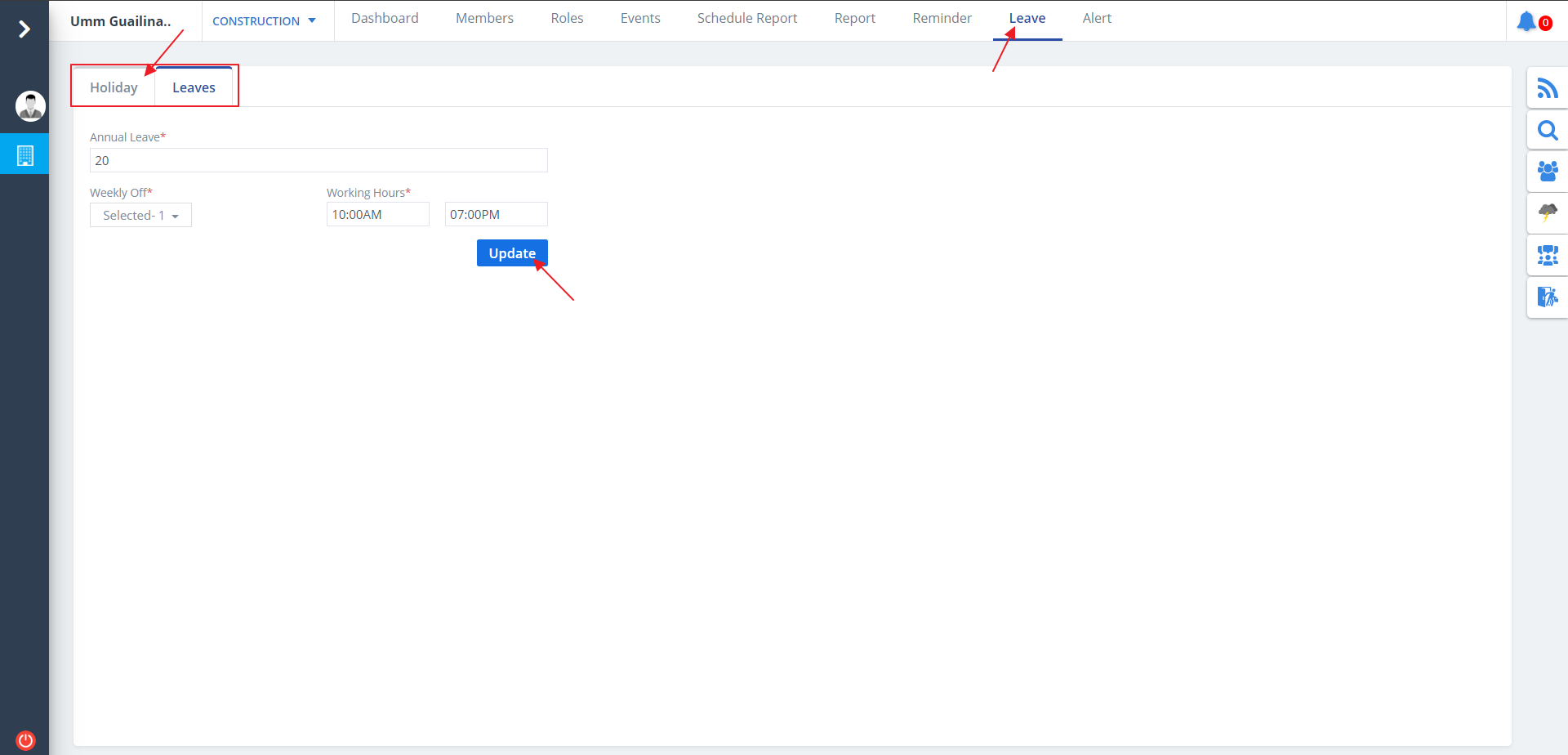
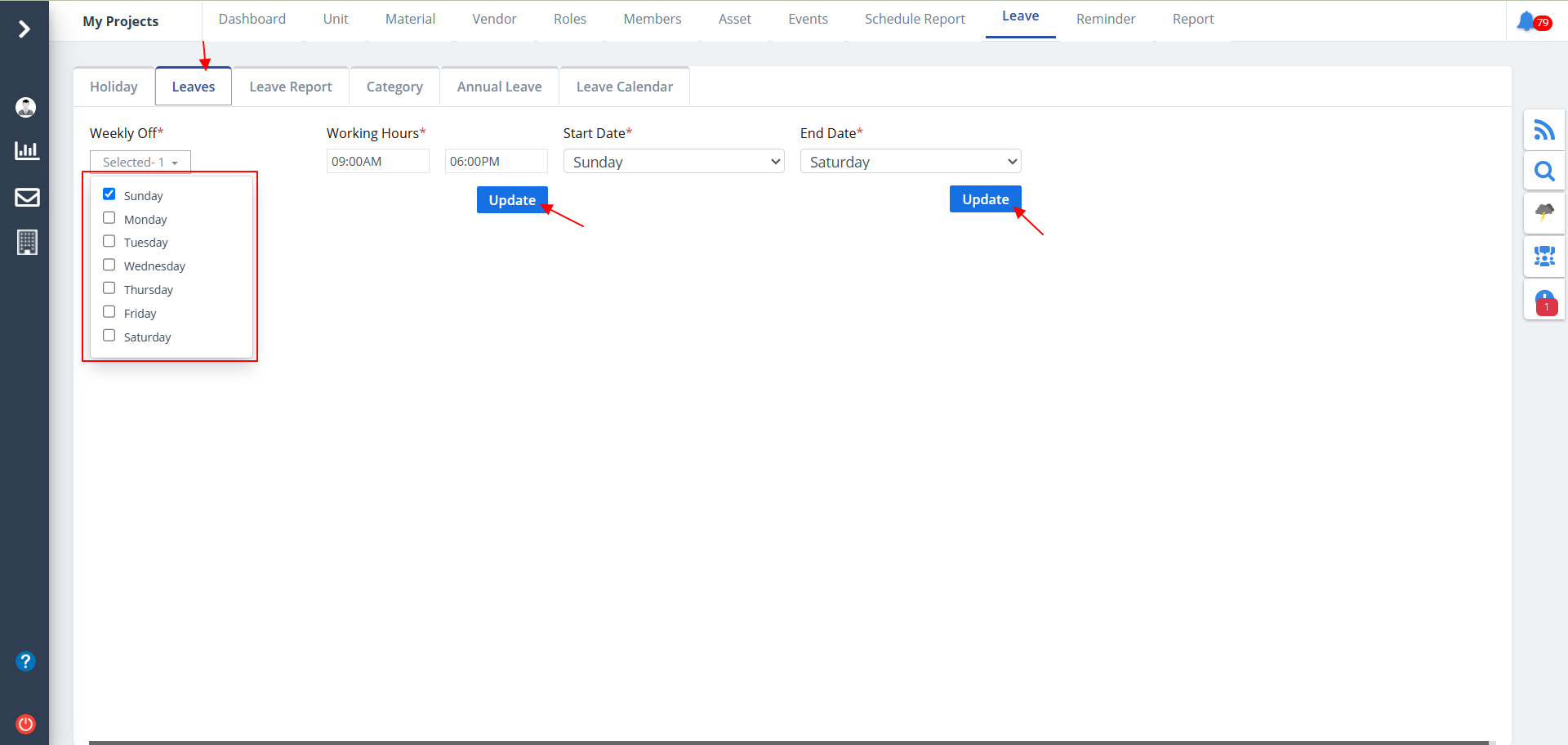
- Now switch to Leaves.
- Now you will be able to mention proper leave essentials.
- Now enter details. Select weekly off day/days, mention proper working hours and start and end days.
- Ultimately click on Update button provided.
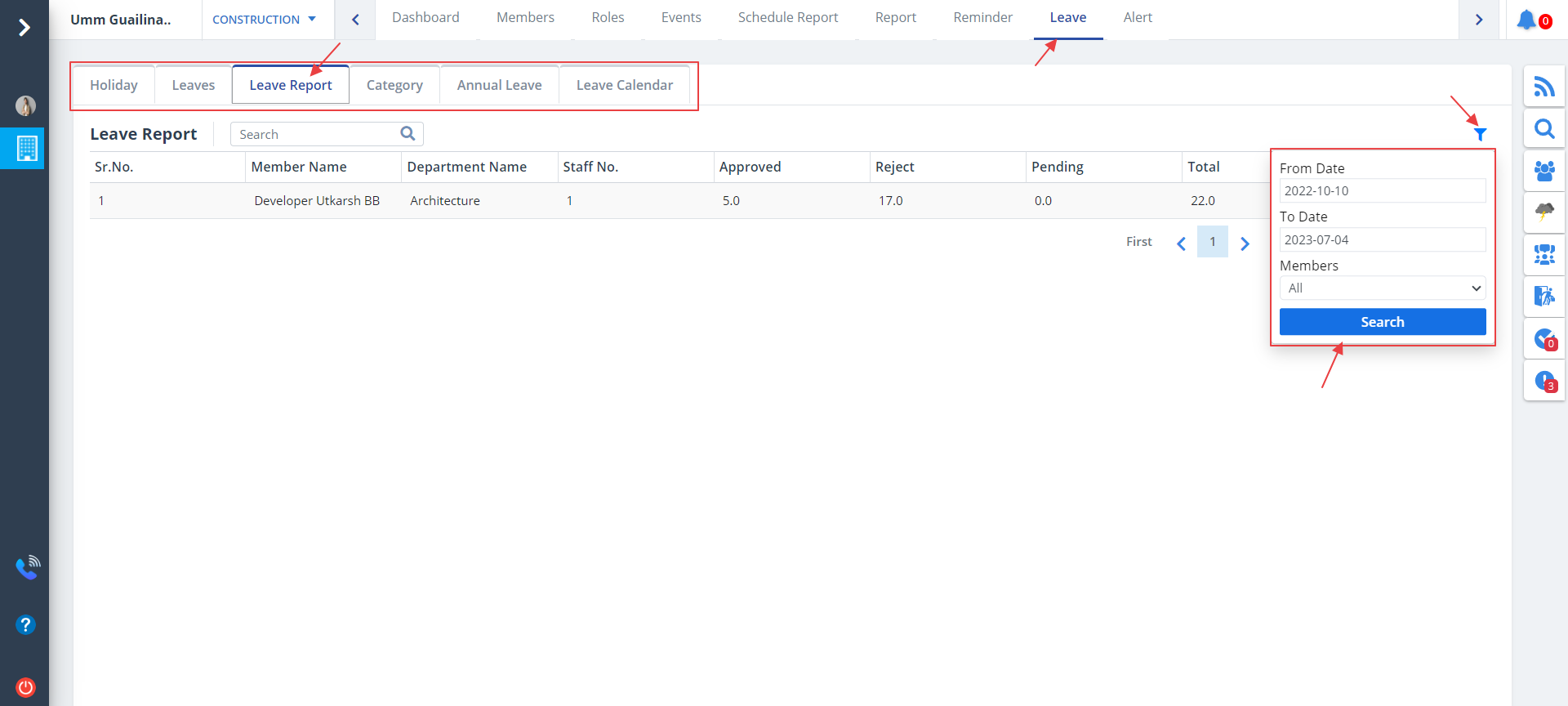
- Select Leave Report tab.
- All the leave details will be shown in a report type format.
- Use the Filter button as shown to narrow the data visibility. Just select dates and members. Now click on Search.
- The Eye button under Action column can be used to view the leave report.
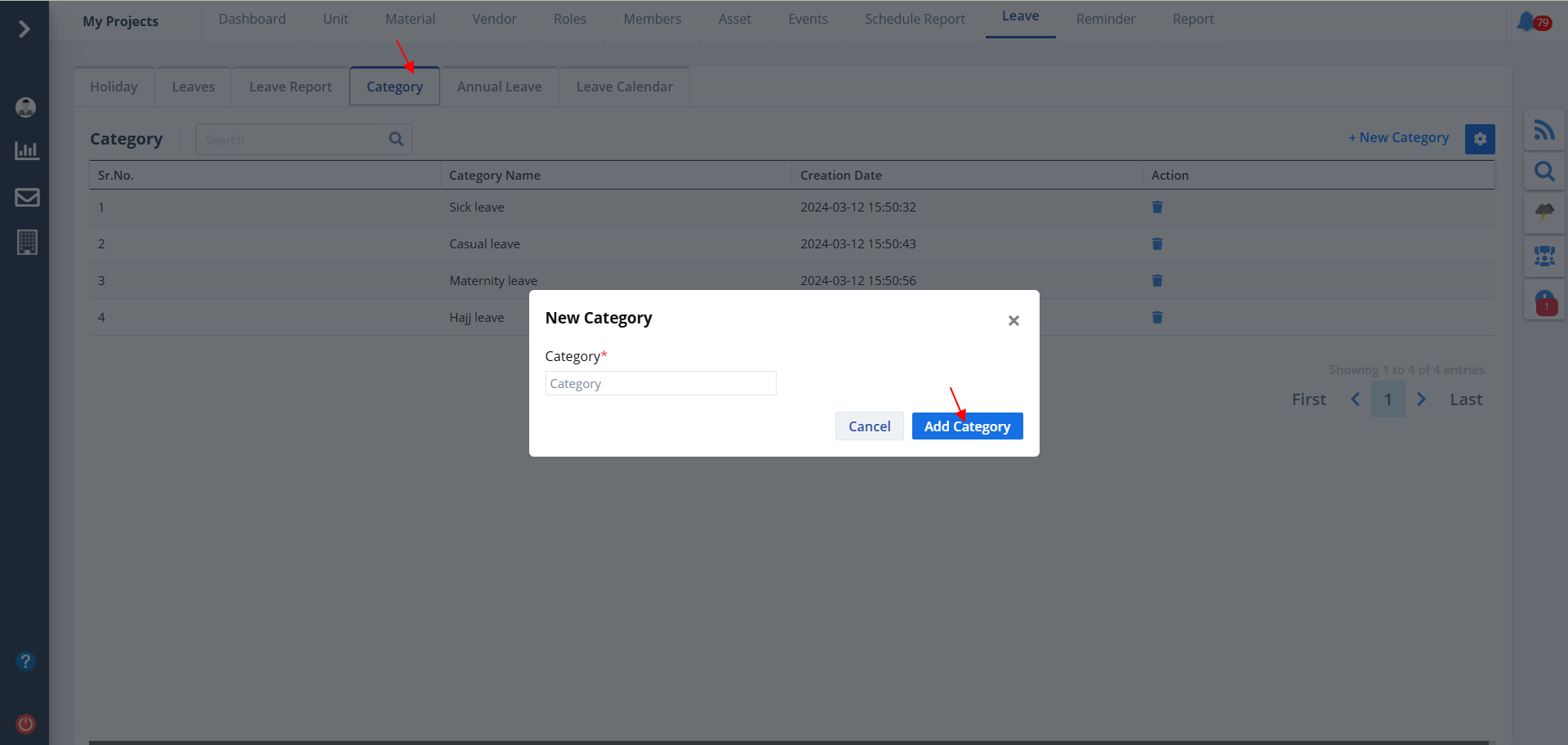
- Select Category tab from tab list.
- All the leave categories and its creation date will be shown.
- To add a new category, click on New Category. Provide details and click on Add Category.
- You can delete an entry as well, by using the button under Action column.
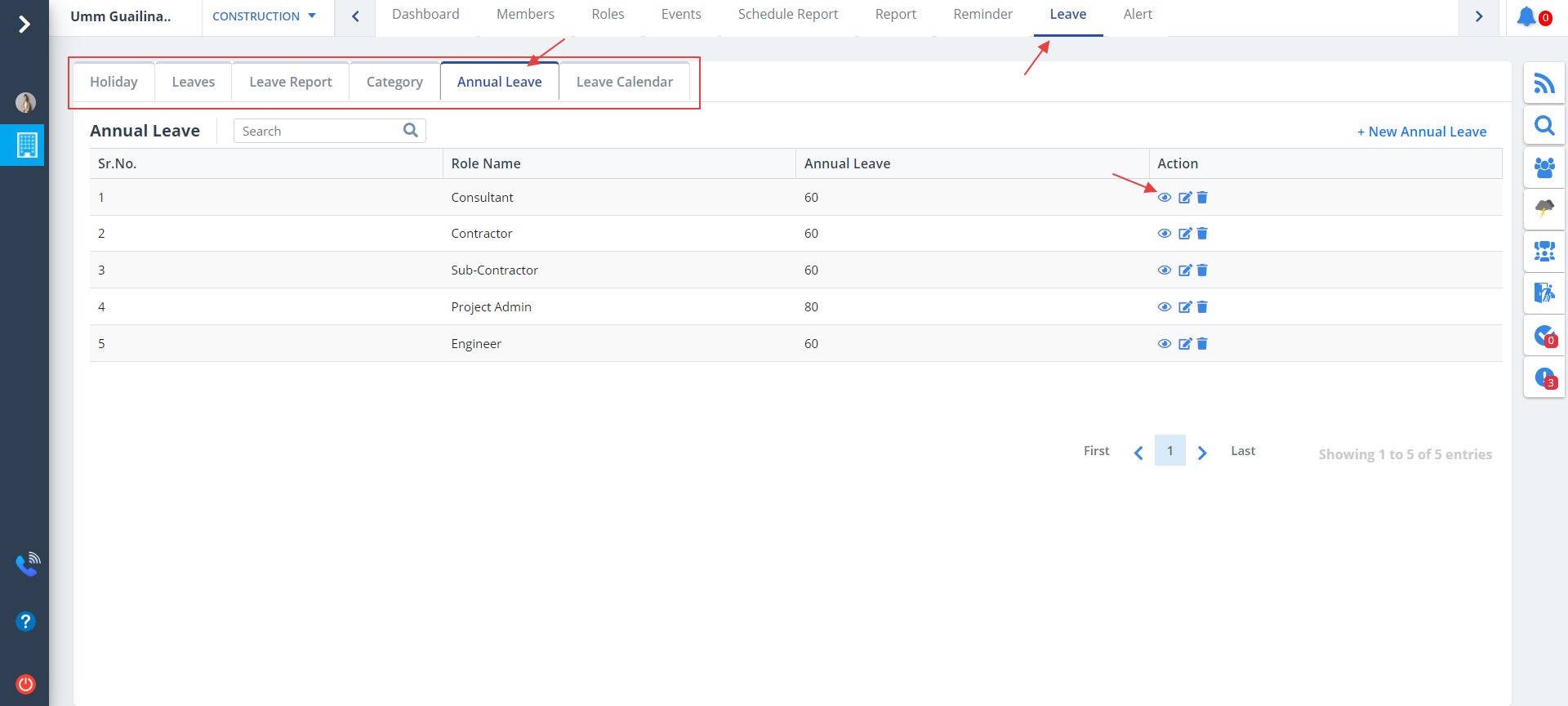
- Select Annual Leave tab from tab list.
- Total annual leaves of the members will be shown role wise.
- To add a new annual leave, click on New Annual Leave. Provide details and click on Add Annual Leave.
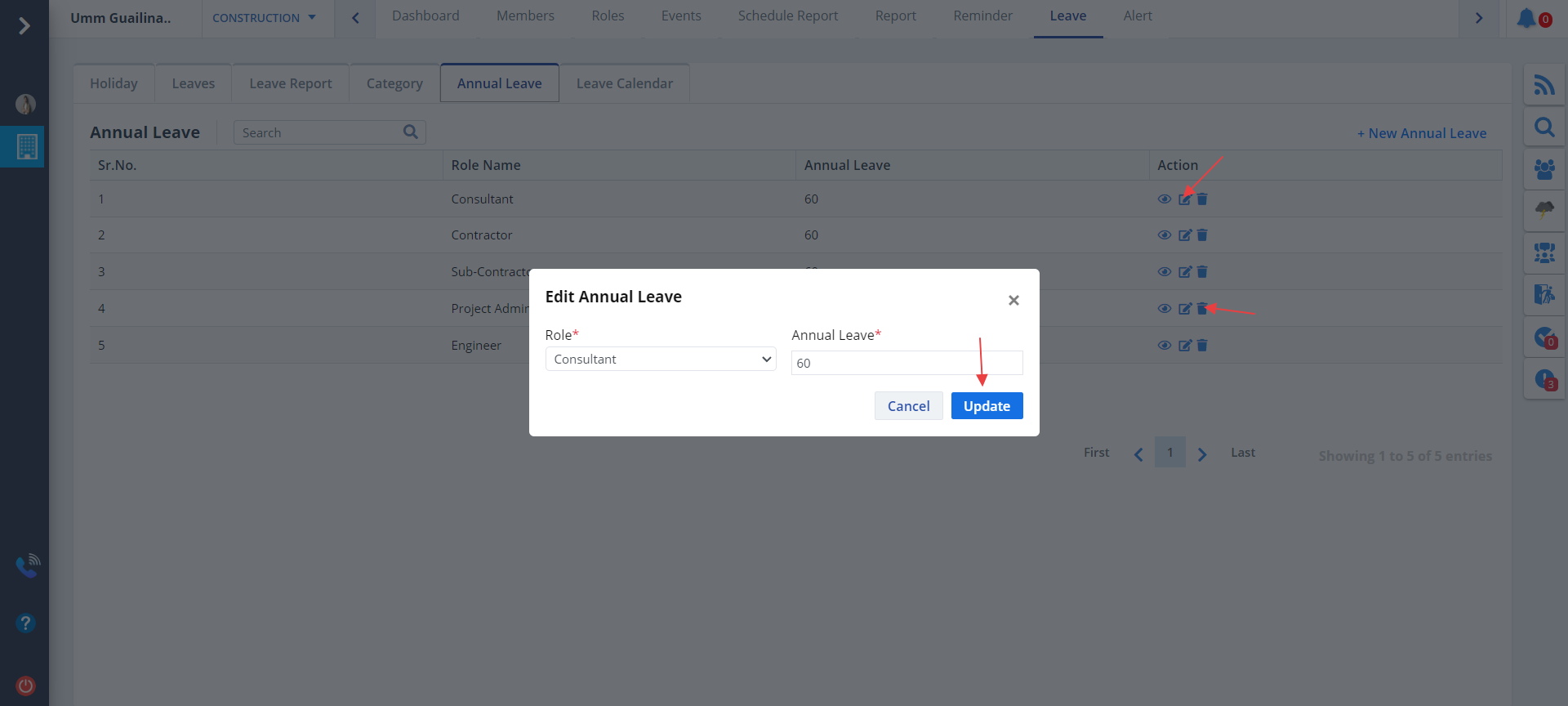
- Click on Edit button as shown to edit a particular annual leave.
- Modify required data and click on Update.
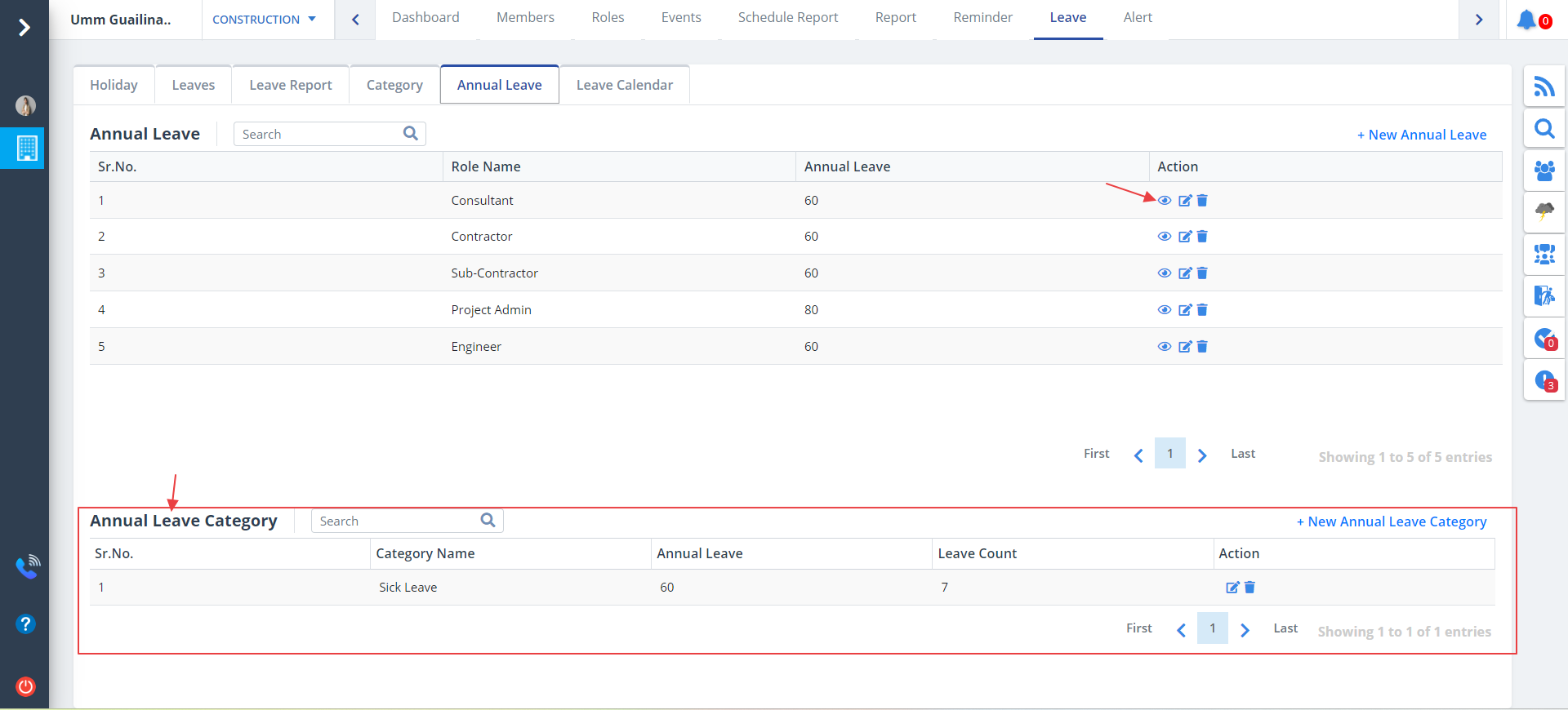
- Click on the Eye button under Action column as shown to view the annual leave category details if already mentioned.
- You can add new annual leve category by clicking on the button as shown. Provide details and click on Add Annual Leave.
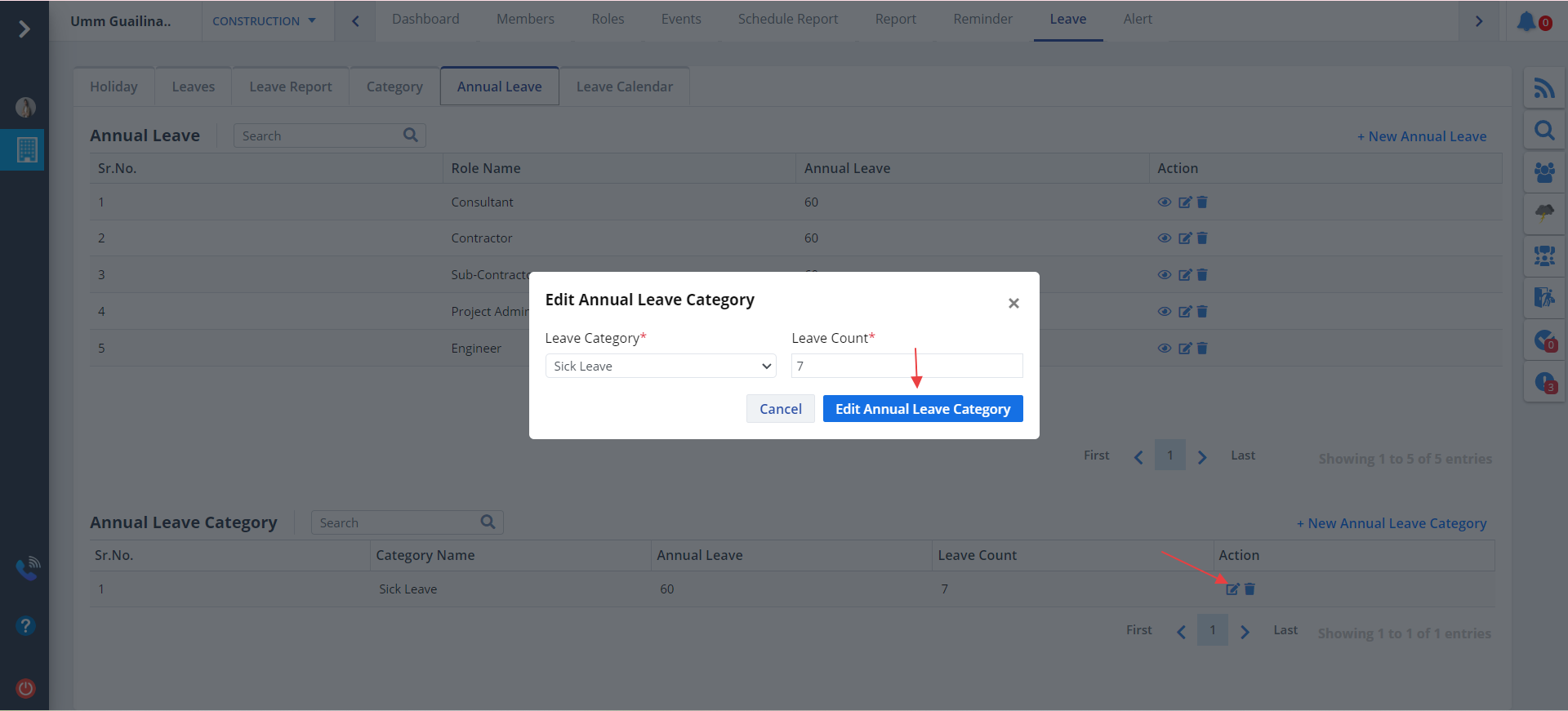
- Similarly you can edit a particular leave category by clicking on the Edit button as shown. Modify required details andd click on Edit Annual Leave.
- You can delete a particular leave category by clicking Delete button as shown.
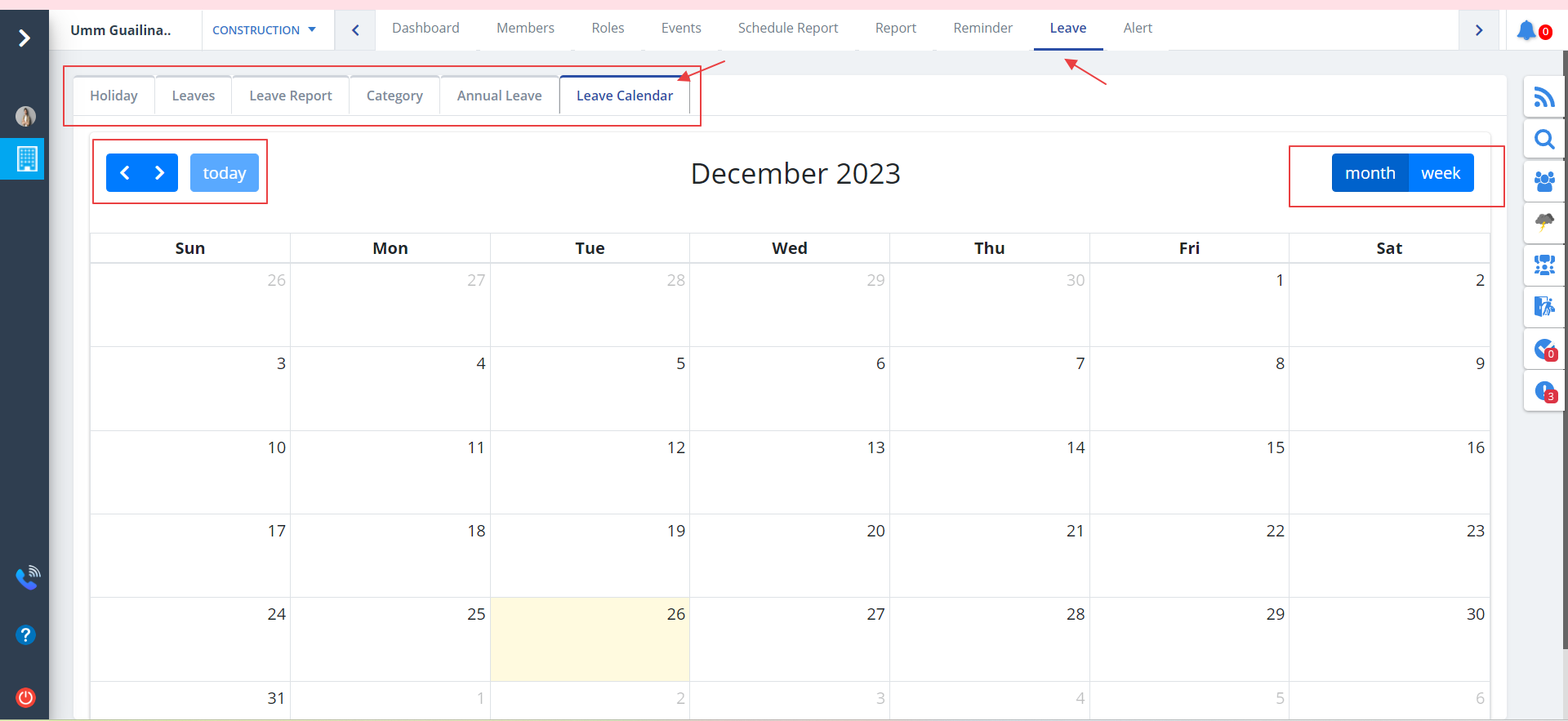
- Select Leave Calendar tab from tab list.
- Actual calendar will be shown which will include the holidays too which the user had added. The curent date will be highlighted.
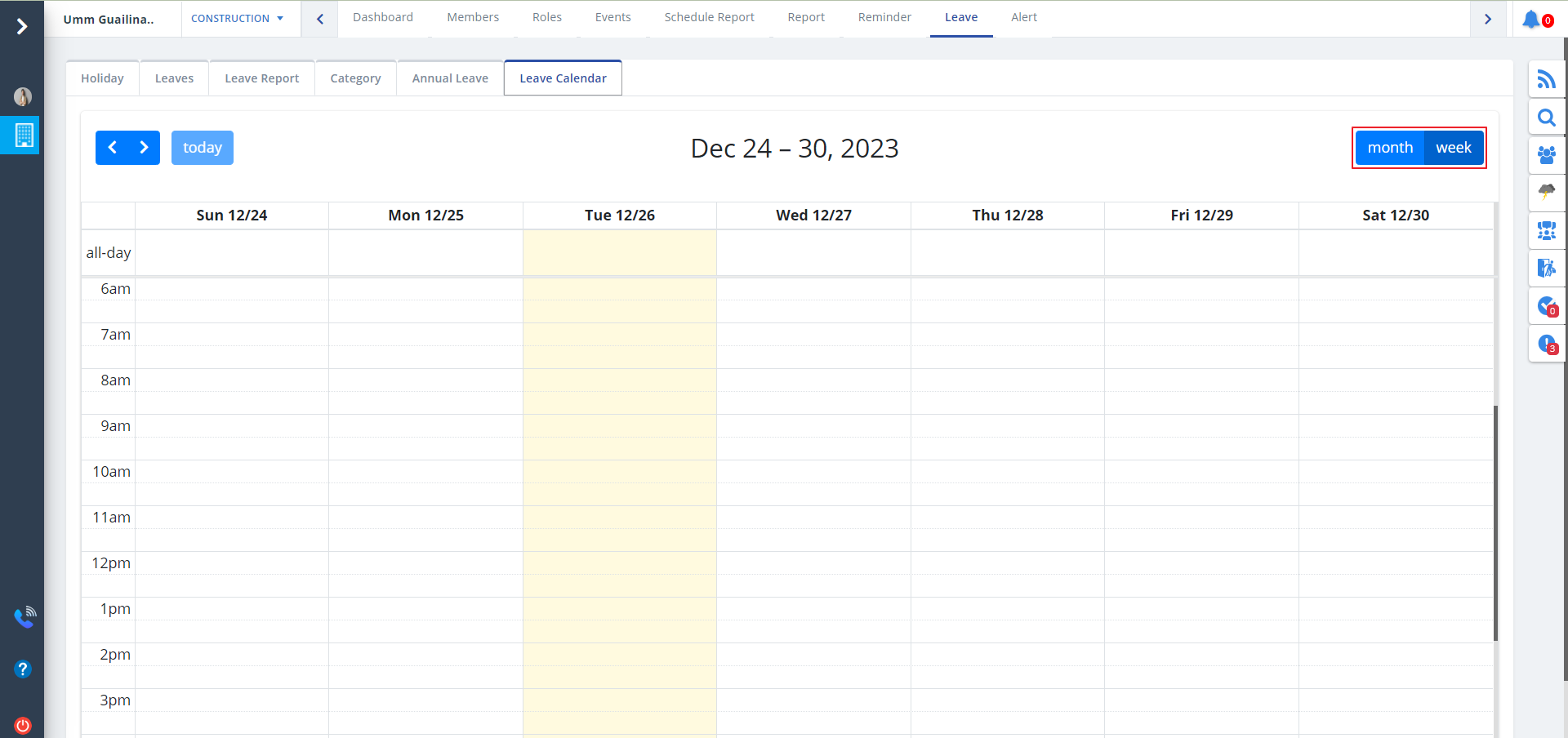
- You can filter the calendar to view the dates as per month or week basis.
- Just select appropriate option as shown.
Leave Report Tab
Category Tab
Annual Leave Tab
Leave Calendar Tab