BOQ Items
What is BOQ?
BOQ means a Bill of Quantity is a document prepared by a cost estimator to calculate
the exact costing of project work by multiplying item work by their rate. It is the most
important document for tendering and contracting. Bill of quantity gives an idea about
the cost of a project that is tendering firm willing to offer.
Add Bill Of Quantity based on categories and sub-categories which will be paid to the respective contractor. It is defining the quality and quantity of works required to be carried out by the main contractor to complete a project.
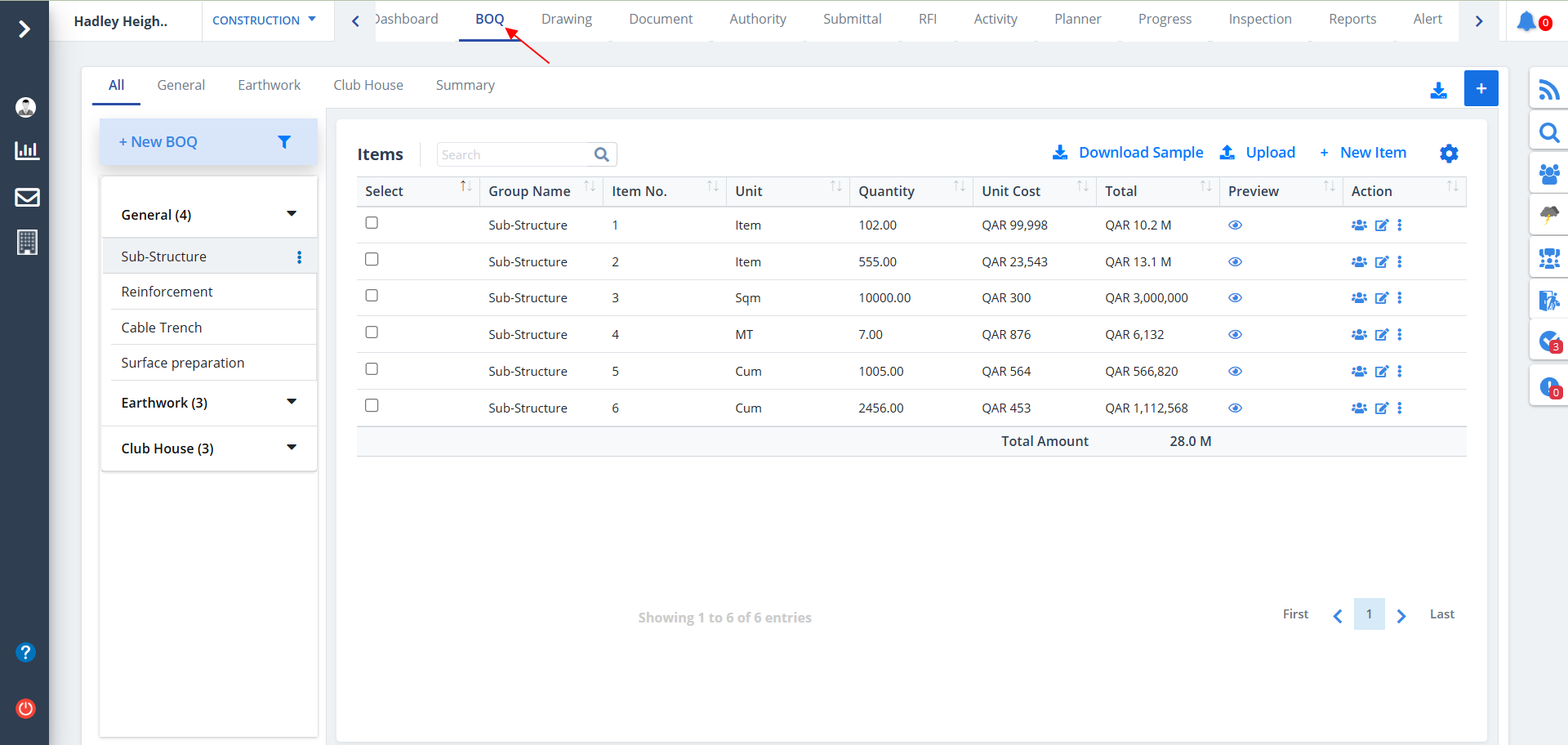
Select BOQ from menu. BOQ list and items under the specific BOQ can be viewed based on category, if already specified. In such cases, the Action column can be used to perform required actions regarding the respective item.
All Category
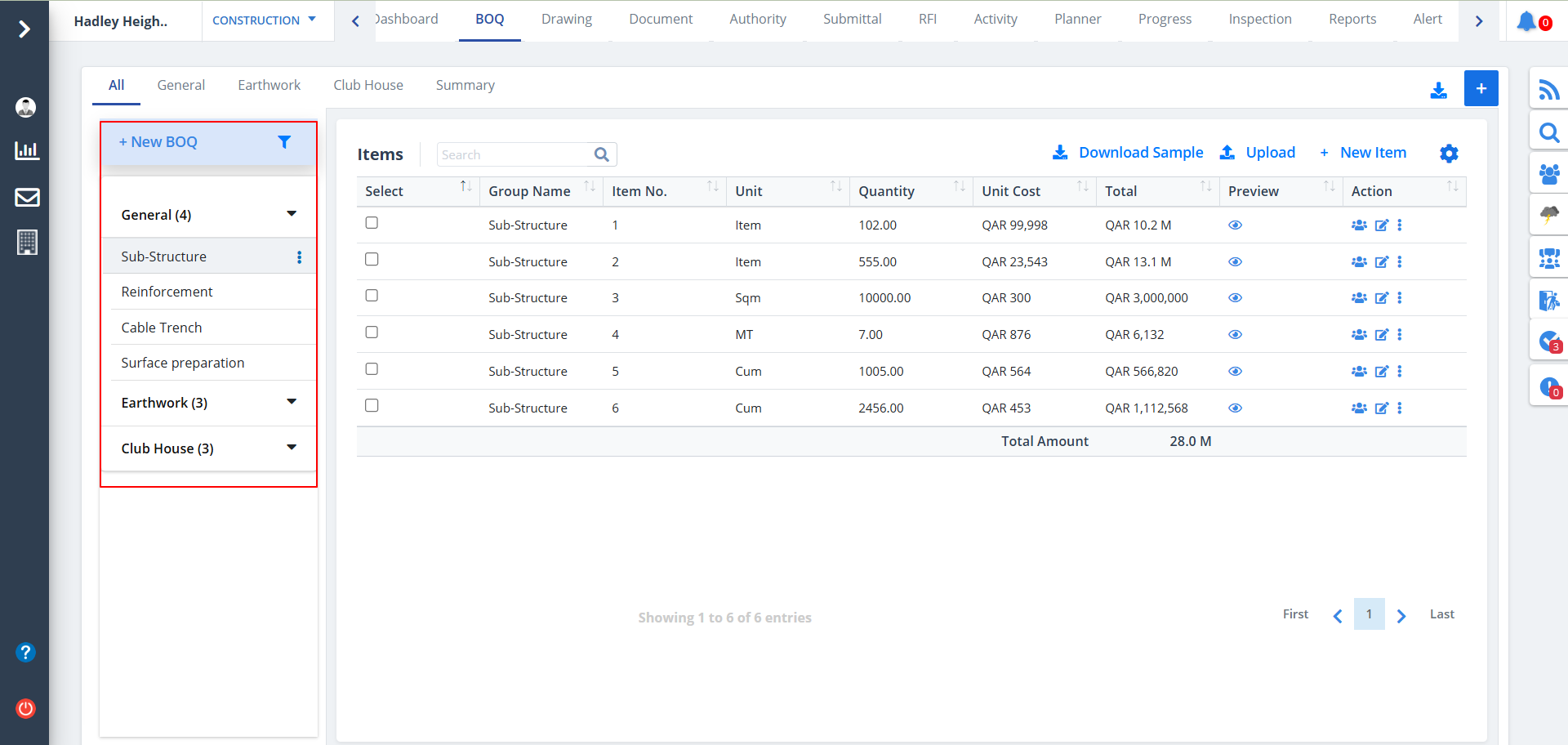
BOQ includes different categories. By default the BOQ category is All.The steps to add a category is dicussed below (See last point in the below list). Each category includes:-
- BOQ List
- Add BOQ
- Add Item under a specific BOQ
- Download Sample
- Upload BOQ
- Download BOQ
- Export BOQ data based on Category and Sub-Category
- Add more category/categories
- Search using filter
- Preview and Actions
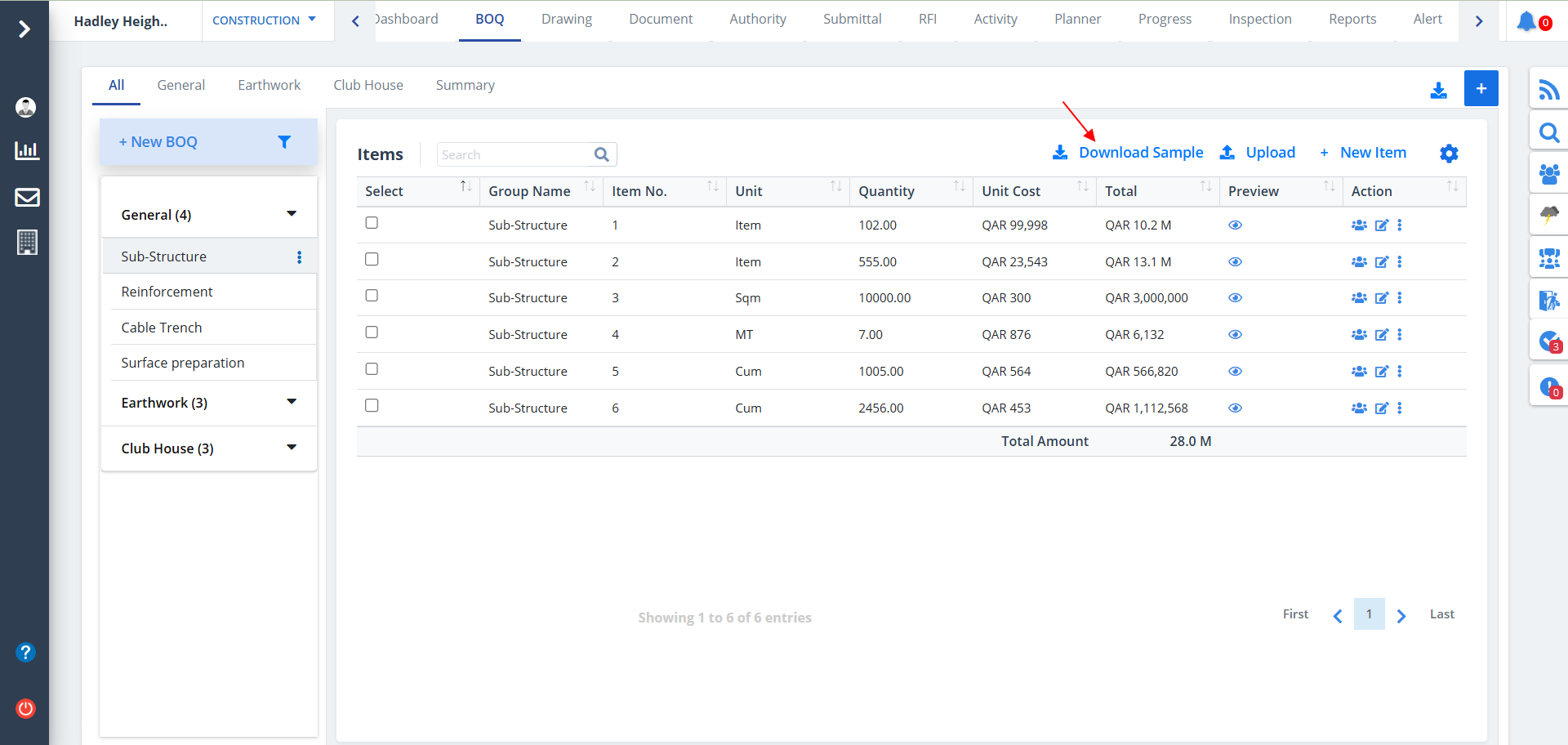
View Sample
- You can also view a BOQ sample. Just click on Download Sample.
- This option is present next to New Item.
- As soon as you click Download Sample an xlsx that is excel will get saved locally in your system.
Upload BOQ
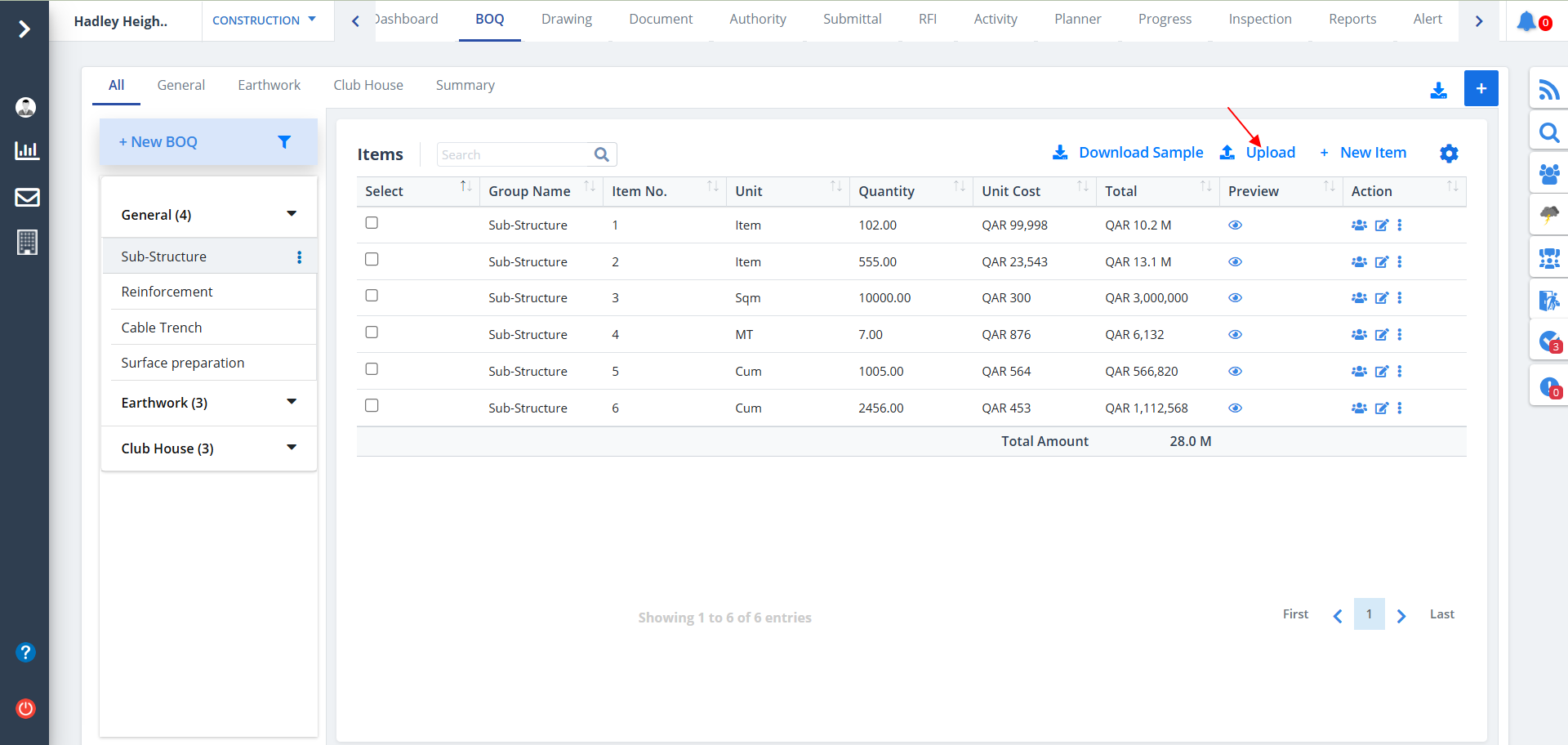
- You can also upload a specific BOQ. Just click on Upload.
- This option is present next to New Item.
- You can select the format of the file to be common fomrat, USA format sec 2 or USA format sec 3.
- It will only accept files having extension as .xlsx or .xlsm
New Item
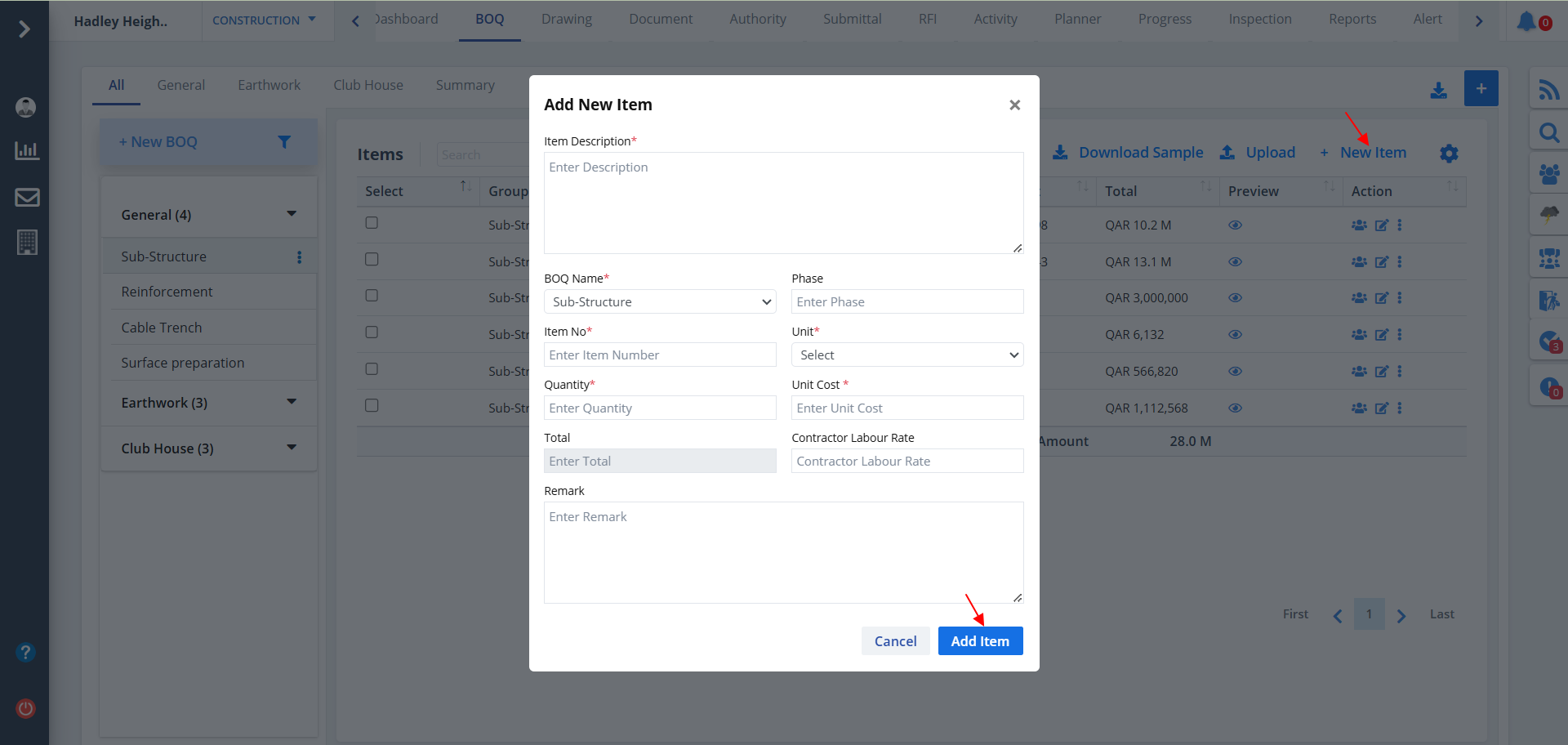
- To add new item click on New Item.
- Considering the category, the item description should not be vague.
- Based on the number of units, unit cost and quantity, the total cost is calculated automatically
- Add New Item screen is shown below.
New BOQ
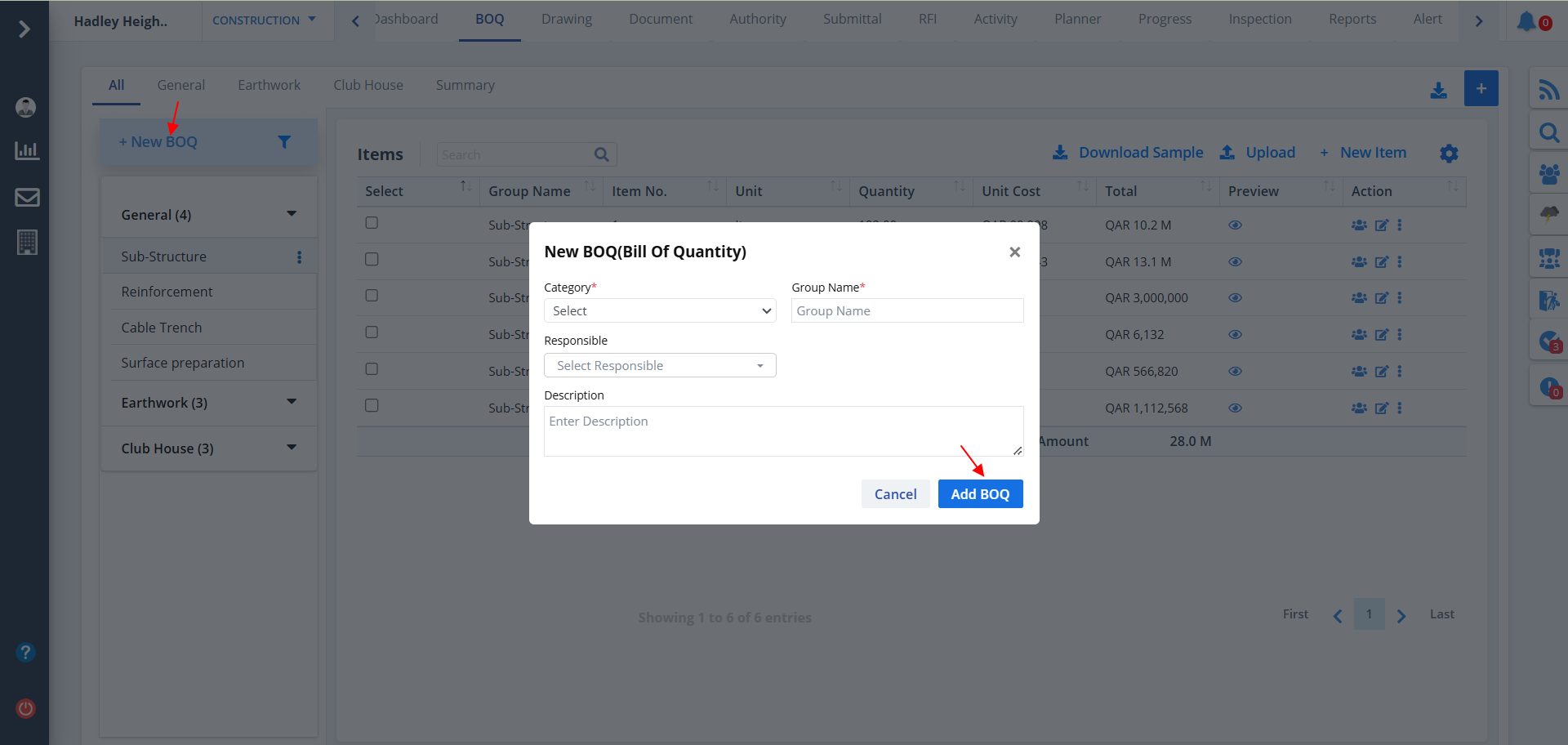
- To add new BOQ click on New BOQ.
- Group Name should describe the category.
- Select the responsible entity.
- New BOQ get added under the specified category.
- New BOQ screen is shown below.
Edit BOQ
- You can also update a specific BOQ.
- Select any of the BOQs and click on Edit as described below.
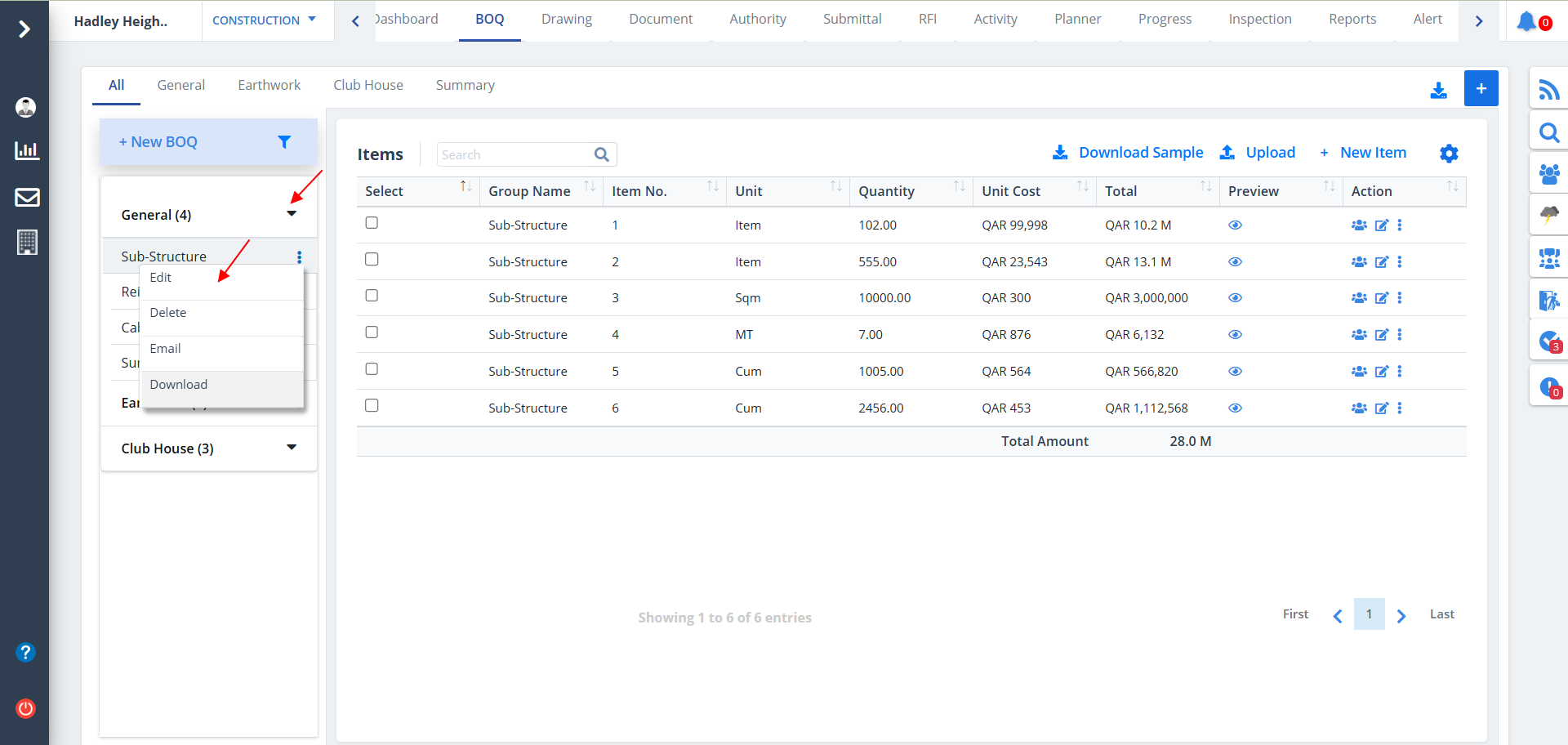
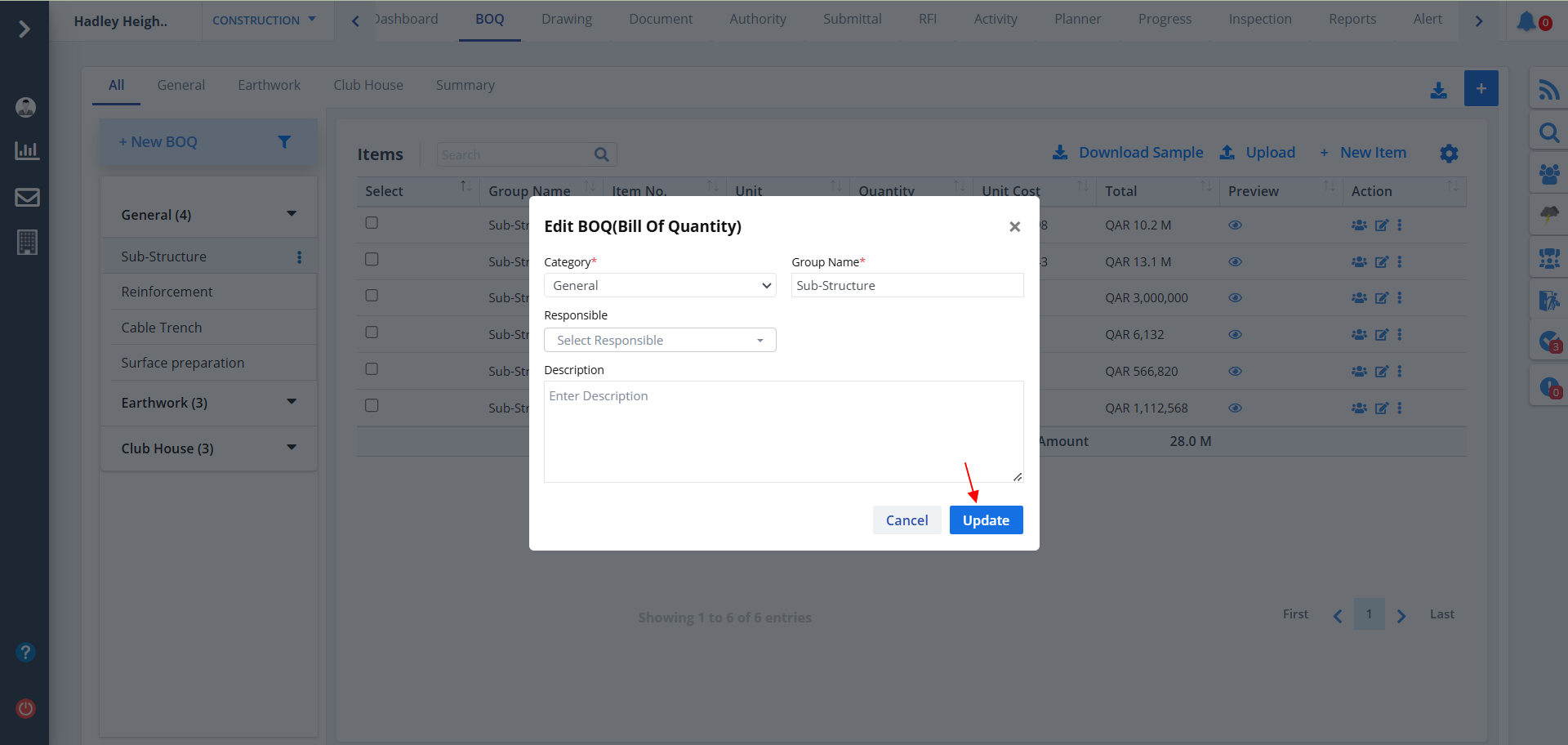
- If you update the category, then it gets added under the specified category.
- Change necessary data and click on Update
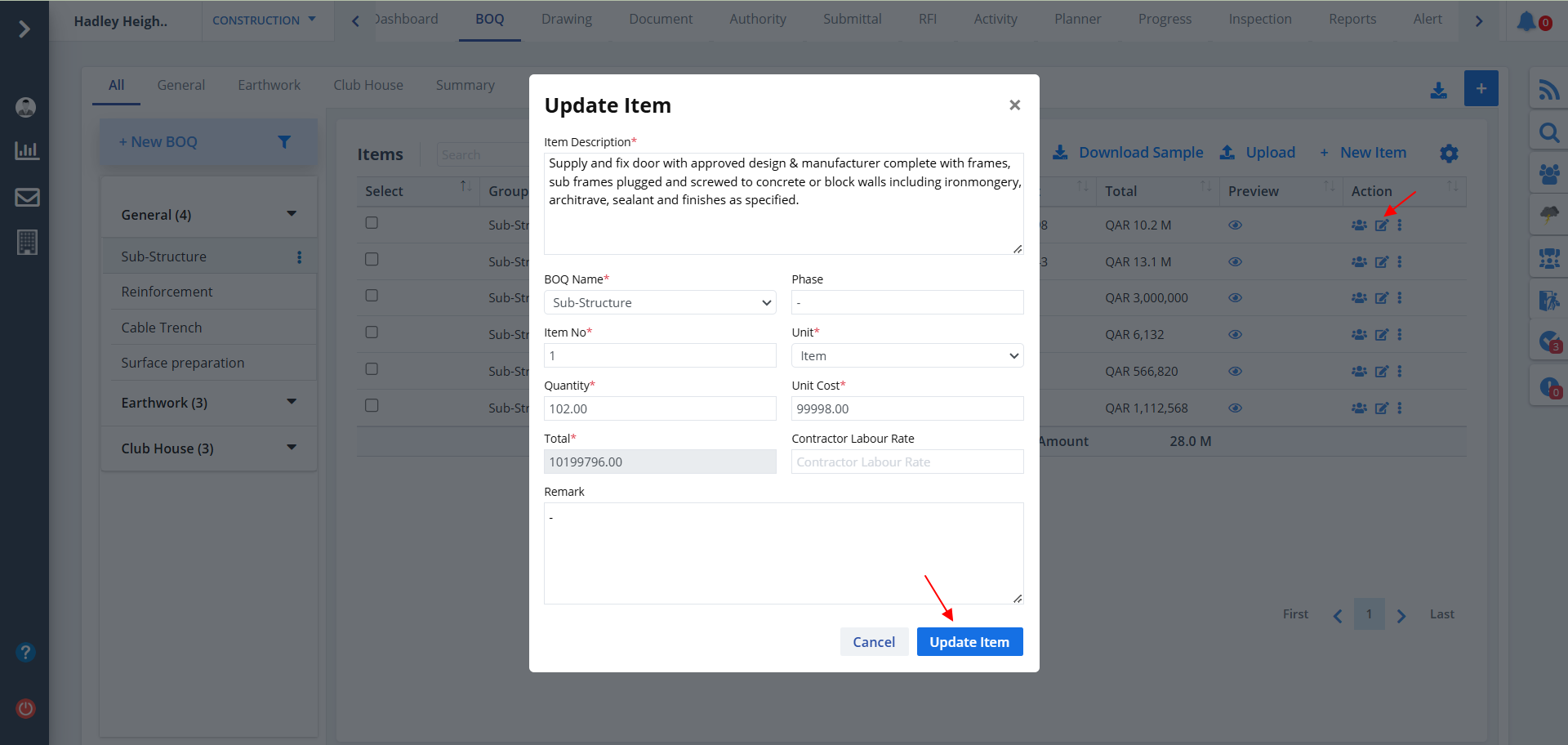
- Likewise use the Edit under Action to update an item data.
- As soon as you make changes in any of the fields; Unit, Quantity or Unit Cost, the total gets updated right away.
- Do the required changes and click on Update Item.
Export BOQ
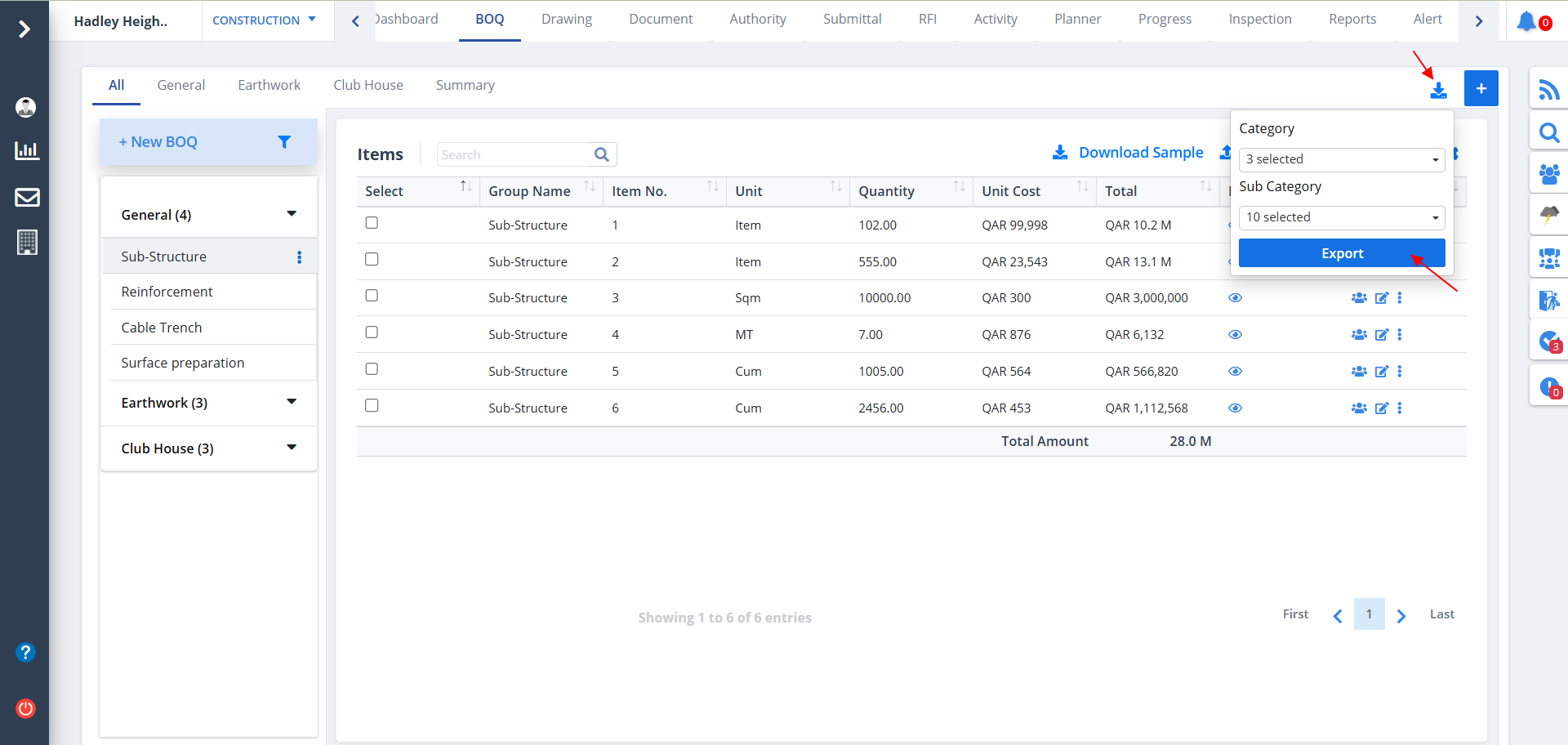
- Use the download button as shown.
- Select the required category from the the dropdown.
- Based on the selected category, you may select the sub-category.
- Click on Export button once done.
Add Category/Categories
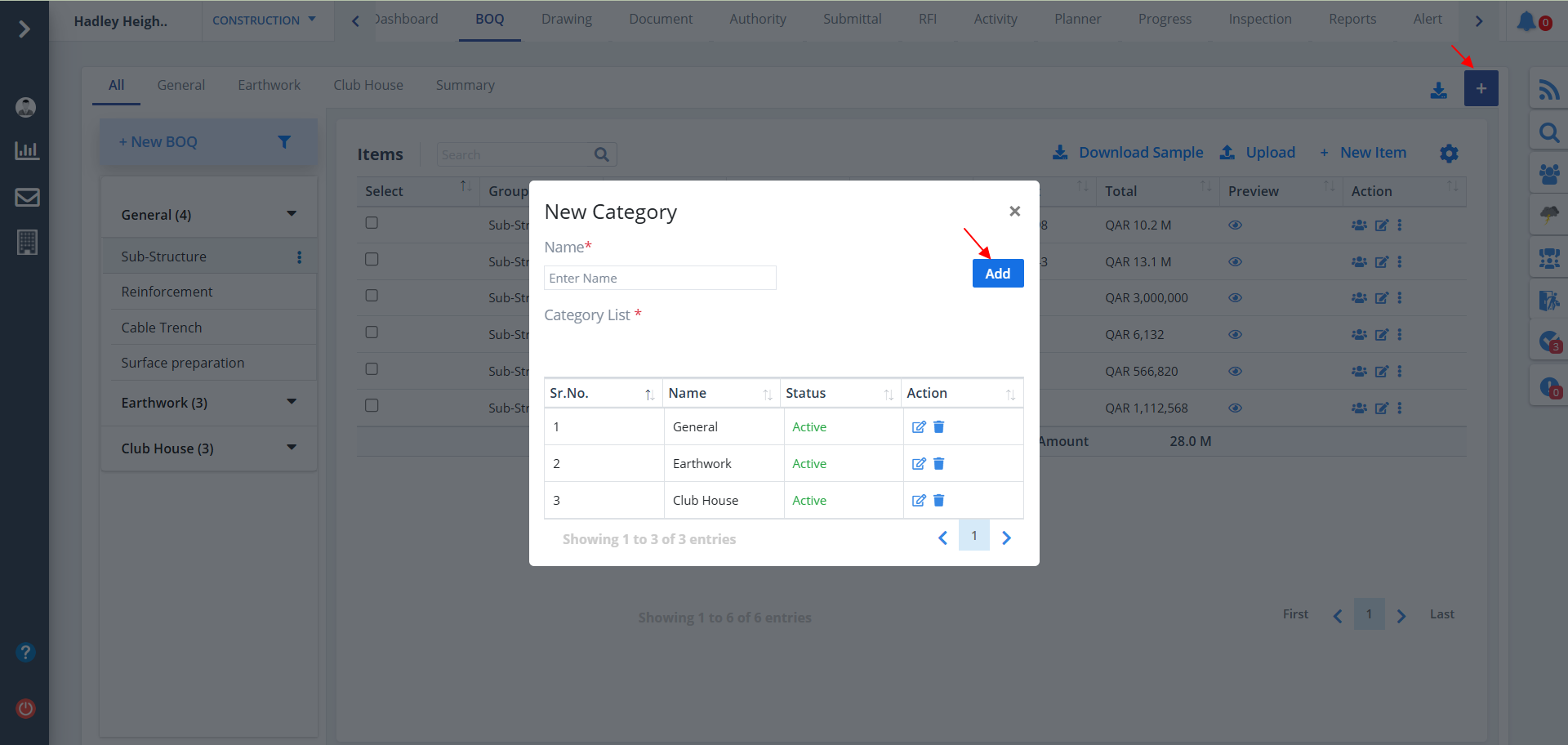
- Click on "+" button as shown.
- You can add a category directly by adding name and then click on Add button.
- The category list is shown which can be edited as depicted. Just click on Edit, rename it and click on Update
- You can delete tha same using Delete button.
Audit Report
What is an Audit Report?
Audit Report is a statement of collected and considered facts, so drawn up as to give
clear and concise information to persons who are not already in possession of the full facts
of subject matter of the report.
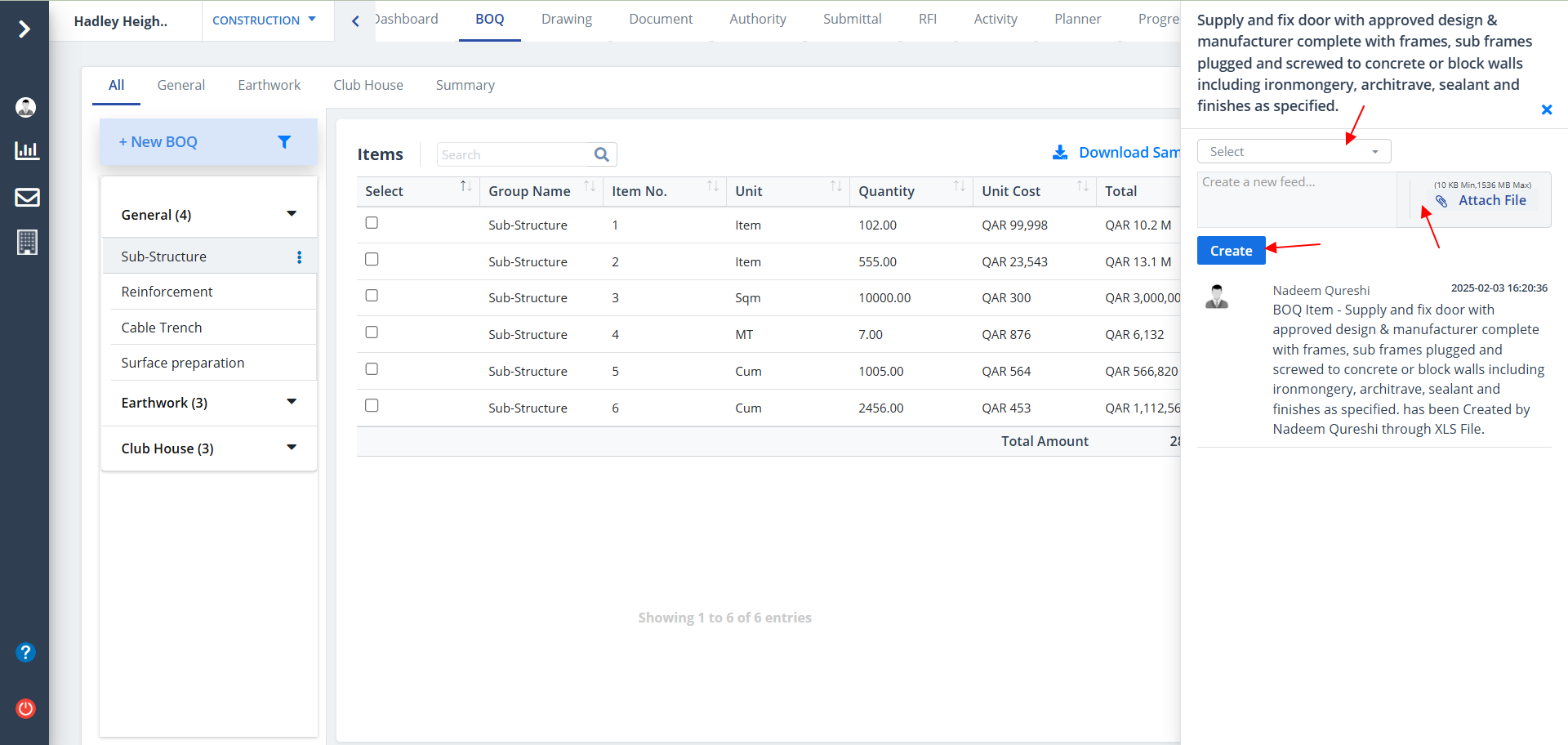
- Click on the option under Action to open Audit Report. It shows the actions (add, update, delete) performed by a user if any.
- Click on Create to add new feed
- You can also select a user/users while creating a feed
- You can also upload a relevant file. Just click on Attach File
Search Using Filter
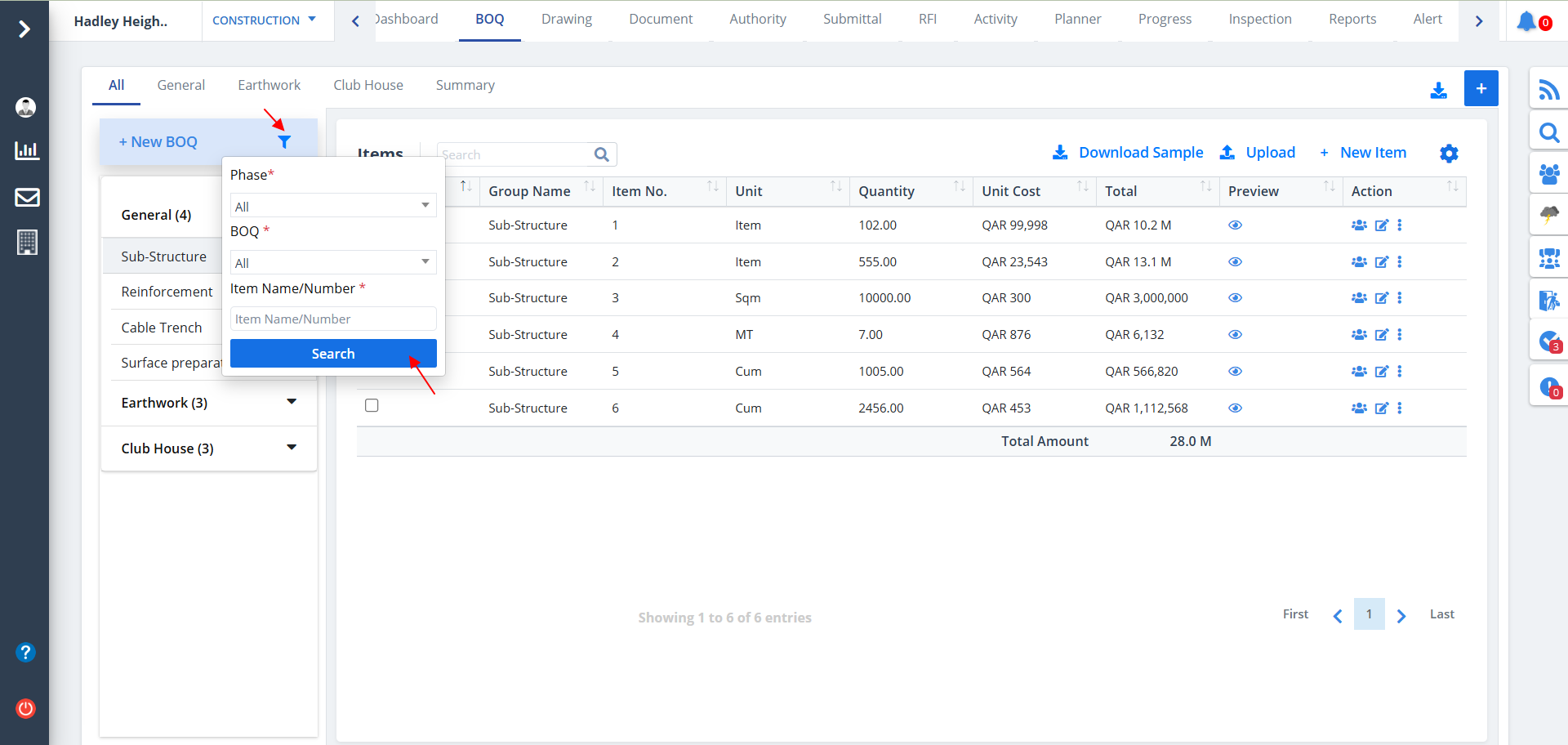
- You can use the filter as shownn to see only desired data.
- Select BOQ, Phase & Item Name/Number.
- Ultimately click on Search.
Preview & Actions
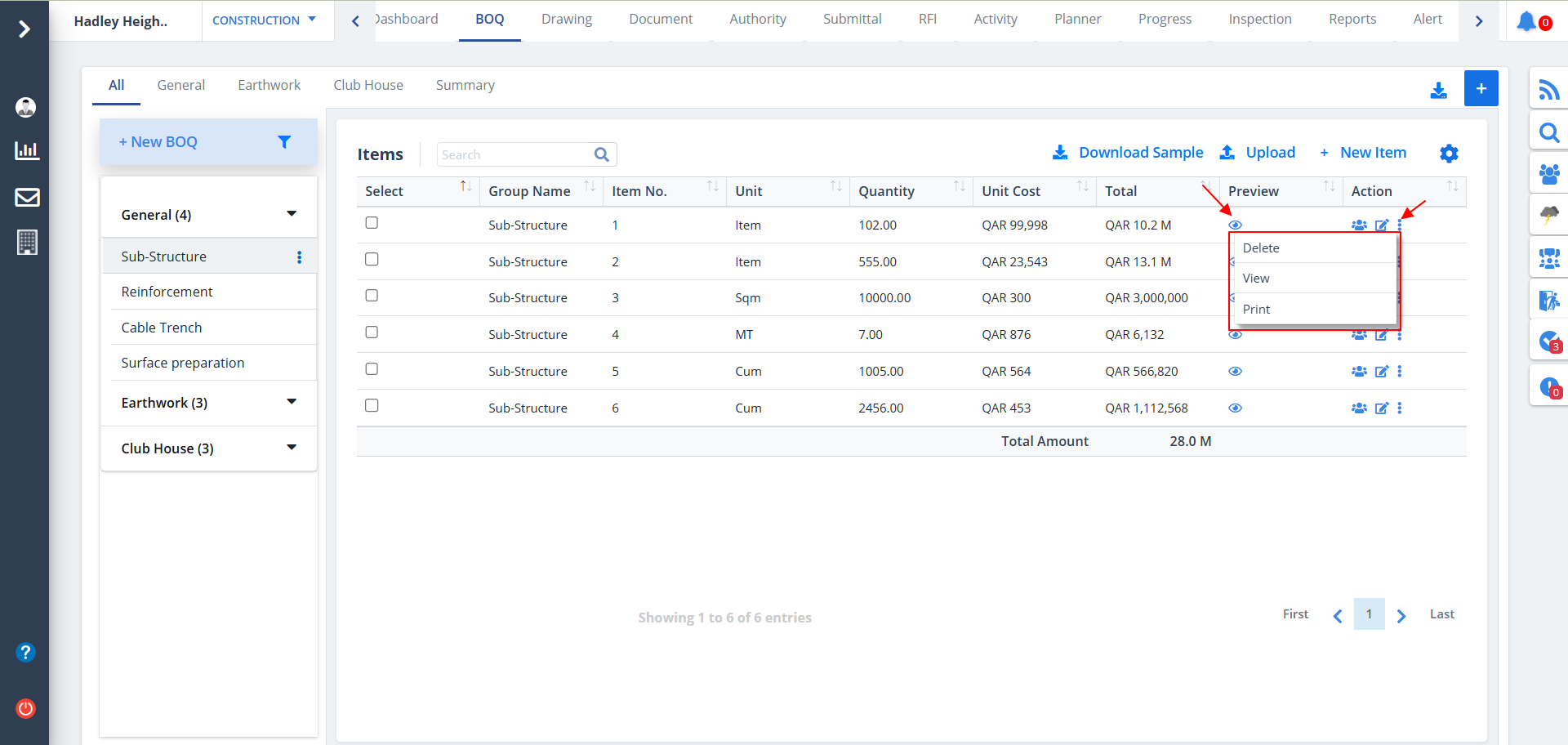
- You can use the button under Preview column to preview the BOQ. The BOQ data would open in a new tab. You can easily download the same locally.
- To perform actions such as Delete, View or Print, use the Kebab Menu under Actions column.
- Select the desired option to get your job done.
Select BOQ
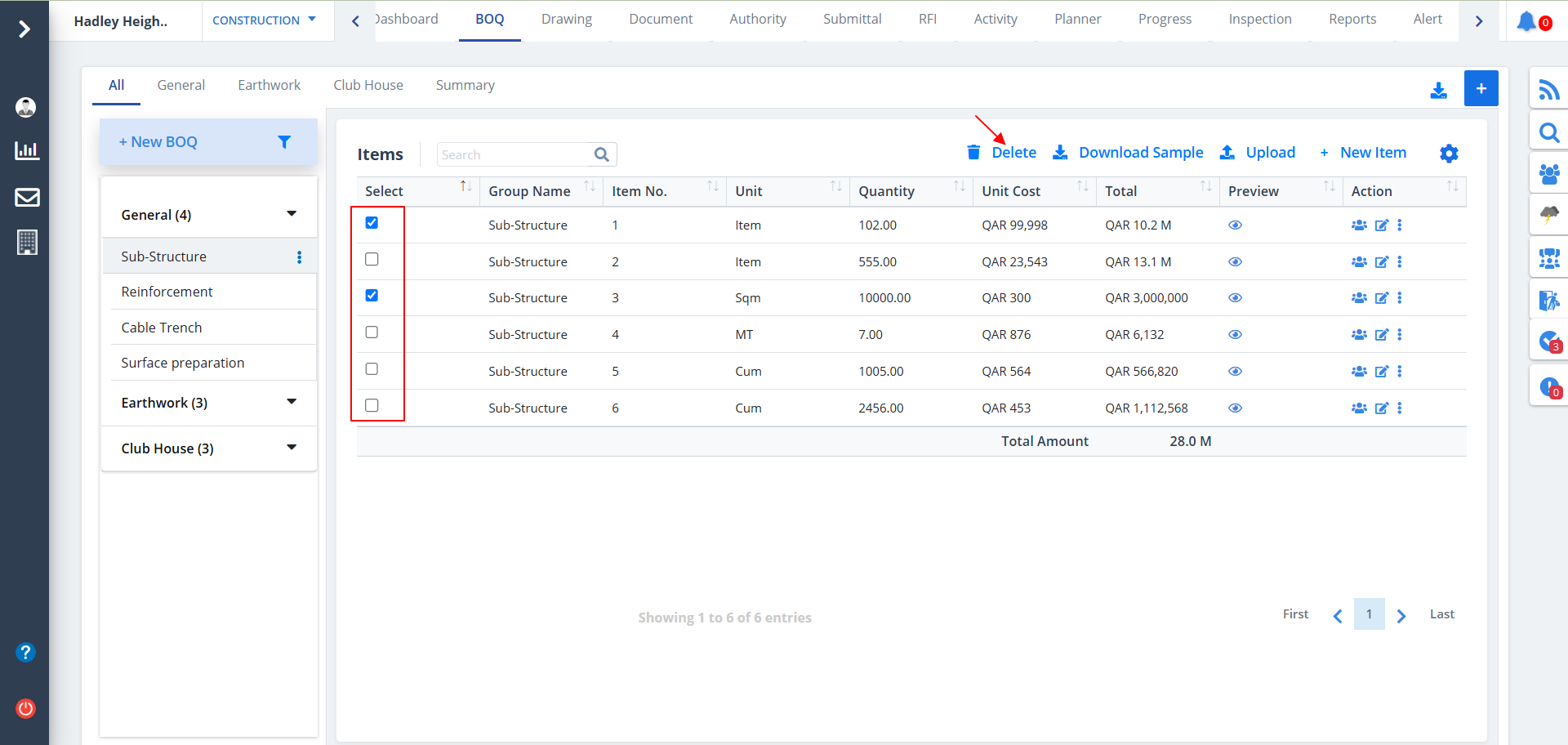
- Select 1 ore more BOQ items here to delete a particular entry. Just click the Delete button as highlighted.
- You can deselect the same in case you change your mind.
- Just click on the tick once again to deselect it.
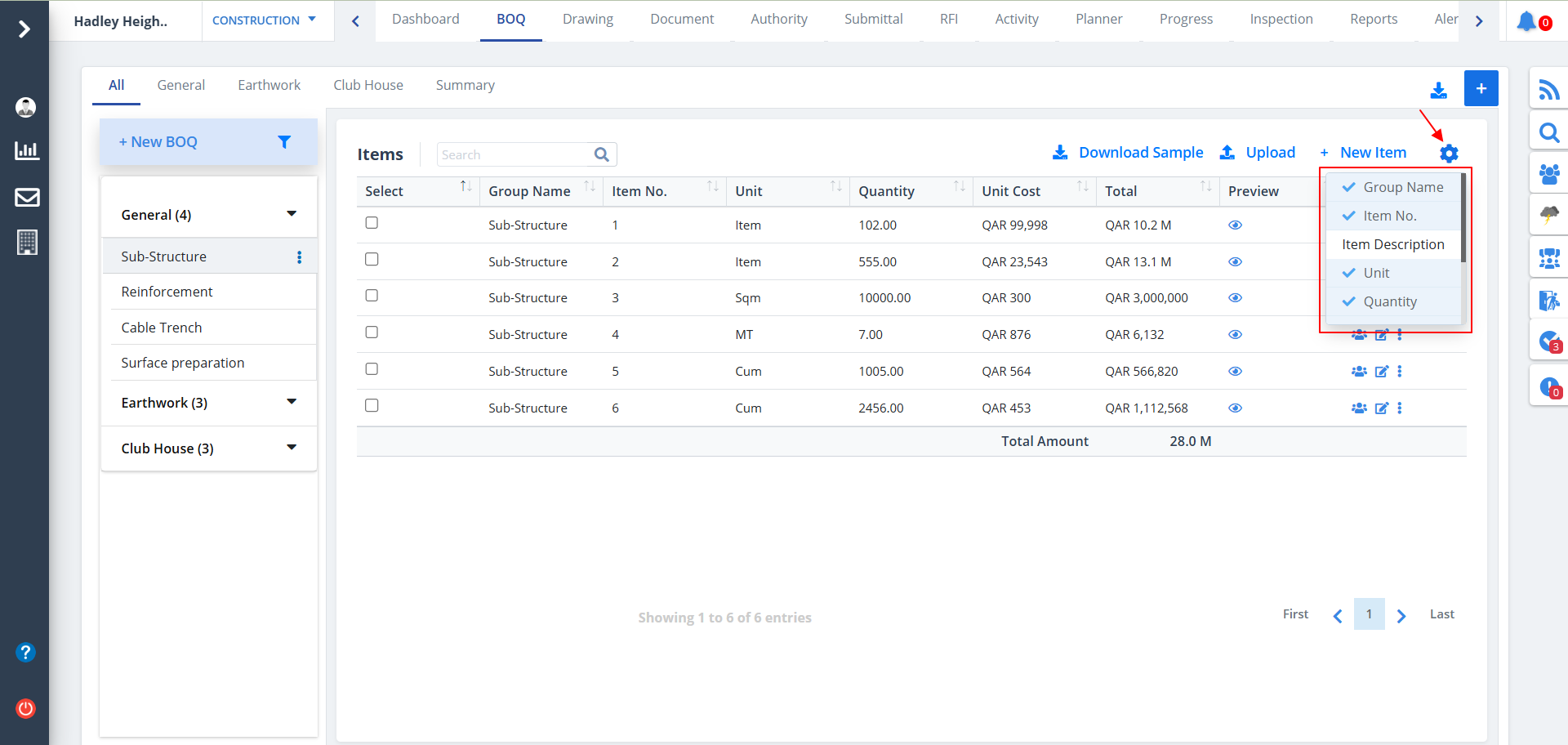
Column Visibility
- You can control what column you prefer to be seen.
- Just click on the Settings icon as shown in the below image.
- Tick the columns that you want to view and untick the ones you don't desire to view.
- In case you change your mind, you can tick the untick ones and vice-versa.