
Submittal List
What is Submittal?
A submittal refers to the written and/or physical information provided by a responsible
sub-contractor to contractor. This information is submitted to the design team for approval
before project delivery. Submittal is classified into:-
- Prequalification
- Material Approval Request
- Shop Drawing
- Concrete Pouring
- Supplier Approval Request
- Technical Submittal
- Request To Propose Alternative
- Field Adjustment
- Site Instruction
- Design Calculation Detail
- Site Observation
- Test Submittal
- Method Statement
- Document Submittal
- Quality Reports
- HSE Reports
- Inspection & Testing Plan
- Project Baseline Schedule
- Variation Order
- Contractor Reports
- Technical Reports
- Operation & Manuals
- MAR
- Other
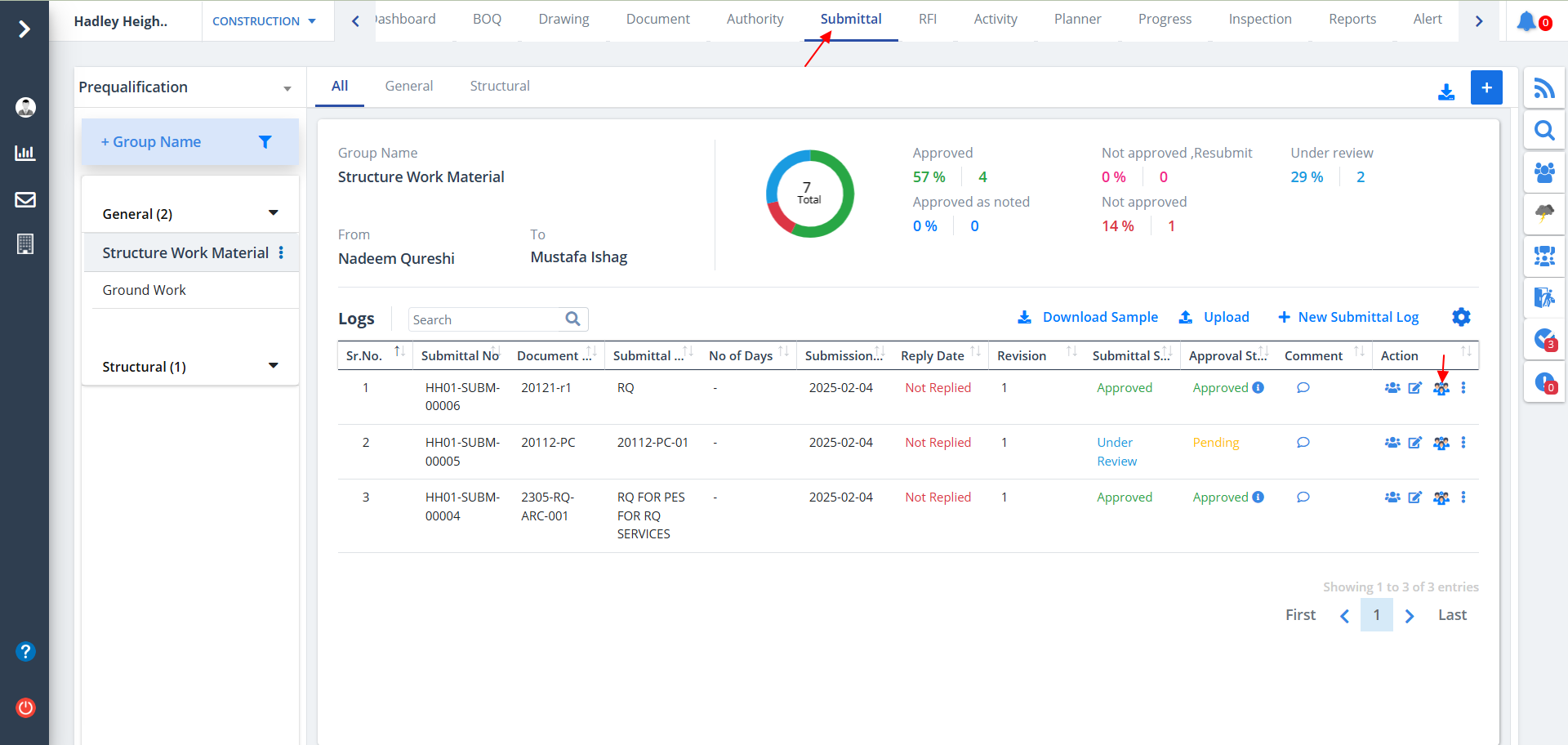
- Select Submittal from menu. Submittal list will be visible category wise if already added.
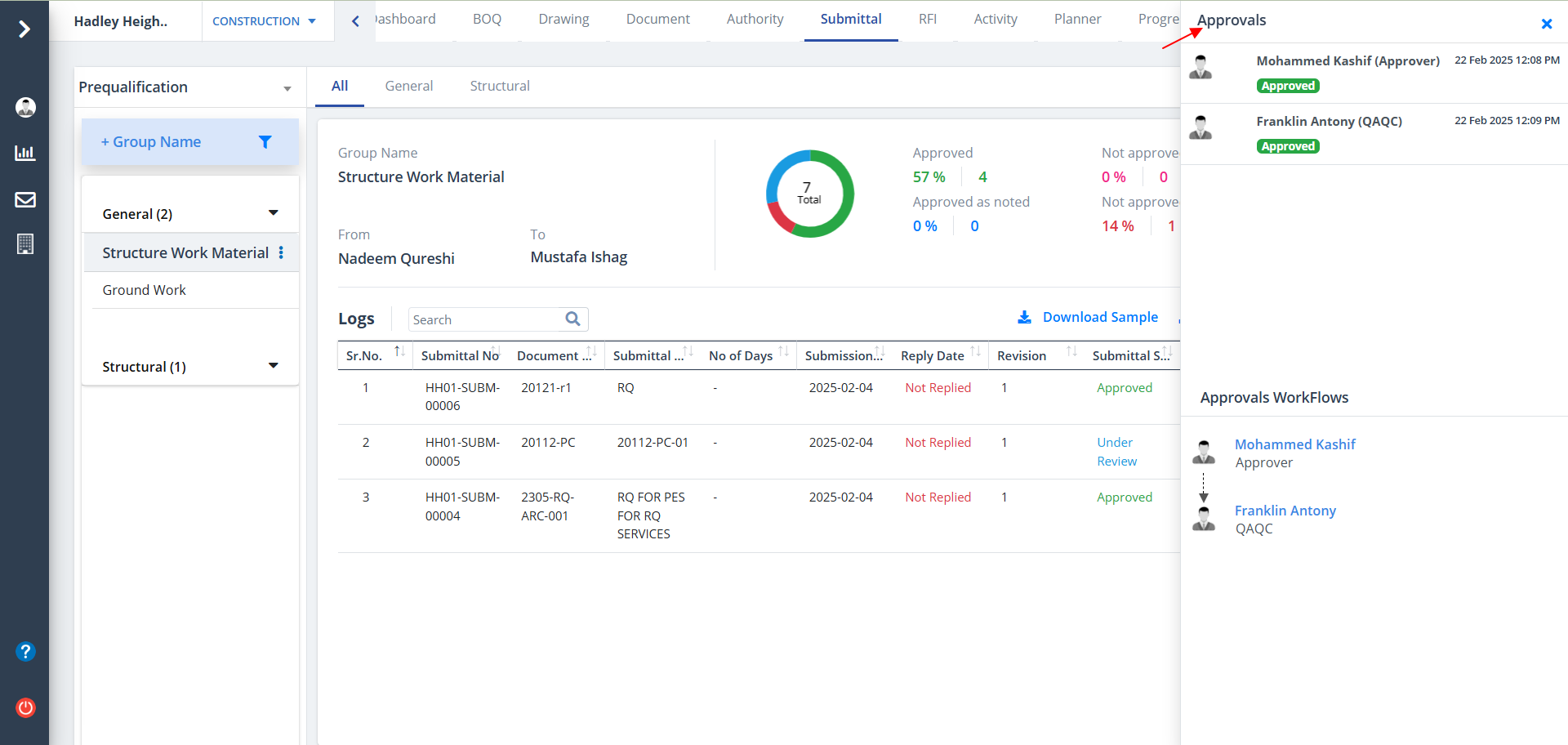
- Click on Approvals as shown to view the approval workflow.
New Submittal
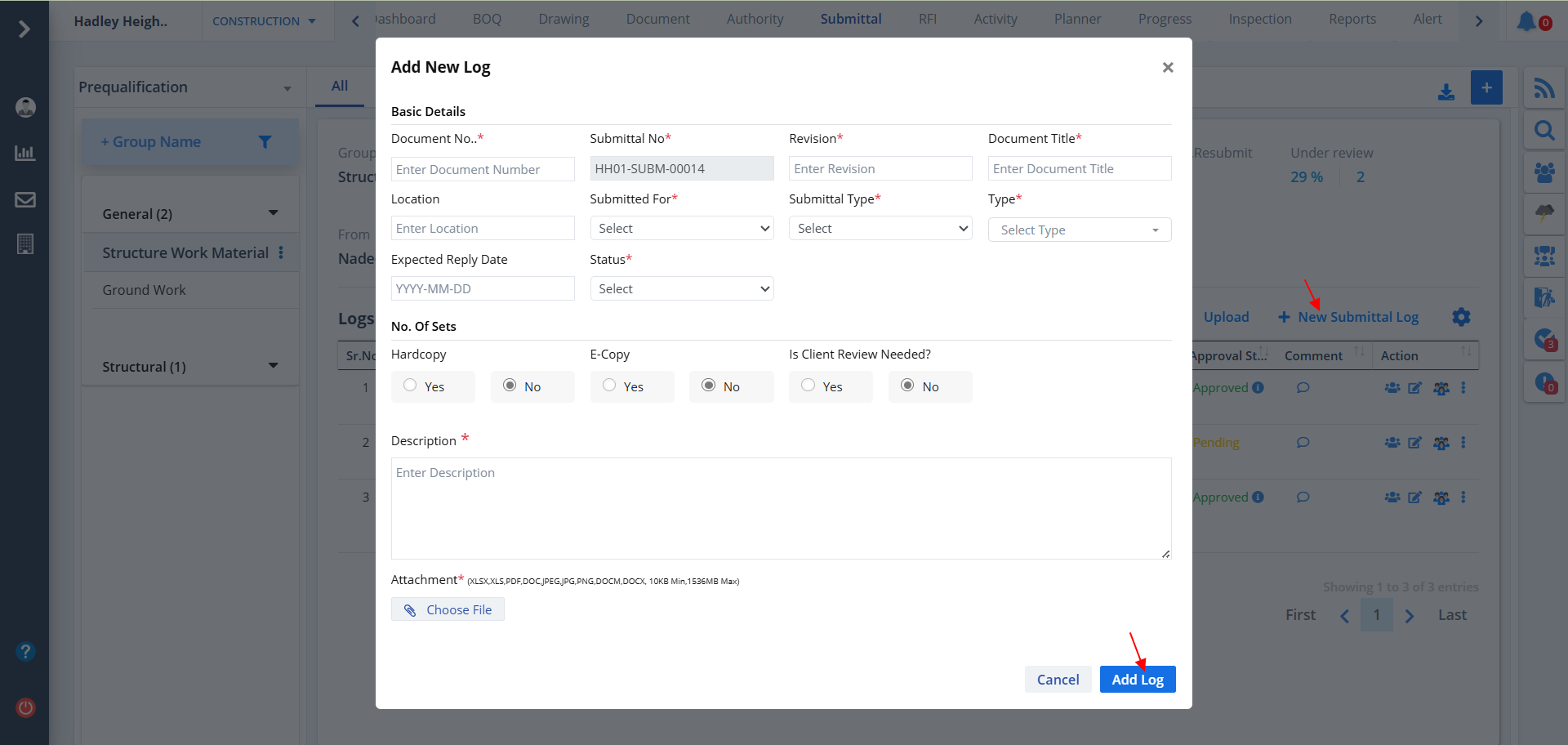
- Click on New Submittal Log to add a new Submittal.
- Fill the details. Select proper options and values.
- Click on Add Log once done.
Edit Submittal
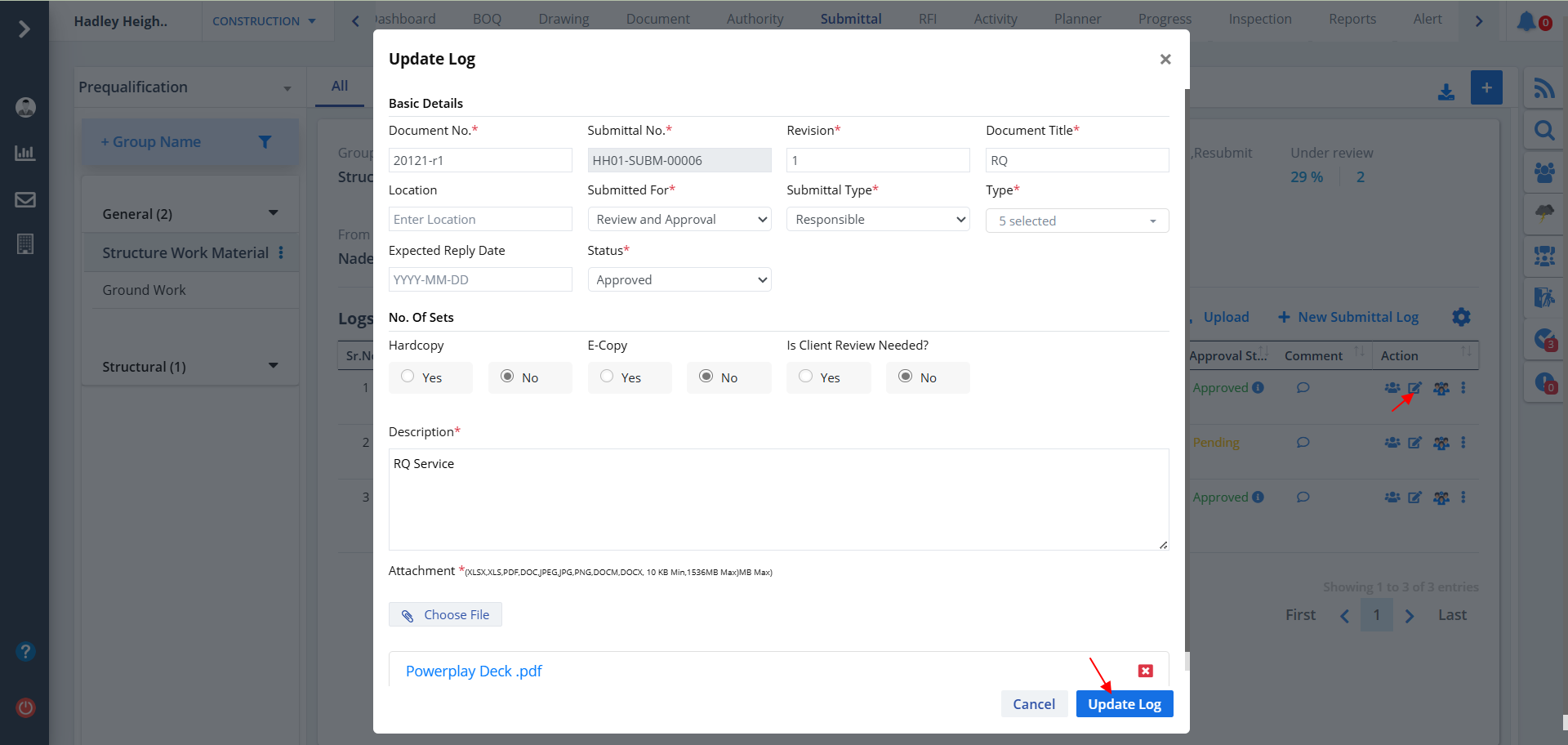
- Click on Edit under Action to update submittal records.
- Select proper dropdown values. Upload proper valid submittal file.
- Enter data and click on Update Log.
Upload and Download Submittal
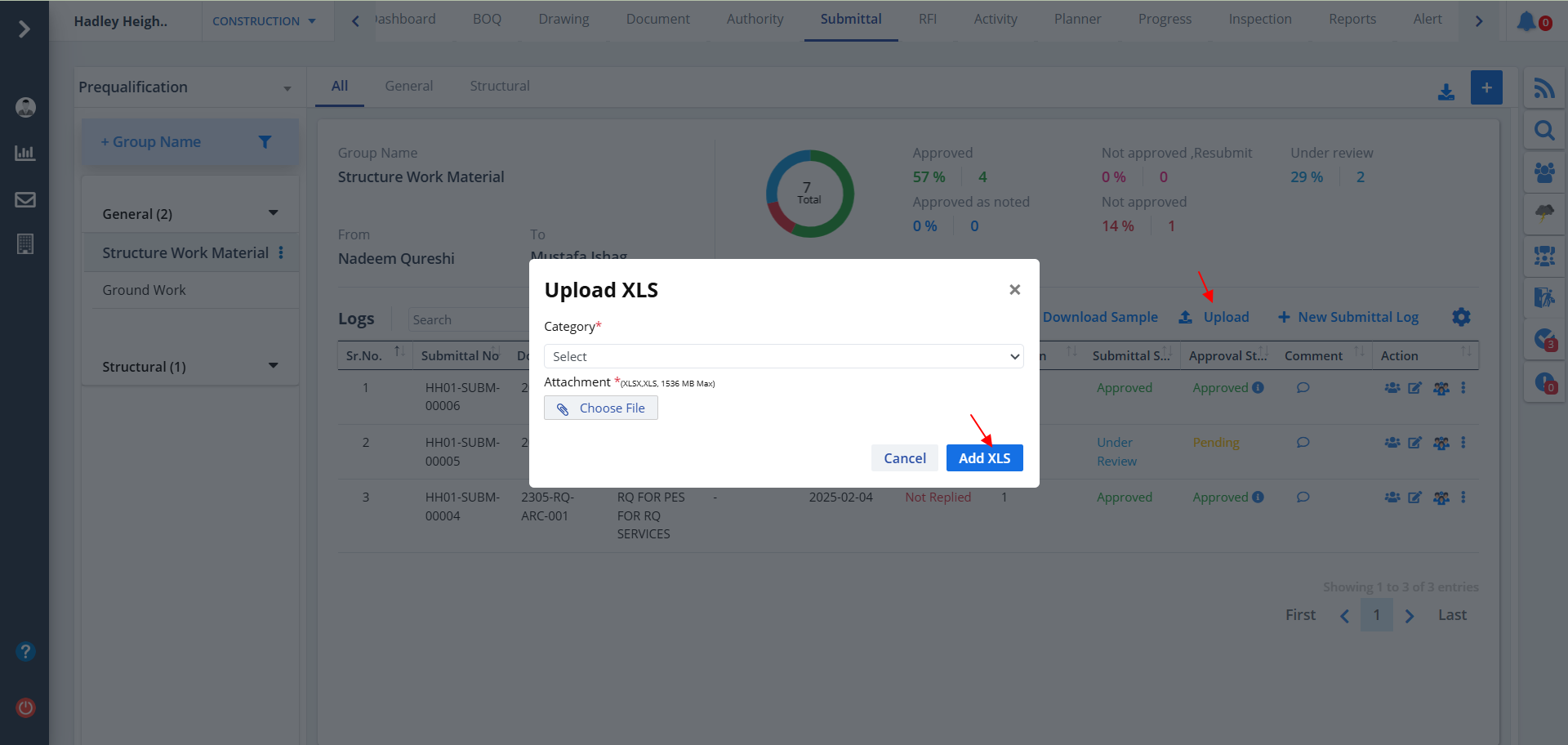
- To upload a pertinent document for the submittal click on Upload.
- Select appropriate values from the dropdown.
- Provide details as shown below and click on Add XLS.
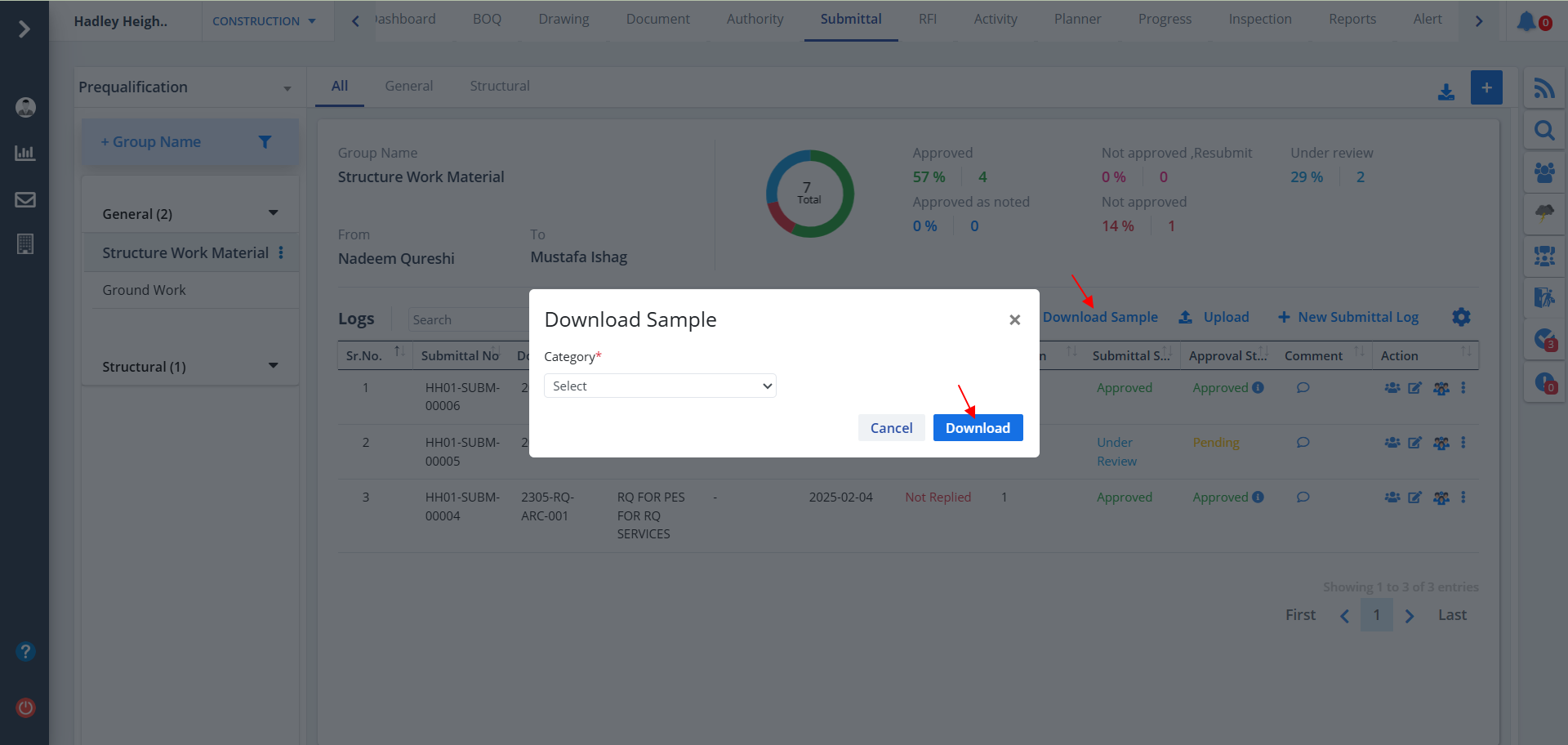
- You can download any submittal; just click Download Sample
- Select required submittal name and category from the dropdown.
- Now just click on Download
Submittal Export
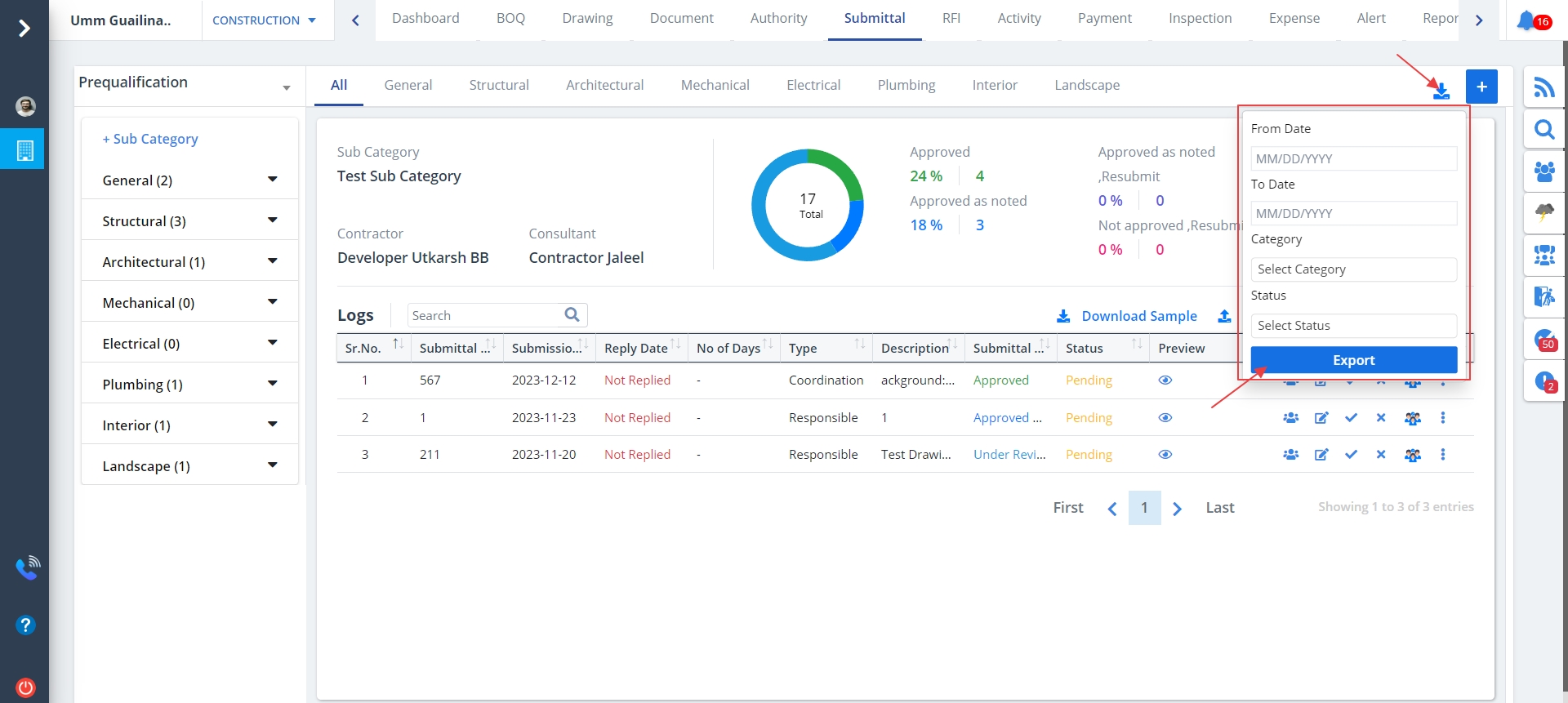
- Click on Download button as shown.
- Select the from and to dates, followed by category and status.
- Click on Export after inputs are selected.
Submittal Add Category
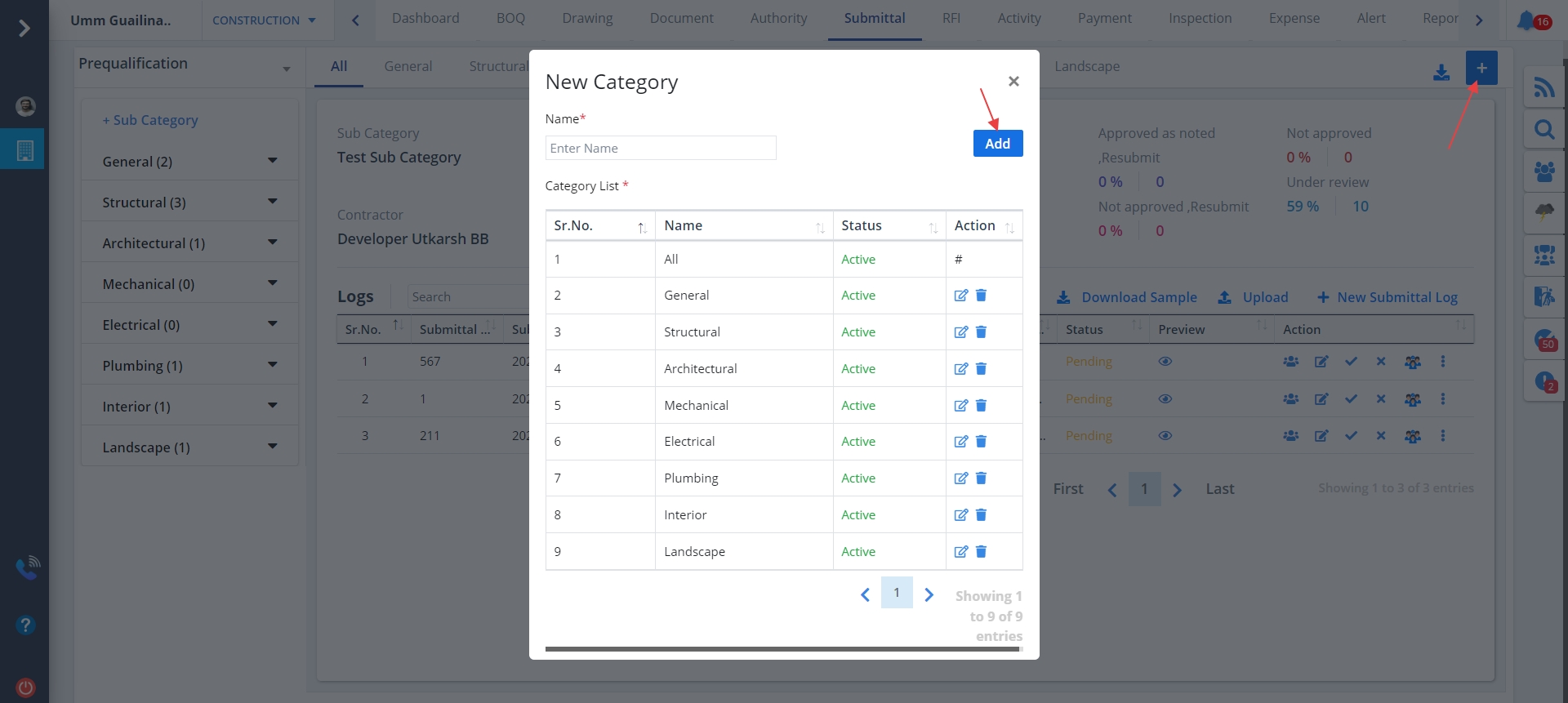
- Click on Plus button as shown.
- Add your desired name and click on Add button.
- You can click on Edit to edit existing category. Click on Update thereafter.
Comment
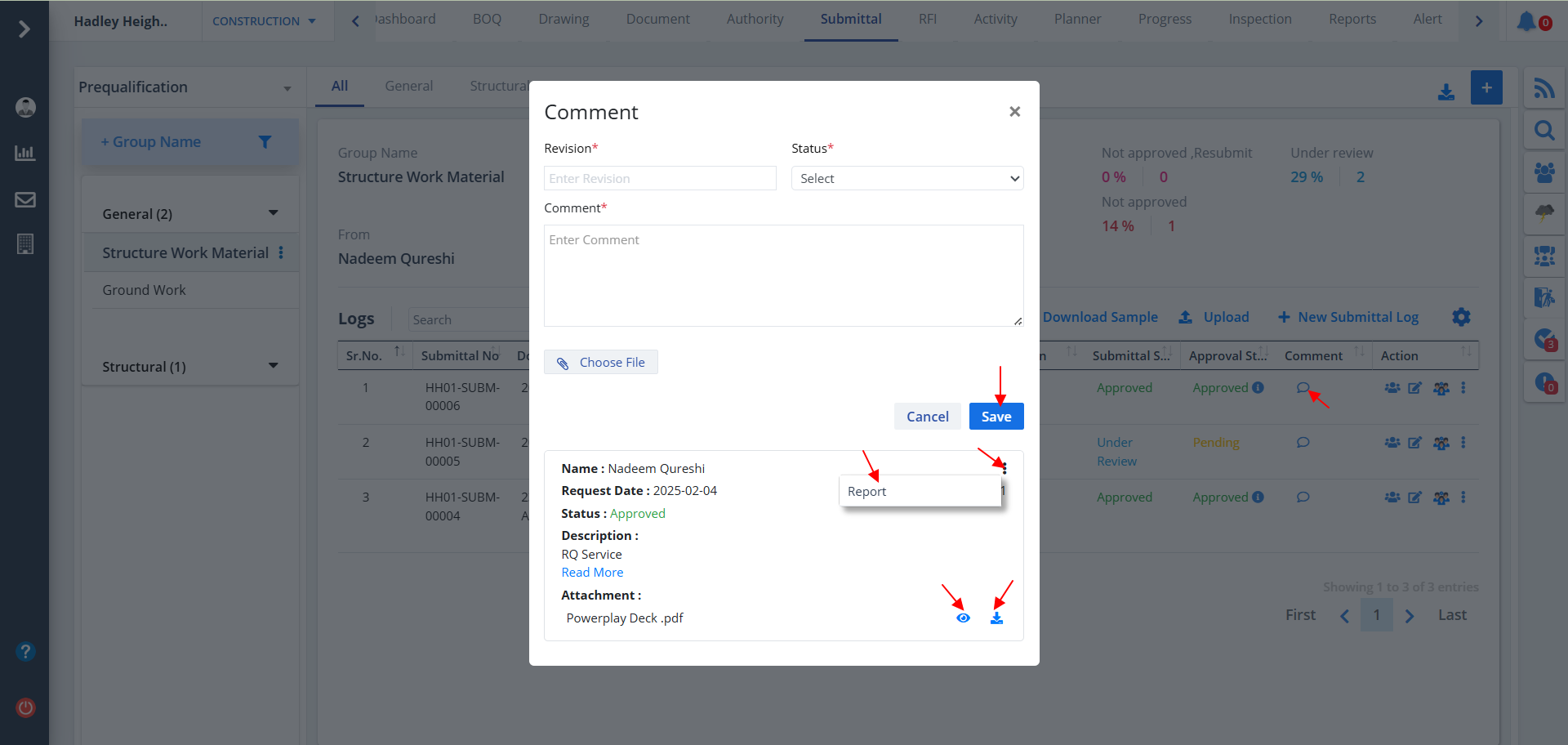
- Click on Comment button as shown. Fill in the required details. Mentioned proper inputs and click on Save button.
- You can view the report by clicking on the Eye icon as shown. A pdf will be opened. You can download or print the pdf as per your choice.
- To download a report directly, just click the Download button.
- Use the Kebab Menu to edit the report.
Audit Report
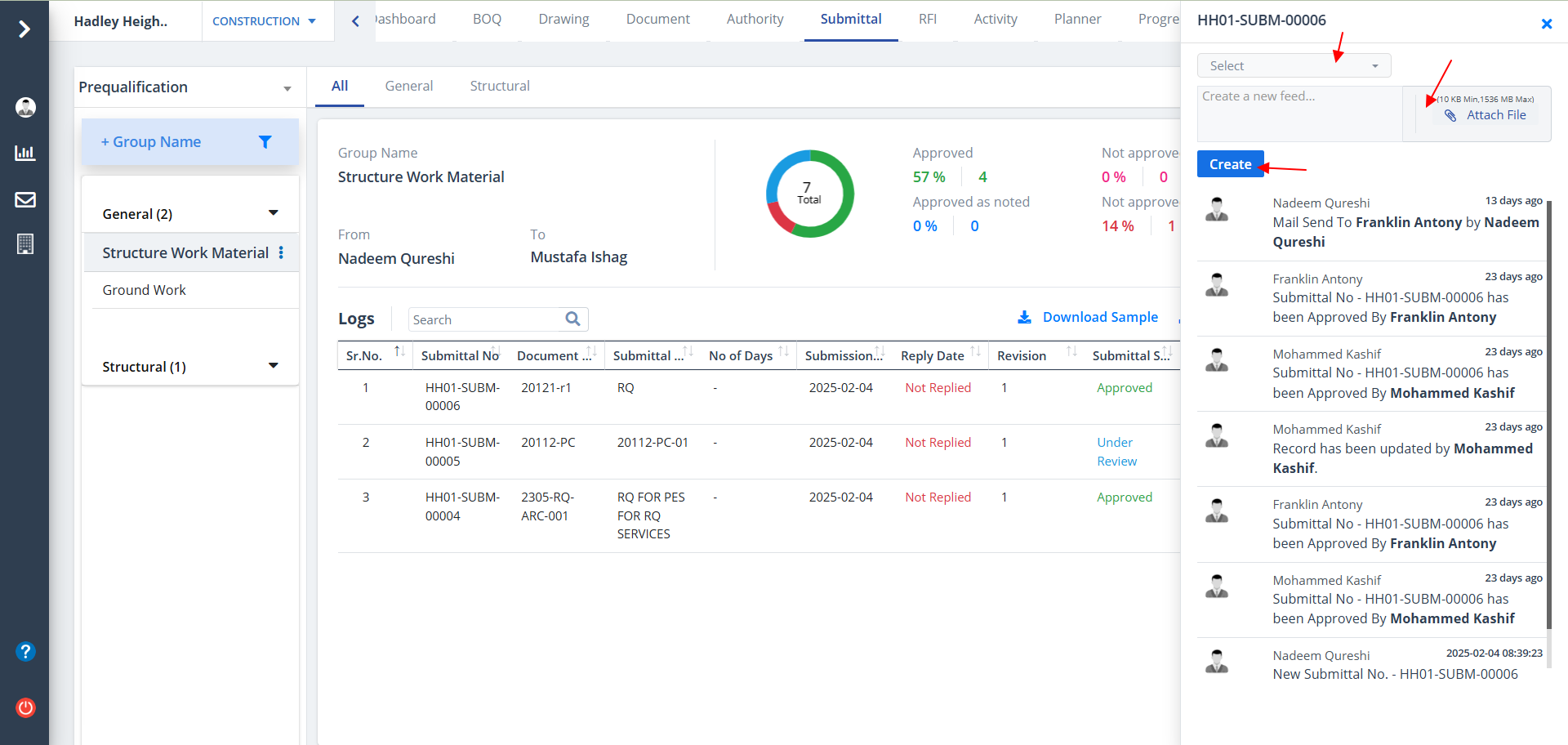
- Click on the first option under Action to open Audit Report. It shows the actions (add, update, delete) performed by a user if any.
- Click on Create to add new feed
- You can also select a user/users while creating a feed
- You can also upload a relevant file. Just click on Attach File
Column Visibility
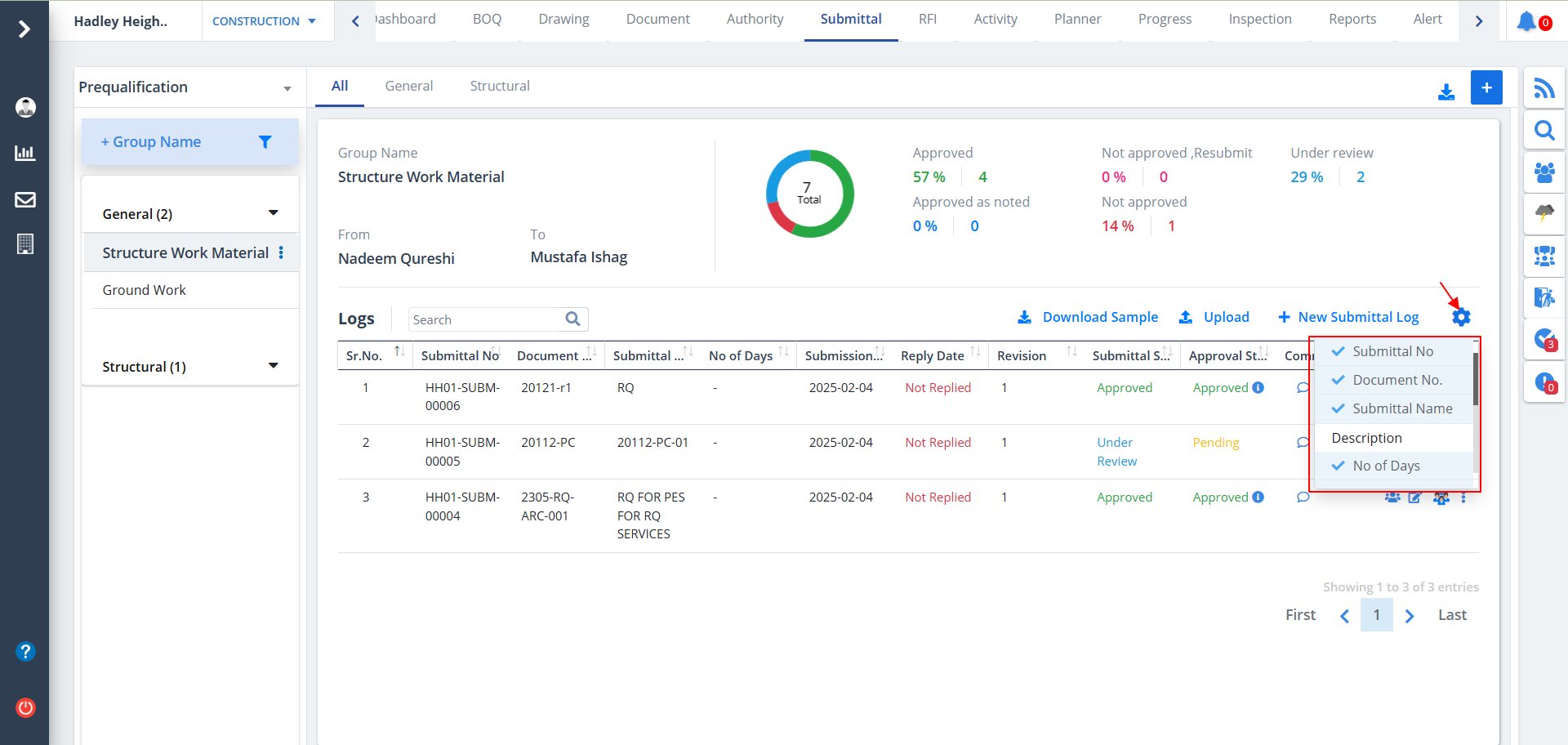
- You can control what column you prefer to be seen.
- Just click on the Settings icon as shown in the below image.
- Tick the columns that you want to view and untick the ones you don't desire to view.
- In case you change your mind, you can tick the untick ones and vice-versa.
Search Using Filter
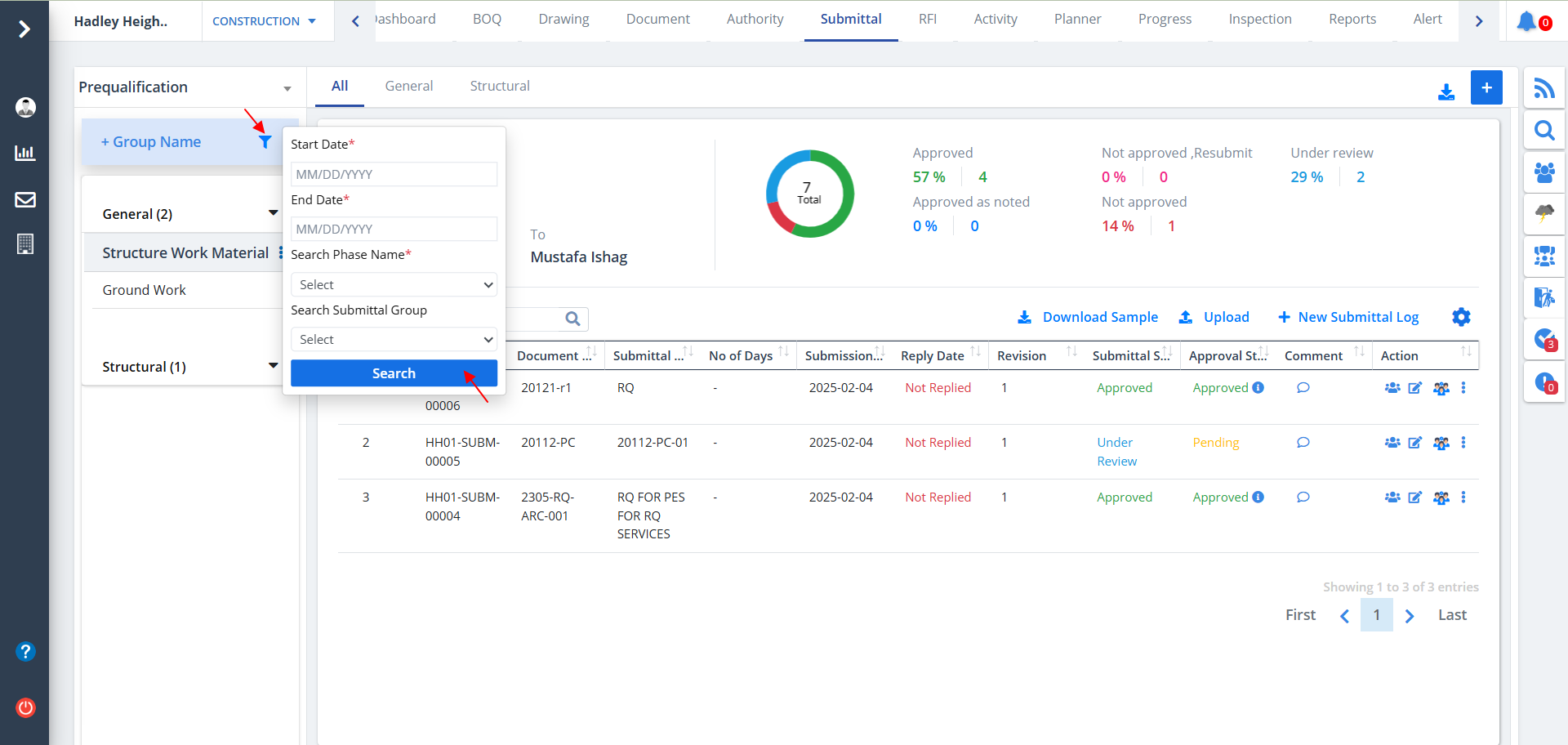
- You can use the filter as shown to see only desired data.
- Select dates, Phase & Drawing Group.
- Ultimately click on Search.
Group
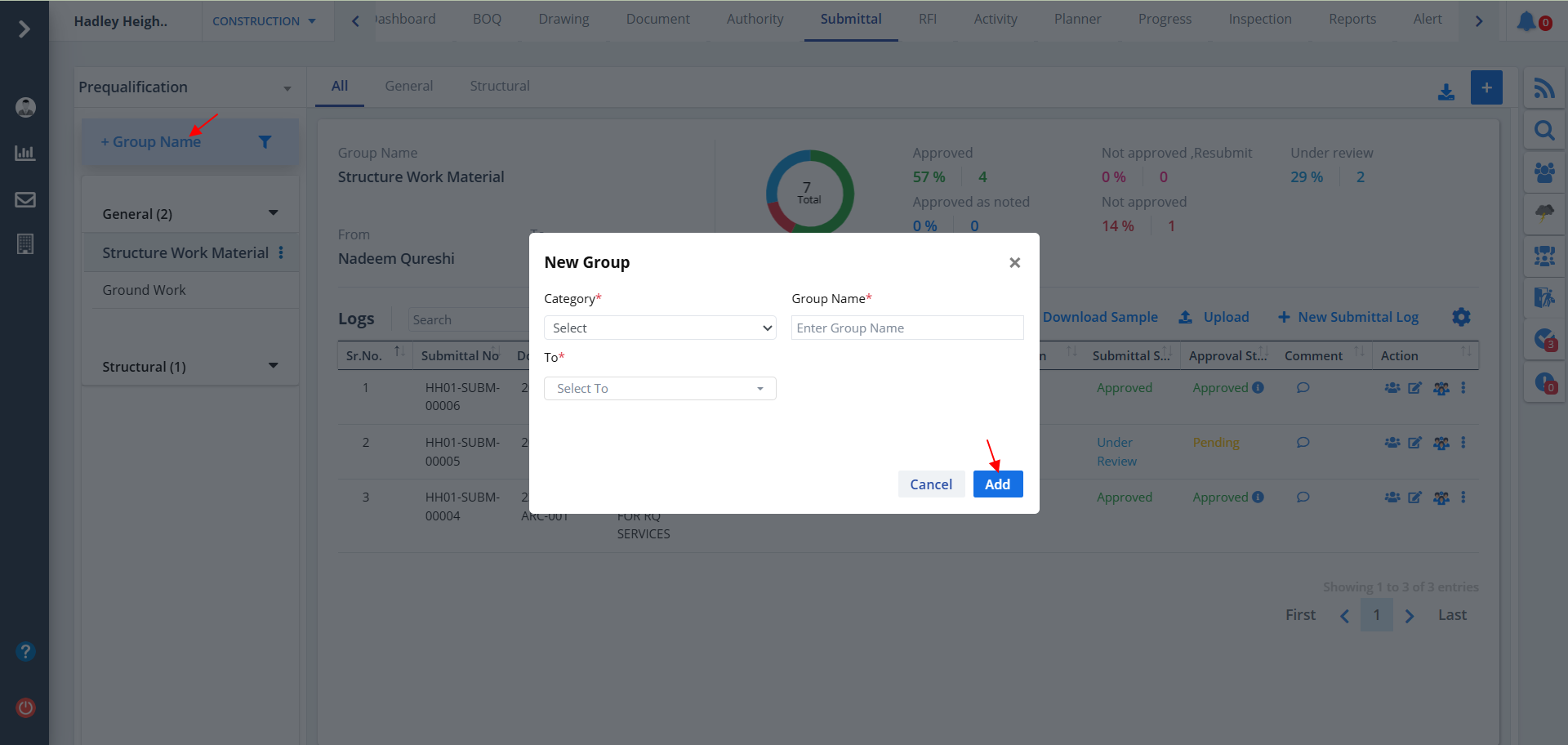
- Click on Group Name as shown.
- Provide proper details and click on Add.
- Groups will be shown on the left side as highlighted.
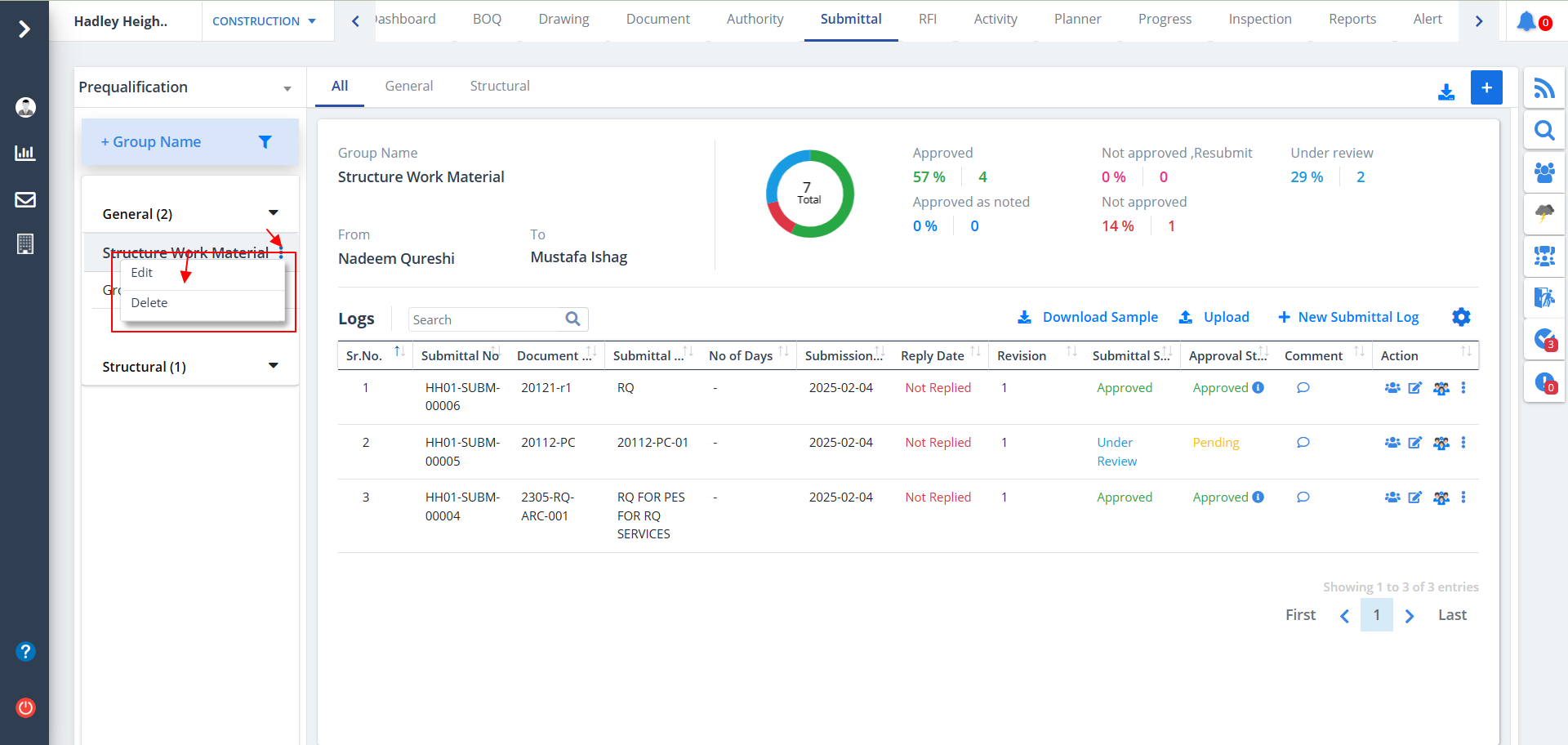
- You can expand any of the groups to view the sub-groups under that.
- Use the kebab menu as shown to edit a group. Delete deletes that particular sub-group.
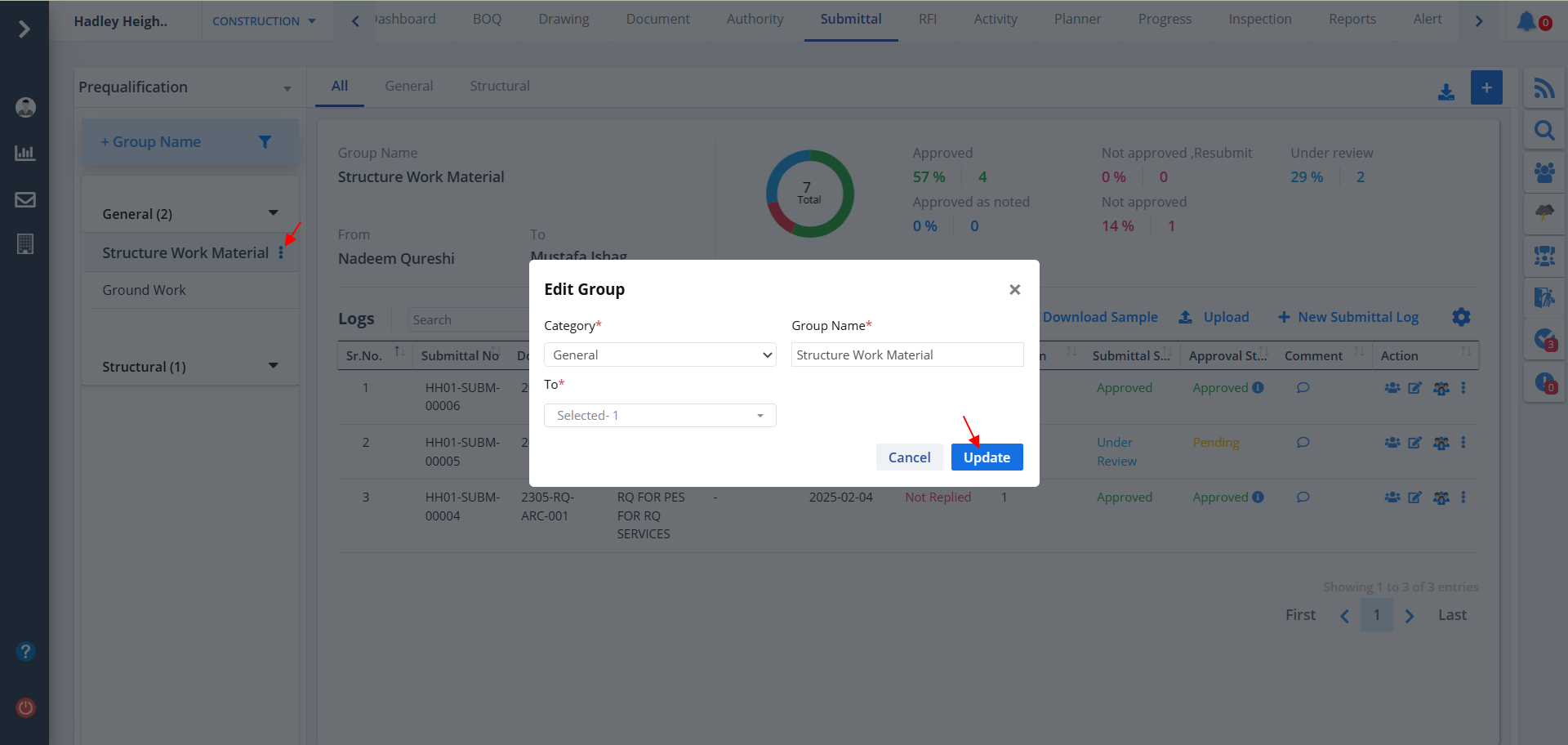
- Now change details as required and click on Update.
Submittal Categories
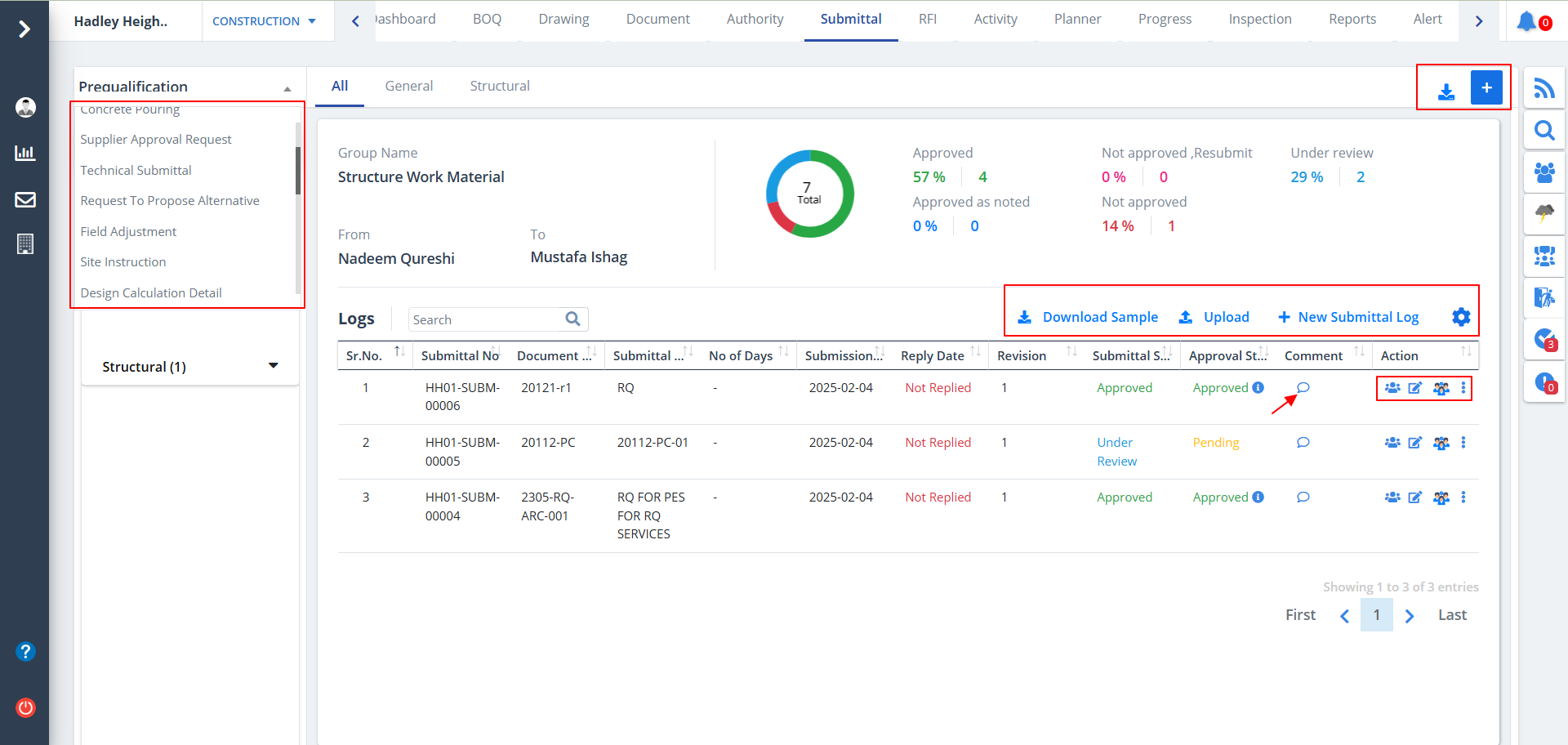
- Submittal is divided into 24 categories. You can view any category exhaustively by clicking on the category from the dropdown as discussed before.
- Each category has its own significance. The options, buttons, comment, audit, approval, category, export, filter and column visibility shown in Submittal List are available for each category.
Material Approval Request
- As discussed earlier, when a certain category is opened an overall description of that category will be shown in tabular format.
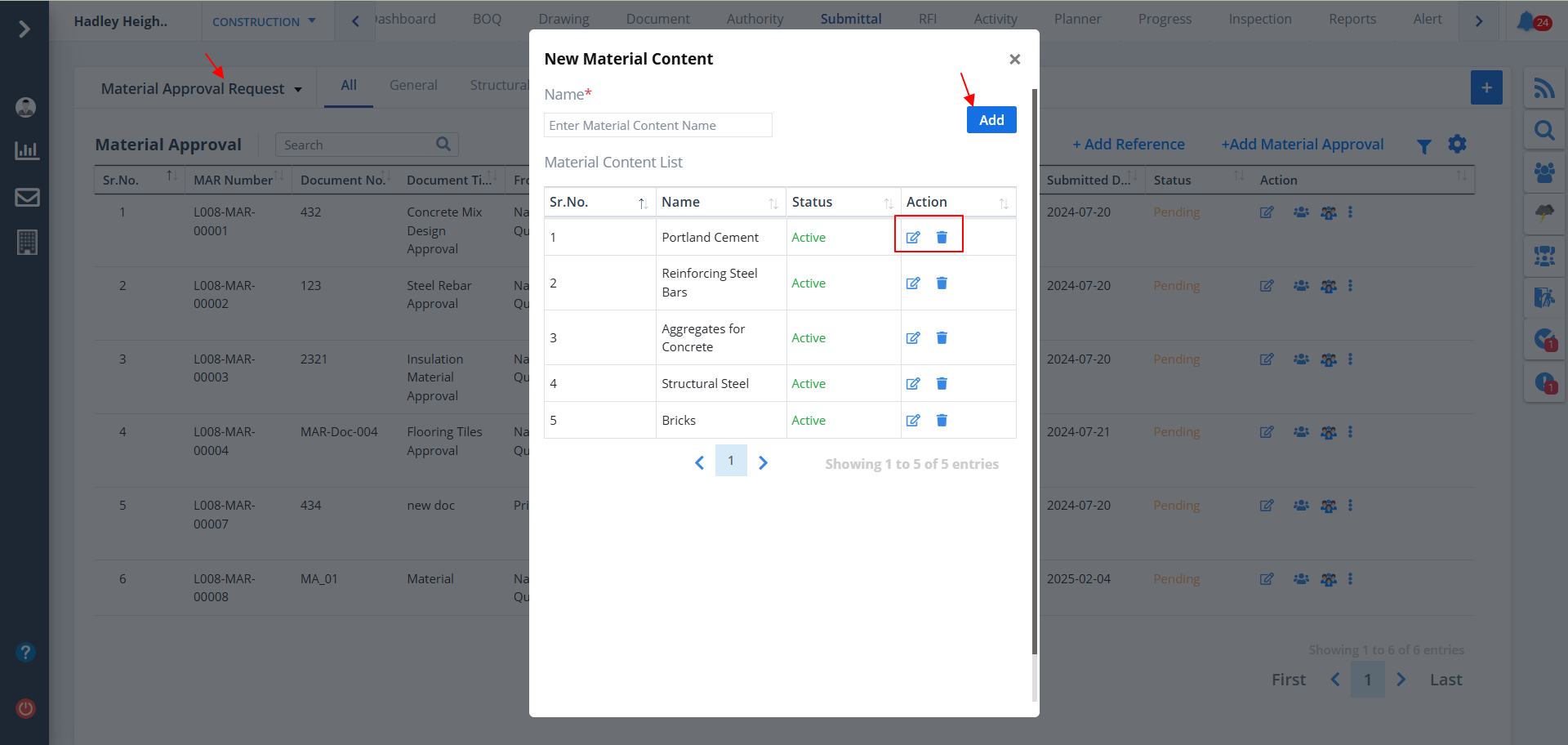
- To add a new material content click on Add Material Content. Provide data and click on Add.
- Existing material content's list will be seen if present. You can edit and delete the same using the highlighted buttons.
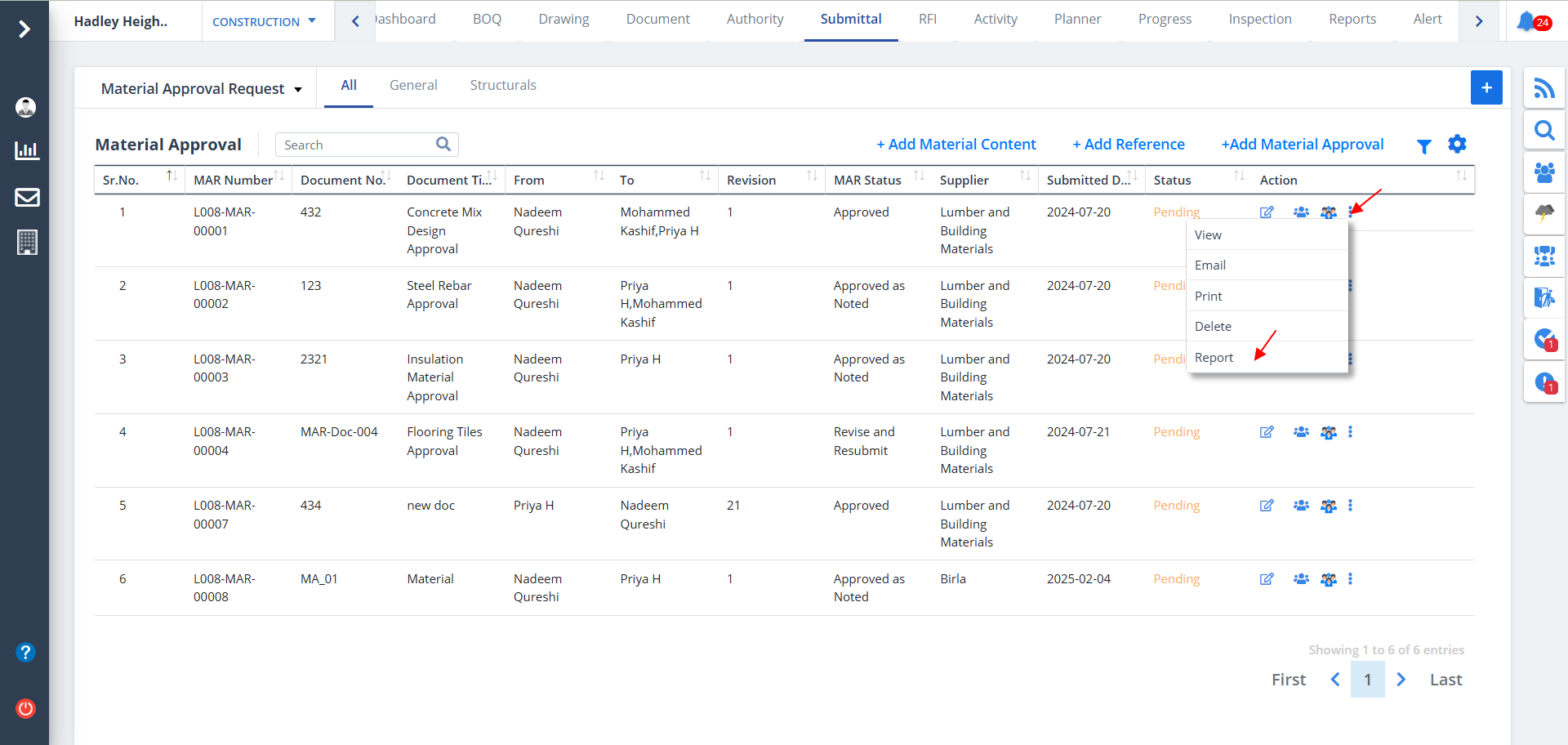
- Here we have an option to download report directly using the Kebab Menu.
- Click on Report button as shown.
- An xlsx file will be downloaded in your system locally.
- Likewise you have an option to download report in all categories of submittal.
- Similarly for adding reference and material approval click on the respective buttons.
- Fill in the required data and click on the appropriate button to proceed, such as Add, Save, or Proceed.
- To edit a material Approval, use the Edit button as shown.
- Change required data and click on the appropriate button to proceed, such as Update.
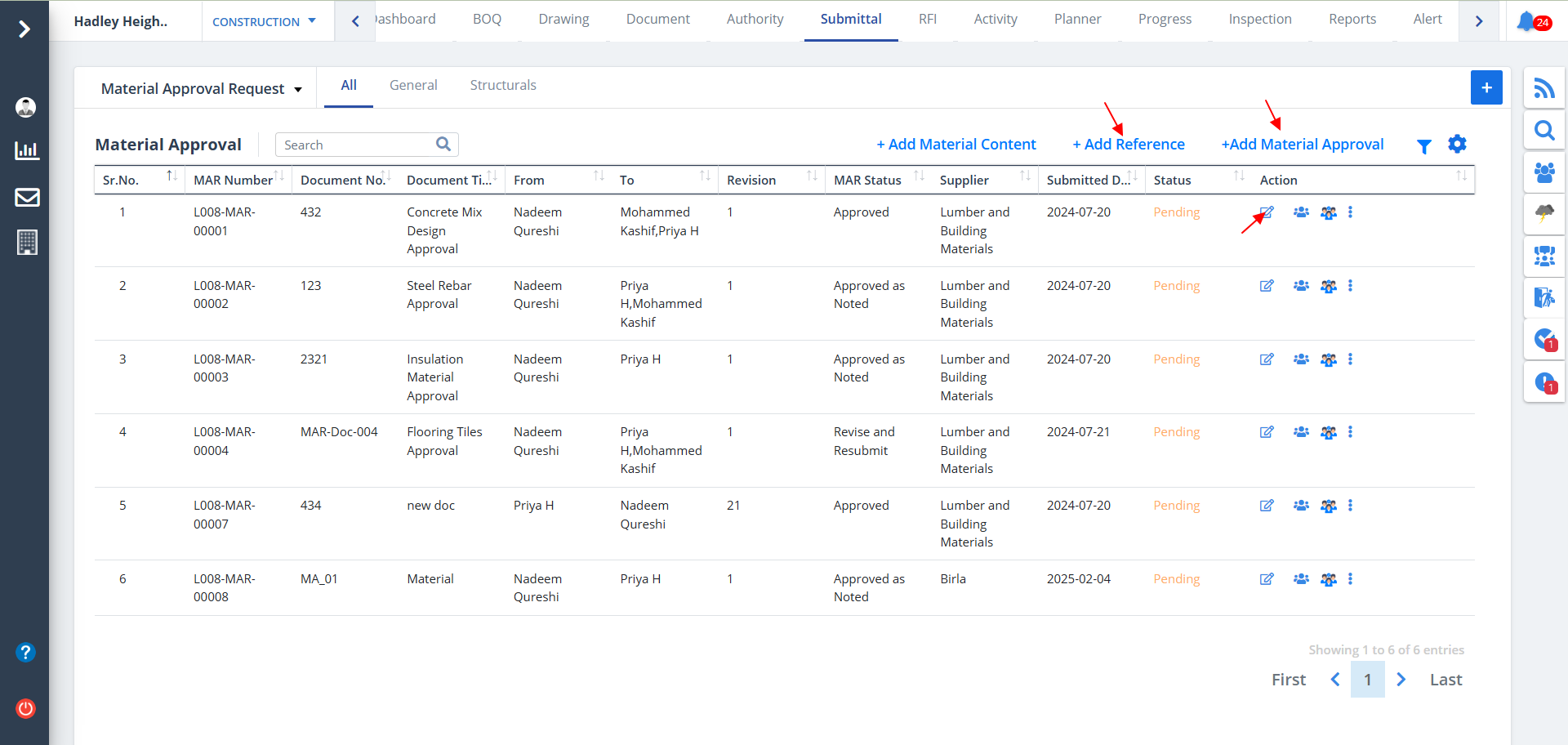
- In the same way there would Add and Edit buttons for other categories as well.
- You need to click on the appropriate button for that and you can achieve what you desire.
- You can click here for reference.


