Inspection Report
What is an inspection process?
Stage construction inspections are designed to ensure proper building techniques, workmanship
and quality during the building process to protect homeowners and their investments.
These comprehensive inspections include intensive scrutiny on several aspects of a new home,
and the finished product as a whole. The consultant requests for an inspection report from the
contractor.
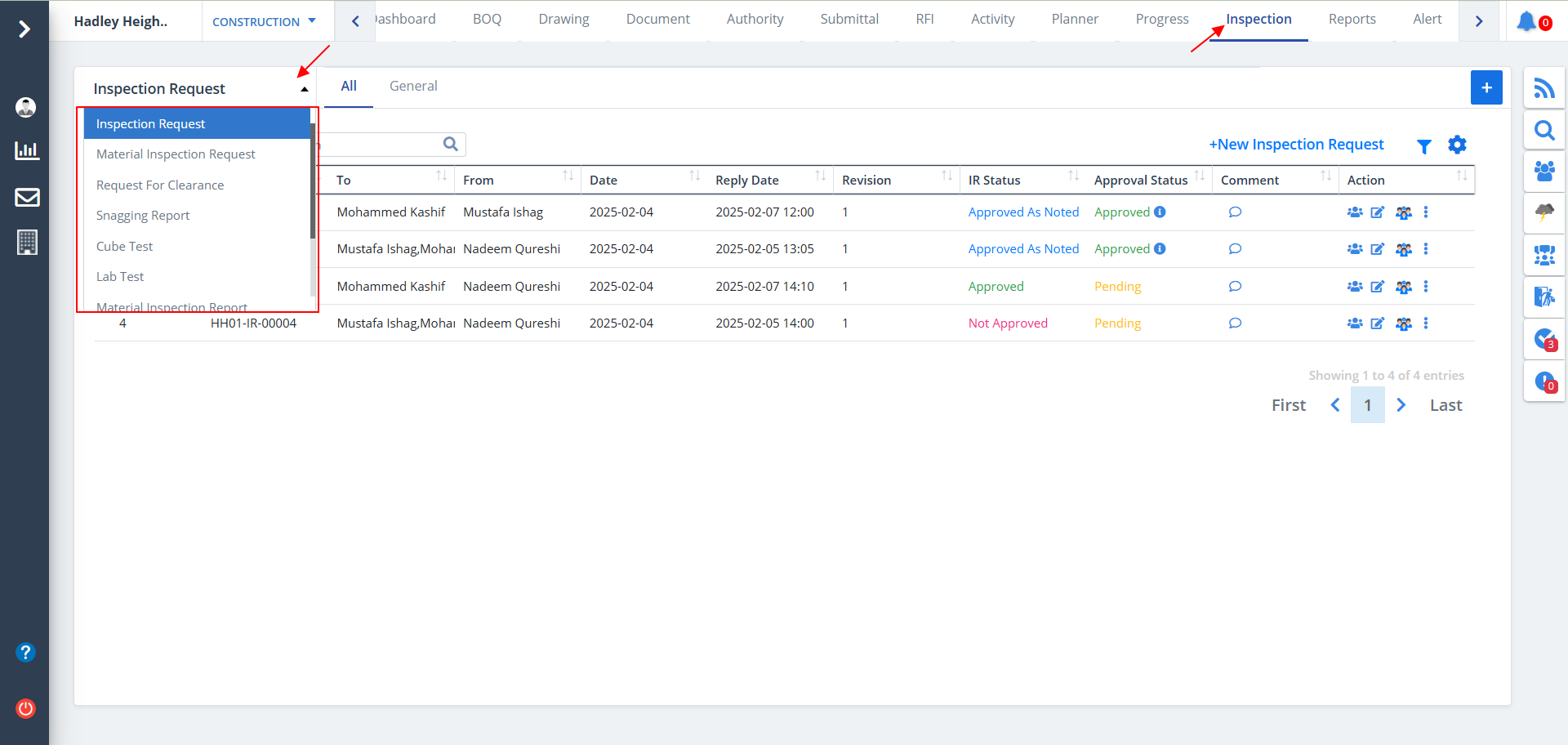
Select Inspection from menu. A tabular view for the inspection request would be shown by default. There is a dropdown that shows different inspection categories. Just click on any one of those to know about them in depth. By default, Inspection Report is selected.
Inspection is classified into:-
- Inspection Request
- Material Inspection Request
- Request For Clearance
- Snagging Report
- Cube Test
- Lab Test
- Material Inspection Report
- Work Inspection Report
- Other Inspection Report
- Non-Conformity
Inspection Request
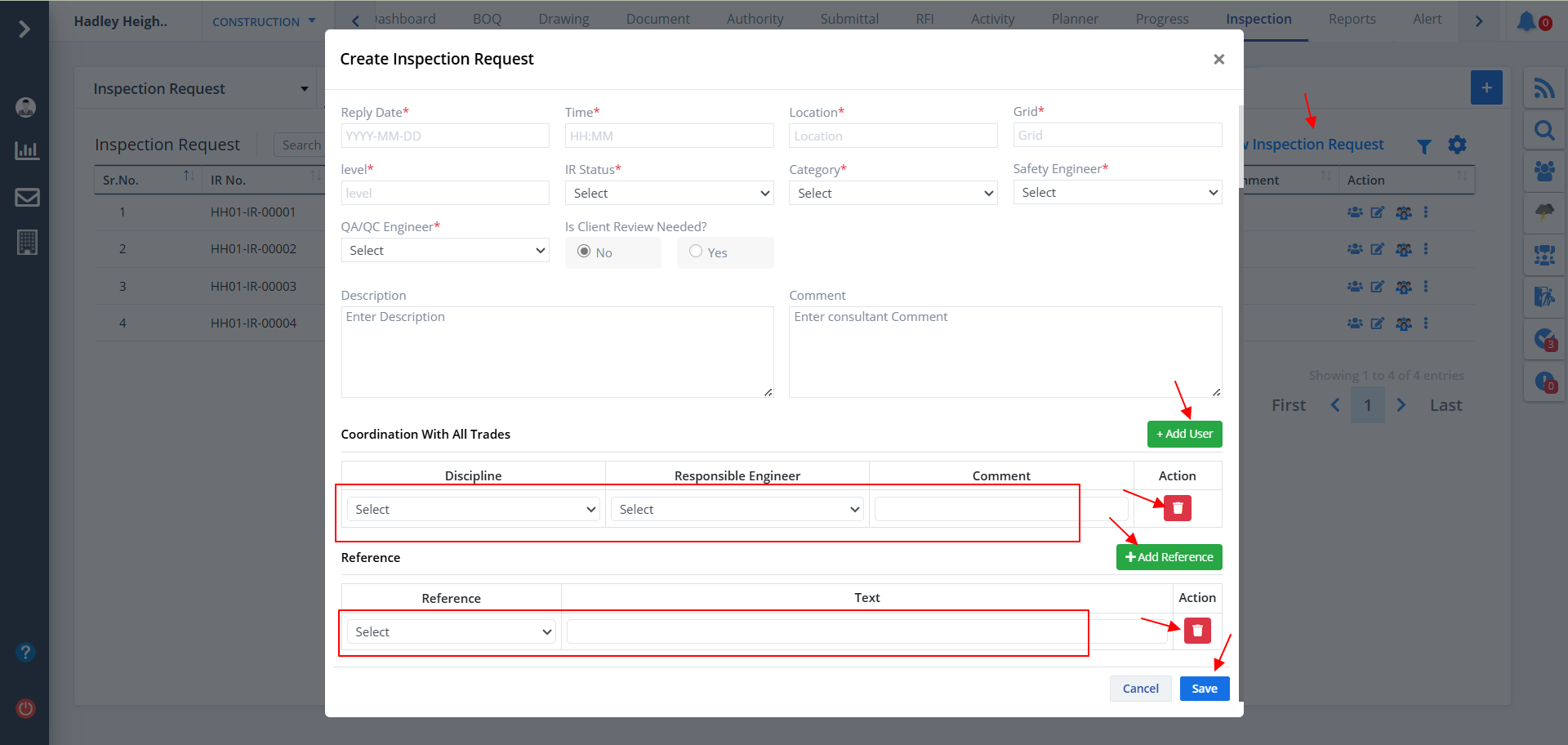
- A tabular representation of Inspection Request is shown systematically.
- To add a new Inspection Request, click on New Inspection Request.
- Fill up the necessary fields. You can add a new user directy below the highlighted table by clicking Add User button as shown.
- Similarly, you can add a new reference below the highlighted table by clicking on Add Refernce button as shown.
- You can delete the same by using the delete button provided.
- Just click on Save once entire process is completed.
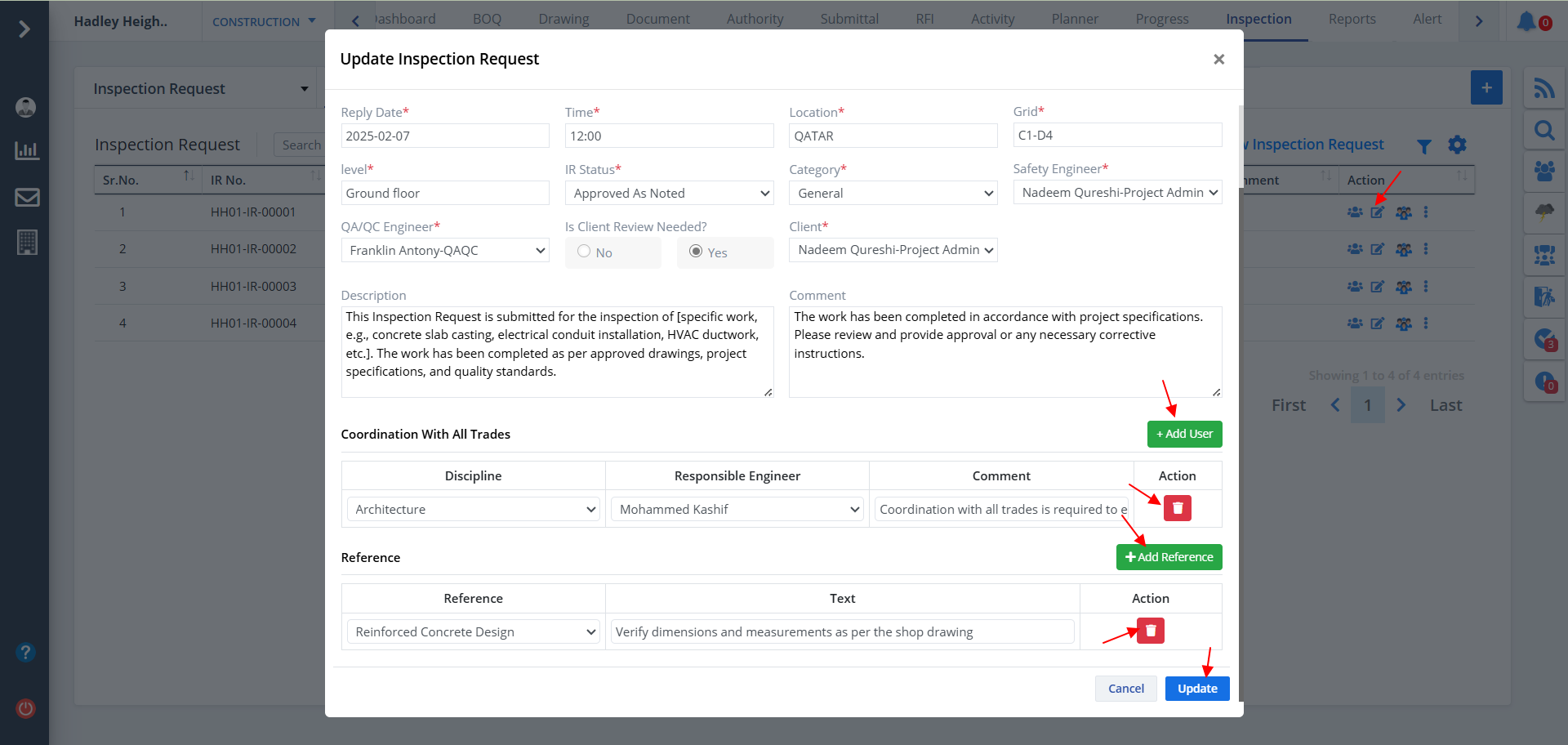
- You can edit an inspection request by clicking the Edit button under Action coumn as shown.
- Update desired data. Here also you can add and delete users and references respectively.
- Click on Update once done.
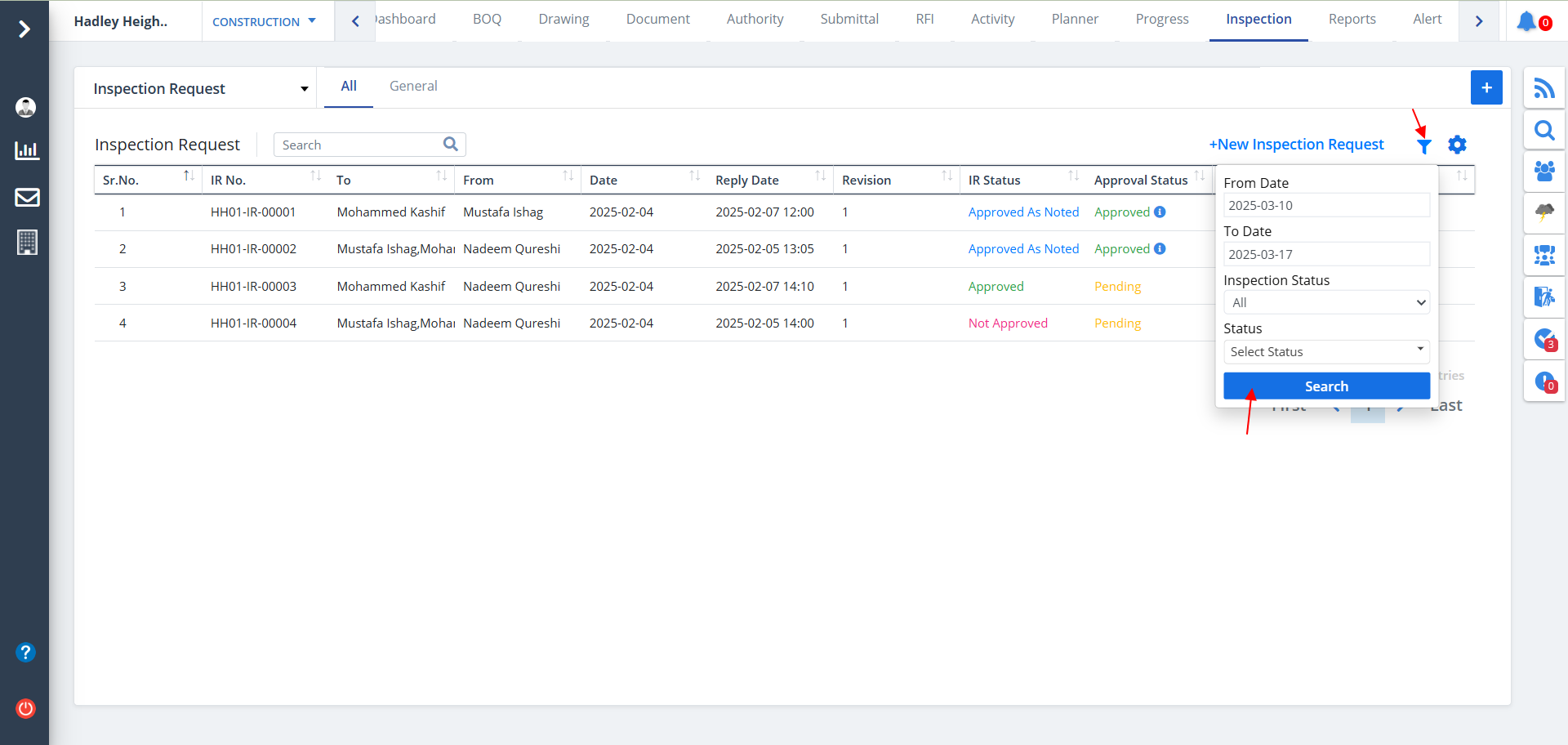
- Use the filter button as shown to view only desired data.
- Select dates, inspection status and status.
- Now click on Search.
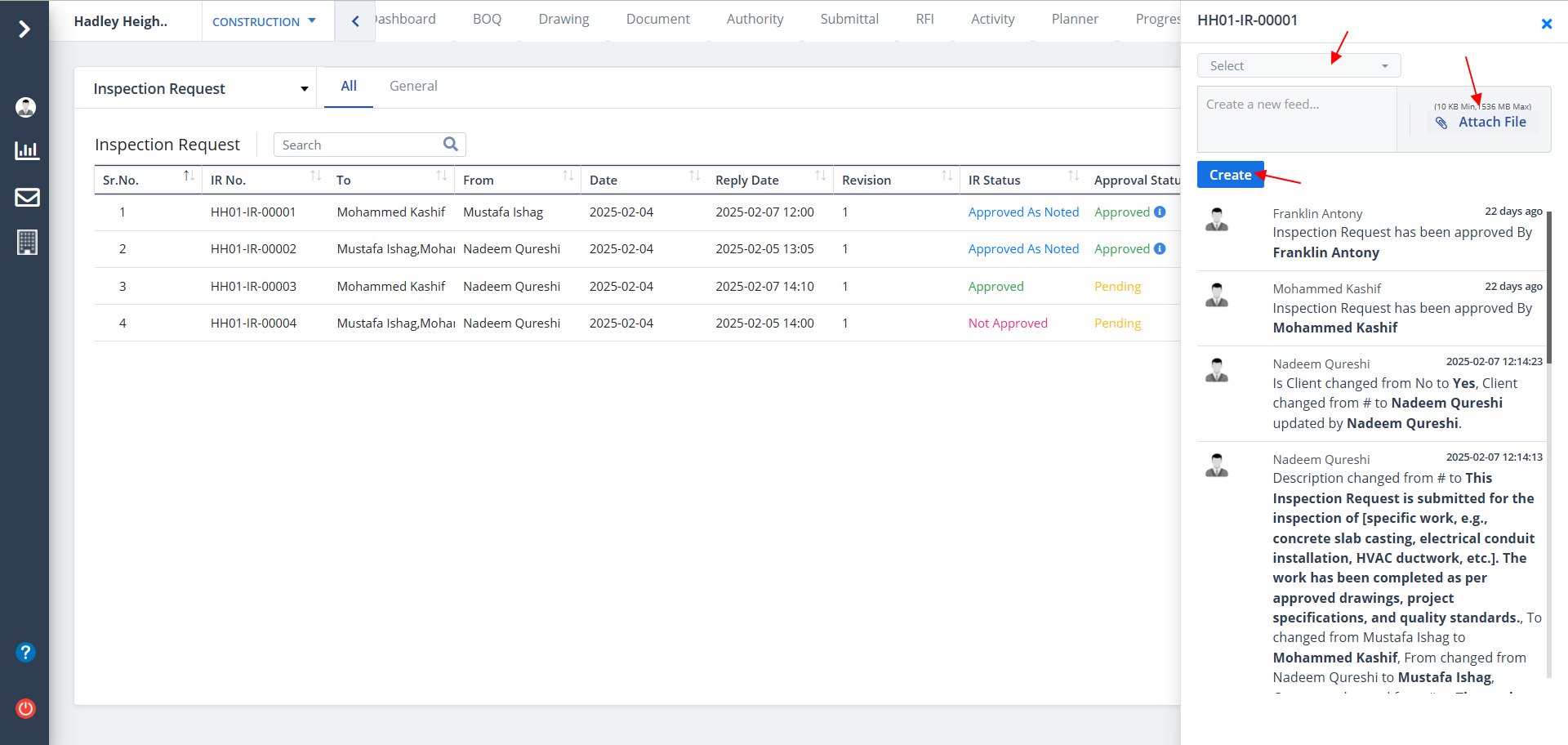
- Click on the first option under Action to open Audit Report. It shows the actions (add, update, delete) performed by a user if any.
- Click on Create to add new feed
- You can also select a user/users while creating a feed
- You can also upload a relevant file. Just click on Attach File
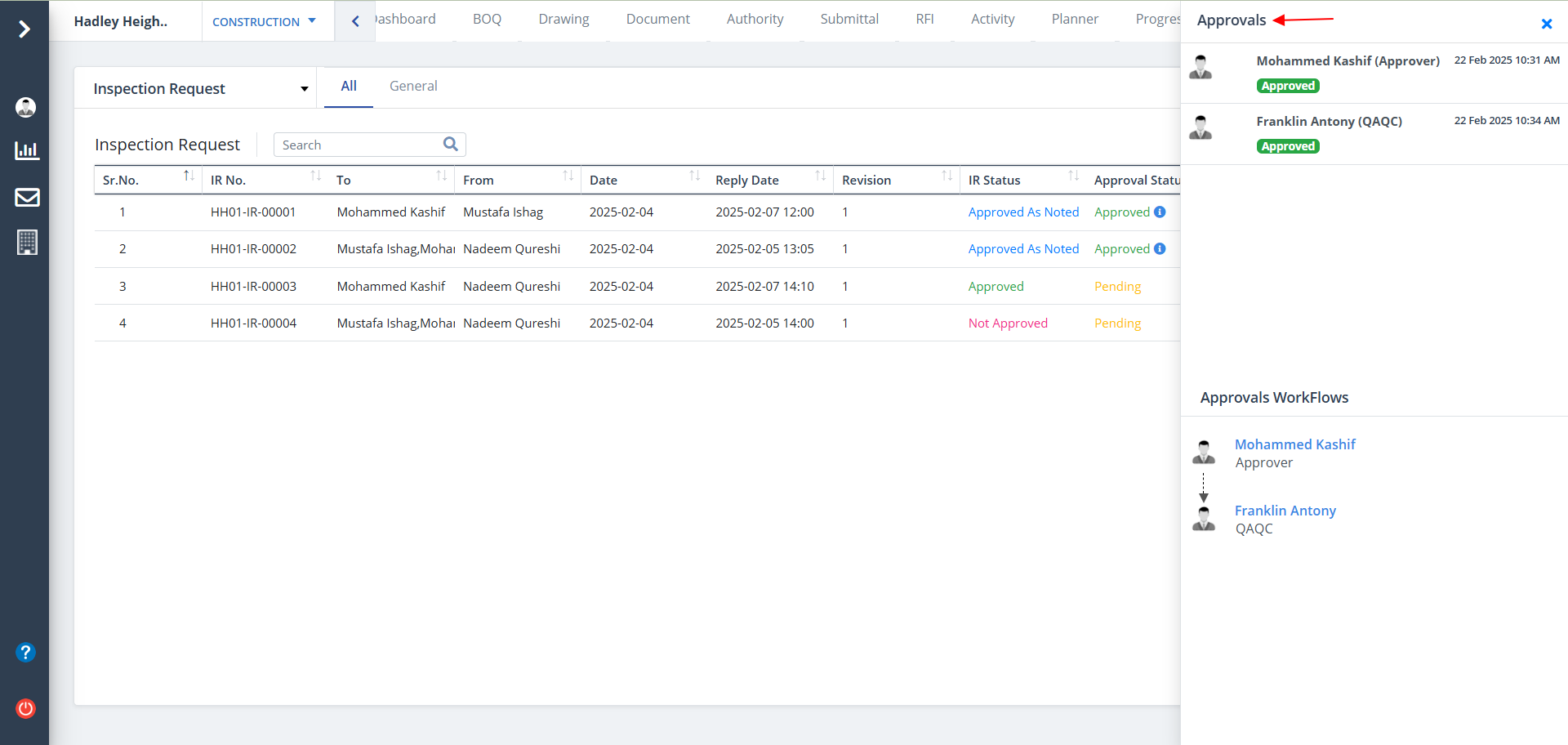
- Click on Approval under Action column to see the approval workflow. This button is next to Edit button.
- This will show various users who have approved certain activities.
- Also shows the sequence in which various users have approved different activities.
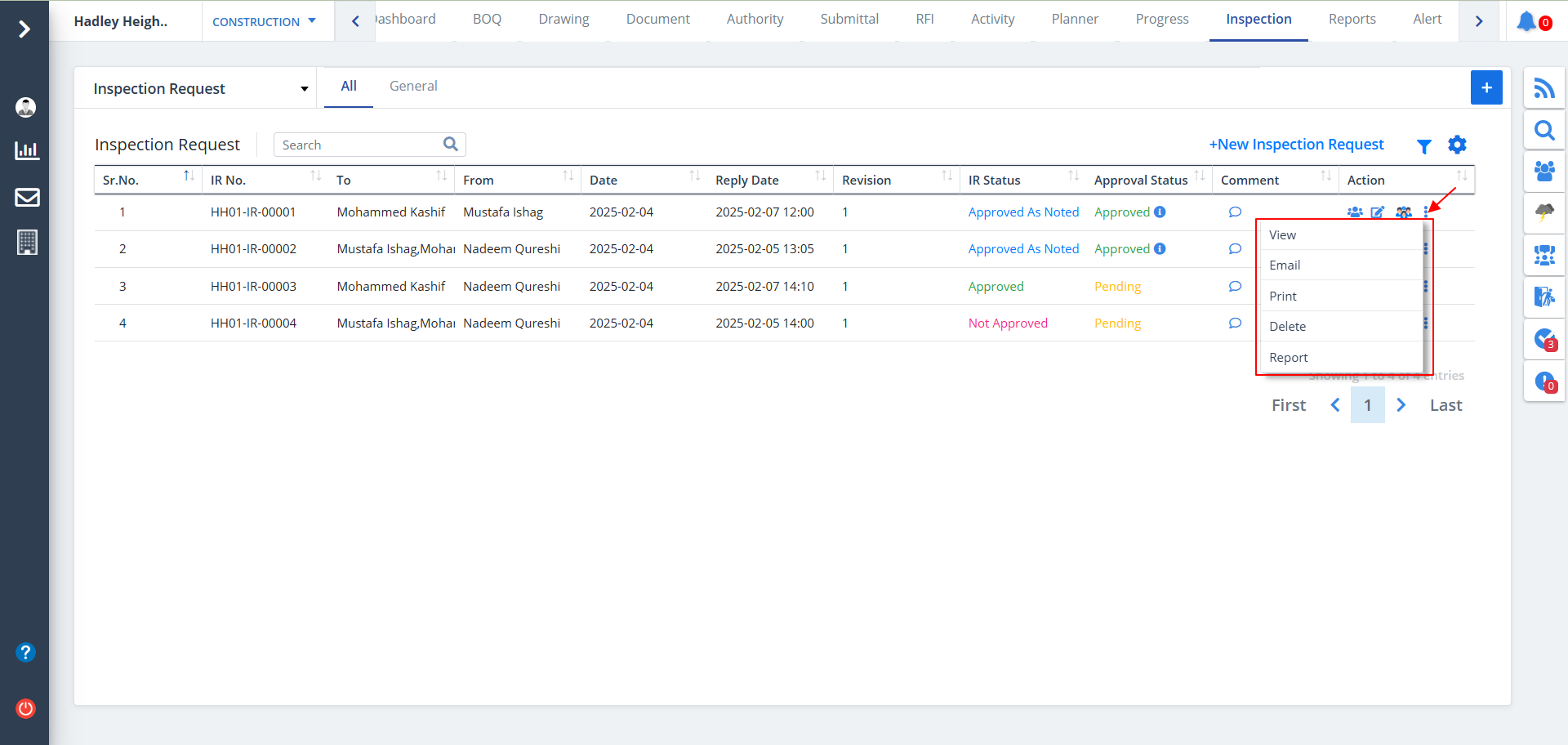
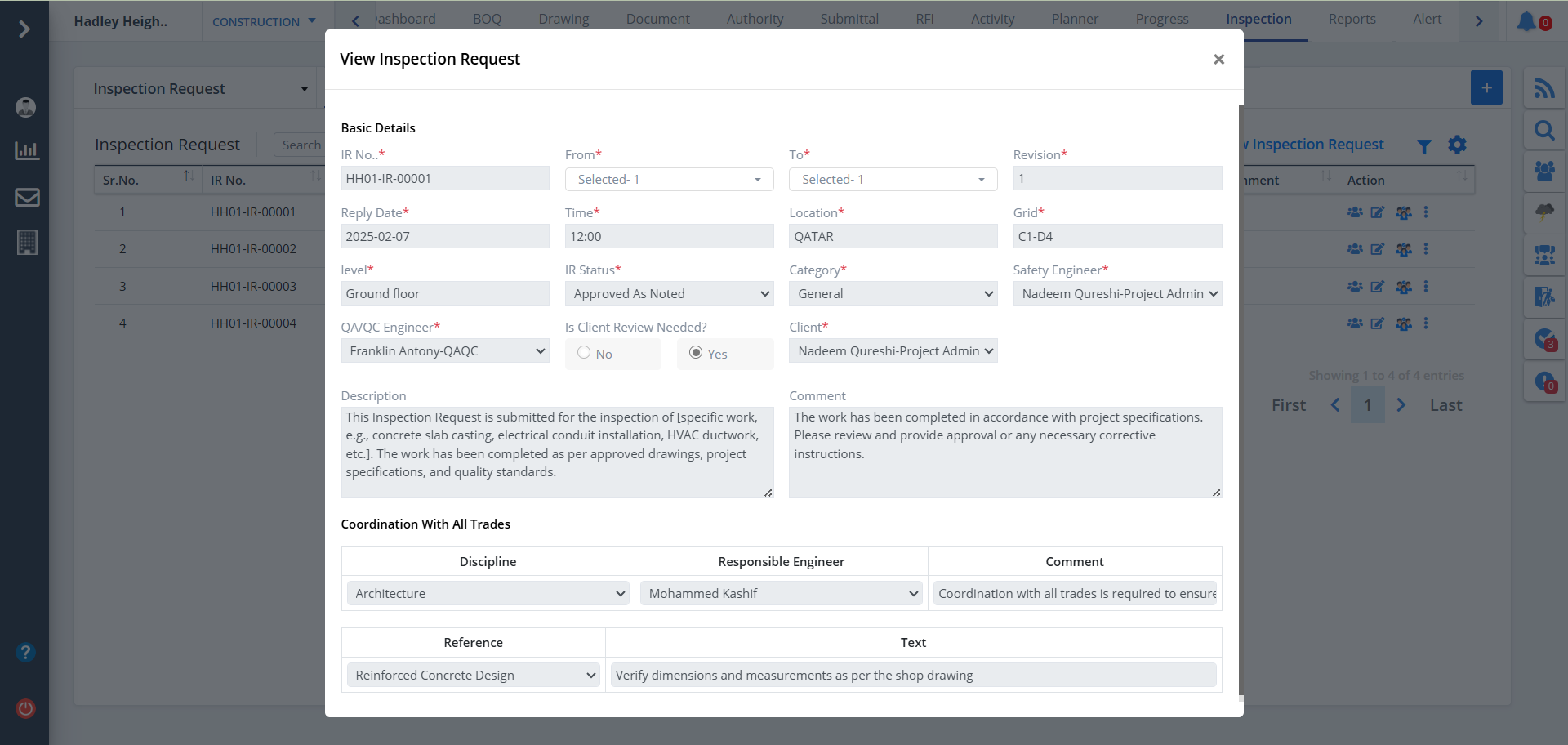
- Use the Kebab menu provided to deal with various operations such as View, Email, Print, Delete, Report.
- If you click on view, you would be able to view overall detailed data for the category. The screenshot for the same is attached below.
- Clicking on print allows you to view a printable document.
- Clicking on delete will delete that particular entry from table.
- If you want to download a report locally, click on Report.
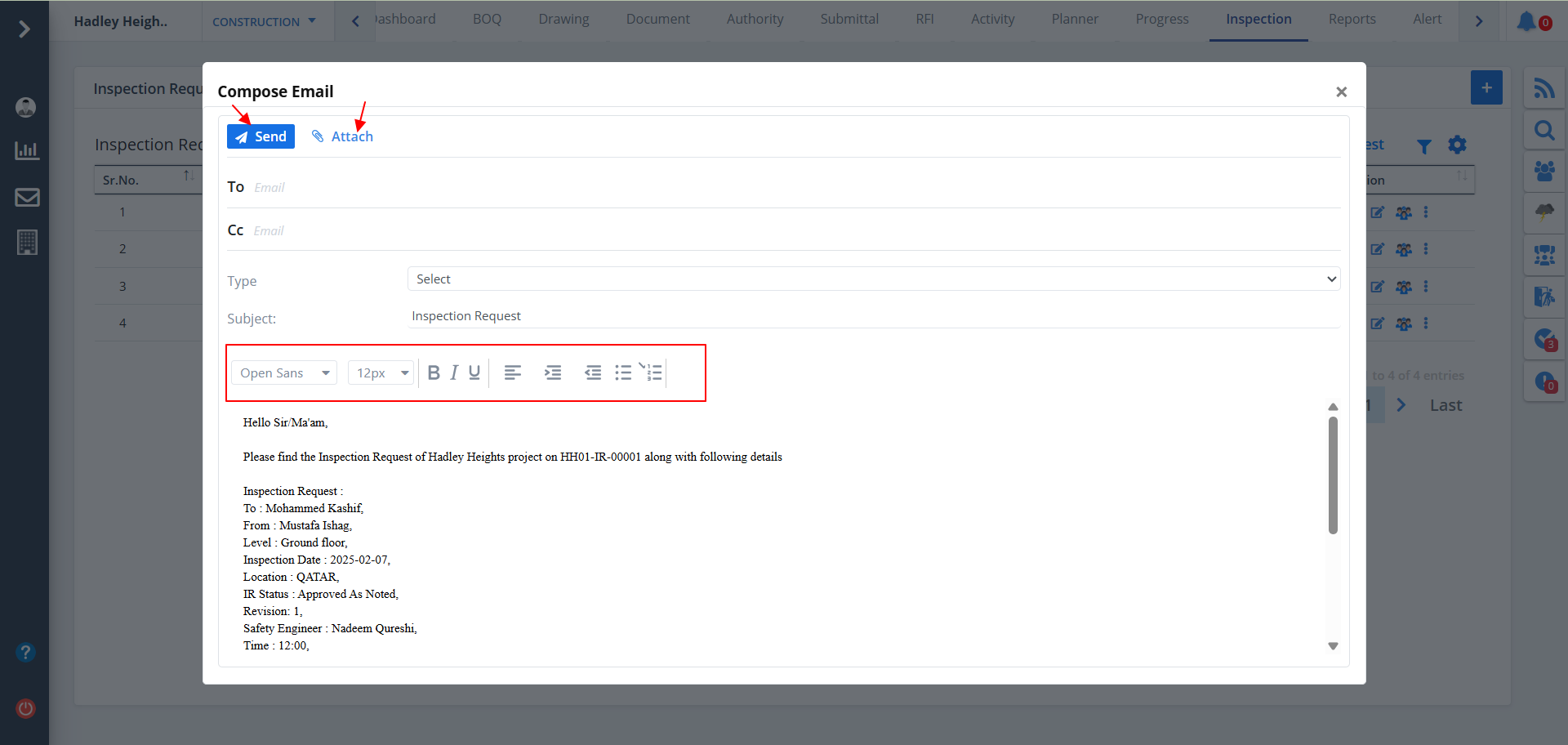
- If you click on Email, you would see various email options. All formatting options are available as highlighted in the figure below view. Just click send once done.
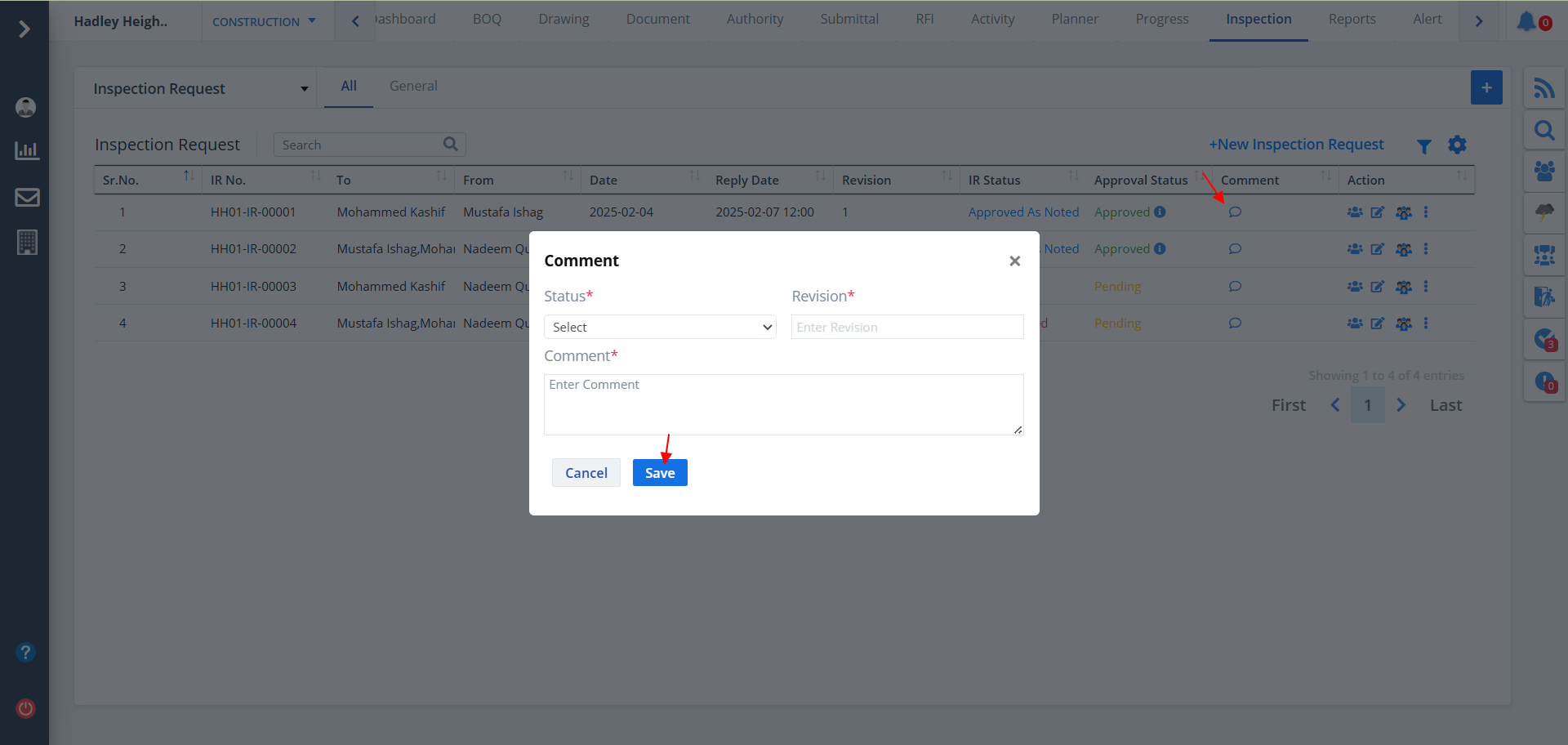
- To add a new comment, click on the button as shown.
- Select/fill the details properly.
- Now click on Save.
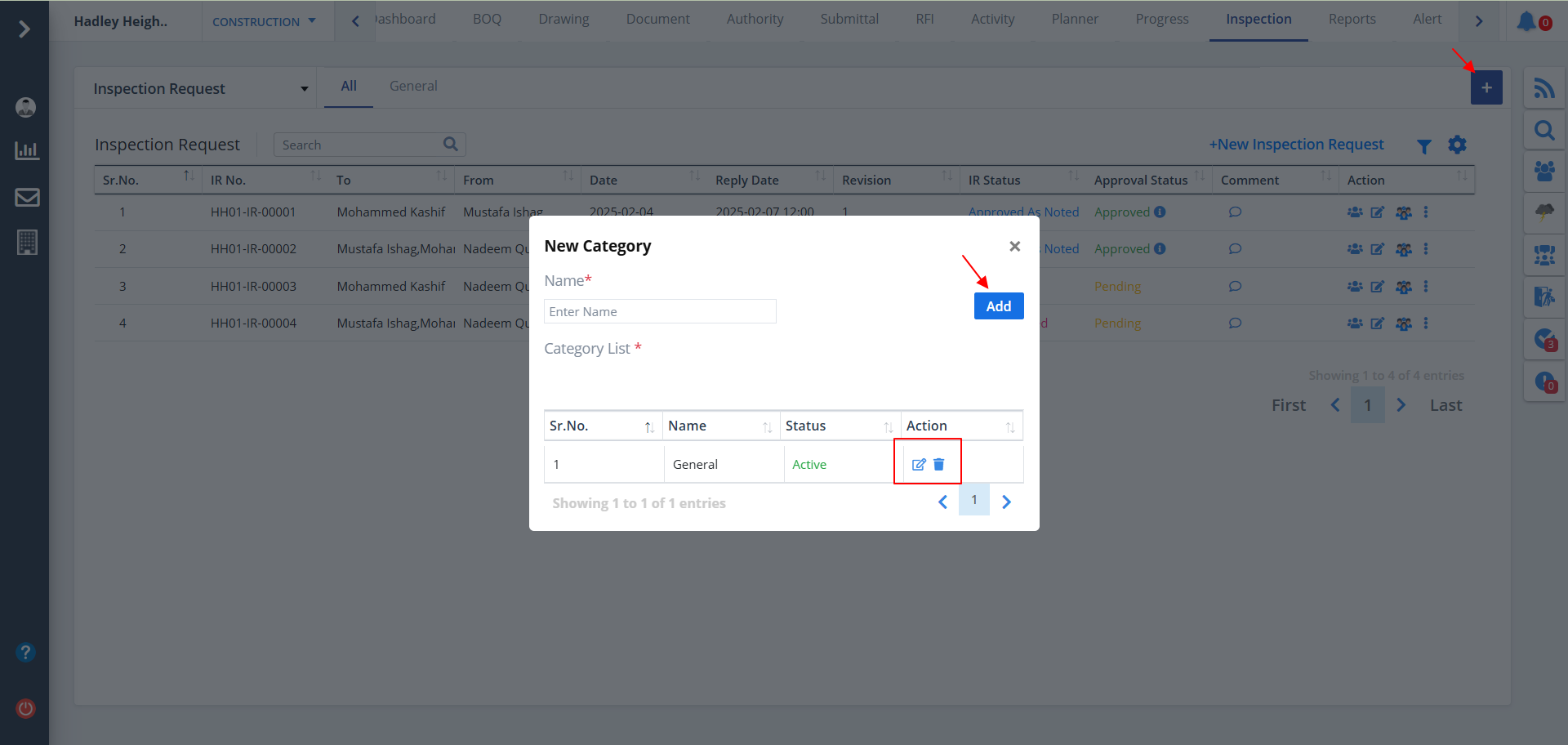
- Click on Plus button if you want to add a new category.
- You can add a category directly by entering name and click on Add button.
- All the previously added category list will be shown here.
- Action column can be used to Edit and Delete any of the categories.
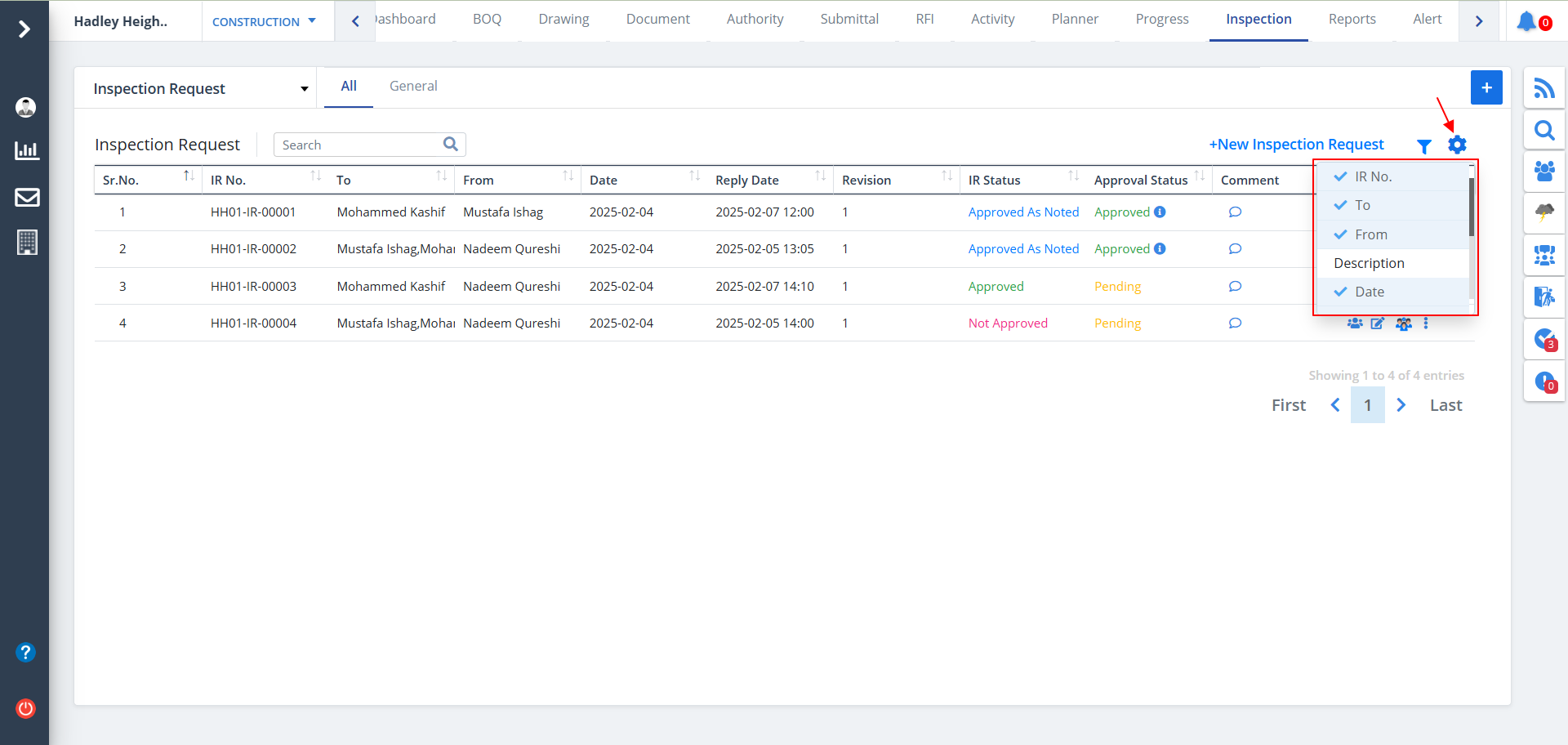
- You can control what column you prefer to be seen.
- Just click on the Settings icon as shown in the below image.
- Tick the columns that you want to view and untick the ones you don't desire to view.
- In case you change your mind, you can tick the untick ones and vice-versa.
Material Inspection Request
- Now coming onto Material Inspection Request.
- We are seeing a systematic representation of data in tabular format.
- Material Inspection Request also contains comment, audit report, approvals, categories, kebab menu, filter and column visibility as discussed in Inspection Request. To learn about all of these just Click Here.
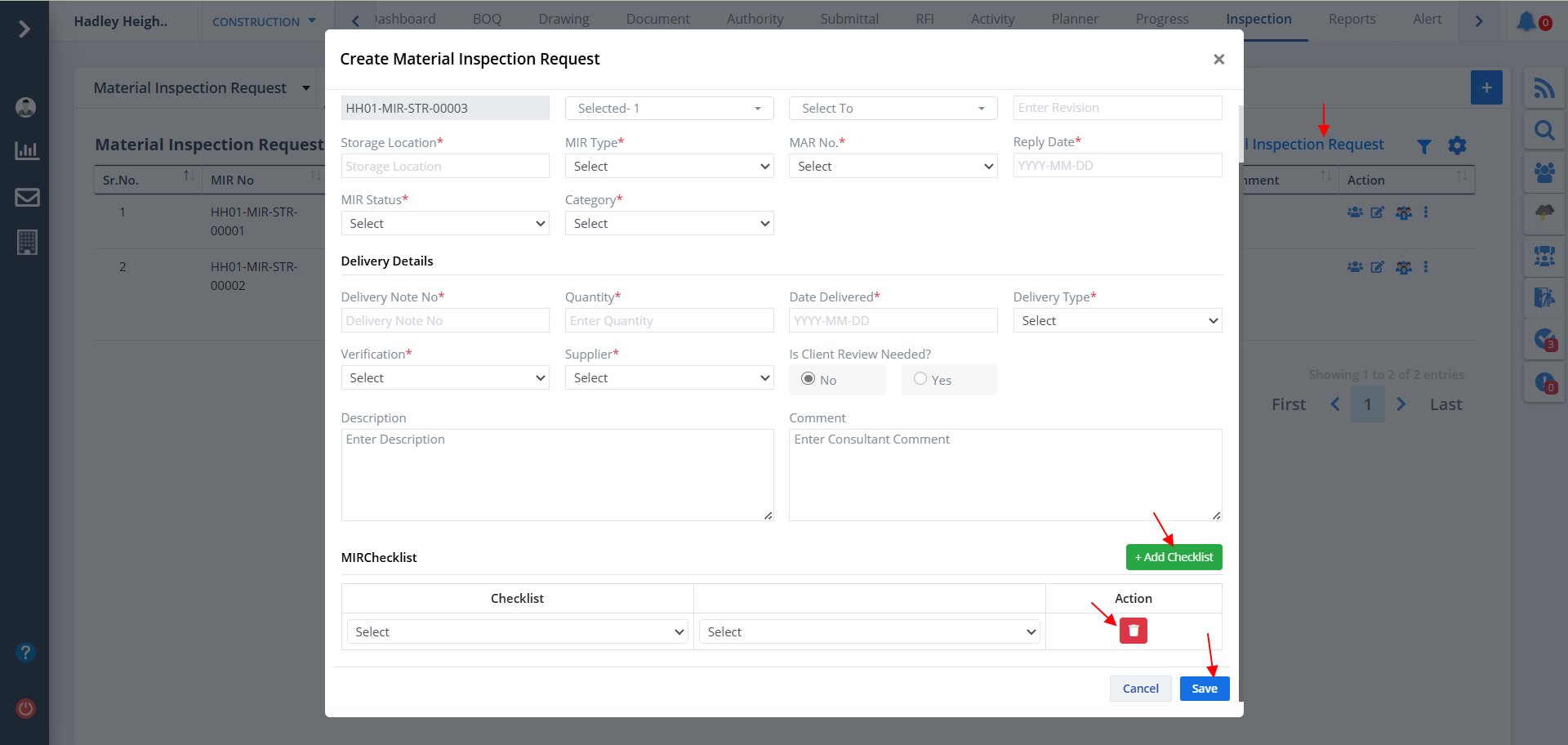
- To add a new Material Inspection Request, click on the button as shown.
- Fill up all data as required. You can directly add a checklist, by clicking Add Checklist button. You can also delete a checklist using Delete button.
- Click on Save once you fill the details.
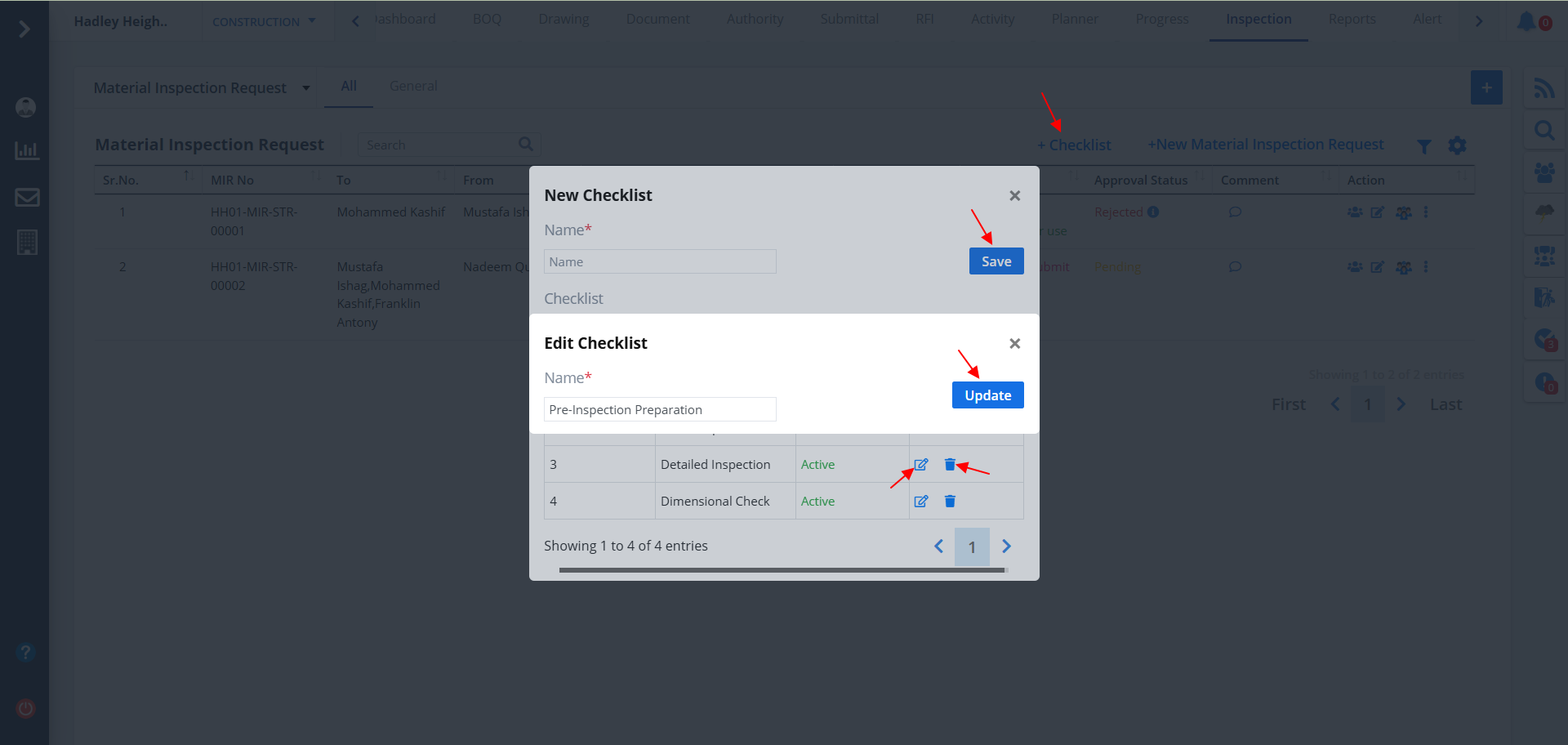
- Click on +Checklist to add a new checklist.
- Mention name and click on Add.
- If you had specified checklists previously, the list will be shown here.
- Click on Edit as shown to update a checklist. Click on Update once done.
- You can use the Delete button next to edit if you want to remove a checklist entry.
Request For Clearance
- Now coming onto Request For Clearance.
- We are seeing a systematic representation of data in tabular format.
- Request For Clearance also contains comment, audit report, approvals, categories, kebab menu, filter and column visibility as discussed in Inspection Request. To learn about all of these just Click Here.
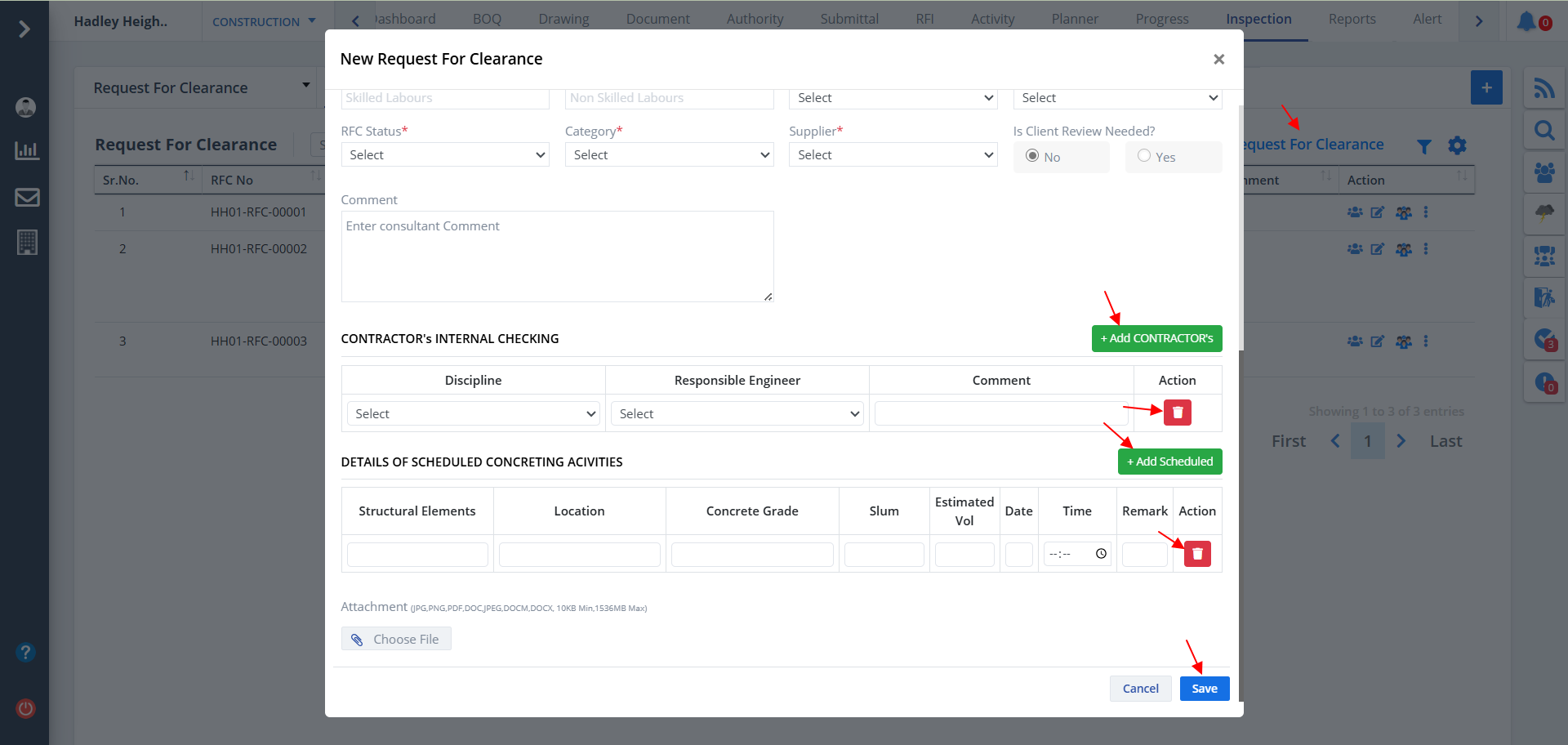
- To add a new Request For Clearance, click on the button as shown.
- Fill up all data as required. You can directly add contractor/contractors, by clicking Add Contractors button. You can also delete a contractor using Delete button.
- Similarly add scheduled using Add Scheduled button. Delete the same using delete button provided.
- Click on Save once you fill the details.
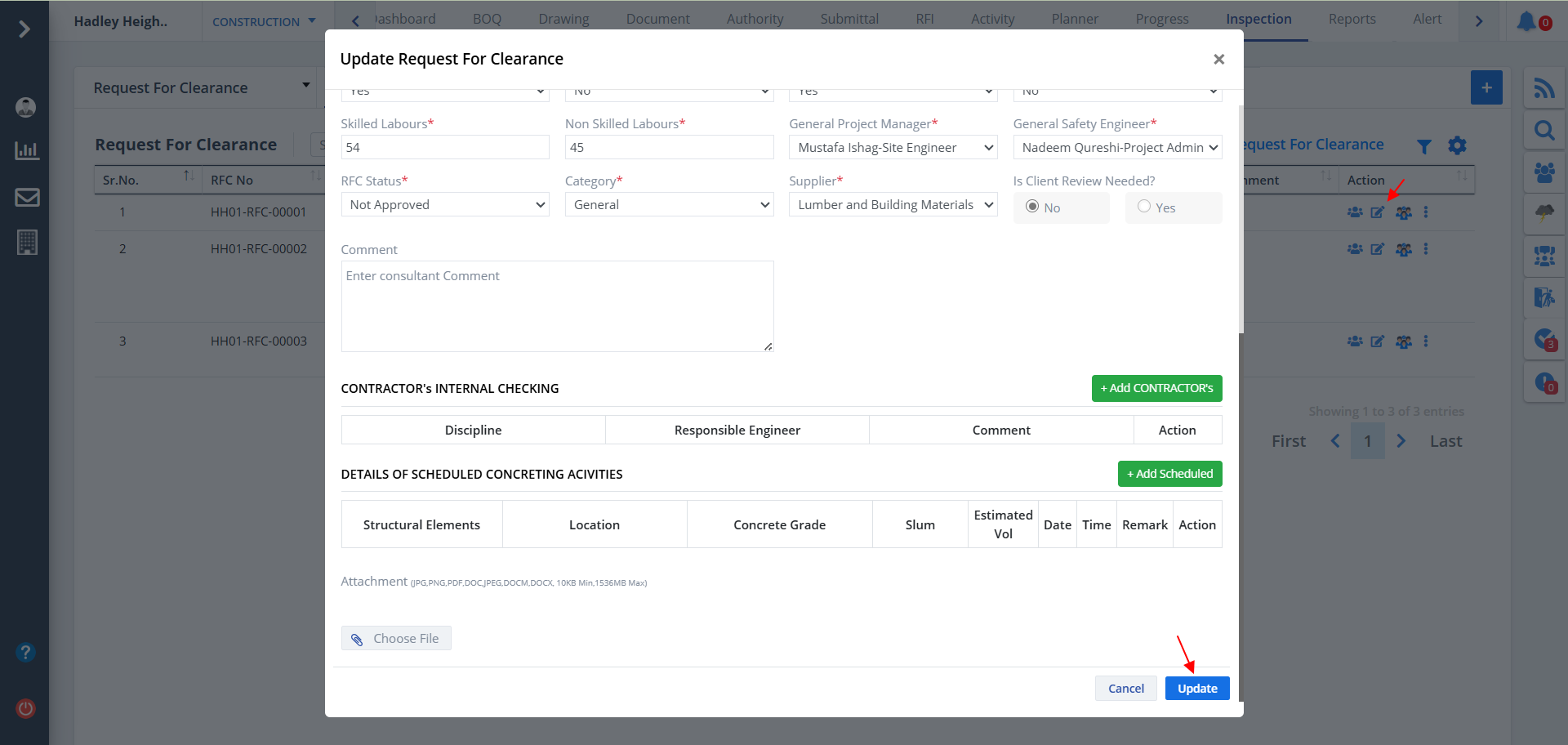
- Click on Edit as shown to edit a particular entry.
- Change desired data. As discussed before, you can add contactors and scheduled. You can delete those too.
- Just click on Update once done.
Snagging Report
- Now coming onto Snagging Report.
- We are seeing a systematic representation of data in tabular format along with a diagrammatic representation and statuses.
- Snagging Report also contains audit report, approvals, kebab menu, filter and column visibility as discussed in Inspection Request. To learn about all of these just Click Here.
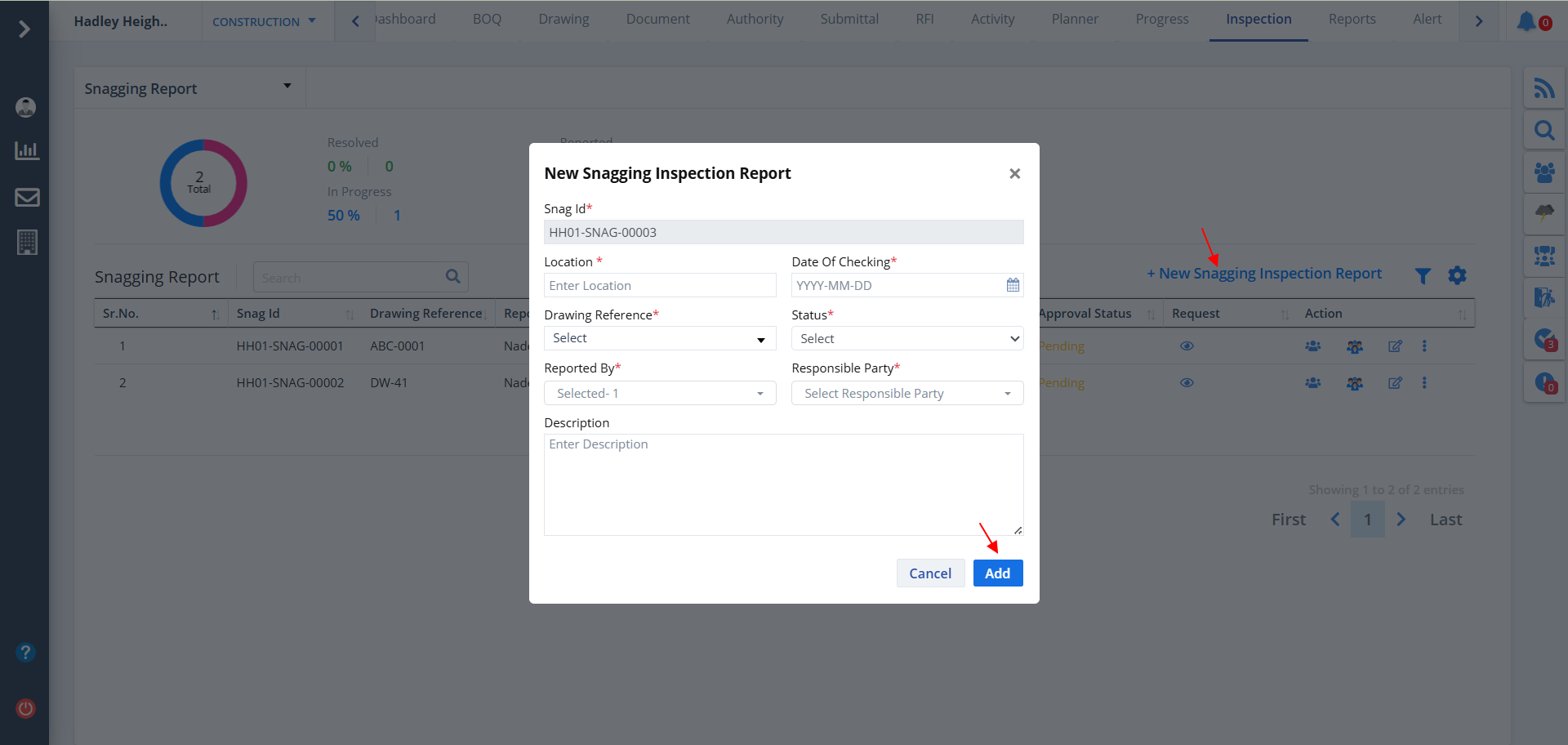
- To add a new Snagging Inspection Report, click on the button as shown.
- Fill up all data as required and click on Add.
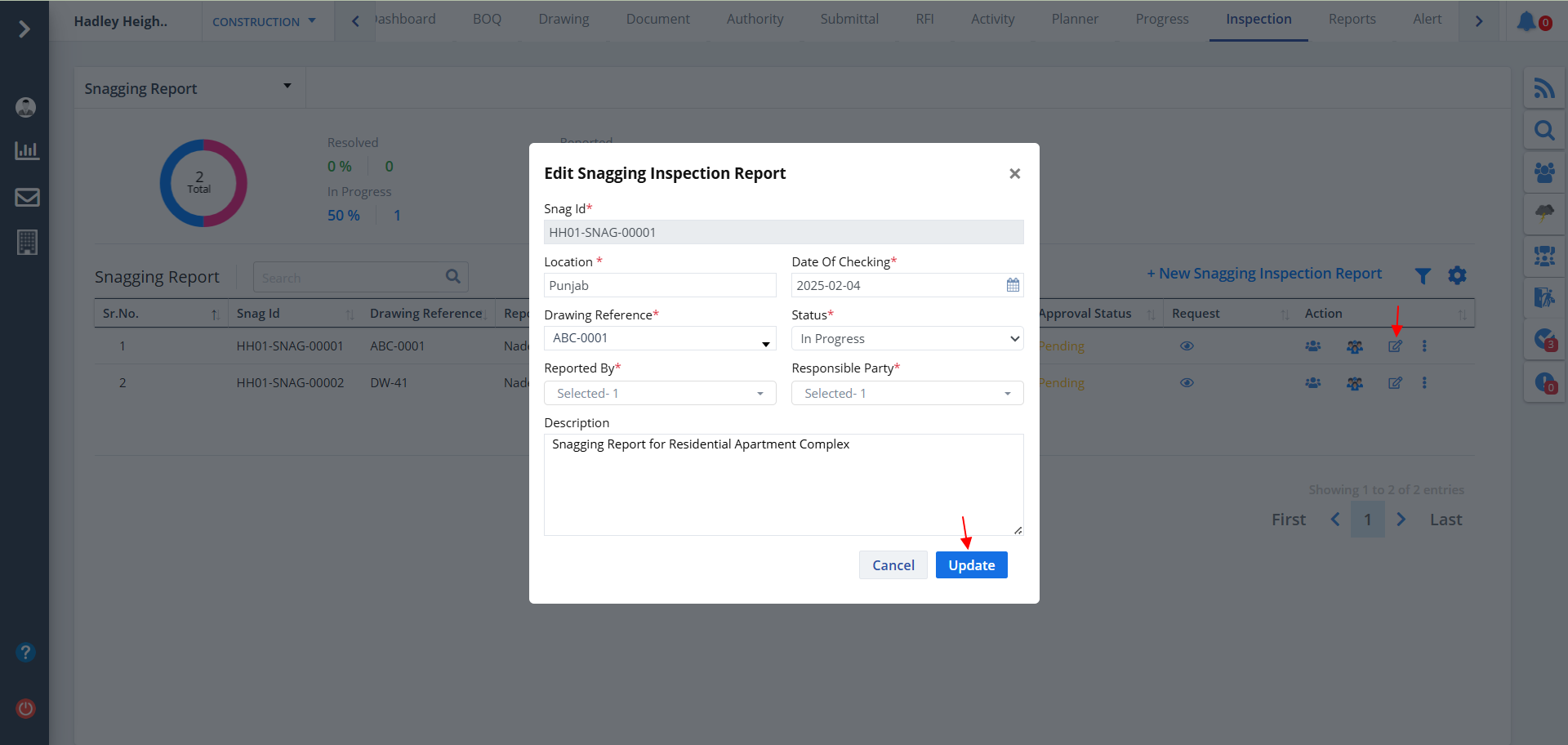
- To edit a snagging report, just click on Edit as shown.
- Change required data and click on Update.
- To view a snagging request, click on the Eye button under Request column.
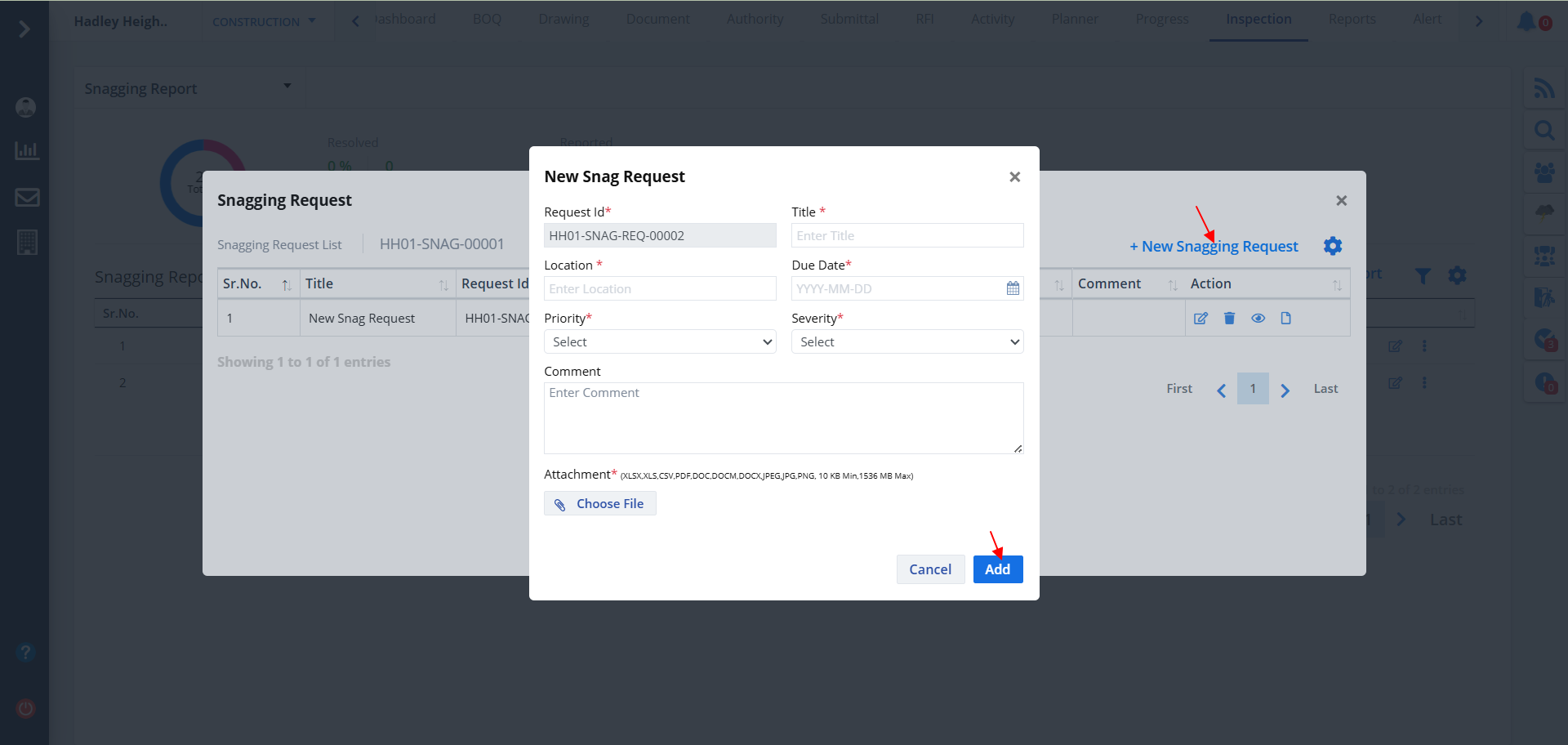
- To add a new snagging request from here, click on New Snagging Request. Now fill the details and click on Add.
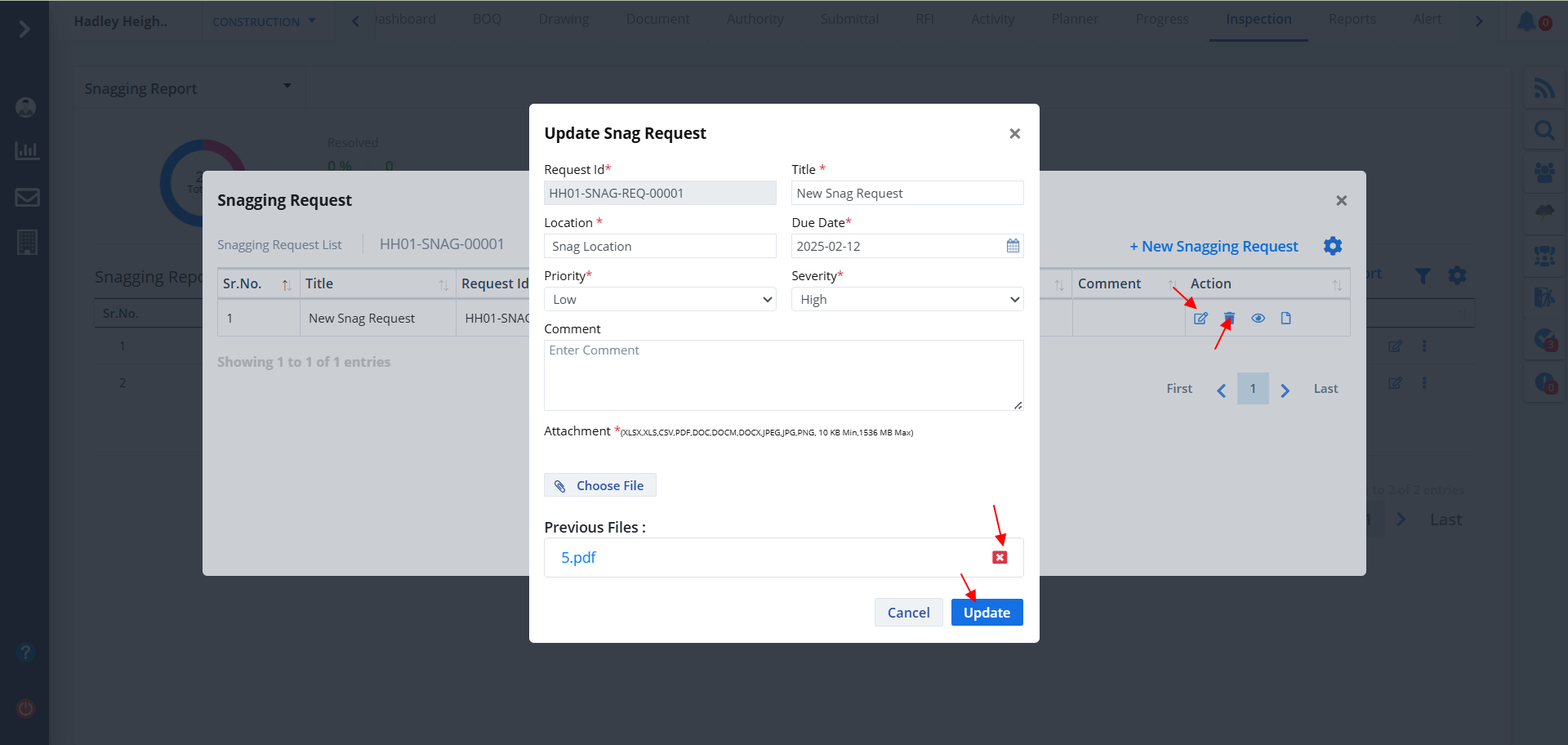
- You can also edit a particular snagging request by clicking on the Edit button as shown.
- You will be shown the previously selected files if any. You can remove them using x button.
- Click on Update once done. The button next to edit allows you to remove a particular entry from table.
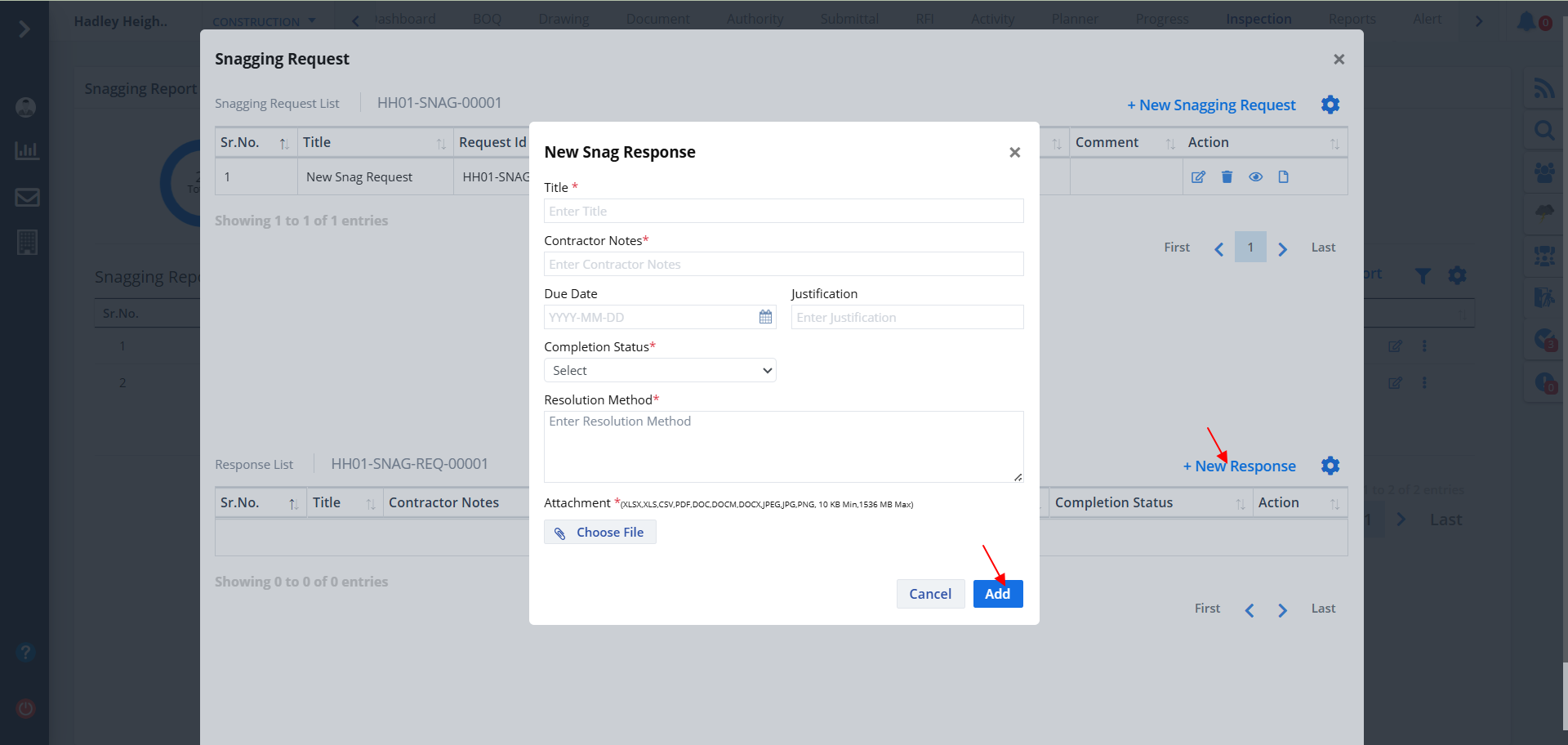
- Here also there is an eye button. Use this button to open another form for snagging request.
- Now you can add a new response by clicking on the button as shown.
- Add data properly and click on Add.
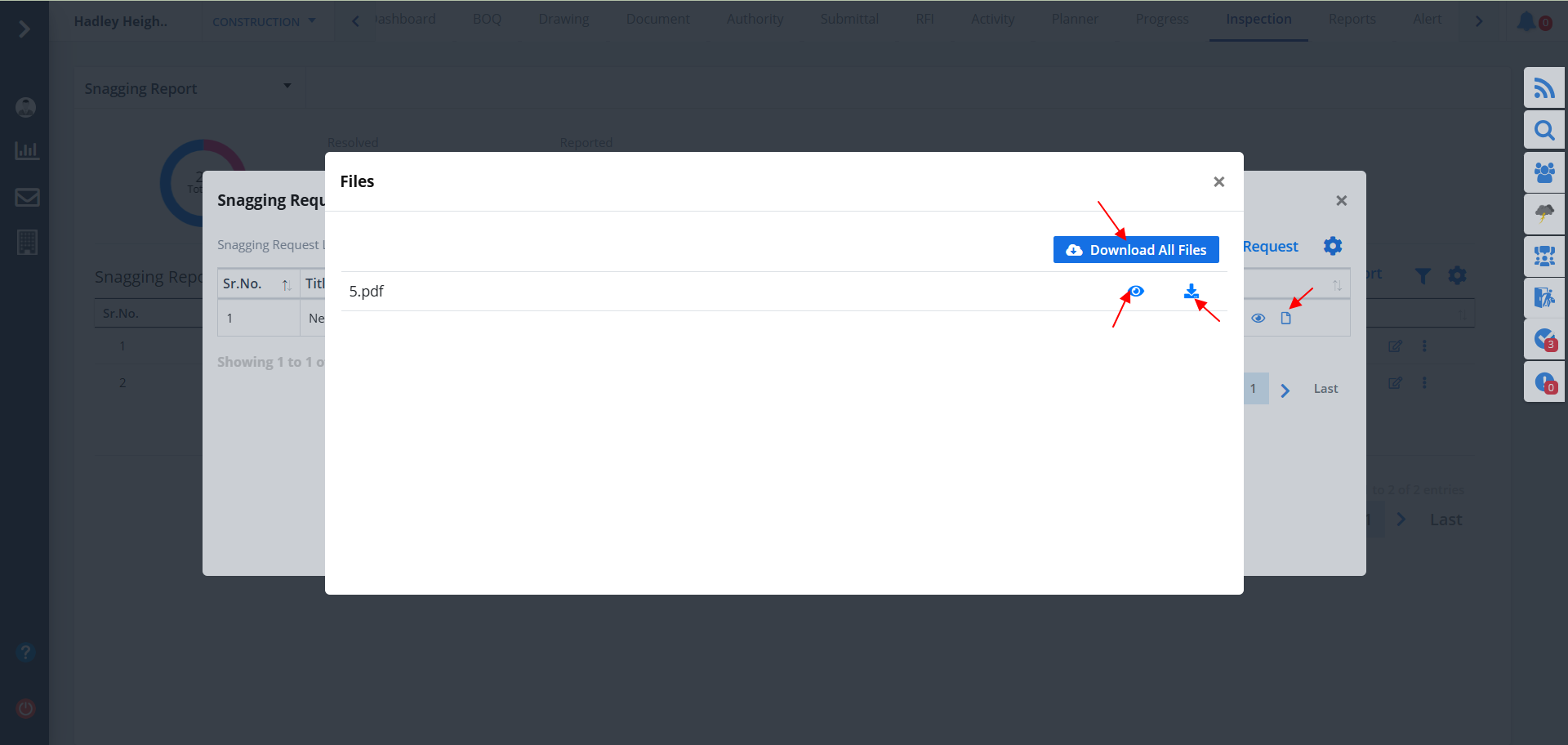
- You have this last button under Action column. Use this button to view all the files.
- Clicking on the Eye button allows you to view the file. You can download or print the file as well. Other options are available too.
- The Download button next to Eye button allows you to download individal files.
- To download all files click on the button at the top.
Cube Test
- Now coming onto Cube Test.
- Cube Test also contains audit report, approvals, categories, kebab menu, filter and column visibility as discussed in Inspection Request. To learn about all of these just Click Here. To learn about the eye button present Click Here
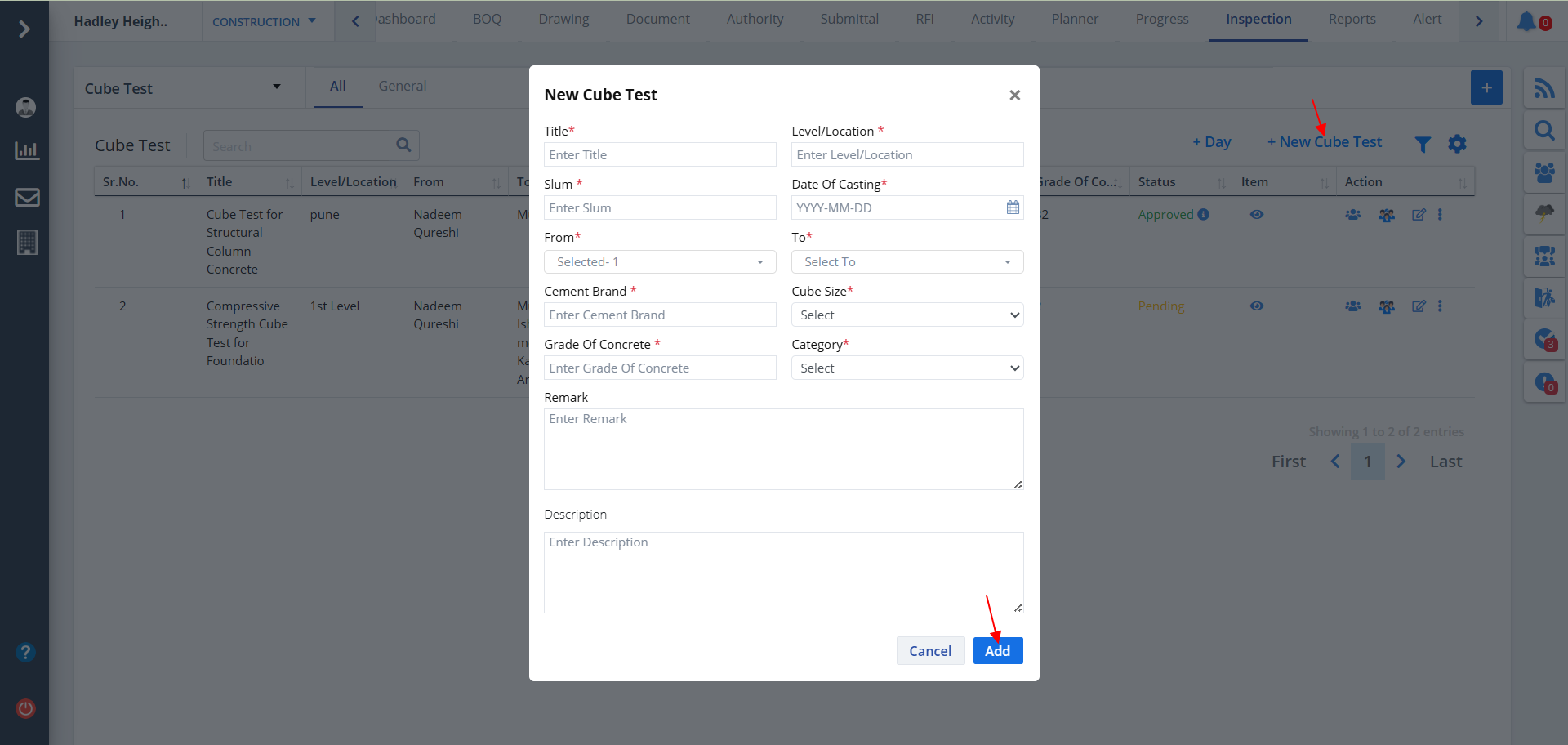
- To add a new Cube Test, click on the button as shown.
- Fill up all data as required. Ultimately click on Add.
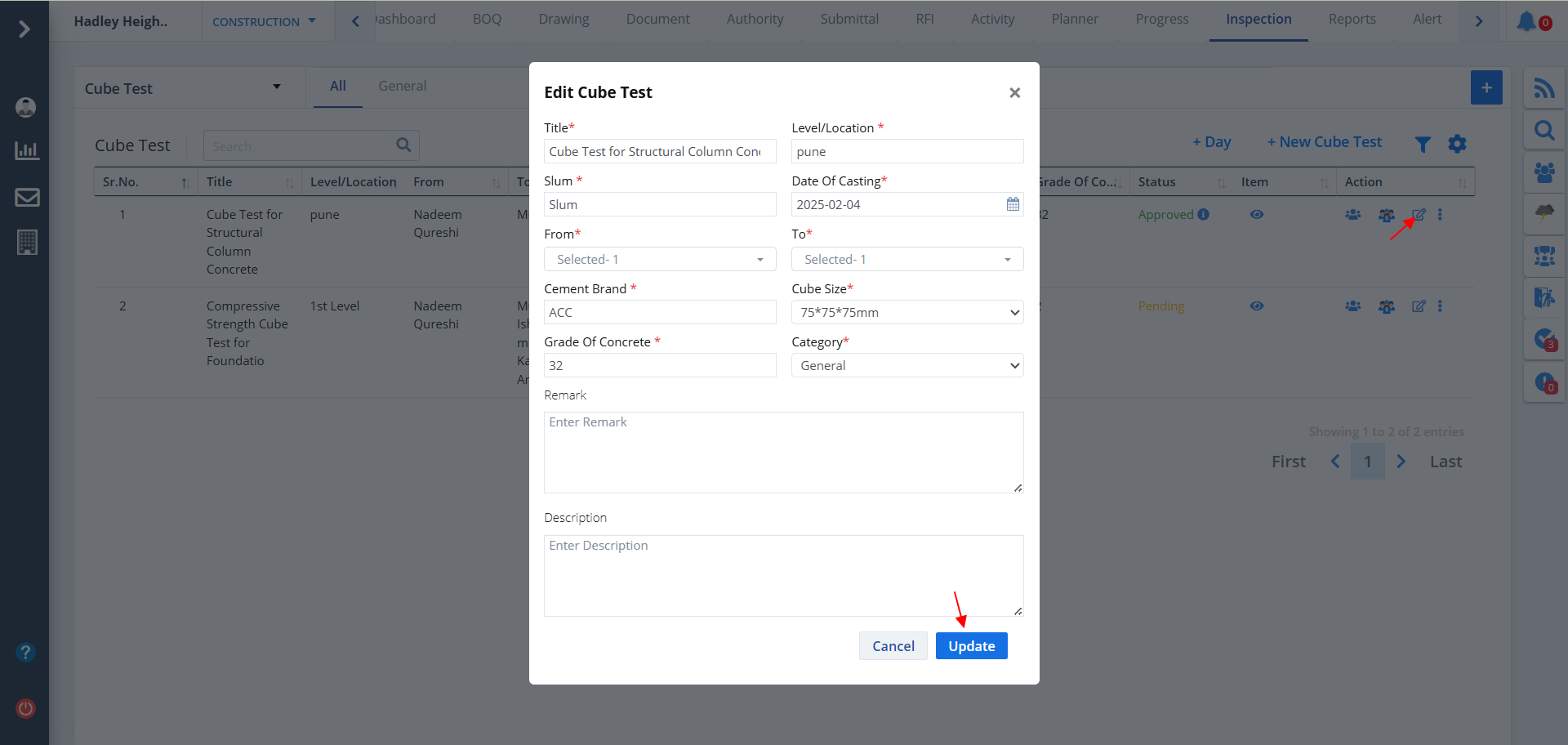
- You can also edit a cube test entry. Just click on the edit button as shown.
- Ultimately click on Update.
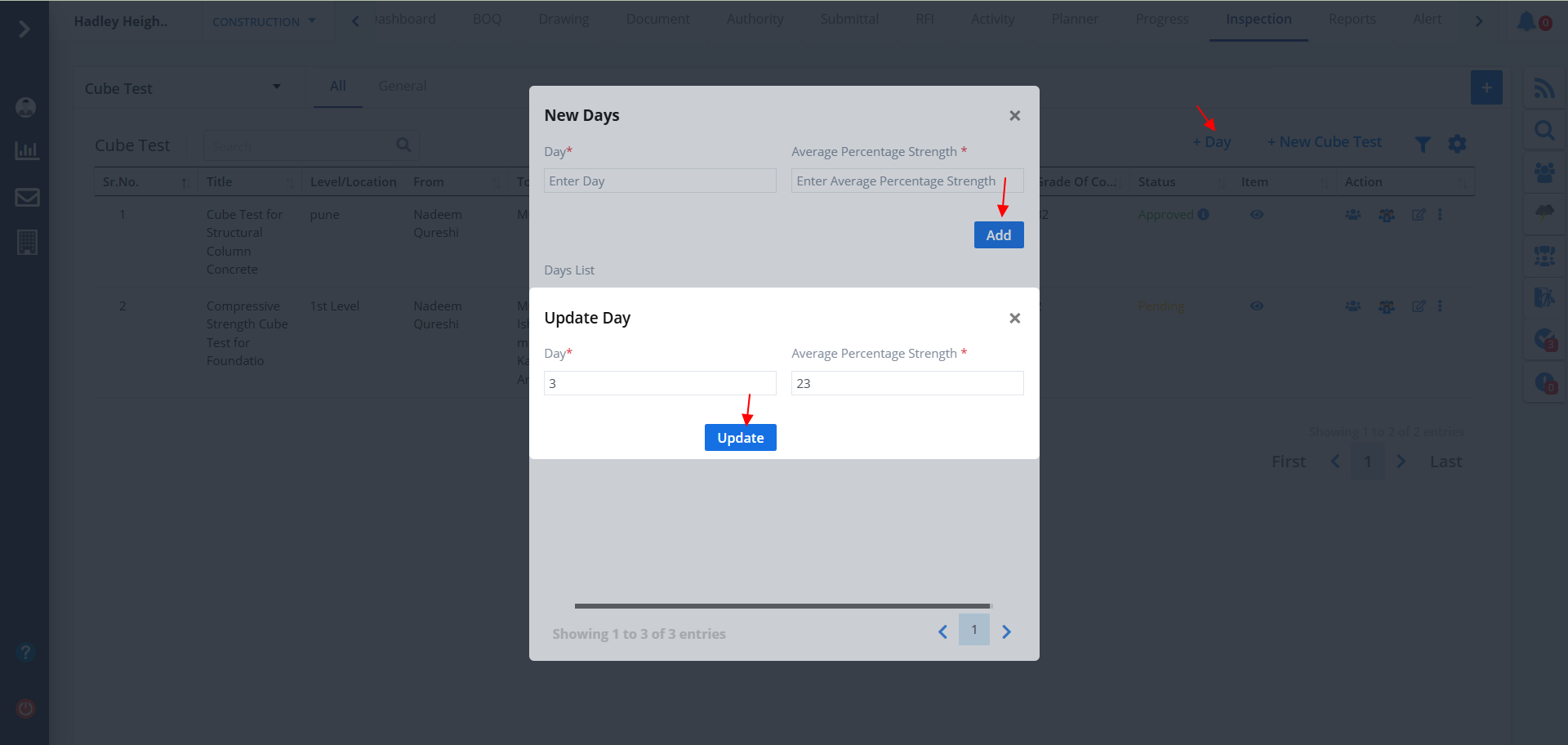
- You can create days by clicking +Day button.
- Fill the fields and click on Add.
- Previously created days list will be shown here.
- You can update an existing entry for day by clicking the first button under Action column.
- The button next to it allows you to delete an entry.
Lab Test
- Now coming onto Lab Test.
- Lab Test also contains audit report, comments, approvals, categories, kebab menu, filter and column visibility as discussed in Inspection Request. To learn about all of these just Click Here.
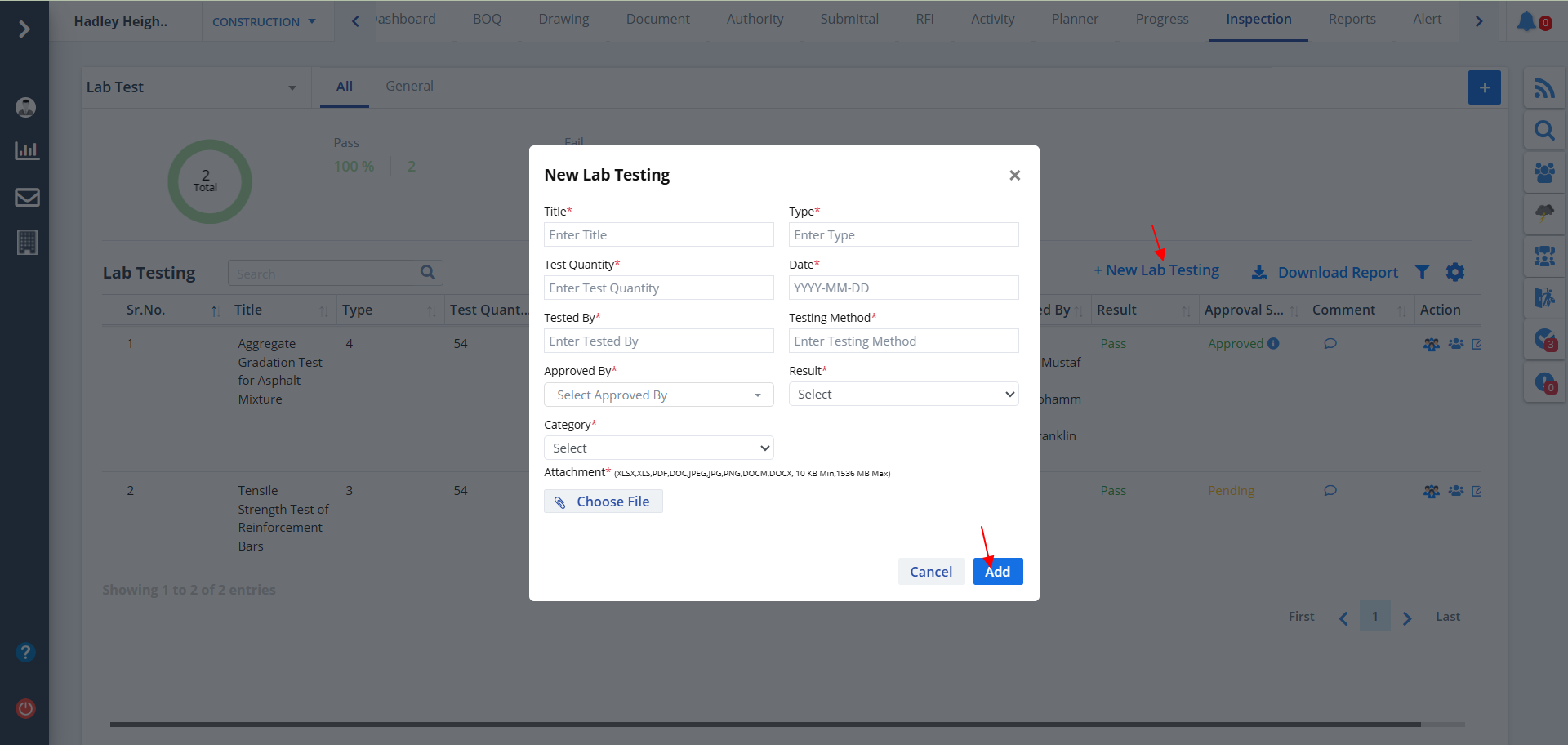
- To add a new Lab Test, click on the button as shown.
- Fill up all data as required. Ultimately click on Add.
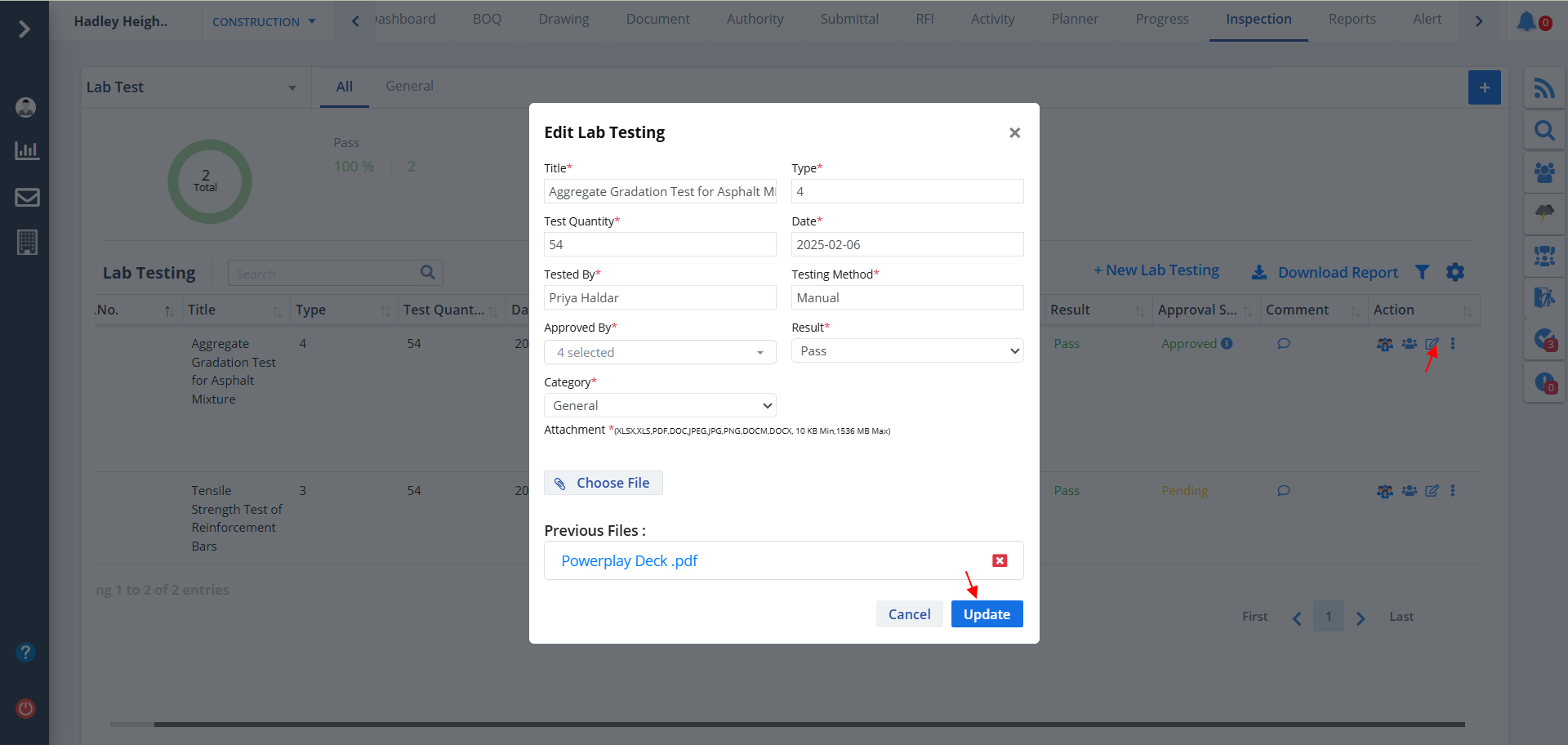
- Use the Edit button as shown to update a lab test entry.
- Change what is required and click on Update.
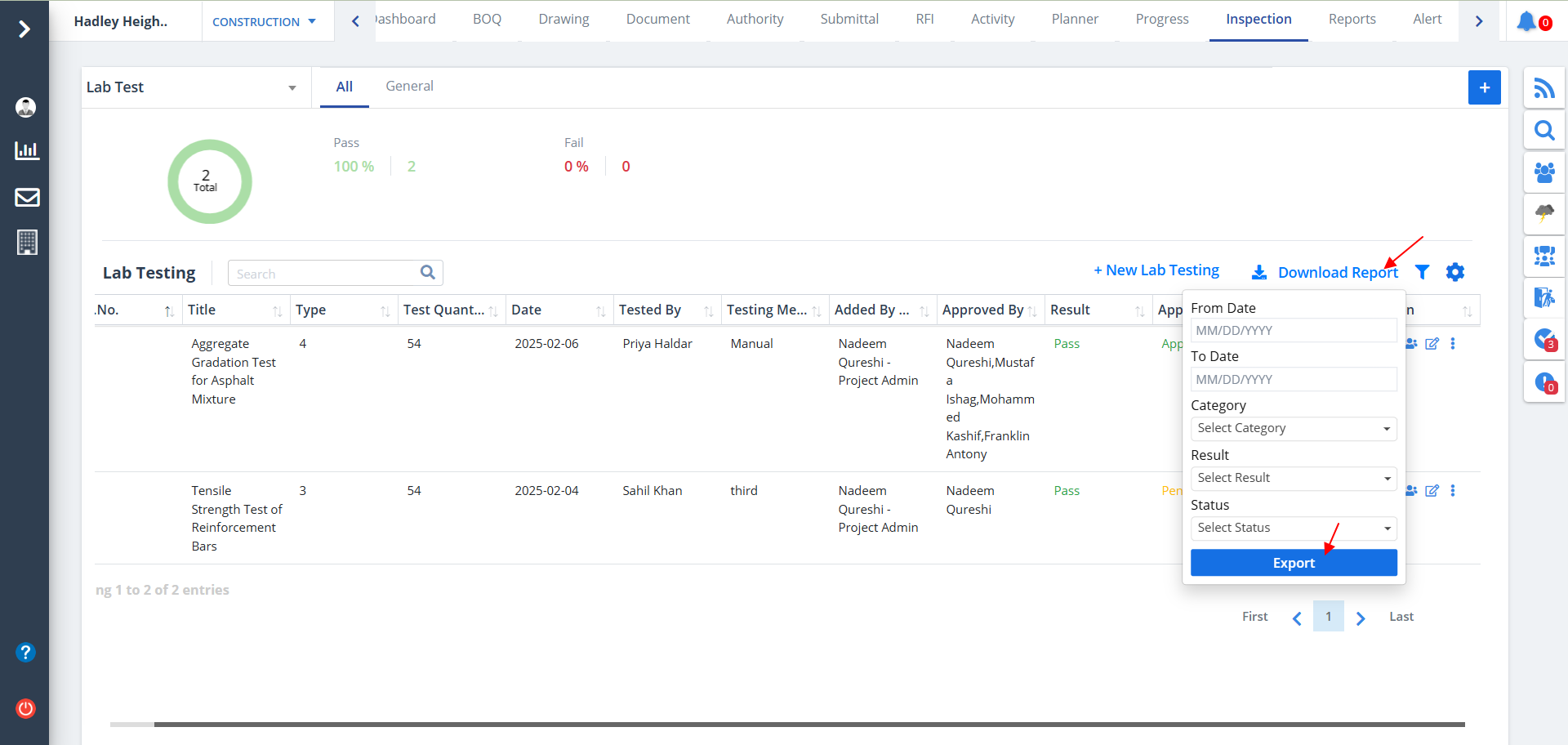
- You can download a report as per your requirement and save it locally in your system.
- Click on the button as shown. Mention proper filter fields and click on Export.
Material Inspection Report, Work Inspection Report, Other Inspection Report & Non-Conformity
- Just refer the above categories to know about each and every button.
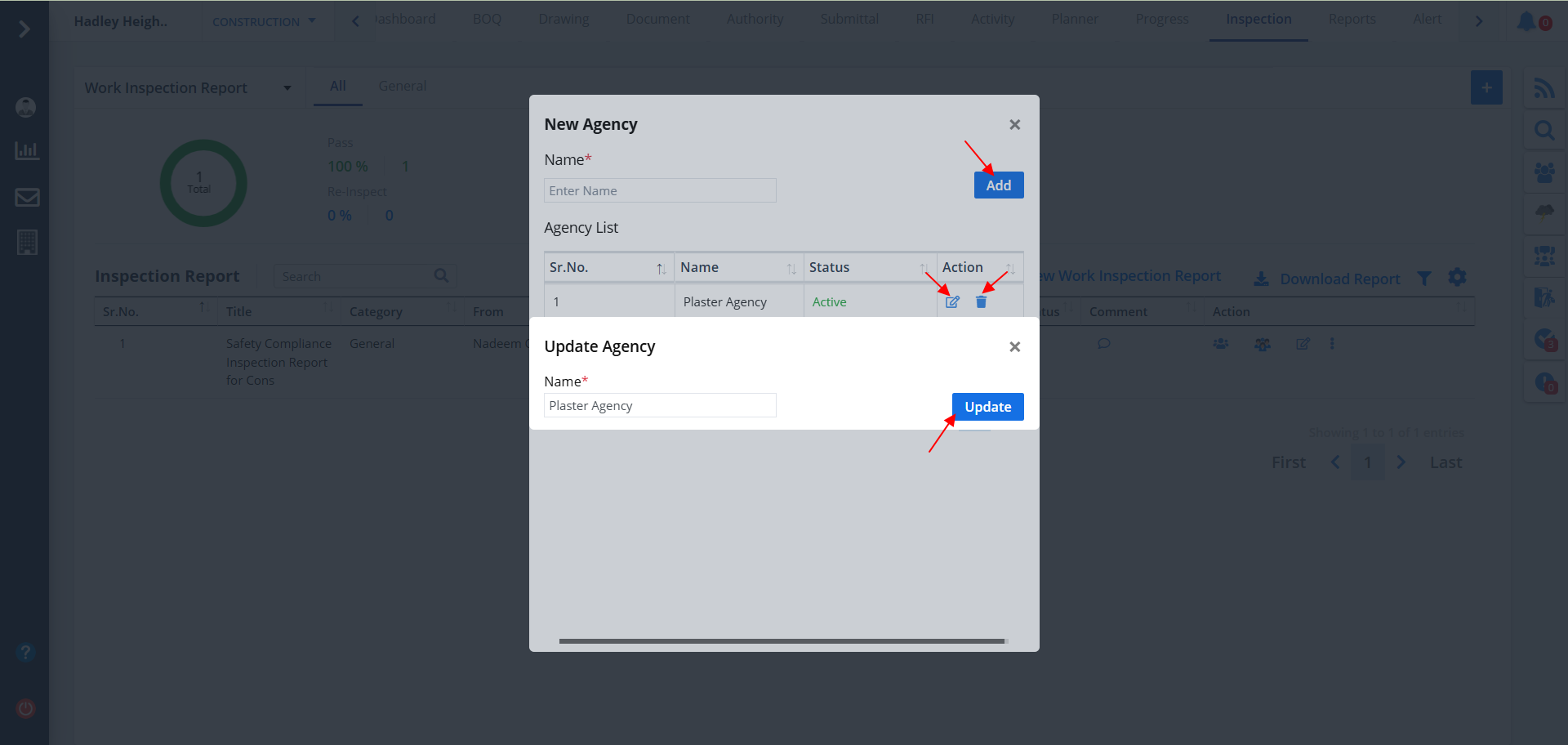
- You would find a New Agency button for these categories.
- Click on this and mention agency name. Now click on Add.
- An agency list will be shown if agencies were present previously.
- You can edit an agency entry using the Edit button as shown. Delete button next to it allows you to remove that particular entry.