Event List
When should an event be created?
- When any create or update operations are performed for any module, it must be mentioned here.
- Specify the module name, action such as create or update, specific attribute or a set of attributes on which action is performed and the type of alert.
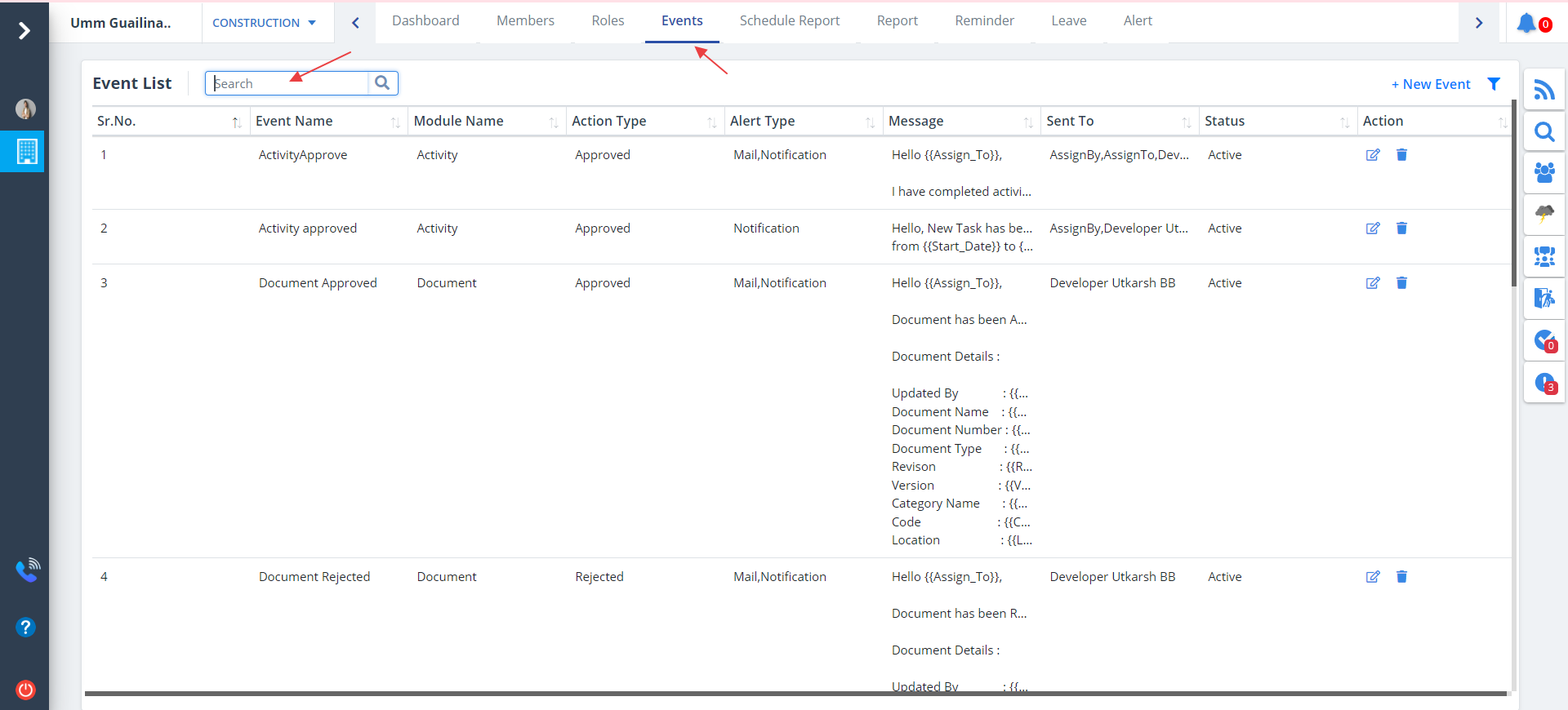
- Select Events from menu.
- If an event was formerly added, it will be listed as shown below. Search area provided allows to search listing on a particular basis.
New Event
Steps to add a new event:-
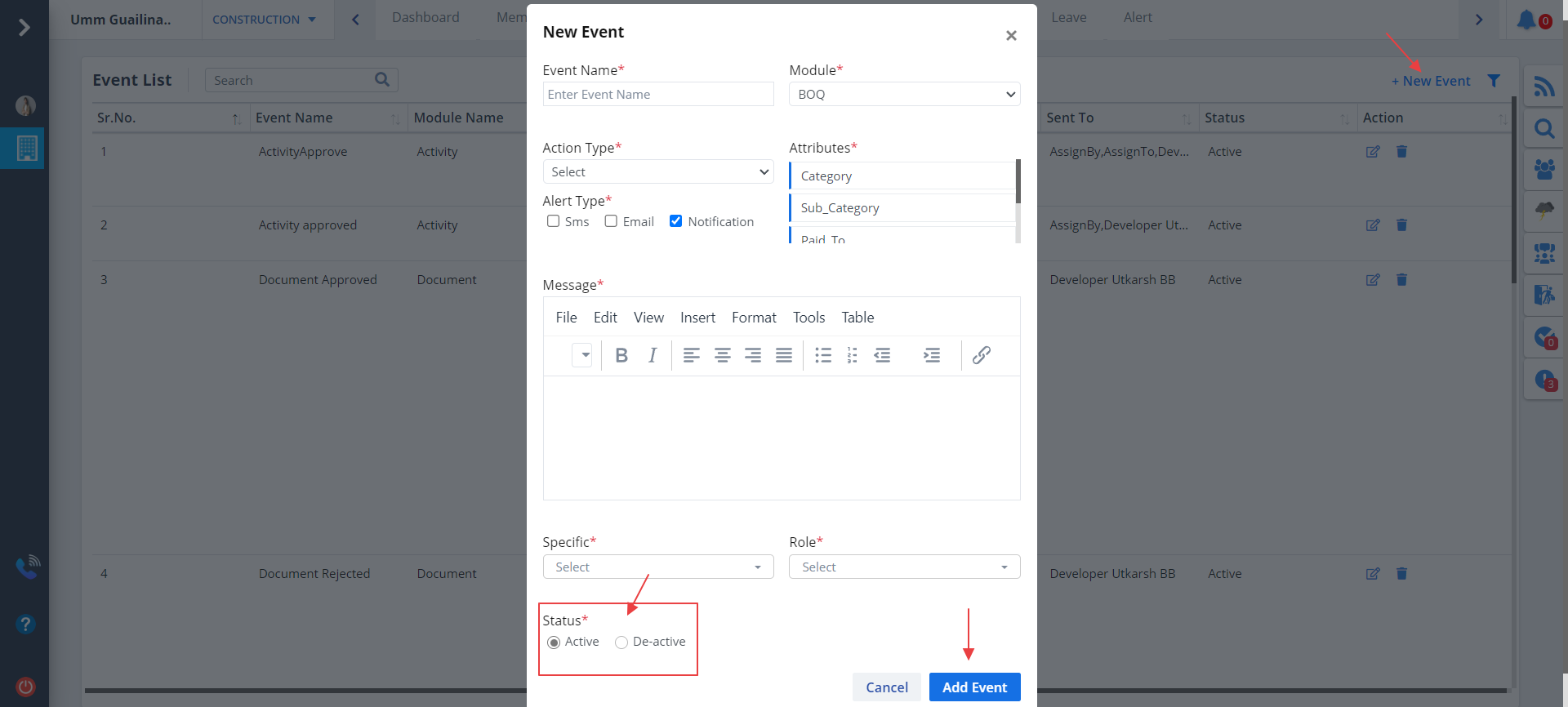
- To add a new event, click on New Event as shown.
- Enter the above fields as described.
- Mention a relevant message, select member/members and select role.
- If you want the status as active, set the Status as Active, else De-active. It is set to Active by default.
- Now click Add Event and note the listing changes.
Edit Event
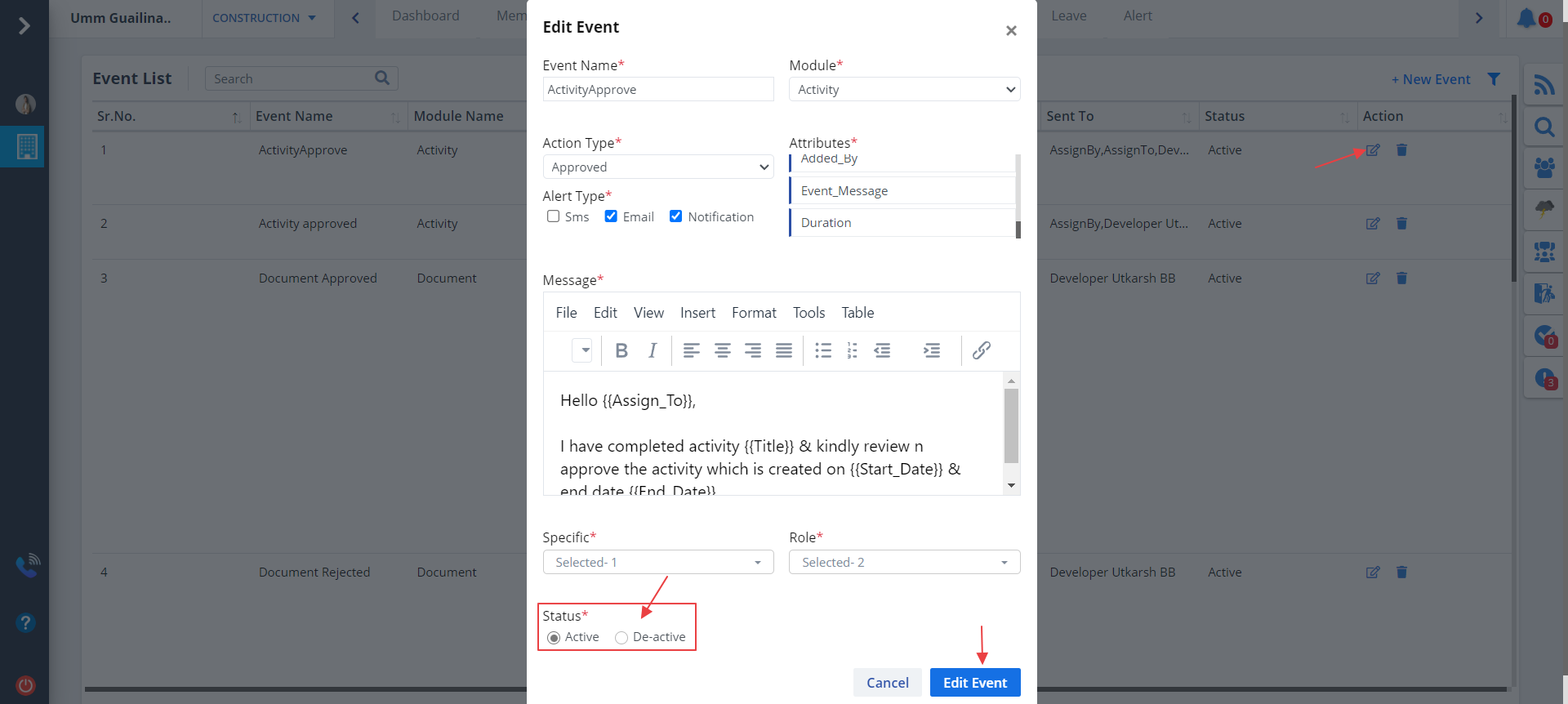
- Click on Edit under Action column to make changes in the Event.
- You can select any/all attributes and the alert type can be sms, email, notification.
- Edit the fields and click on Edit Event.
Event Filter
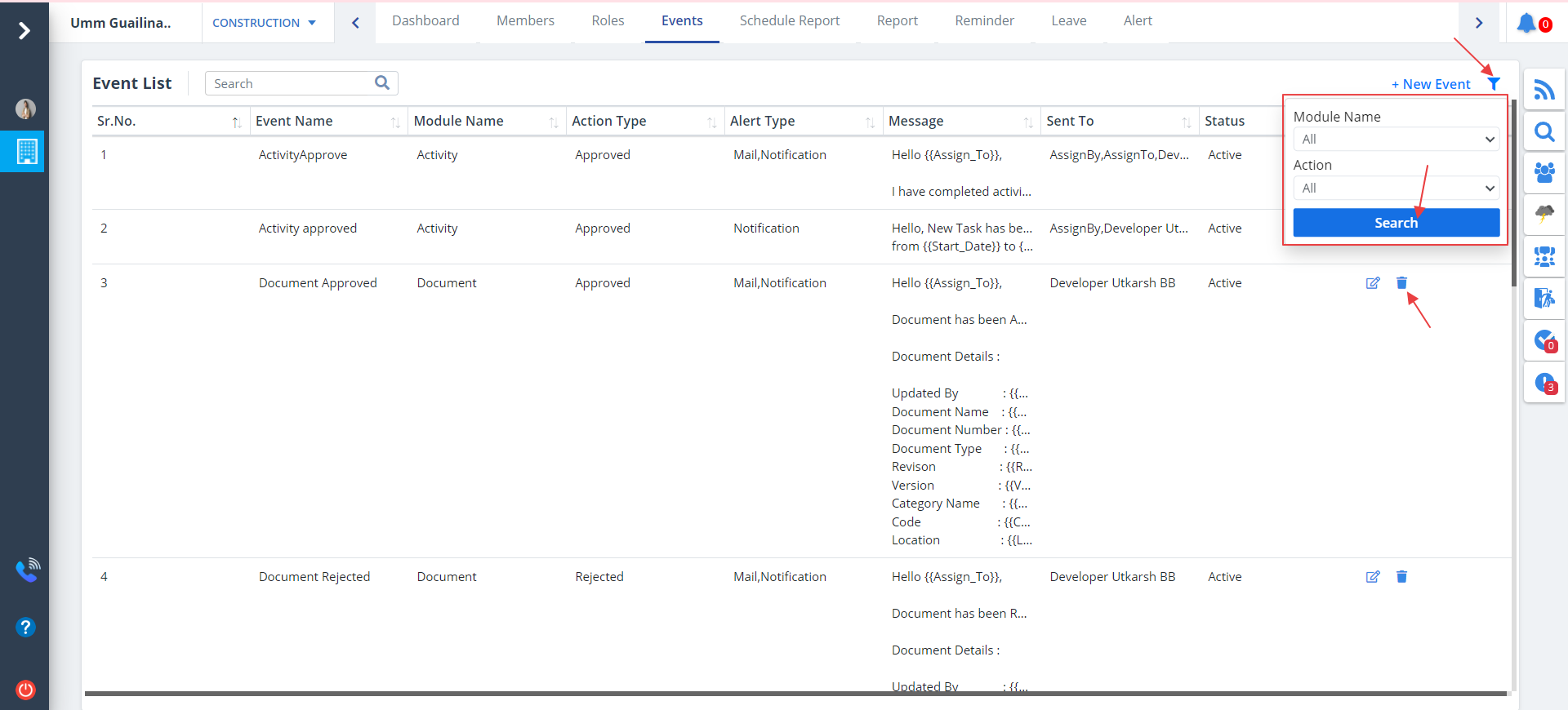
- You can use the Filter option to filter by module name and action.
- Module name can be any of the specified modules.
- Action implies database actions, i.e. Add, update
- All modules and all actions are selected by default.
- You can change the input values and then click on Search.
Column Visibility
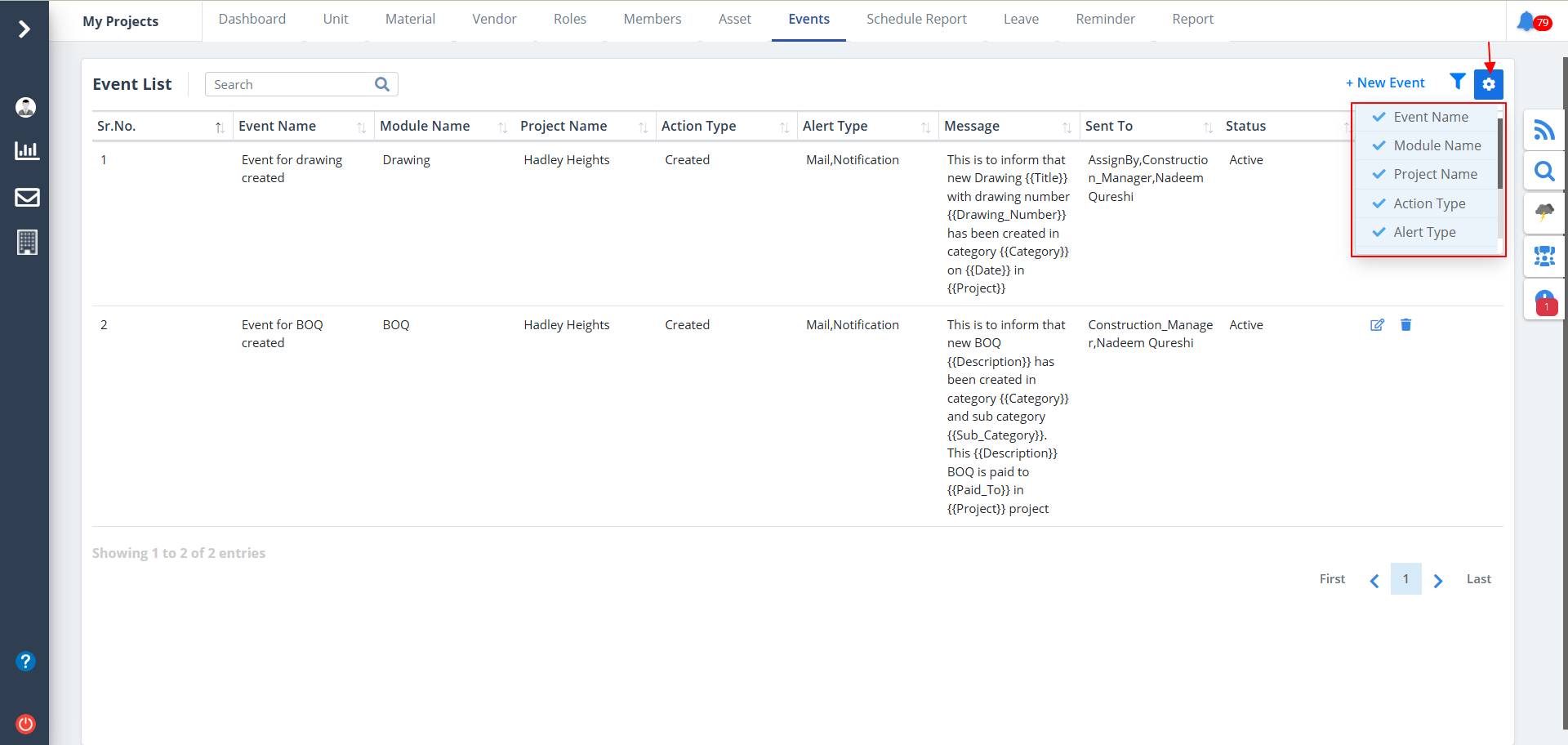
- You can control what column you prefer to be seen.
- Just click on the Settings icon as shown in the below image.
- Tick the columns that you want to view and untick the ones you don't desire to view.
- In case you change your mind, you can tick the untick ones and vice-versa.